Fix: “This Account Can No Longer Use WhatsApp” Error
The error message “This account can no longer use WhatsApp” appears when WhatsApp restricts or bans an account after detecting activity that violates its Terms of Service. In some cases, however, the restriction is applied incorrectly and can be reversed after a review.
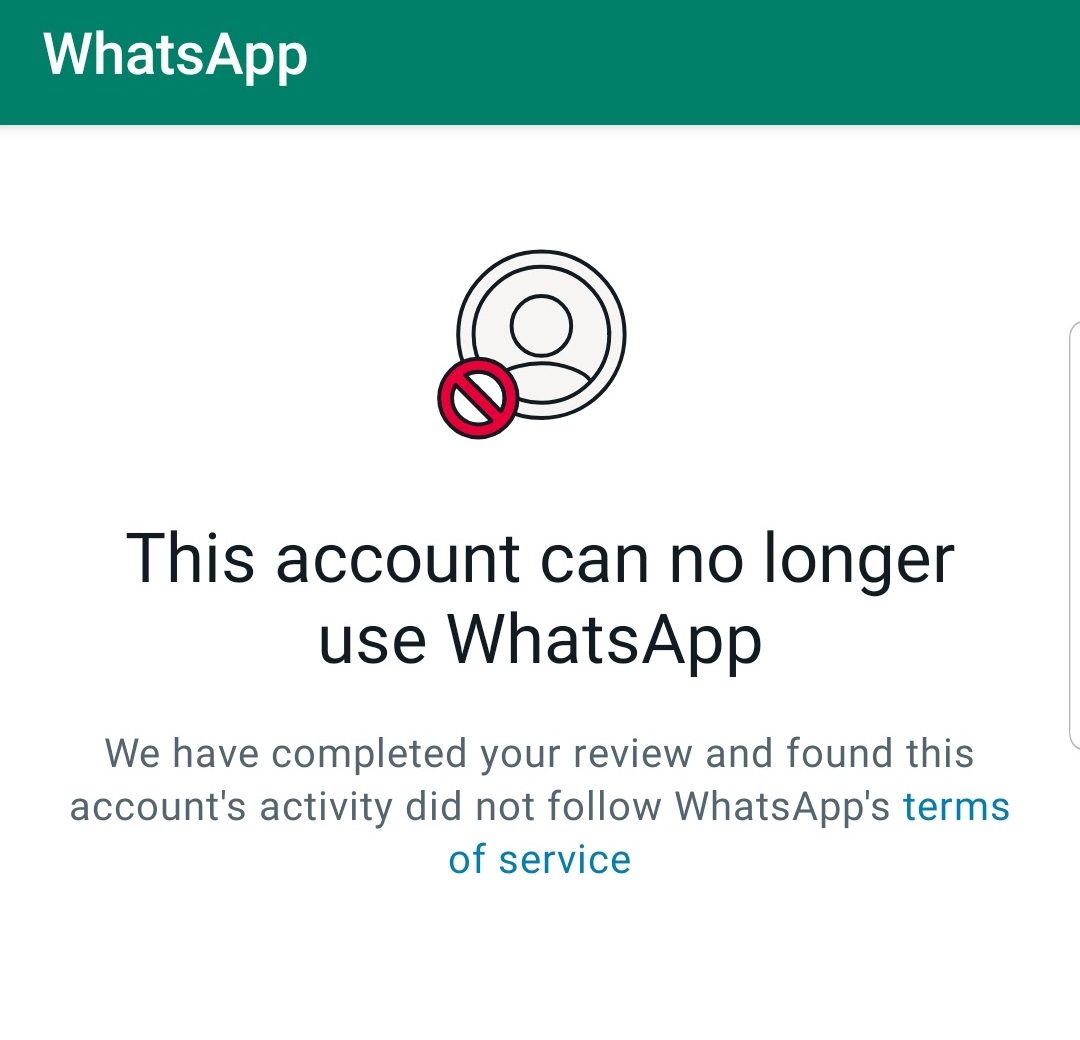
Depending on the situation, the restriction can be either temporary or permanent. Temporary restrictions may be lifted after verification or a successful appeal, while permanent bans are typically enforced when WhatsApp confirms serious or repeated policy violations.
Important clarification: WhatsApp does not always explicitly state whether a ban is temporary or permanent.
Because of this, users often rely on the outcome of the review process.
In many cases, a ban is likely permanent if:
- You receive a clear rejection after submitting a review request, or
- WhatsApp support confirms that the decision cannot be reversed, or
- You remain blocked for an extended period after appealing
(response times vary, but it may take several hours to a few days depending on review volume).
The most common reasons behind this message include:
- mass messaging or spamming,
- creating multiple groups with unknown contacts,
- receiving repeated spam reports, and
- using unauthorized third-party WhatsApp versions such as GBWhatsApp or WhatsApp Plus.
In some cases, automated systems incorrectly flag normal behavior, especially on new numbers, business numbers, or on devices/numbers that were previously associated with policy violations. When this happens, submitting a review is often enough to restore access.
Now that you understand what triggers this restriction and how WhatsApp typically evaluates it, follow the steps below carefully to maximize your chances of account recovery.
1. Reinstall the WhatsApp App
Reinstalling WhatsApp helps eliminate issues caused by corrupted cache or app data, glitched installations, or outdated builds. While this will not override a confirmed permanent ban, it ensures you are using the latest official version and removes traces left behind by modified or broken installs (which can contribute to repeat restrictions).
Important: If you previously used modified WhatsApp apps (GBWhatsApp, WhatsApp Plus, FMWhatsApp, etc.), you must uninstall them completely before reinstalling the official app. Continued use of modified APKs commonly results in repeat bans.
- Open the Play Store > search for WhatsApp > tap Uninstall.
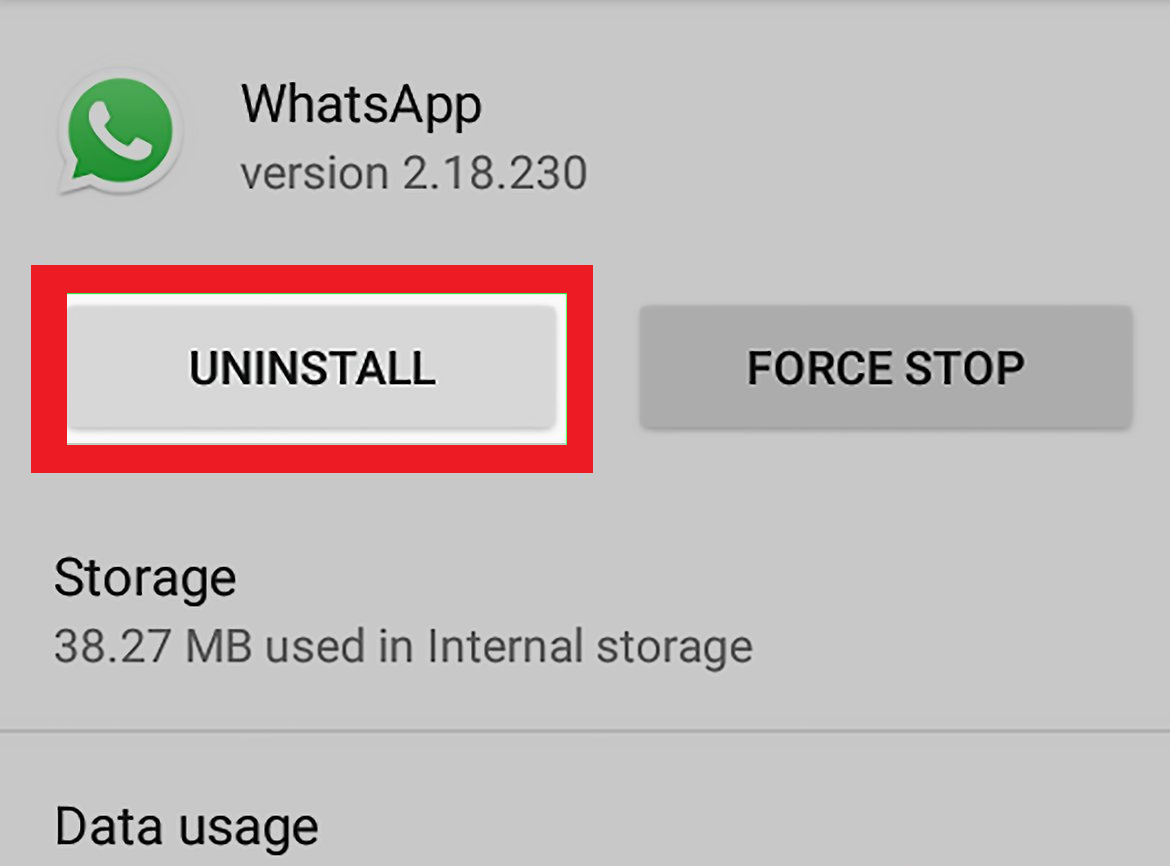
- Restart your phone after uninstalling.
- Reinstall WhatsApp from the Play Store or App Store.
- Verify your phone number and check whether the restriction message still appears.
Wait time: After reinstalling and verifying, wait at least 10–15 minutes before proceeding to the next step. If the restriction is temporary, access may be restored automatically during this time.
2. Request a Review (In-App)
The in-app Request a Review option allows WhatsApp to check whether your account was restricted by mistake. This is usually the most effective recovery method if you believe you did not violate any policies.
If WhatsApp determines the restriction was applied incorrectly, access is often restored within 5–24 hours, although it can take longer when review volumes are high.
- Open WhatsApp and tap Request a Review when the restriction message appears.
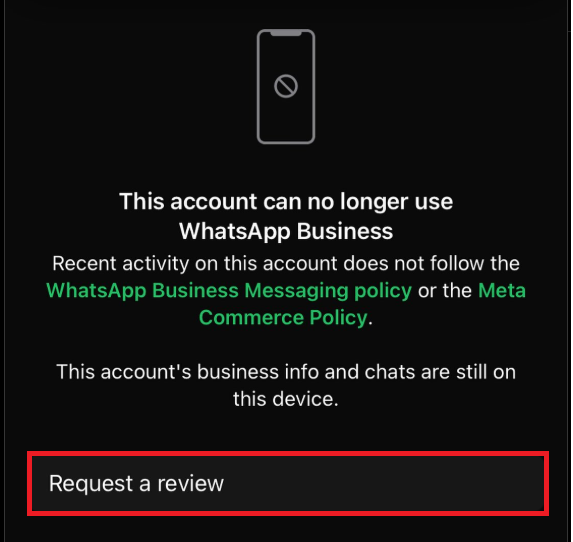
- Clearly explain that you believe the ban was applied by mistake and confirm that you are using the official WhatsApp app.
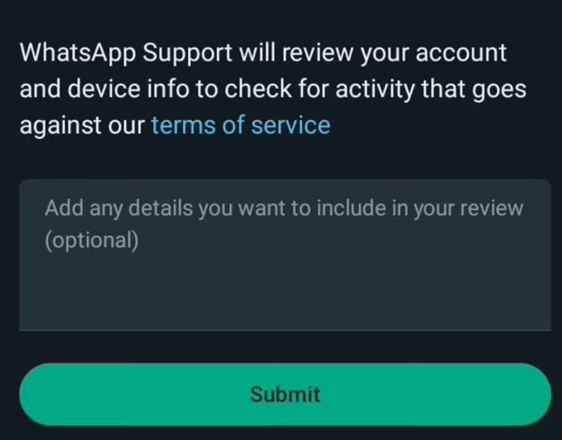
- Submit the request and wait for WhatsApp’s response.
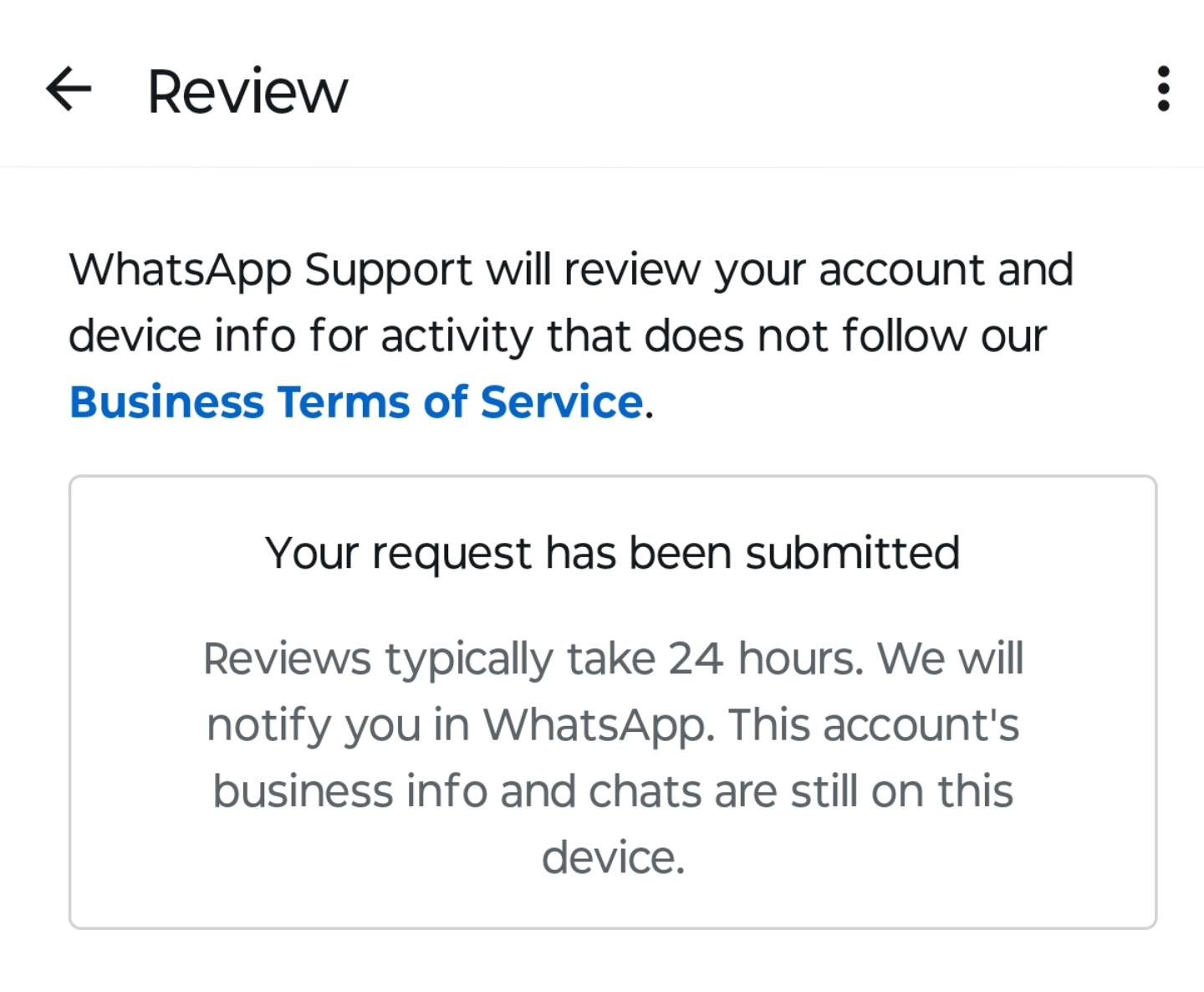
Repeated attempts can flood the system, create inconsistent signals, and may delay the review process.
If you receive no response after 48 hours, the account may still be under review. In some cases, replies take longer than 48 hours, so it is best to wait and avoid repeated submissions unless WhatsApp instructs otherwise.
3. Request a Review Through WhatsApp Help Center
If the in-app review option is unavailable, you can submit an appeal through WhatsApp’s Help Center. This method is useful if the app fails to load the review screen or if the account was blocked before setup completed.
- Visit the WhatsApp Help Center.
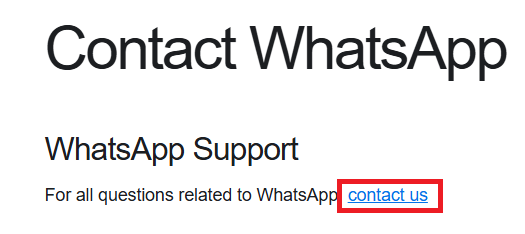
- Scroll down and click Contact Us.
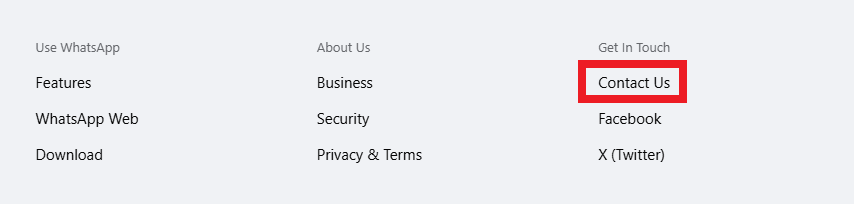
- Choose Contact Us under WhatsApp Support.
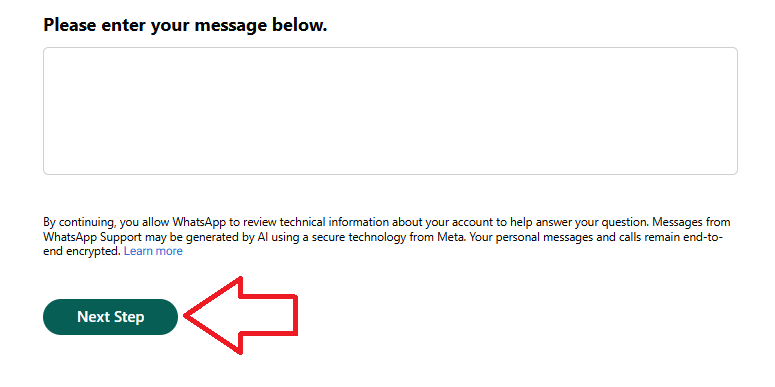
- Enter accurate details and proceed.
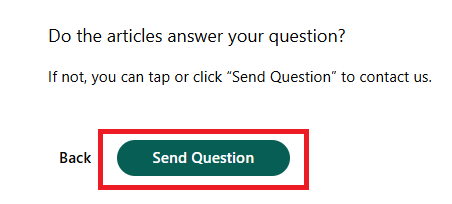
- Click SEND QUESTION and wait for a response.
4. Switch to Another Device (Last-Resort Option)
In some cases, restrictions may appear to be associated with the device environment (for example, devices previously linked to modified WhatsApp builds, rooted systems, or repeated violations). WhatsApp does not publicly explain all detection signals, but switching devices has helped some users avoid immediate re-blocking after they submit a review request.
This step should be attempted only after submitting a review request, and only if you still cannot access your account after waiting for a response.
Tip: Install only the official WhatsApp app, avoid restoring old backups immediately, and complete verification first. If access is restored, you can then restore your data carefully.
Final note: If WhatsApp confirms the ban is permanent, account recovery is no longer possible, fand creating new accounts on the same device or number may also fail.