How to Fix “There has been an error” in Microsoft Store?
“There has been an error” while installing an app in Microsoft Store appears when the Store cannot complete the download, validate your Microsoft account session properly, or finish the installation using the Windows components it depends on in the background.

This is not tied to one specific cause. In most cases, it happens because the Microsoft Store cache is corrupted, your Microsoft account session is out of sync, the Store Install Service is not running properly, Store app data is damaged, your VPN or proxy is interfering with the connection, or your current network is having trouble reaching Microsoft services.
Before trying the fixes below, it is also worth checking whether other users are reporting Microsoft service issues. If there is an active outage, app installations may fail until Microsoft resolves it.
Now that you know the most likely causes, follow the solutions below in order.
1. Clear the Microsoft Store Cache
Clearing the Microsoft Store cache helps because the Store saves temporary files related to downloads, licenses, and account validation. If this cached data becomes outdated or corrupted, the Store may keep using bad information and fail when you try to install an app.
Running the reset command forces the Store to rebuild that temporary data and request fresh information again, which often fixes installation problems.
- Press Win + R on your keyboard to open the Run dialog.
- Type wsreset.exe and press Enter.

- A blank Command Prompt or console window will appear briefly.
- After it closes automatically, Microsoft Store should reopen.
- Try installing the app again.
2. Sign Out of Microsoft Store and Sign Back In
Signing out and back in helps because Microsoft Store relies on your Microsoft account session to verify app ownership, permissions, and download authorization. If that session has expired or gone out of sync, the Store may fail to confirm your account properly and stop the installation.
Signing in again refreshes the session and forces the Store to revalidate your account details.
- Open Microsoft Store on your PC.

- Click your profile icon in the top-right corner, choose Sign out, and then close Microsoft Store.
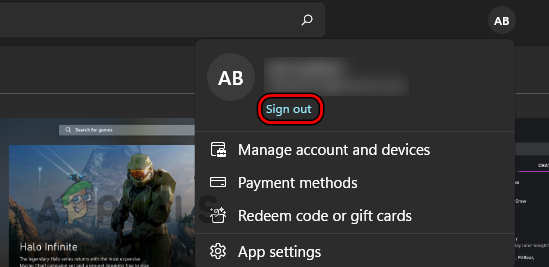
- Open Microsoft Store again.
- Click the profile icon and choose Sign in.

- Sign in with the correct Microsoft account linked to your apps and purchases.
- Once signed in, try installing the app again.
3. Try a Different Network or Use a Mobile Hotspot
Switching to a different network helps because Microsoft Store downloads depend on a stable connection to Microsoft’s authentication and content delivery services. If your current network has DNS problems, filtering, routing issues, VPN or proxy interference, or temporary instability, the Store may fail to install apps properly.
Using a mobile hotspot changes the network route and connection path, which can bypass the issue and allow the installation to complete normally.
- If you are using a VPN or proxy, disable it first.
- Enable Mobile Data and Hotspot on your phone.

- On your PC, click the Wi-Fi icon in the taskbar.
- Connect to your phone’s hotspot using its password.

- Once connected, open Microsoft Store.
- Try downloading or installing the app again.
4. Start the Installation from Your Browser
Starting the installation from your browser can help when the Microsoft Store app is failing to process the install request correctly. Instead of beginning the download entirely through the Store interface, you use Microsoft’s web storefront to pass the install request back to the Store app through a different path.
This can bypass a temporary Store-side glitch and trigger a fresh handoff. This method works best when the Microsoft Store app can still open normally on your PC.
- Open a web browser on your computer.
- Go to the Microsoft Store website.
- Search for the app you want to install.
- Open the app page and click Get, Install, or Download.

- Sign in with your Microsoft account if prompted.
- Allow the browser to open the Microsoft Store app.
- If your browser shows a prompt such as Open Microsoft Store?, click Open Microsoft Store or Allow.
- Check whether the installation starts successfully.
5. Set Microsoft Store Install Service to Automatic
The Microsoft Store Install Service helps the Store handle app installation tasks in the background. If this service is disabled or not starting properly, the Store may fail before the installation can complete.
Setting it to Automatic ensures it is available whenever Microsoft Store needs it. This service is not present on all Windows builds or editions. If you do not see it, skip this method and continue to the next one.
- Press Win + R, type services.msc, and press Enter.

- Find Microsoft Store Install Service.

- Right-click it and select Properties.

- Set Startup type to Automatic.
- If the service is not running, click Start.
- Click Apply and then OK.

6. Repair and Reset Microsoft Store
Repairing and resetting Microsoft Store helps when the app’s local files or settings are damaged. The Repair option tries to fix the app without removing its stored data, while Reset restores it to a clean default state if repair does not work.
This is often effective when the Store itself is opening, but downloads or installations keep failing.
- Press the Windows key and type Installed Apps.

- Open Installed Apps.
- Find Microsoft Store. On some Windows versions, you may need to open System Components first before locating it.

- Click the three dots next to Microsoft Store and choose Advanced options.

- Click Repair and wait for the process to finish.
- If the issue continues, click Reset.

- Reopen Microsoft Store and try installing the app again.
If the problem still continues after all the methods above, try signing in with the same Microsoft account on another PC and installing the same app. If it fails there as well, the issue may be tied to your Microsoft account, the app listing itself, or a Microsoft-side backend problem rather than your current Windows installation.


