How to Fix “There Has Been a Critical Error on This Website” in WordPress?
WordPress displays “There has been a critical error on this website” when a fatal PHP error stops a page from loading. The dashboard or editor may fail even while public pages still open.
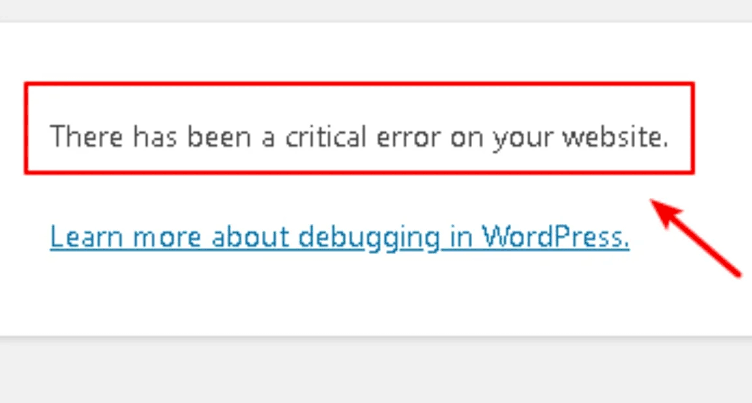
The notice does not identify the broken code or mean your content has been deleted. A plugin update, theme code, or exhausted PHP memory can cause it. The recovery email or the matching hosting error log provides the details needed to repair it.
Visitors should notify the site owner; repairs need administrator or hosting access. An Elementor spinner without this notice needs the Elementor loading checks instead.
Before Changing the Site
- Use staging (a separate site copy) for conflict tests, or arrange host-level maintenance. Plugin and theme changes can interrupt checkout, forms, memberships, security features, and the design.
- Record the failed URL or admin action, time, and time zone. Ask the host for its matching PHP fatal error if the recovery email provides no useful detail. Keep full logs and recovery links private.
- On managed hosting or multisite, involve the host or network administrator before changing shared components. Screenshots show example layouts, not plugin names or values to copy.
Read the fatal message, not just the filename: a memory error can also name a plugin file.
| What the error details show | What needs attention |
|---|---|
A file under wp-content/plugins/ | The named plugin and any dependency mentioned in the error. |
A file under wp-content/themes/ | The active theme, child theme, or code they depend on. |
| Allowed memory size … exhausted | The request’s actual PHP memory limit, not a general plugin reset. |
| A syntax error or missing class/file after an update | The edited or incompletely updated component. More memory will not repair it. |
1. Use Recovery Mode to Disable the Identified Plugin
A plugin that crashes WordPress may also block login. Recovery Mode pauses faulty plugins or themes for your session; it does not fix visitors’ pages by itself.
If the normal dashboard still opens, deactivate the identified plugin there instead.
- Check the site’s Administration Email Address inbox and spam folder for Your Site is Experiencing a Technical Issue. This can differ from your login email. Read the component name and error details.
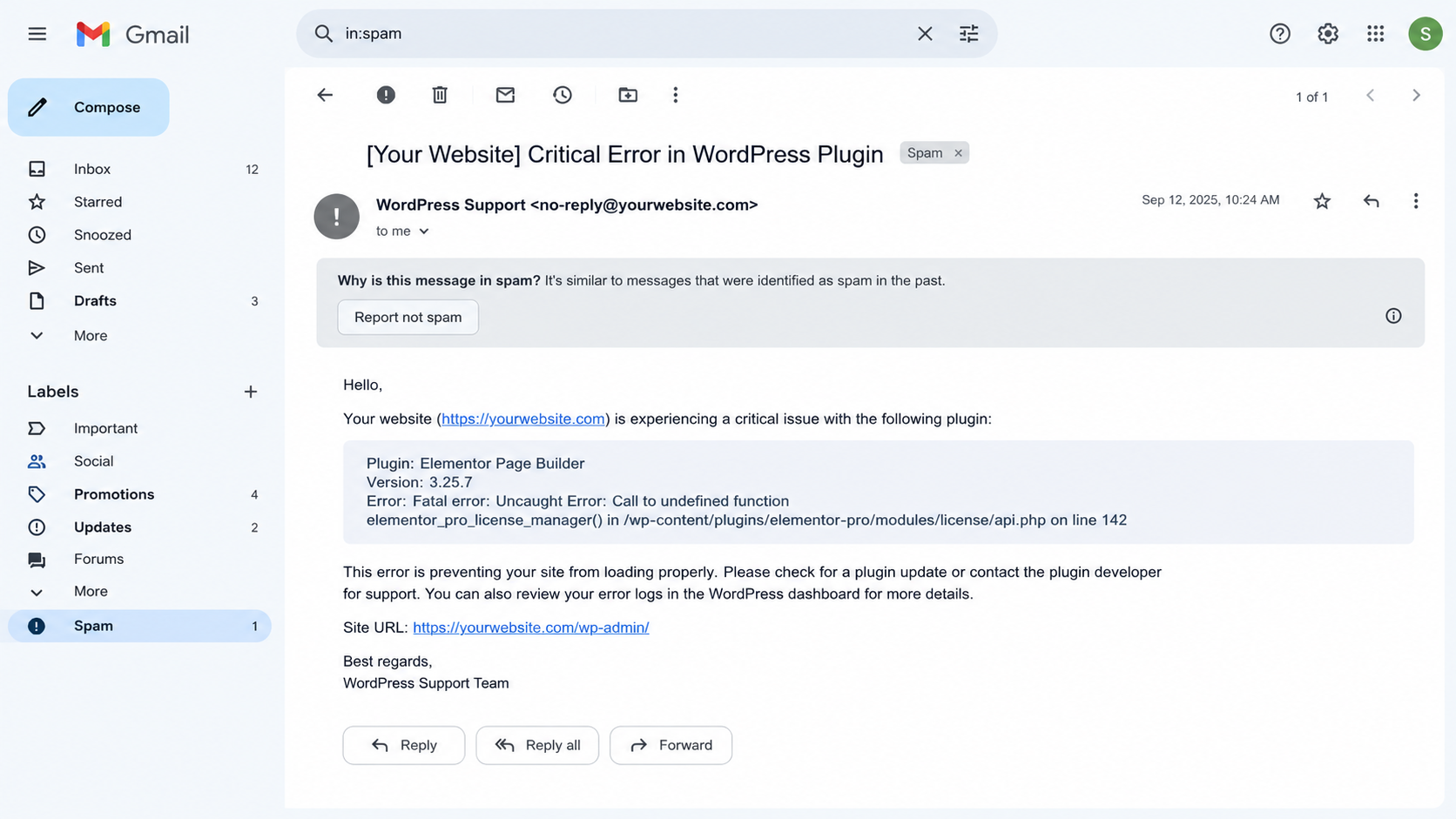
Find the component named in the recovery email - Open your site’s recovery link and sign in. The login page should indicate Recovery Mode. An expired link, missing email, or failed recovery login requires hosting access instead.
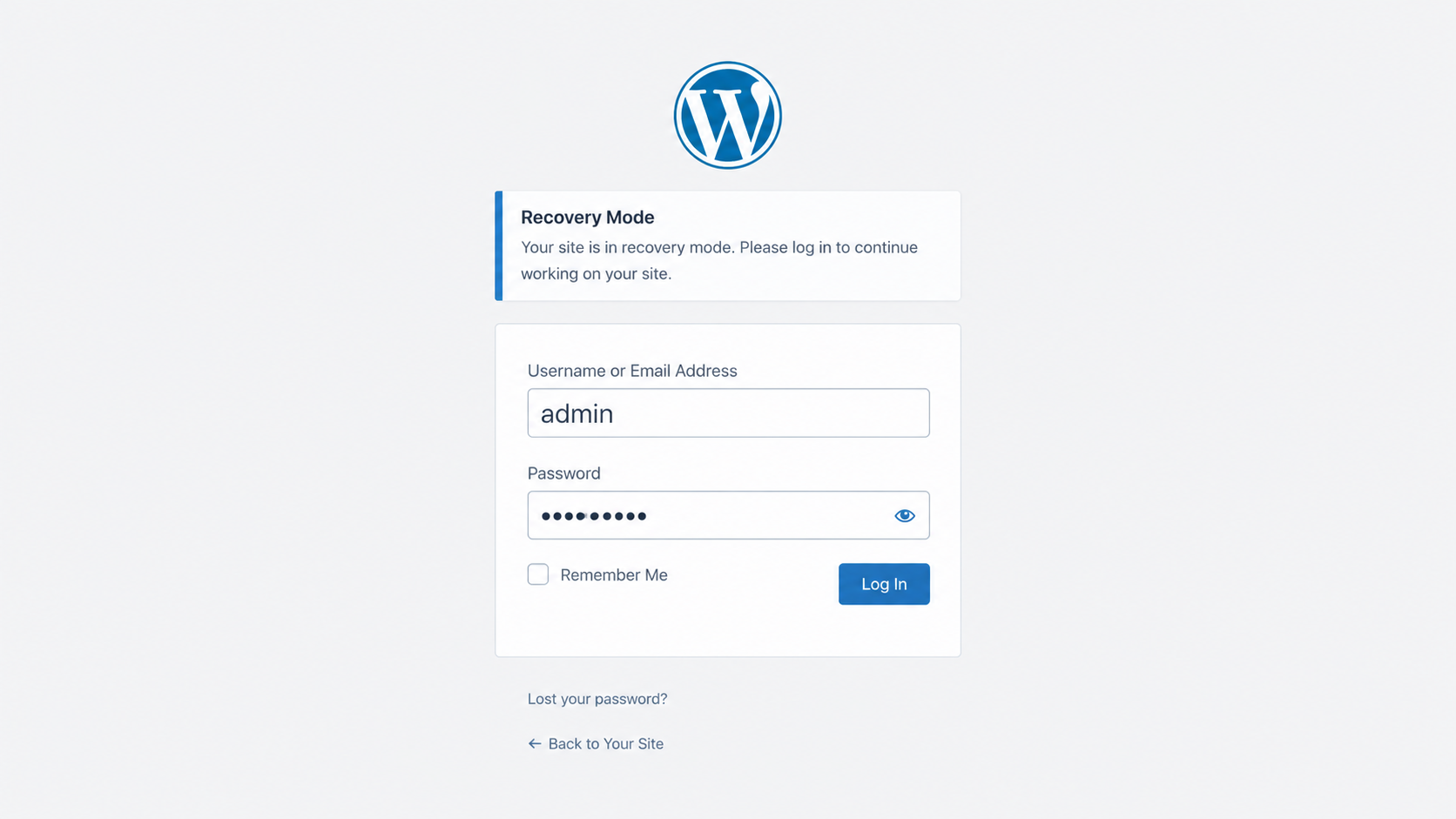
Recovery Mode pauses the failing component for your session so you can investigate. - Open Plugins > Installed Plugins and Deactivate the plugin identified by the error. This disables its features site-wide. For a named theme, use the theme test below rather than disabling unrelated plugins.
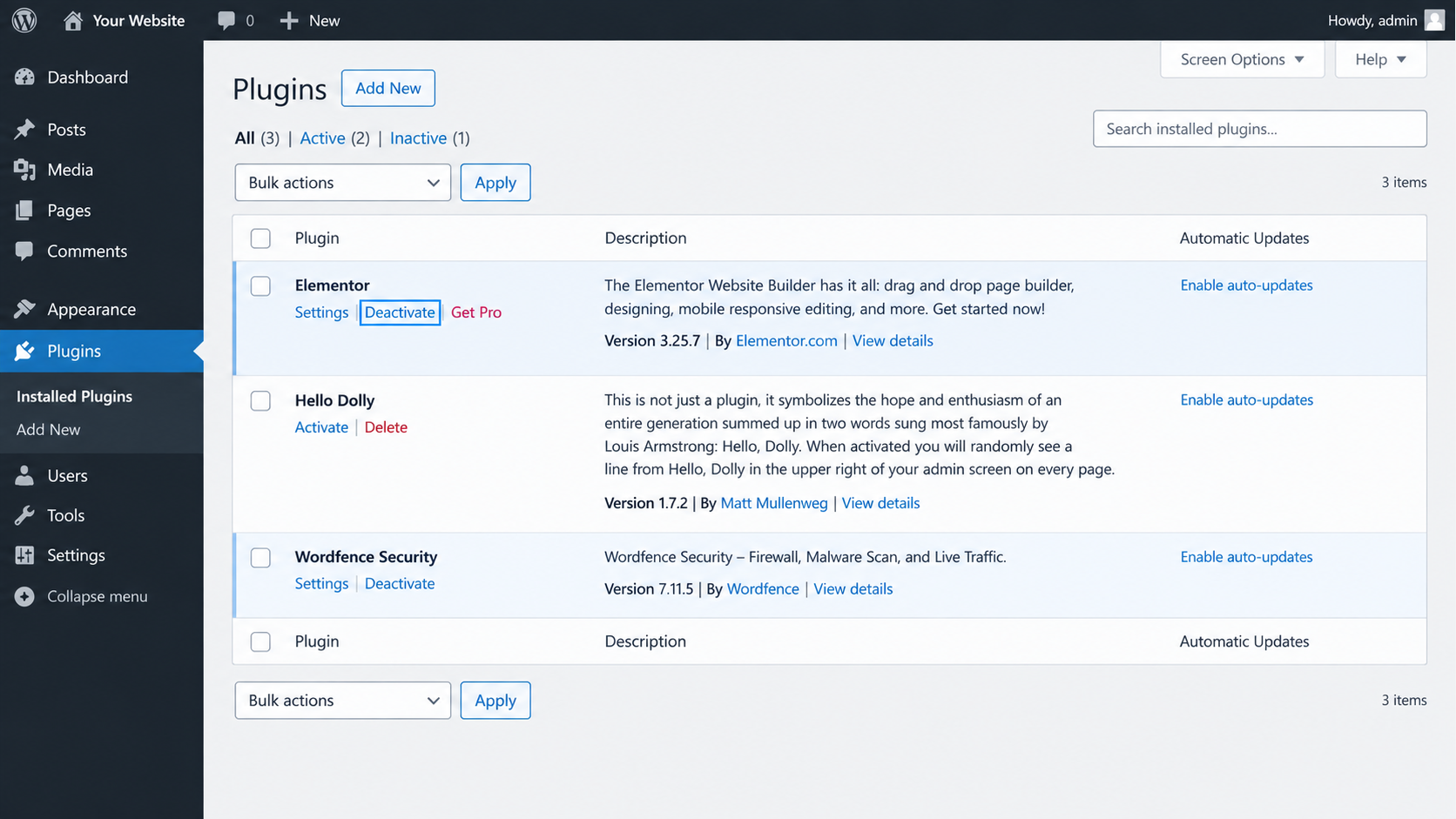
Recovery Mode pauses the failing component for your session so you can investigate. - Choose Exit Recovery Mode in the toolbar. Repeat the failed action, then check the public page in a separate signed-out window.
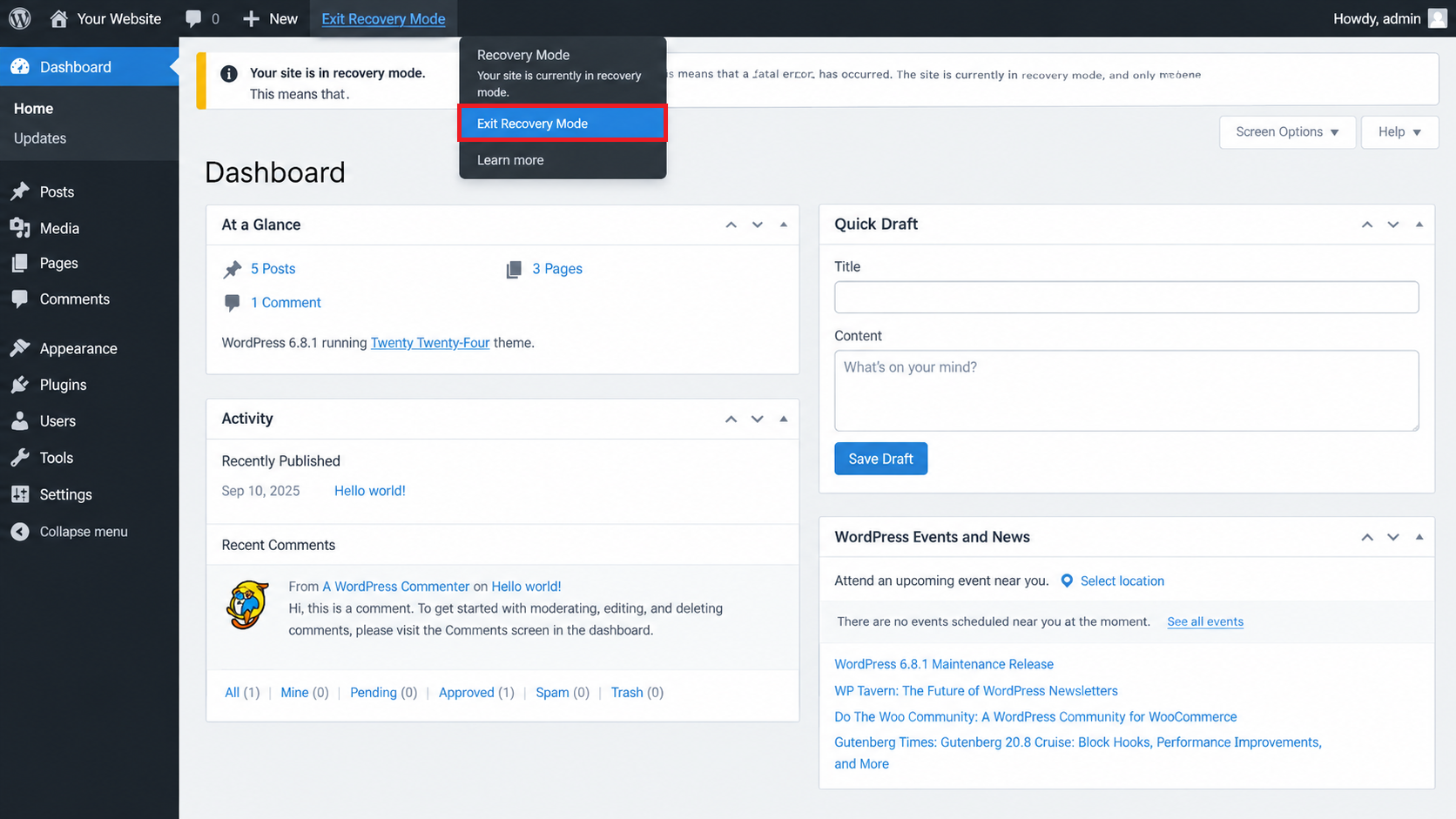
Check the original failing action and the public site in a separate signed-out window.
If access returns, leave the plugin inactive until a compatible repair is tested on staging. Its features remain unavailable meanwhile. Reactivating unchanged code can bring the error back.
Another critical error needs a fresh fatal log; a different component may now be failing.
2. Rename the Faulty Plugin When You Cannot Log In
Your host’s File Manager or SFTP connection works independently of the WordPress dashboard. Renaming the plugin named in the error prevents its files from loading without deleting them.
- Open the host’s File Manager, or connect through SFTP. Confirm the affected domain’s directory, then open
wp-content/plugins.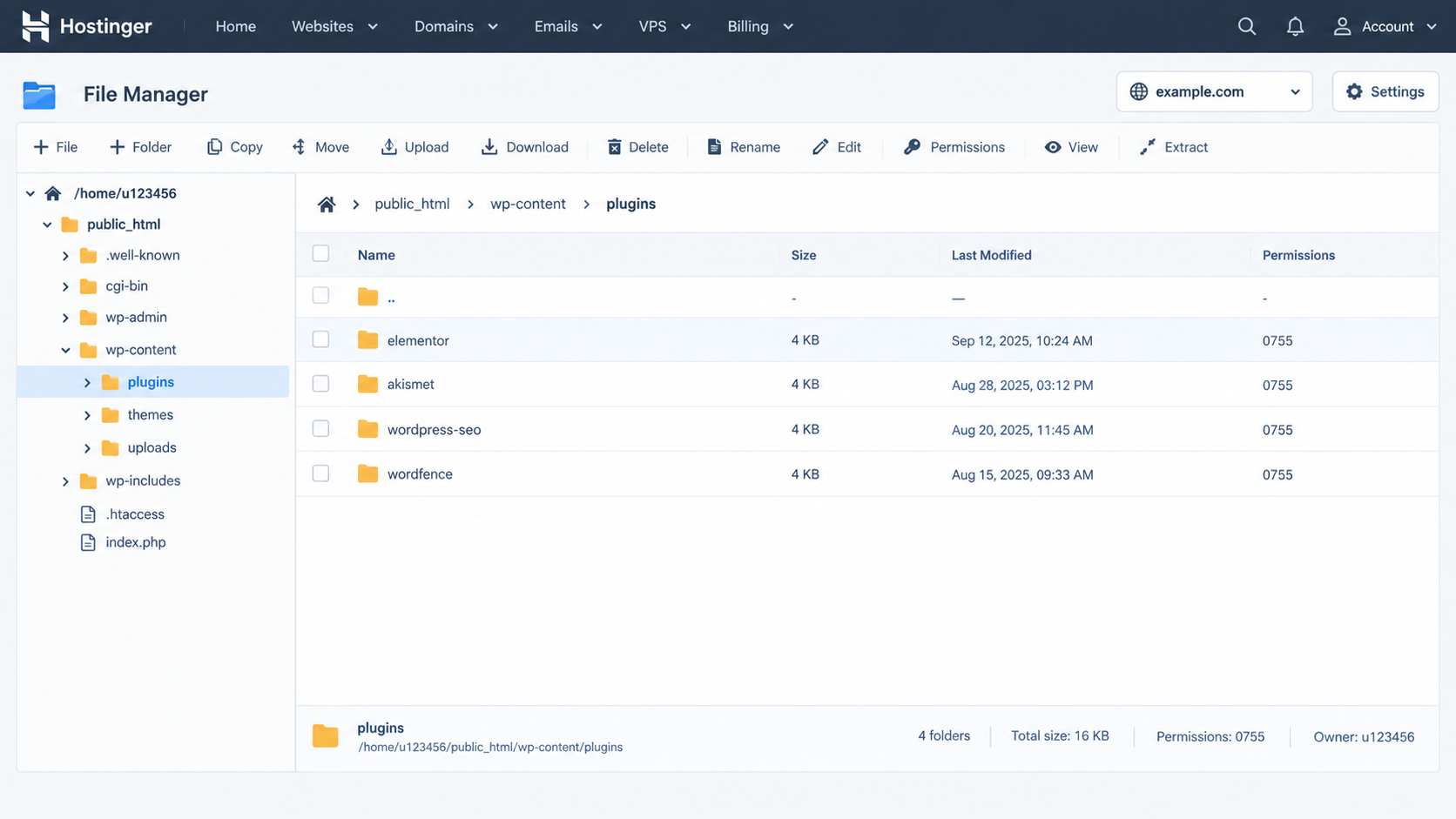
Confirm the correct website directory before changing a folder name. - Record the identified plugin folder’s exact name. Rename it by adding -disabled:
example-pluginbecomesexample-plugin-disabled. Rename the existing folder; do not create a second copy.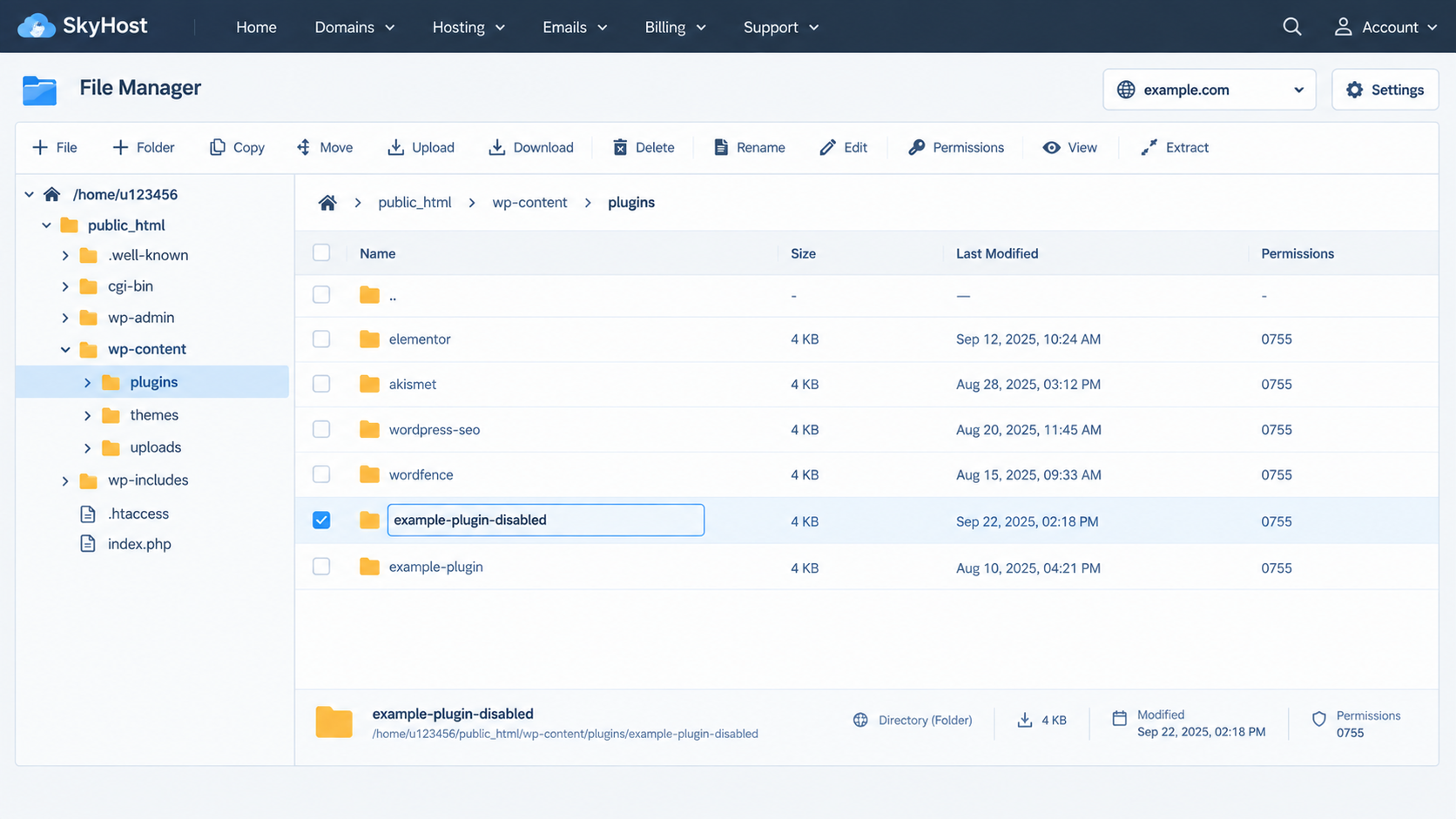
Record the original folder name so the change can be reversed. - Reload the failed page and try signing in. If access returns, visit Plugins > Installed Plugins while the folder is still renamed so WordPress can record its deactivation.
Restore an ineffective rename before another test. To reverse a successful rename later, restore the exact folder name and check its inactive status before activation. The error can return if the underlying fault remains.
3. Check for a Plugin Conflict
When no plugin is clearly identified, temporarily disabling regular plugins together can help find a conflict. Record which were active first; ask the host for that list if necessary. Keep maintenance in place while essential plugins are unavailable.
To undo this test, restore the folder name and recorded activation state with the host’s help. The original failing combination can bring back the error.
With normal dashboard access, deactivate them from Installed Plugins. When locked out, follow WordPress’s folder-renaming procedure:
- In the affected site’s wp-content directory, rename plugins to plugins.hold. Leave uploads, themes, and the database unchanged.
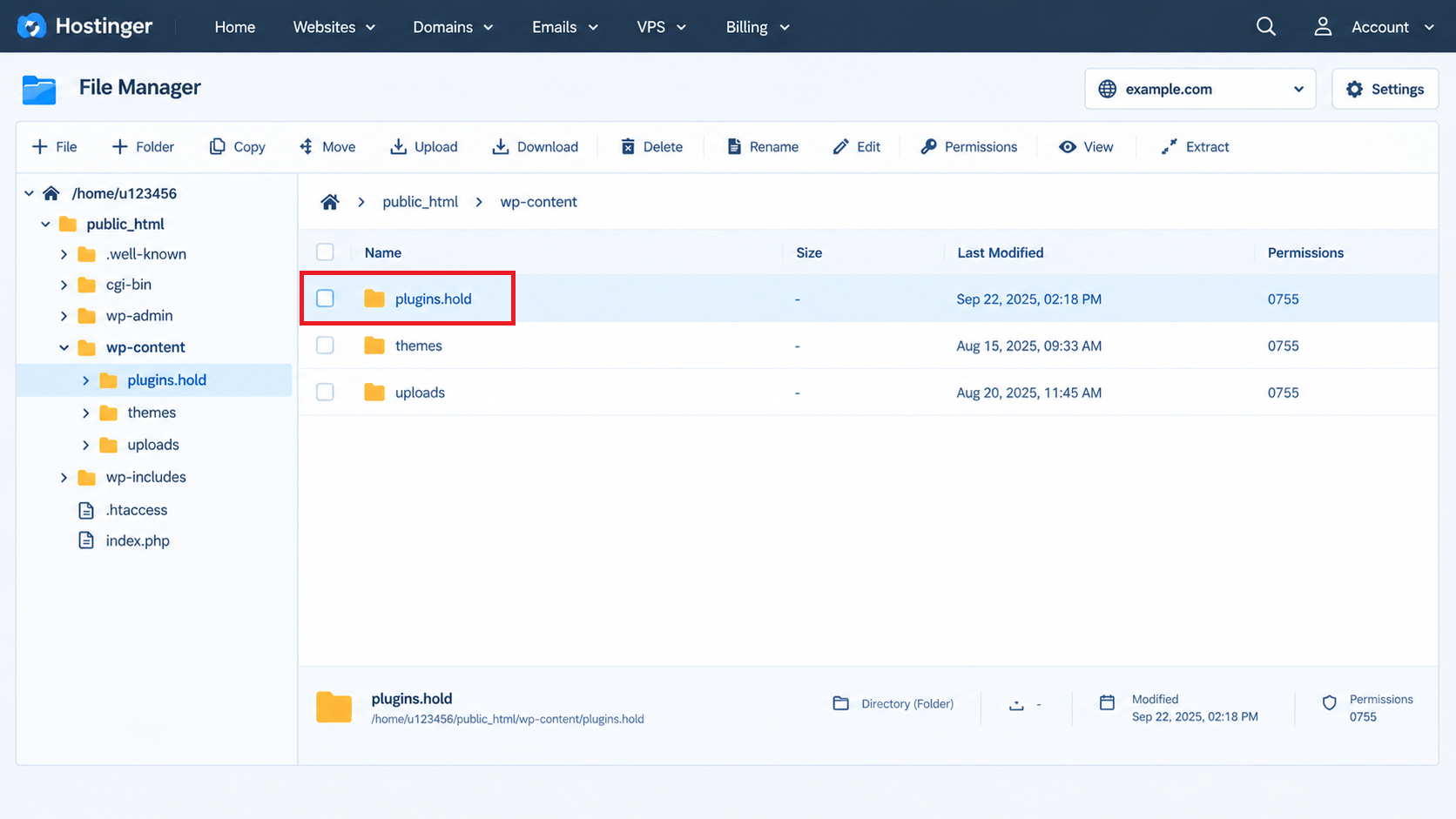
This interrupts plugin features across the site, use staging or a controlled maintenance window. - Open
/wp-admin/plugins.phpbeneath your WordPress address and sign in. Let WordPress report the missing plugins and record their deactivation before restoring the folder.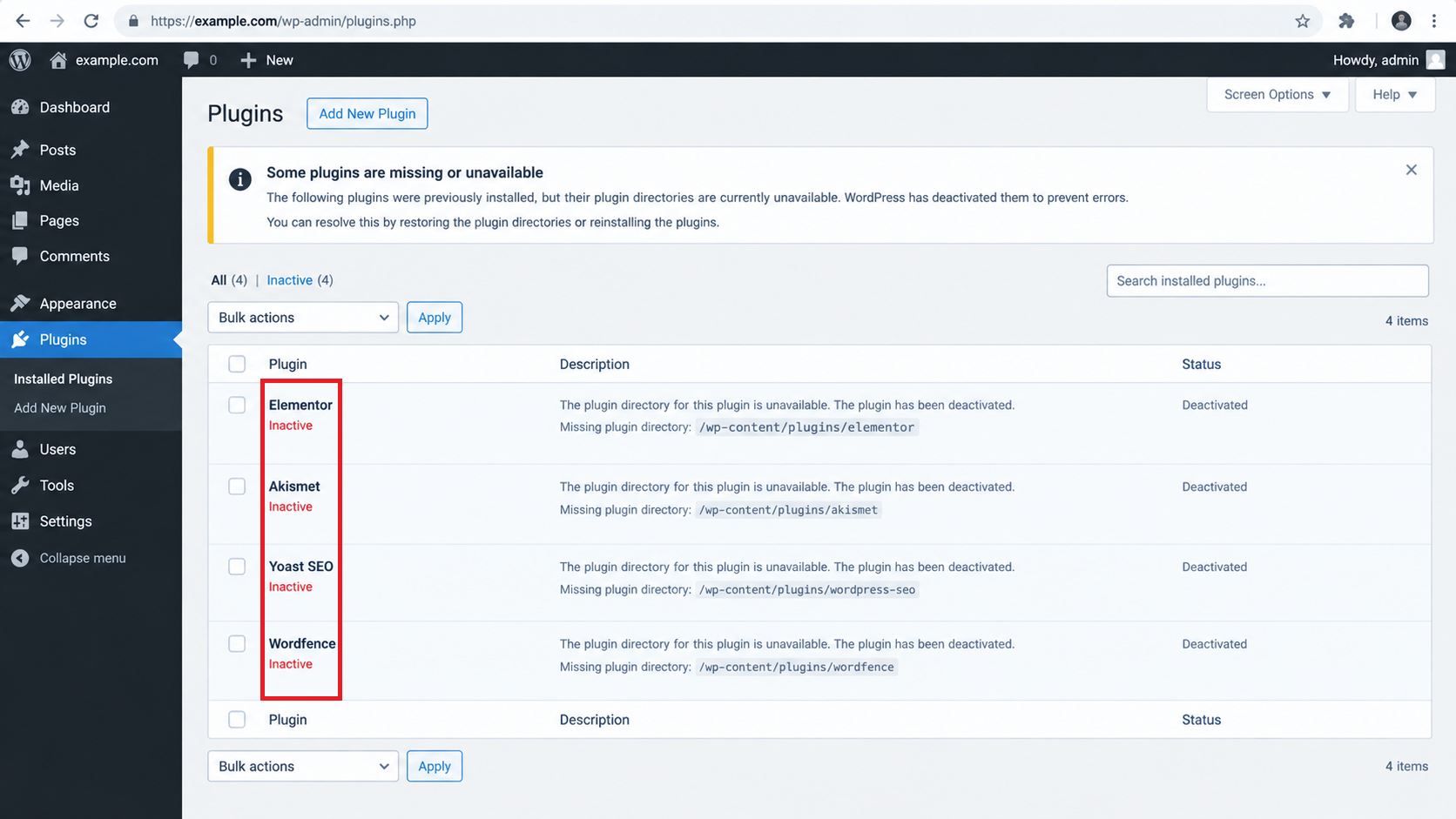
Visit the plugins administration page before restoring the directory name. If this page still fails, restore the folder name and give the fresh error to the host.
- Rename plugins.hold back to plugins, then reload Installed Plugins and verify that they remain inactive.
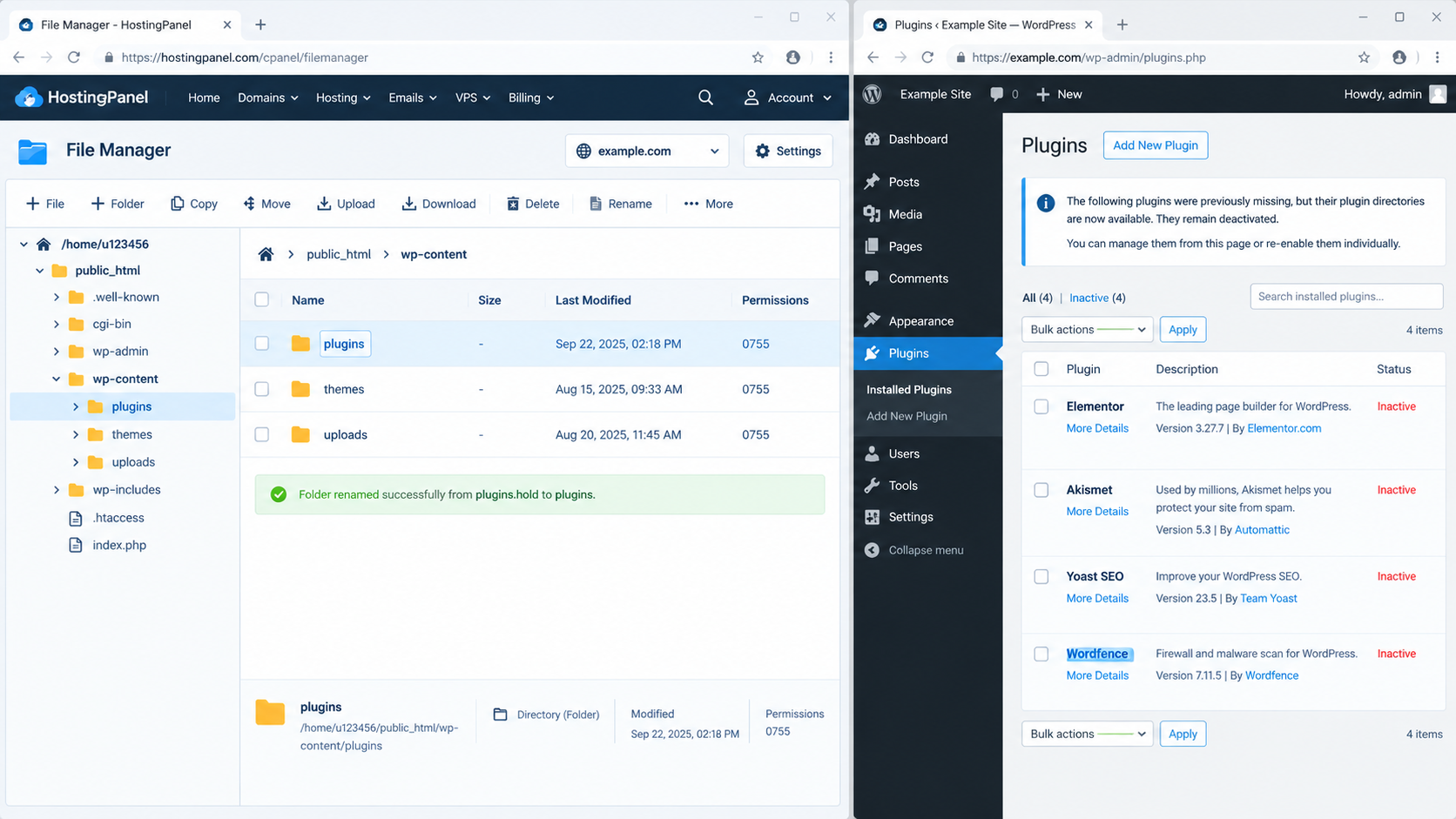
Check the Installed Plugins screen before activating anything again. - Activate only previously active plugins, one at a time. Enable the main plugin before any add-ons that need it. Repeat the original failed action after each. If the error returns, deactivate or rename the last plugin again.
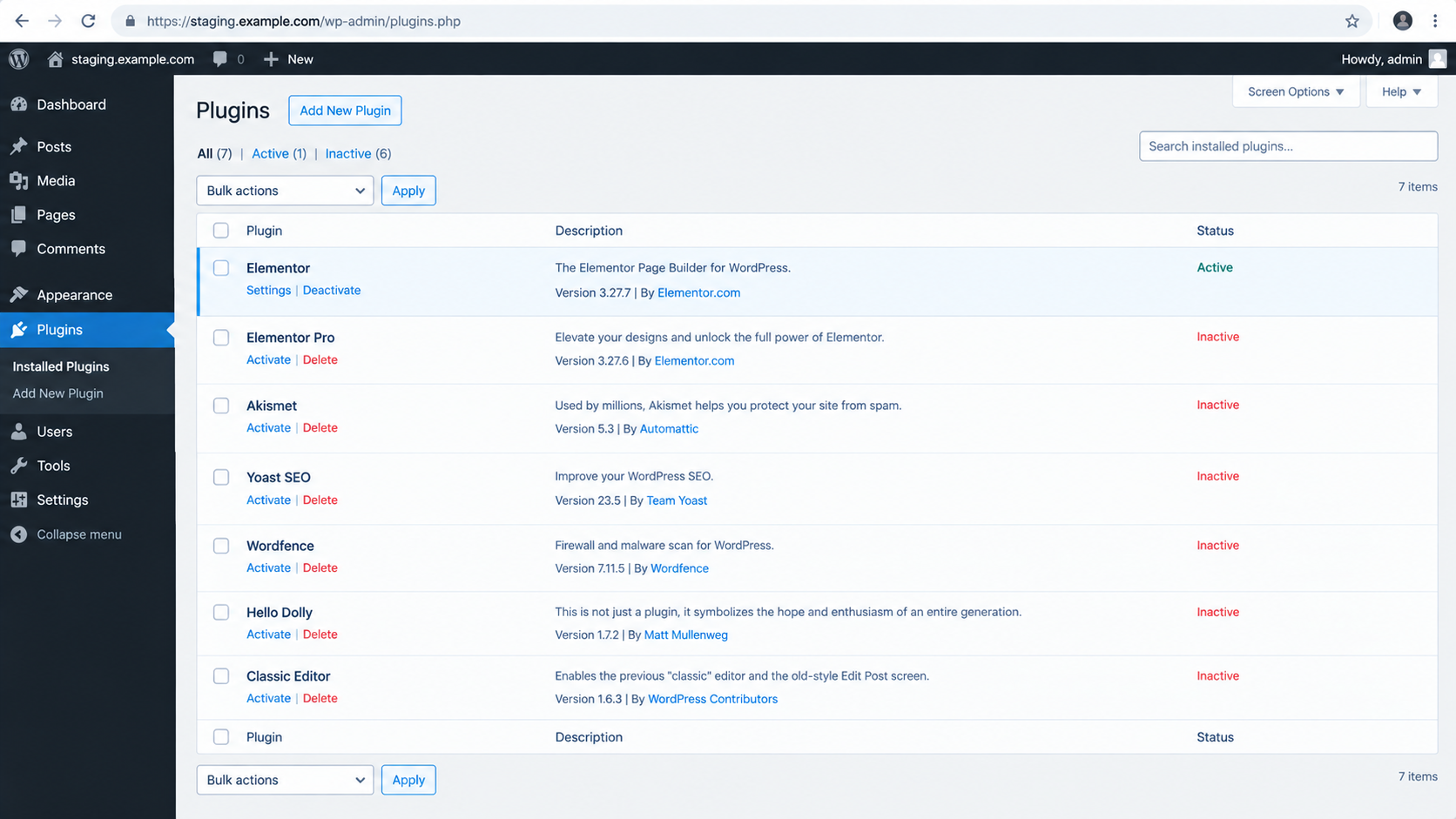
Test the same failing action after each activation and respect plugin dependencies.
This does not disable separately loaded must-use plugins or host-managed cache files. Theme code that expects a disabled plugin can also fail. Have the host inspect the new fatal error rather than treating every failure as the same one.
4. Test a Compatible Default Theme
Try a compatible default theme if the error names your current theme or remains with regular plugins disabled. This checks the theme without deleting its files.
Switching changes the design and may remove theme-specific features. Keep the original theme and its child-theme customizations backed up.
- Sign in normally or through Recovery Mode. Open Appearance > Themes and record the active theme, including whether it is a child theme.
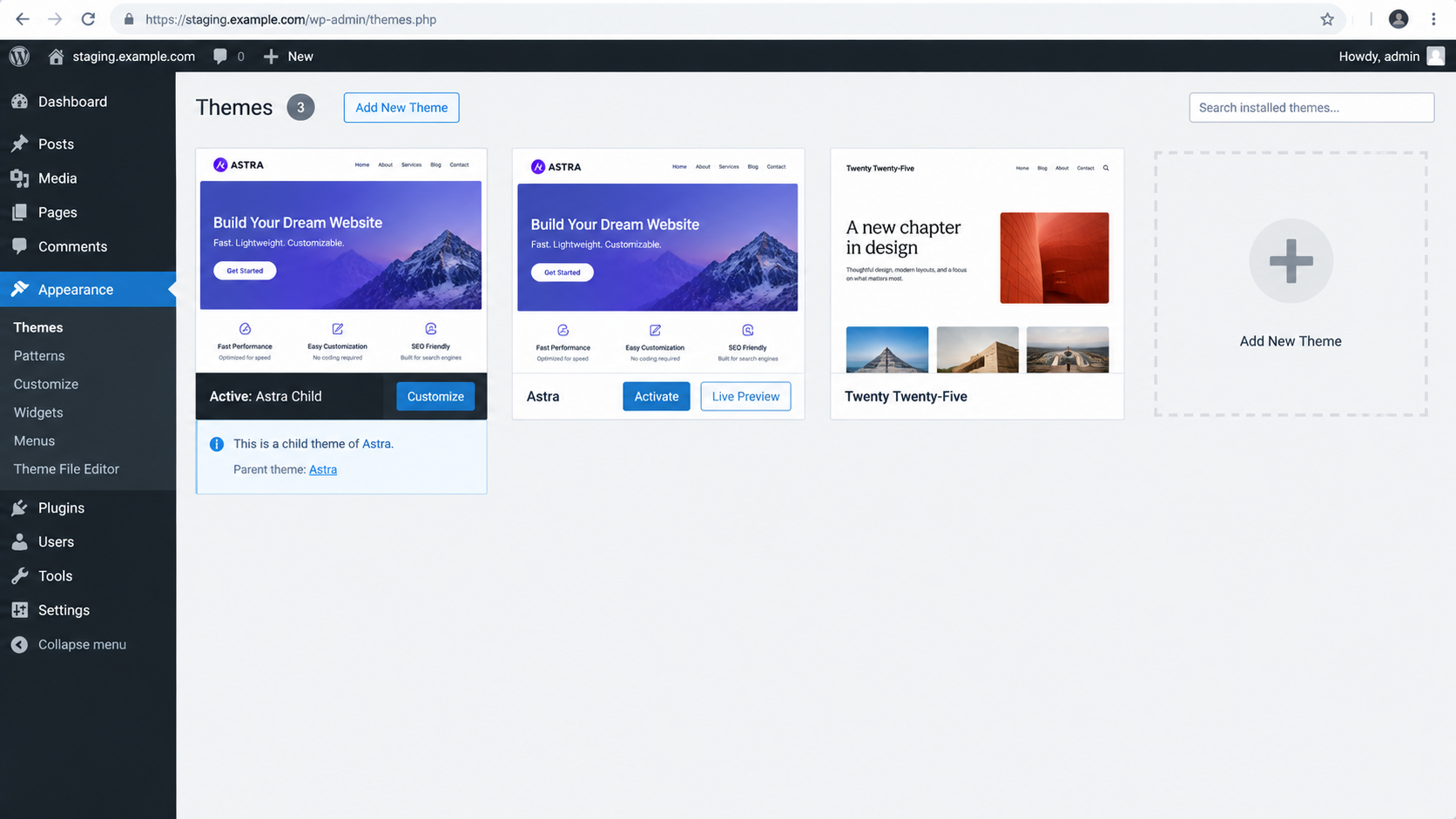
A theme change can alter menus, templates, styling, and theme-specific functions. - Activate an installed default WordPress theme compatible with your WordPress version. If none is installed, use Add New Theme to install one from the official directory. Keep the original theme installed.
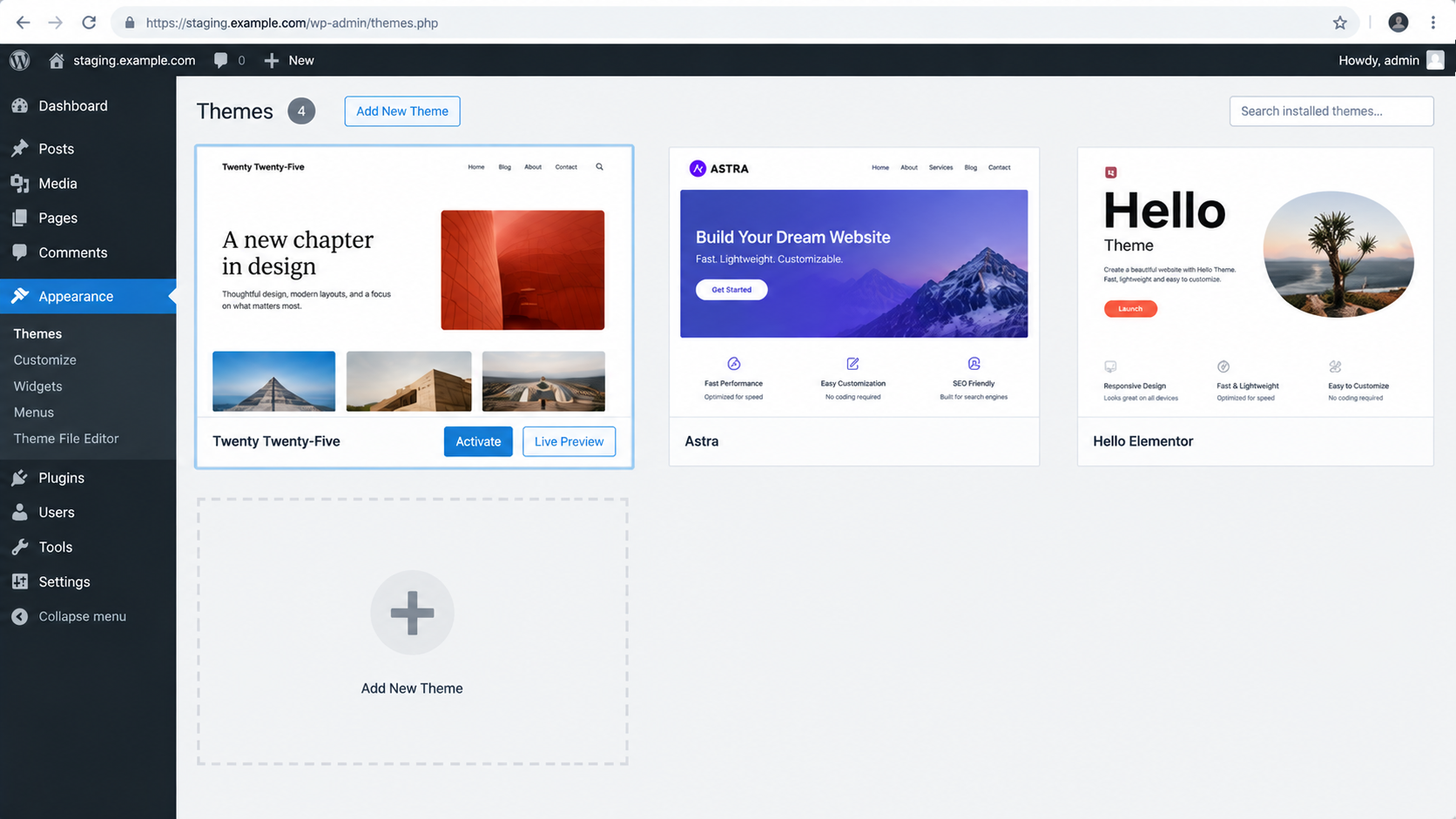
Keep the original theme installed so you can restore it after the test or repair. - Exit Recovery Mode if active, repeat the failed action, and check the public page. Without dashboard access, ask the host to activate a compatible default theme for this site.
If nothing changes, reactivate the original theme, using the host’s help if the dashboard remains blocked.
If the error clears, ask its developer to check the theme and its plugin dependencies before restoring it. A successful comparison does not prove the theme alone is faulty.
5. Increase Memory Only for a Confirmed Exhaustion Error
More memory can help a request that exceeds its allowance, but it cannot repair a syntax error or missing function. Use this adjustment only for a matching Allowed memory size … exhausted fatal error.
- Open the domain’s private PHP error log through the host, or request the relevant entry from support. Match the failed action and timestamp; warnings alone do not justify this change.
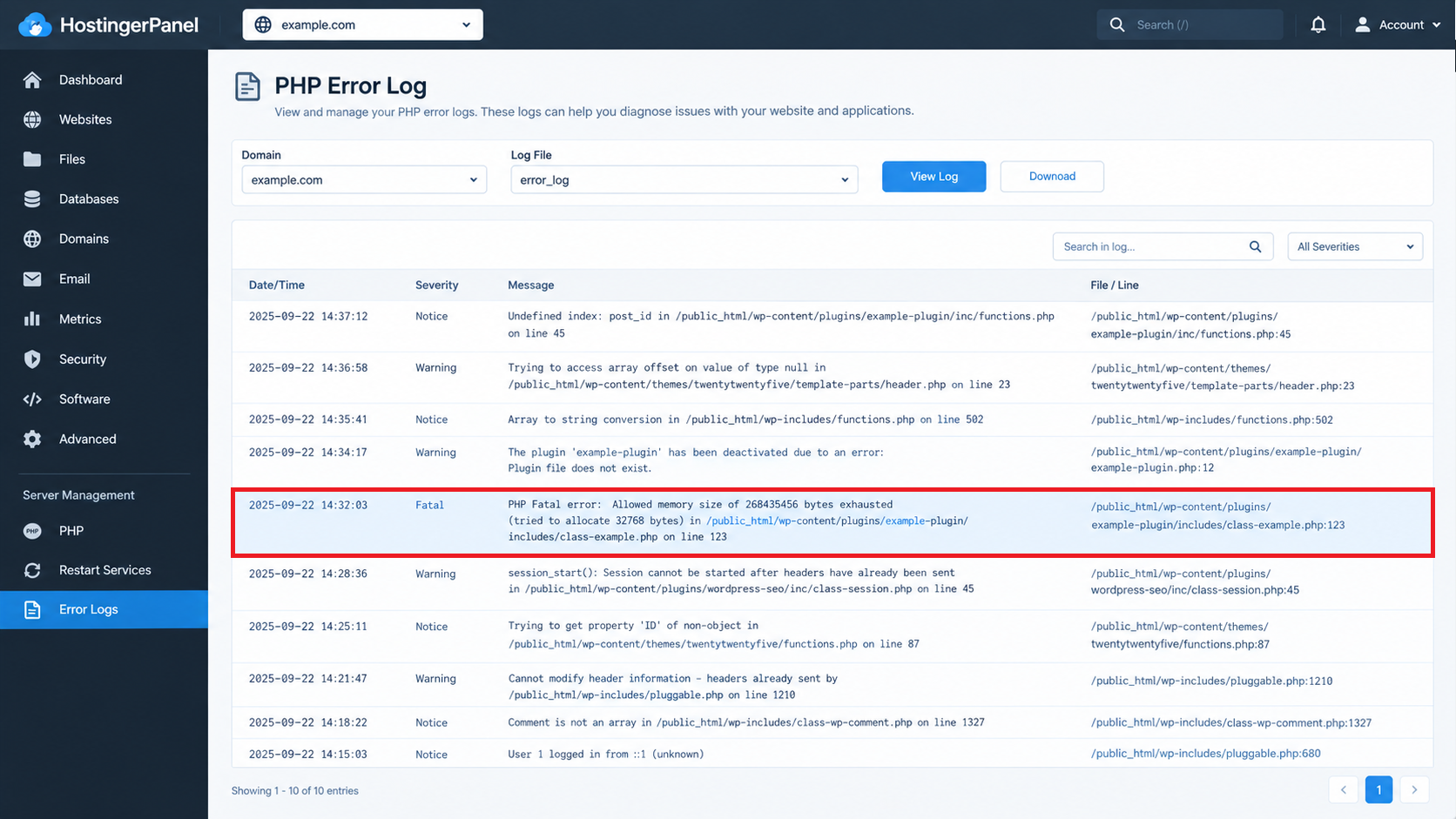
Match the fatal error to the failed request, an unrelated warning does not justify a memory change. - If the dashboard opens, note Tools > Site Health > Info > Server > PHP memory limit. Otherwise, have the host check the failed request’s actual limit.
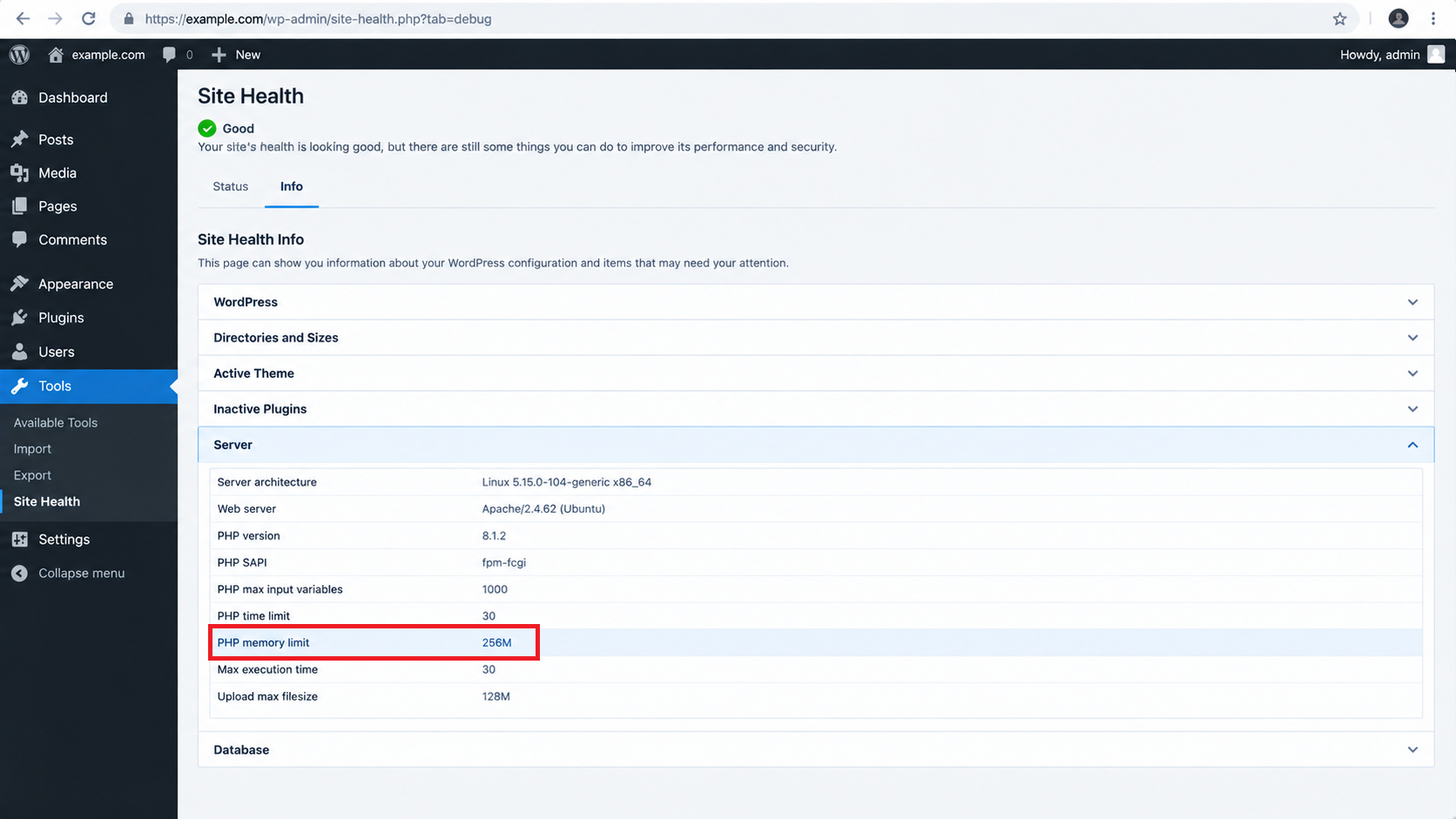
Match the fatal error to the failed request, an unrelated warning does not justify a memory change. - Record the old values. Ask the host for a specific higher limit within the plan’s resources, checking
memory_limit,WP_MEMORY_LIMIT, and, for admin work,WP_MAX_MEMORY_LIMIT.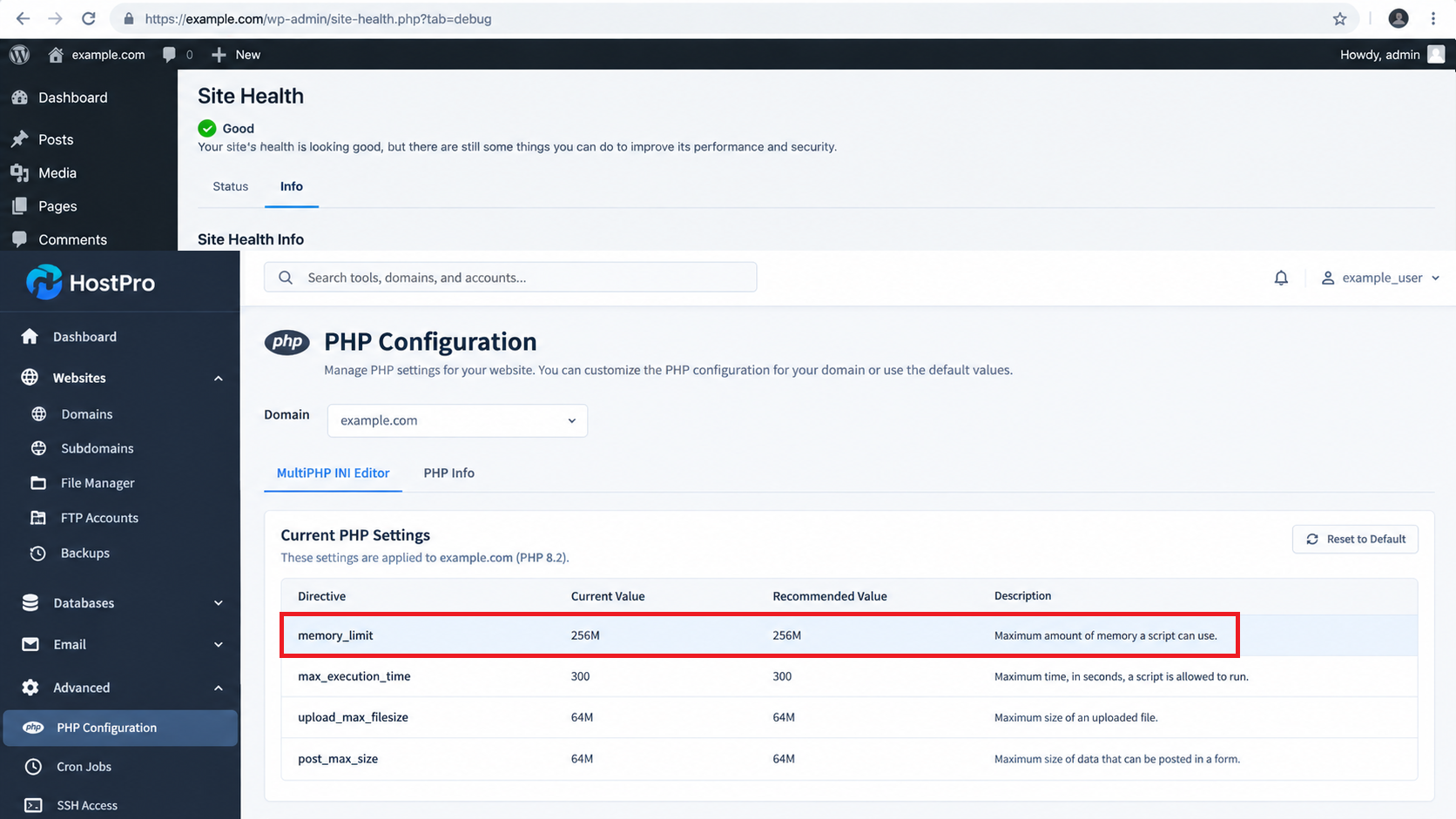
Record the old value and retest the failed request after the host applies the change. - Repeat the failed action. Have the host confirm the actual limit changed and inspect any new fatal error, rather than relying on the saved setting alone.
WordPress’s memory-limit documentation explains these settings; WordPress cannot override a host-locked limit.
Keep a successful, agreed limit. If exhaustion continues, stop raising it and investigate the code. Restore ineffective test values with the host.
If the Critical Error Remains
Send the host or developer the failed action, timestamp, fatal-error line, WordPress/PHP versions, recent changes, and test results. After a PHP change, have them check the installed code’s compatibility rather than cycling versions on the live site.
A wp-includes filename in the error details is not proof of core damage. A confirmed missing core file or interrupted update needs a targeted official WordPress repair.
Preserve wp-content, wp-config.php, uploads, and the database. Do not replace the whole installation or restore an old database just to clear the message.
For deeper investigation, follow the official debugging instructions on staging, with error display off and logs protected. Turn off temporary debugging afterward. Have the host clear any cached error page once the fault is repaired.
If only Elementor still shows a 500 error while saving, investigate that request separately. Check signed-out pages, the original admin action, and essential checkout or forms before ending maintenance.


