Fix: The file you are attempting to preview could harm your computer
“The file you are attempting to preview could harm your computer.” is a security warning alert in Windows especially in File explorer that appears when you are trying to preview a file such as PDF.

This warning most commonly appears when Windows applies a security tag called Mark of the Web (MOTW). MOTW is automatically added to files downloaded from the internet or extracted from downloaded ZIP archives. It marks the file as originating from the Internet zone, causing File Explorer to treat it as potentially unsafe and block preview handlers from loading it automatically.
In some cases, the warning may also appear due to:
- Attachment Manager or Group Policy restrictions
- Microsoft Defender or third-party antivirus sandboxing
- Office preview handler security settings
- Files extracted from a blocked ZIP archive
Recent Windows security hardening has made preview handlers stricter when loading internet-originated files, which is why this behavior may appear more noticeable on fully updated systems.
Below are the safest ways to restore file previews.
1. Unblock the File from Properties
Removing the security block deletes the Mark of the Web tag and allows File Explorer to preview the file. Only do this for files you trust.
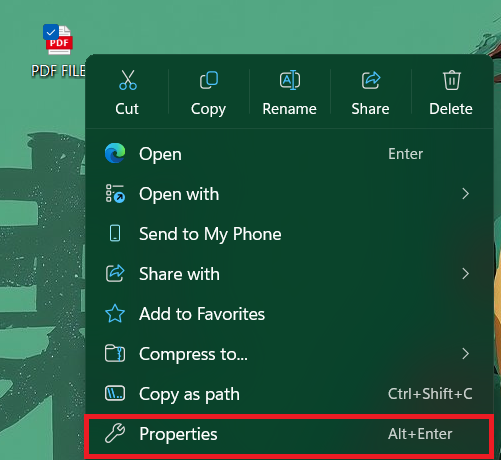
- Right-click the affected file and select Properties.
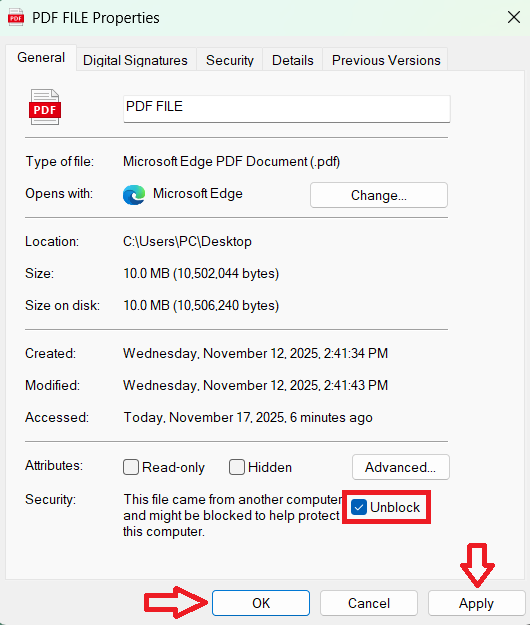
- Under the General tab, check Unblock, then click Apply and OK.
- Refresh File Explorer or reopen the folder and confirm that the preview pane now displays the file.
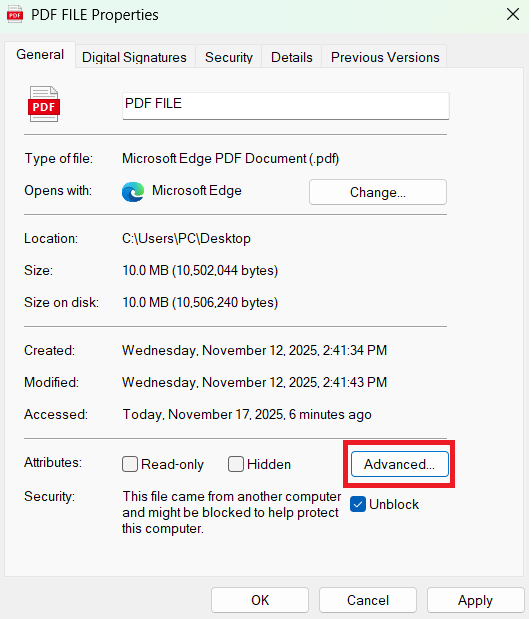
If the Unblock option does not appear, the file may not contain a Mark of the Web tag, or restrictions may be applied through security policy or antivirus software.
2. Unblock Multiple Files Using PowerShell
If many files are affected, PowerShell can remove the Mark of the Web tag in bulk. Only run this on folders that contain trusted files.
- Open PowerShell. Administrator access is usually not required for files inside your user folders.
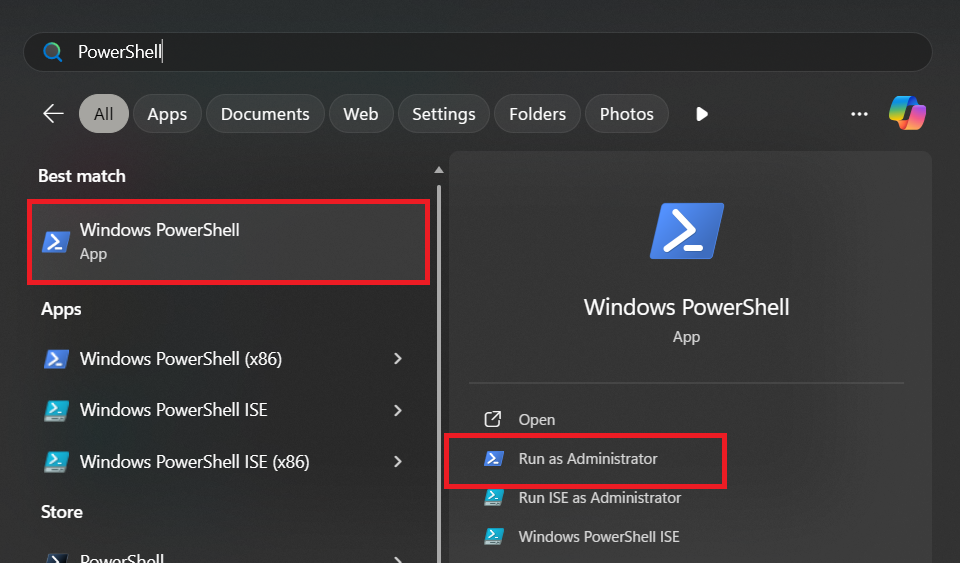
- To unblock all PDFs in a folder:
Unblock-File -Path "C:\Users\YourUsername\Documents\*.pdf"
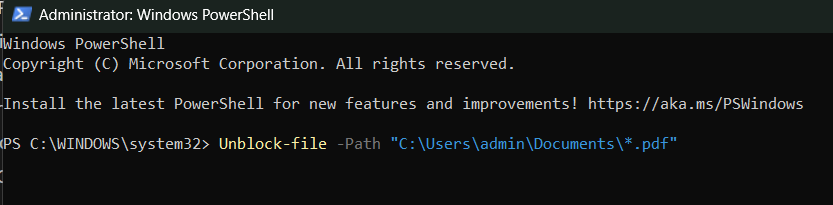
Replace YourUsername with your Windows account name and adjust the path if needed. - To unblock all files in a folder and its subfolders:
Get-ChildItem "C:\Path\To\Folder" -Recurse | Unblock-File
- You can change the extension filter to .xlsx, .docx, .pptx, or other file types as required.
If you receive an access denied error, ensure you have permission to modify files in that location.
3. Uninstall Recent Windows Update (Last Resort)
If previews remain blocked even after removing Mark of the Web tags and verifying security settings, and the issue started immediately after a Windows update, uninstalling that update may temporarily restore previous behavior.
Important: Security updates improve system protection. Removing them may expose your system to vulnerabilities, and Windows Update may reinstall them automatically.
- Press Win + I to open Settings.
- Go to Windows Update and select Update history.
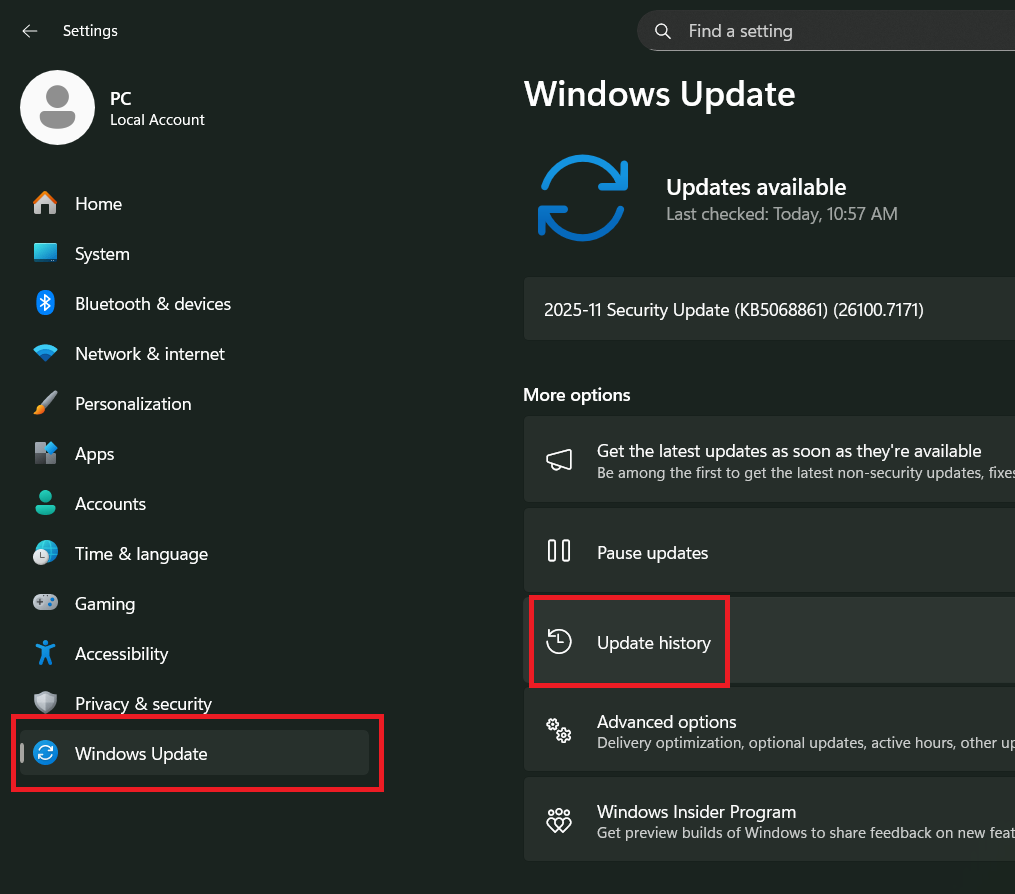
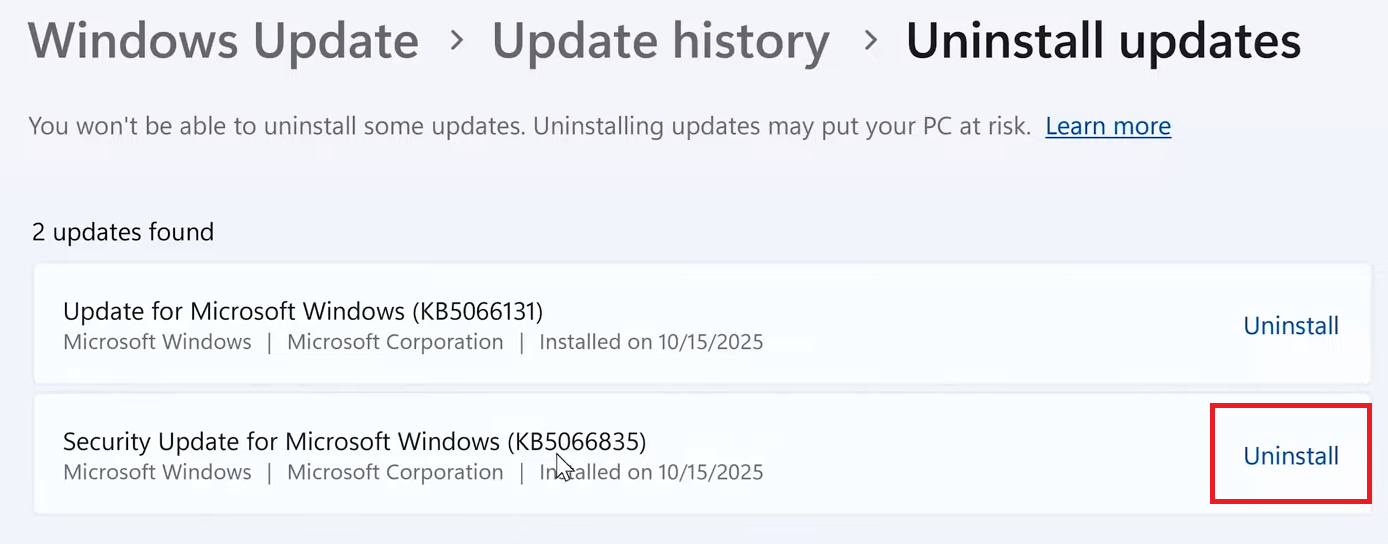
- Click Uninstall updates.

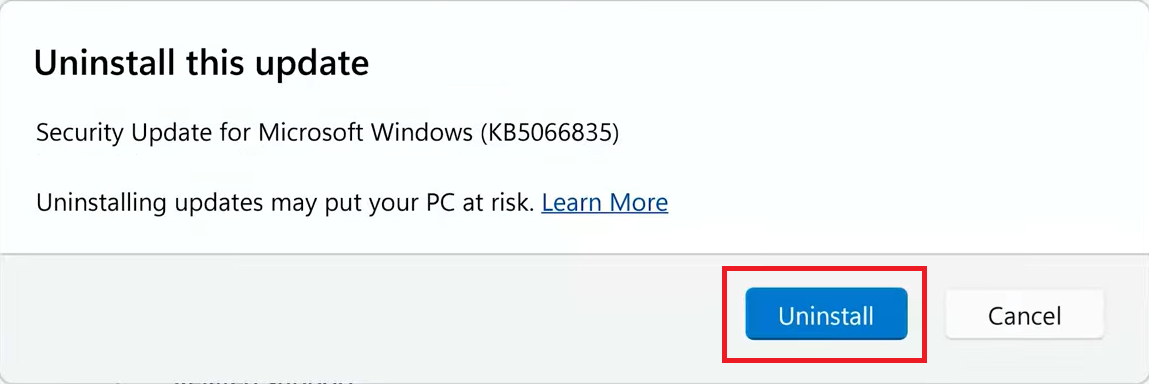
- Select the update installed before the issue began, then click Uninstall.
- Confirm the prompts and restart your computer.
- After restarting, check whether File Explorer previews work normally.
Once the Mark of the Web tag is removed or preview restrictions are adjusted, File Explorer should display previews without showing the security warning.