How to Prevent Emails from Being Moved to Spam in Outlook?

Microsoft Outlook’s junk folder is quite effective and can be further optimized with user input. It automatically relocates irrelevant emails to the junk folder, thus saving users’ time. There are also multiple filtering options that allow users to customize how they want their inbox organized by specifying which emails should appear in their inbox and which should be directed to the spam folder.
However, at times, legitimate emails are mistakenly identified as spam and moved into the junk folder in Outlook. Consequently, users may overlook these emails if they don’t regularly check their spam folder. This might cause problems, particularly if the email is important or requires urgent attention.

This misplacement can result from either the server flagging emails as spam or your filtering settings being too stringent.

One solution is to disable the junk email filter entirely, allowing all emails into your inbox. However, proceed with caution as this will also permit more spam and potentially malicious emails to enter. It’s usually better to fine-tune filter settings to strike a balance between convenience and security.

Additionally, Outlook allows you to add trusted senders whose emails you do not want to be sent to the spam folder. The following methods will ensure that emails from trusted senders reach your inbox instead of the spam or junk folder.

1. Mark Spam Mail in the Junk Folder as ‘Not Junk/Spam’

To stop Outlook from sending legitimate emails to the junk folder, you can mark them as ‘Not Junk.’ This action adds the sender’s address to the trusted sender list.

Note: Be mindful when marking emails as ‘Not Junk.’ It’s important to confirm the sender’s trustworthiness to prevent whitelisting potentially dangerous senders.

  1. Access the Junk Email folder.
  2. Select the email that you wish to mark as Not Junk.
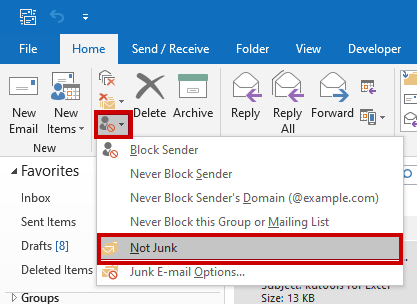
  3. Go to the Home tab, click Junk, and choose Not Junk from the dropdown menu.

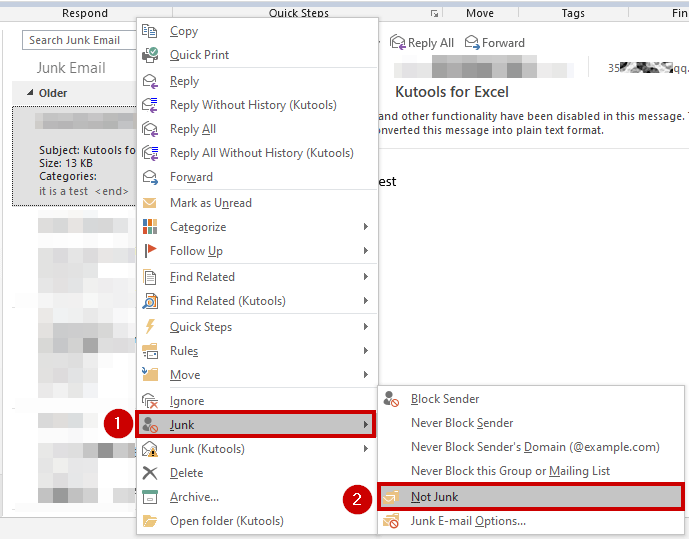
  1. Alternatively, after selecting the email, right-click on it, navigate to Junk, and then select “Not Junk“.
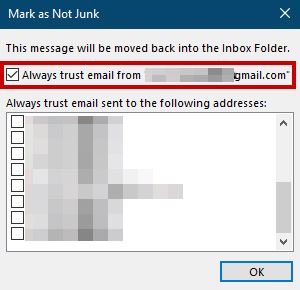
  1. Upon clicking Not Junk, a Mark as Not Junk dialog box will appear.
  2. Select the Always trust email from “xyz@xyz.com” checkbox, and then click OK.
After these steps, the email will be moved to the inbox, and future messages from this sender will not be filtered into spam.

2. Add a Sender’s Email to the Trusted/Safe Senders List

To ensure that an email from a specific sender always reaches your inbox:

  1. Select the email in the junk folder from the sender you wish to trust.
  2. Right-click it, then choose Junk > Never Block Sender.
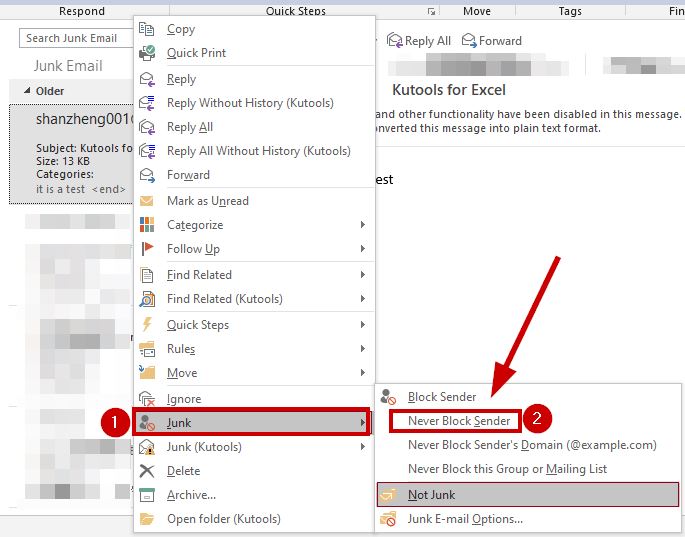
  1. A prompt will confirm that the sender has been added to the Safe Senders list.
  2. Click OK, and from now on, emails from this address will bypass the junk folder.

To manually add a trusted sender, navigate to Junk Email Options from the Home tab’s Junk menu:

  1. Go to Home tab > Junk > Junk E-mail Options.
  2. Switch to the Safe Senders tab.
  3. Click Add, and enter the sender’s email address.
  4. Click OK.

3. Turn Off the Automatic Filter

Disabling the automatic filter ensures that all emails are received in the inbox, allowing you to subsequently decide whether to keep them or move them to the junk folder. However, be cautious with this setting:

  1. Select Junk > Junk E-mail Options from the Delete group on the Home tab.
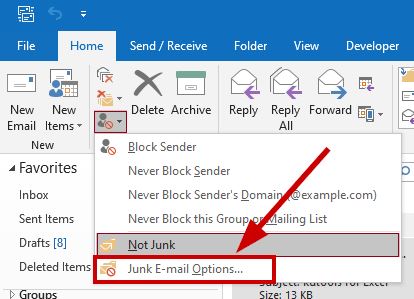
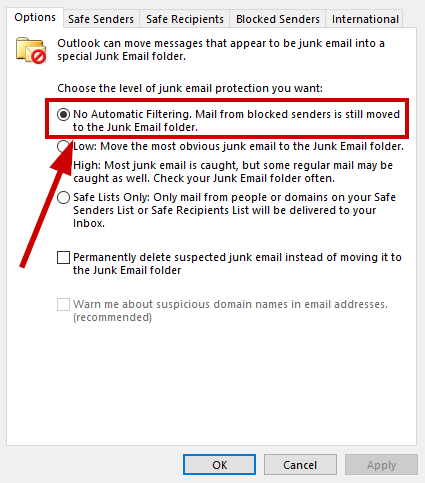
  1. In the Junk E-mail Options dialog box, switch to the Options tab.
  2. Select the No Automatic Filtering option. Note that emails from blocked senders will still go to the Junk E-mail folder.
  3. Click OK.

Following this modification, most emails will arrive in your inbox; however, it’s important to remember that emails from any sender on your blocked list will continue to be sent to the Junk E-mail folder.

To manage blocked senders, go back to Junk E-mail Options and:

  1. Select the Blocked Senders tab.
  2. Select the email addresses you wish to remove and click the Remove button.
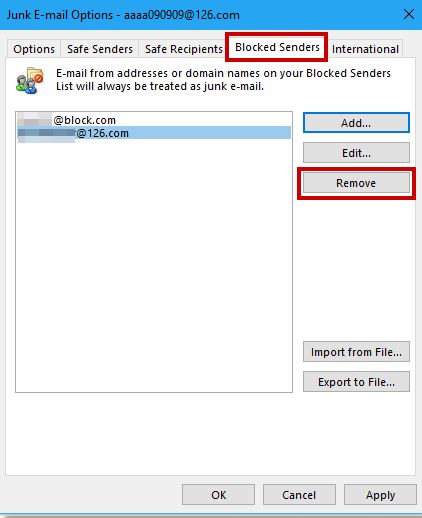
  1. Click OK.

This way, most emails will arrive in your inbox, but remember the increased risk from unfiltered emails. Ensure security measures are in place.

ABOUT THE AUTHOR

Kevin Arrows


Kevin Arrows is a highly experienced and knowledgeable technology specialist with over a decade of industry experience. He holds a Microsoft Certified Technology Specialist (MCTS) certification and has a deep passion for staying up-to-date on the latest tech developments. Kevin has written extensively on a wide range of tech-related topics, showcasing his expertise and knowledge in areas such as software development, cybersecurity, and cloud computing. His contributions to the tech field have been widely recognized and respected by his peers, and he is highly regarded for his ability to explain complex technical concepts in a clear and concise manner.

Comments

20
    BS
    Burma Shave Aug 11, 2017

    Would be nice if this works but there’s something wrong with Outlook 2016.

    I have a person that emails me frequently and even though I have the settings you have shown above set that way AND I also added this person’s email into the safe senders list, it still goes into spam.

    What is even more irritating is that it doesn’t even show that there is spam in the spam folder. Then some real spam comes in and when I go to look at what went into the spam folder, I see that person had emailed me and the emails had arrived several hours earlier.

    Oh, and I did check to make sure this person’s email address isn’t in the blocked senders list.

      KA
      K. Arrows Author Sep 5, 2017

      Who is the email with? Sometime settings are enforced from the mail server, so you need to login to your mail through the webmail and setup the rules.

        BS
        Burma Shave Sep 6, 2017

        The settings through my browser in Outlook online has that person’s email address as a safe sender as well.
        She has one email address but emails me from two different devices. In one, she has her name set up as “Jane Doe” with the email address she uses and the other as “Doe, Jane” with the email address.
        It is when she uses the device in which her name is spelled “Doe, Jane” where the emails then go into junk and I don’t see them which is a problem because I need to be able to respond to them immediately.
        I reset everything in the junk mail settings. Cleared out all of the email addresses that were blocked – all within Outlook online AND Outlook 2016. I even uninstalled Outlook 2016 on my computer and re-installed.
        Didn’t make a difference. The one where she has her name set up with “last, first” still go into the junk mail.

          KA
          K. Arrows Author Sep 29, 2017

          Does she has the correct mail server and authenticatoin setup on the device that results in her emails landing in junk?

          BS
          Burma Shave Sep 29, 2017

          I found out what was causing the problem. I use McAfee for virus protection and had recently re-installed it due to a problem.

          Unfortunately, I forgot to disable the McAfee Antispam that is included.

          It has always caused problems and I can’t believe I didn’t see that the McAfee Antivirus label had been added to the right of the Help menu on the ribbon.

          Once I turned it off, her emails no longer go into junk.

          KA
          K. Arrows Author Sep 29, 2017

          What is the part after @ of her email address?

          KA
          K. Arrows Author Sep 29, 2017

          What is the part after @ of her email address?
          She needs to make sure she has the correct smtp, with authentication enabled setup on the device from which the email goes into spam/

          BM
          Brian Mason Nov 27, 2017

          Check the rules on your phone email! I had this issue for a month. Had been checking my desktop and web-email rule settings. Finally thought to check my phone and sure enough I had her email on the SPAM address list somehow.

        HE
        Here4U Sep 20, 2017

        Both me and my girlfriend have this problem, almost ALL mail gets marked as spam and moved to junk folder. If i DONT open Outlook 2016 on my pc and only recieve mail on my mac or phone, no problem,(can even read in OWA without problem) but as soon as i open outlook 2016 everything flies straight to the junkmail folder.

          KA
          K. Arrows Author Sep 29, 2017

          Can you create a new profile on Outlook, and re-configure the account to see if the issue persists?

          HE
          Here4U Sep 29, 2017

          Acctually the problem was not outlook, but Eset Antivirus and its antispam part, i changed the “spamtag” for Eset and testet, and there the problem was solved, so now Eset is disabled for antispam.

    DI
    Dissenter Nov 20, 2017

    Something still wrong with Outlook 2016. Did all of the above and still going to Junk folder- routine emails from people in my contacts, from domains I’ve added to “Never Block Senders Domain” and from Safe Senders list.

      KA
      K. Arrows Author Dec 3, 2017

      Did you check your webmail settings and your e-mail client settings (both)?

        TB
        Tim Berman Mar 8, 2018

        Yep. Disabled all Outlook plugins. Same issue. Junk filtering is turned off on Outlook 2016 (desktop) and Outlook on the web.

      TB
      Tim Berman Mar 8, 2018

      Same. Super frustrating!

    BD
    Biff the Wonder Dog Nov 30, 2017

    Thanks Kevin! I went with option 3. I like hammers.

    MS
    Maxim Severin Feb 22, 2018

    Help smbdy please! We have Exchange server 2016 + Outlook 2016. Today user’s incoming mailbox was empty and all mail got to trash. When try to select all – move to – incoming, Outlook tries to create draft and put all mail as attachments. Sure it cann’t because there are hundreds of messages. I just need to return mail to incoming box. What the hell is going on and how to fix this MS shit?

    CM
    cmcanulty May 19, 2019

    same issue all my nornal newsgroups and lots of my contacts go to junk, hotmail ignores all safe and blocked senders and domains

    SW
    Shane Warren Author Sep 30, 2019

    Best bet is to clear the spam folder and lengthy messages if you have already tried the steps in the article and it didn’t work.

    TE
    Tetrol Jul 21, 2020

    Outlook 2016 is broken – set to no filtering, over 50% of my emails still going to junk – not a single one of them should be. Getting old very quickly having to set individual senders to my approved list. Why they can’t accept that users (ha ha – MS worrying about user’s wishes – is that a flying pig?) might not want ANY junk mail filter.