Fix: Stable Diffusion Model Failed to Load
The “Stable diffusion model failed to load” error occurs when Stable Diffusion cannot initialize or load the required model files for image generation. This usually indicates an issue with the model file, environment, or system compatibility.
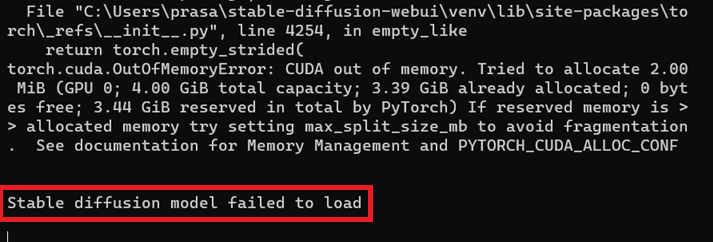
Common causes include:
- Insufficient VRAM or RAM
- Unstable or incompatible GPU drivers
- Corrupted virtual environment files
- Broken or incomplete launcher setup
Now that the causes are clear, follow the solutions below to resolve the issue.
1. Switch Model and Refresh AUTOMATIC1111
This helps determine whether the issue is caused by a specific model file. A model may fail to load if it is corrupted, incomplete, or not compatible with your current setup. Switching models isolates the problem, while refreshing forces the WebUI to reload model data and clear temporary glitches.
- Open the AUTOMATIC1111 WebUI in your browser.
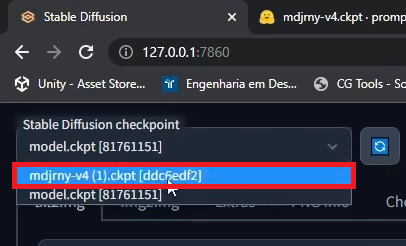
- Click the Checkpoint dropdown at the top to view installed models.
- Select a different model. If you don’t have one, follow this guide video to download and place a compatible model in the models folder.
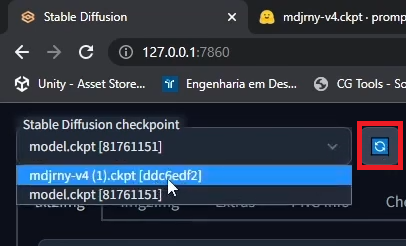
- Click Refresh or Reload Checkpoints to reload model files.
- Generate a test image to confirm if the model loads successfully.
2. Delete “venv” Folder and Relaunch
The venv folder stores all Python dependencies required by Stable Diffusion. If these files become corrupted or mismatched due to updates or failed installs, the model may fail to load. Rebuilding the environment ensures all dependencies are clean and compatible.
- Close the WebUI and ensure no Stable Diffusion processes are running.
- Navigate to your Stable Diffusion installation folder.
- Delete the venv folder completely.
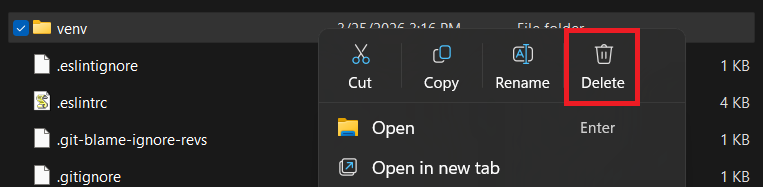
- Run the launcher again to automatically rebuild the virtual environment.
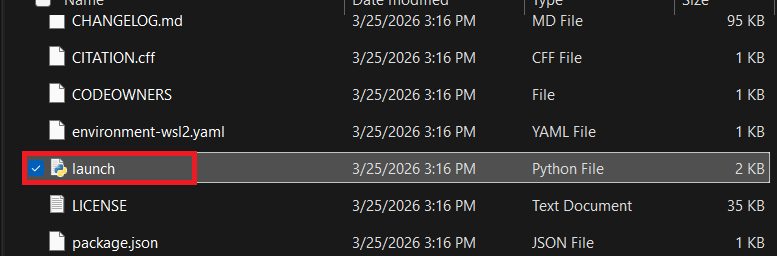
- Open the WebUI and check if the model loads correctly.
3. Downgrade Graphics Driver
Stable Diffusion relies heavily on GPU performance and driver stability. New driver versions can introduce compatibility issues, memory handling changes, or bugs that prevent models from loading. Rolling back to a known stable version restores compatibility and often resolves GPU-related loading failures.
- Open your GPU manufacturer’s website (NVIDIA, AMD, or Intel).
- Download a slightly older, stable driver version for your GPU.
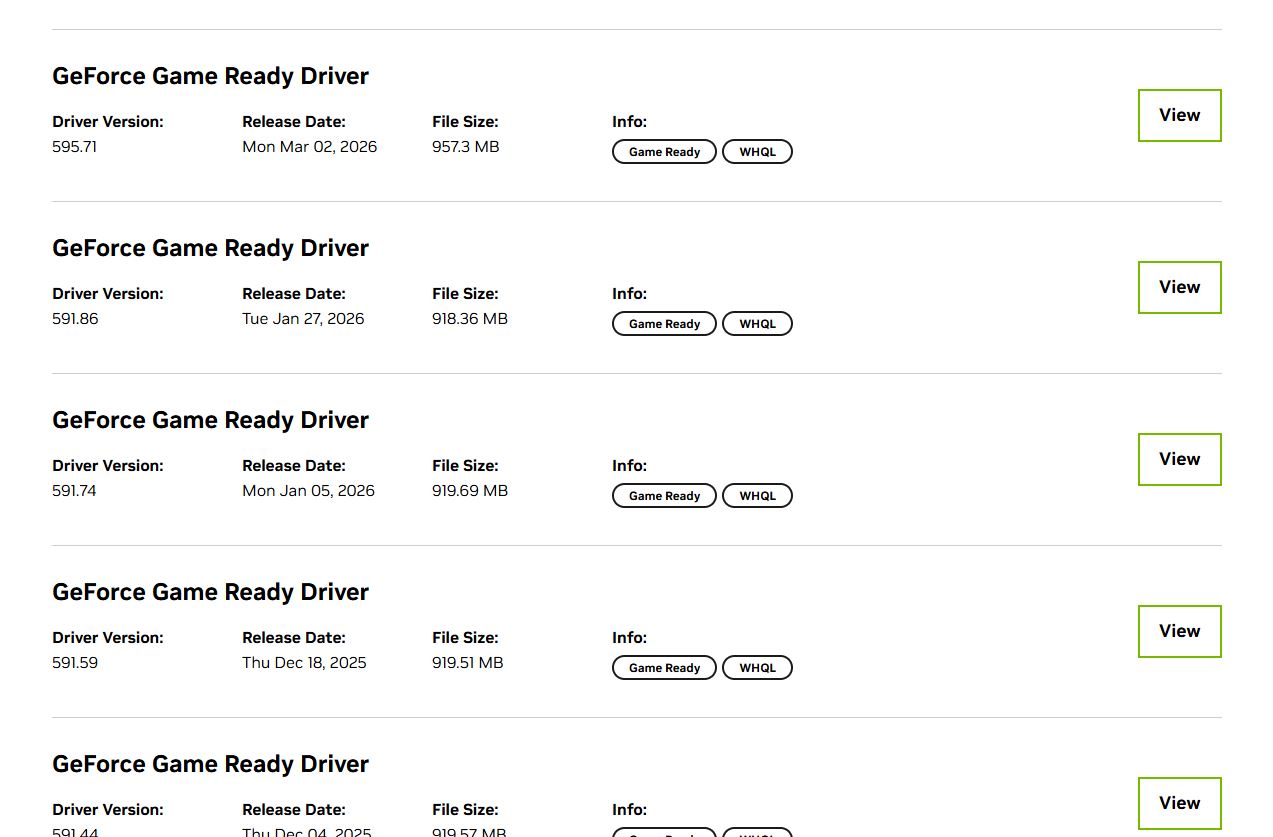
- Uninstall your current driver using Device Manager.
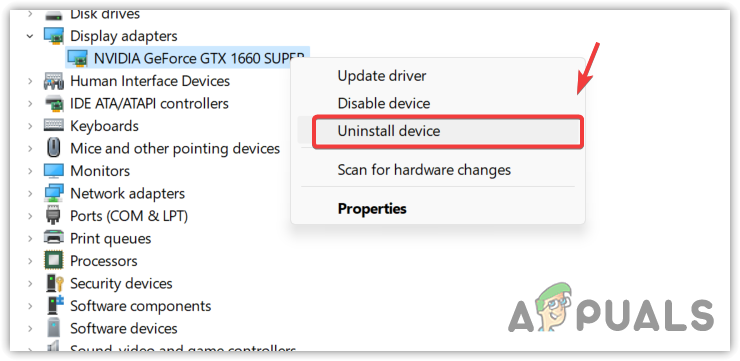
- Install the downloaded driver and restart your system.
- Launch Stable Diffusion and test model loading again.