How to Fix Roblox ‘Content Not Accessible’ Error?
“Content not accessible” in Roblox is a safety restriction message that stops you from opening experiences that require a higher age rating than what your account currently allows. When this happens, Roblox shows a lock icon on the play button.
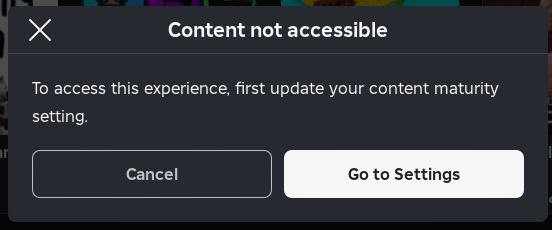
Roblox uses multiple maturity levels such as All Ages, 9+, 13+, and 17+ (Restricted). If your slider is set lower than the game’s rating, Roblox automatically applies stricter safety controls and blocks the experience.
Other reasons why the error appears:
- Missing email or phone verification
- Parent-managed accounts with locked restrictions
- Incomplete or incorrect age verification
This guide explains how to fix the error by adjusting your content maturity level, verifying your account, and ensuring no parental restrictions are blocking access.
STEP 1: Check & Adjust Your Content Maturity Slider
Important: Email verification is enough for the 13+ tier. For 17+ (Restricted), Roblox requires:
- A government-issued ID
- A live selfie scan done through your phone
If your age on Roblox is set below 13, higher tiers will not appear even if you verify.
PC Instructions
- Open your browser and go to the Roblox website.
- Log in to the account showing the error.
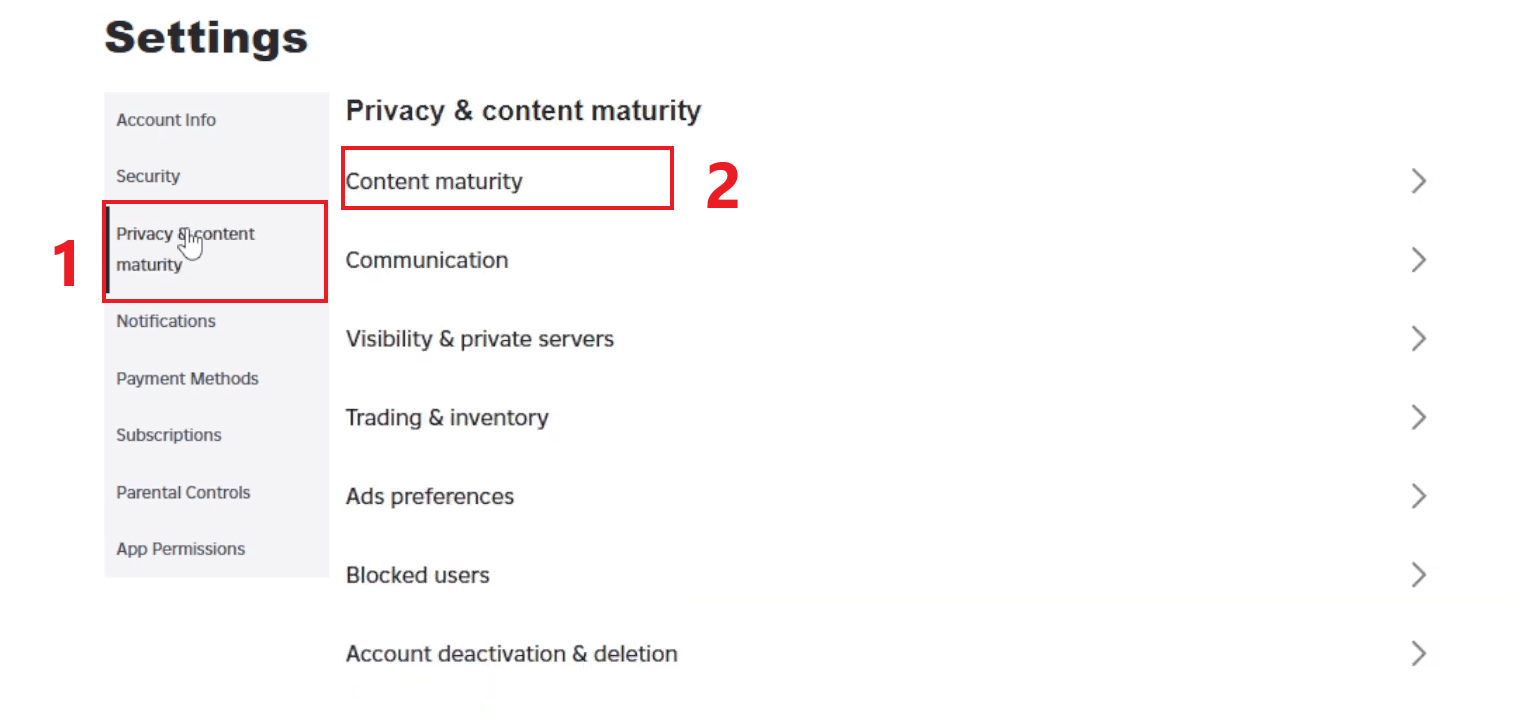
- Click the gear icon (top-right) → Settings.
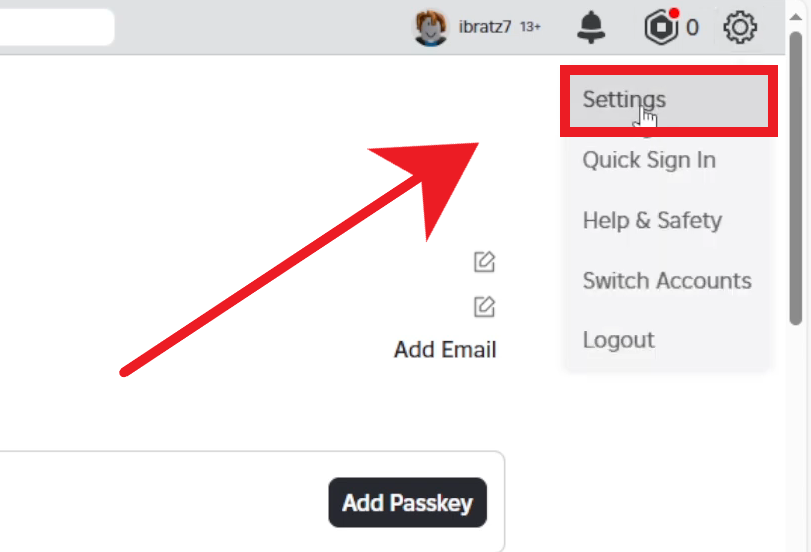
- Open Privacy & Content Maturity.
- Click Content Maturity.
- Move the slider to 13+ or 17+ (Restricted).
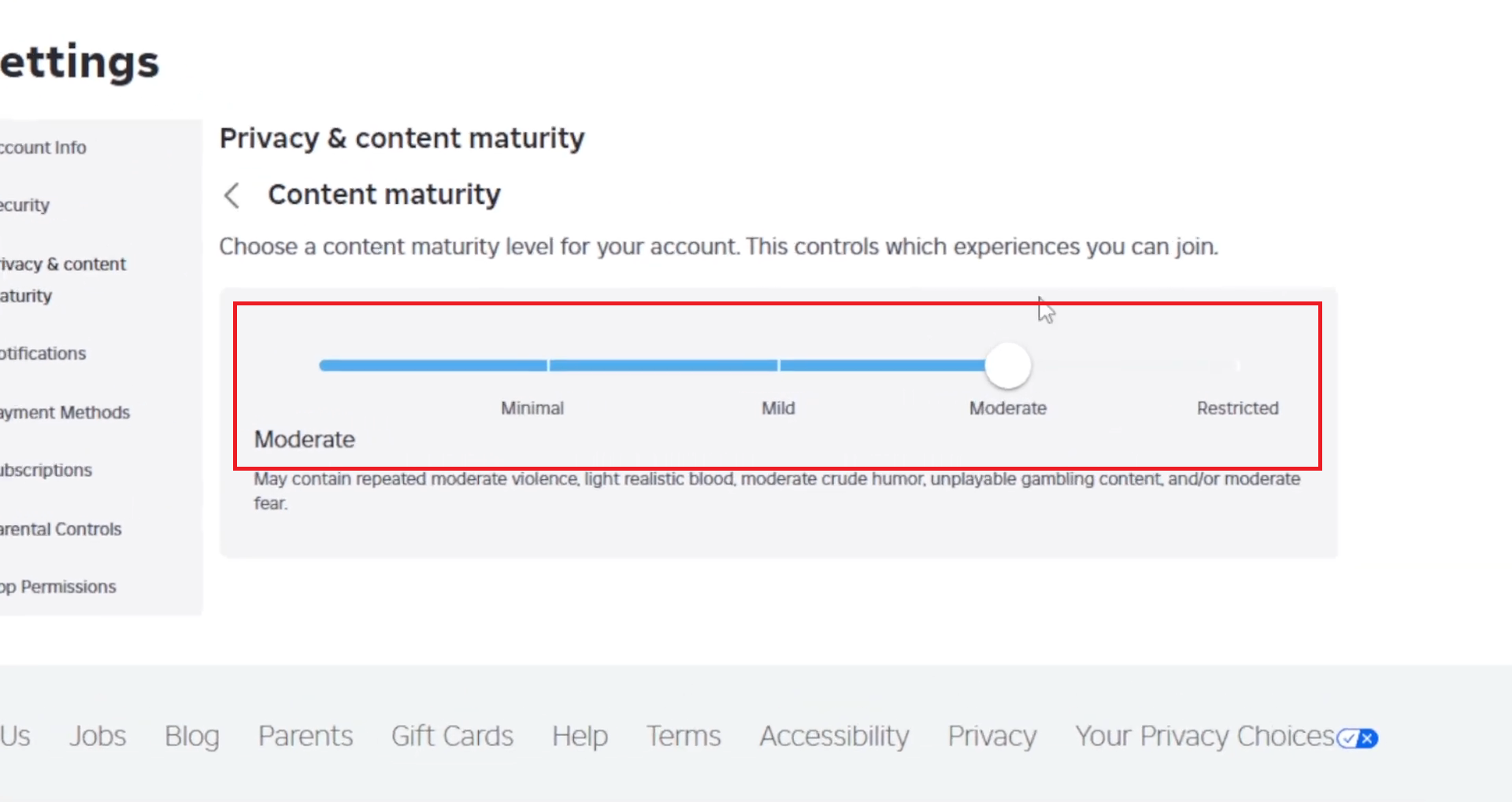
- If asked, complete age verification using your phone.
- Refresh the page and check whether the lock icon is gone.
Mobile Instructions
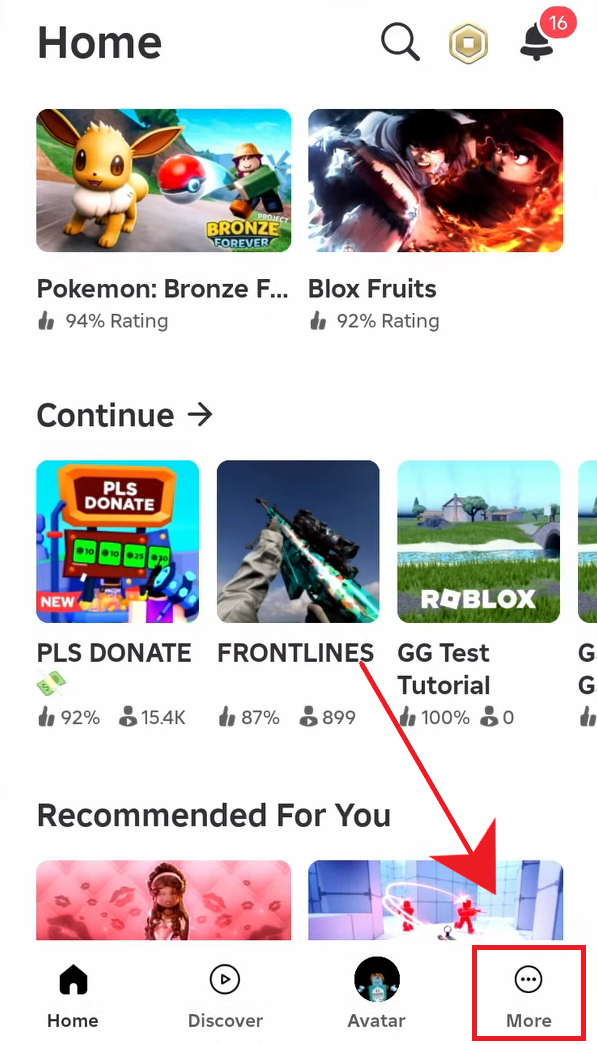
- Open the Roblox app.
- Tap More (three dots).
- Go to Settings → Privacy.
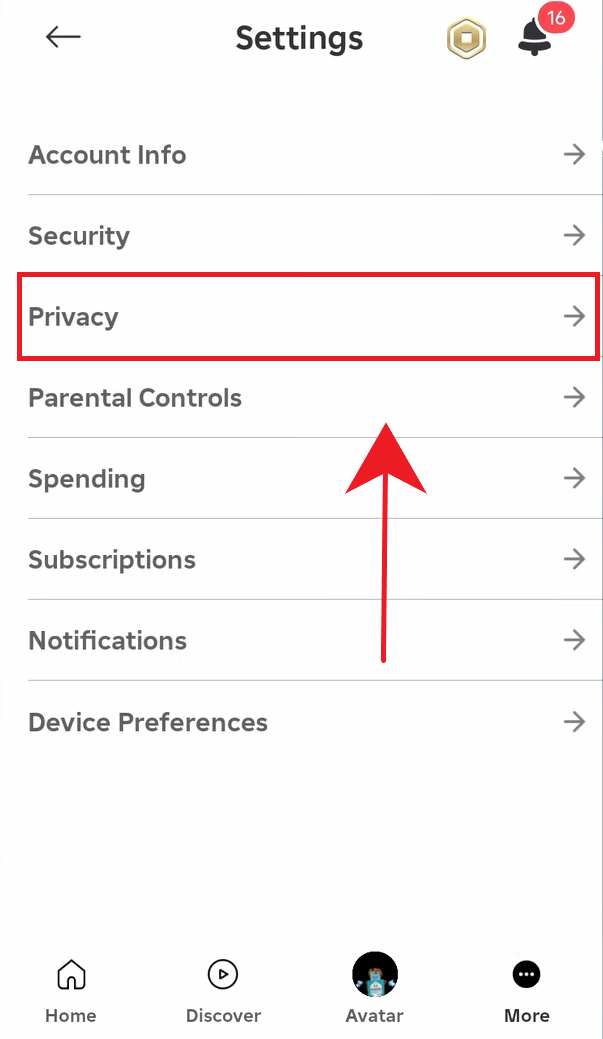
- Open Content Maturity.
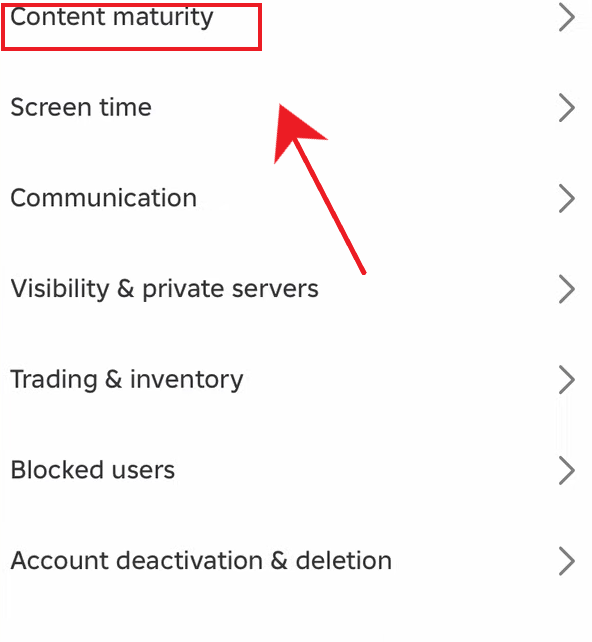
- Increase the slider (All Ages → 13+ or Restricted).
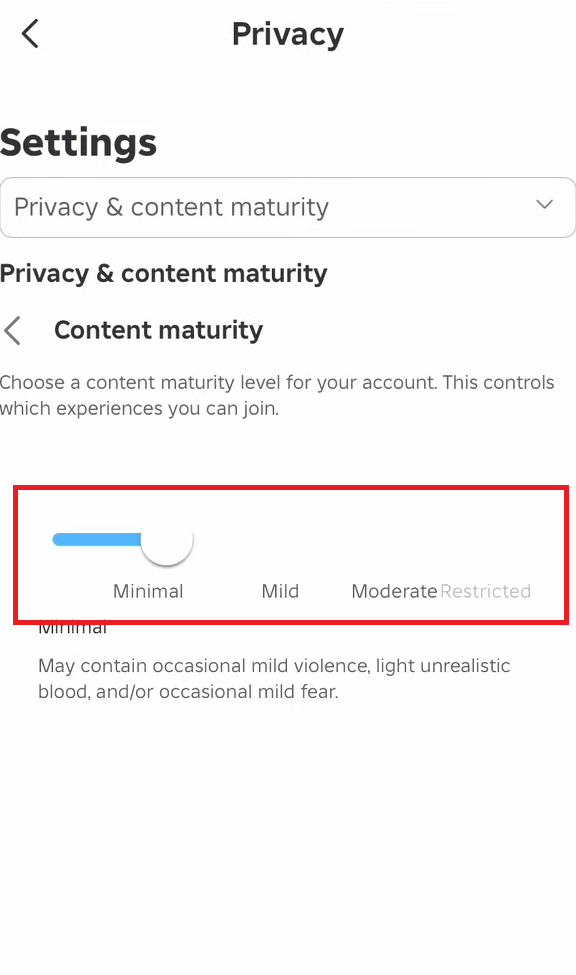
- Complete verification if prompted.
- Restart the app and test the experience again.
STEP 2: If the Lock Icon Still Appears
- Log out → close Roblox → log back in.
- Confirm the experience’s age rating (a 17+ game will remain locked on 13+).
- Wait a few minutes, changes sometimes take time to apply.
- Try signing in on another device (PC or mobile).
- Some 17+ or sensitive experiences may also be region-restricted.
STEP 3: Check if Your Account Is Parent-Managed
- If settings are missing or greyed out, your account may be part of a family/parent-managed group.
- Ask the parent account holder to review Parental Controls and raise your allowed content tier.
- Once the parent unlocks the correct tier, the lock icon should disappear.
STEP 4: Make Sure “Account Restrictions” Is Turned Off
If the error still appears, check whether Account Restrictions is enabled on your profile. This setting blocks all 9+, 13+, and 17+ experiences (even if your maturity slider is higher) and can show a similar warning such as “The game is unavailable due to account restriction settings.”
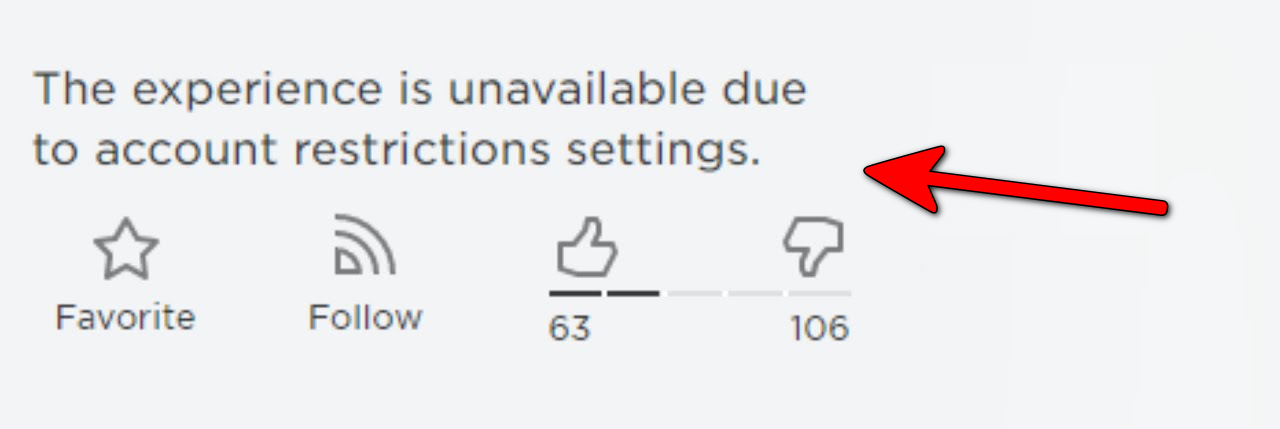
When this feature is ON, Roblox forces the account into the strictest safety mode, blocks most games, and sets all communication settings to No one. Child accounts and parent-managed profiles commonly have this enabled.
To unlock higher-rated experiences, simply turn off Account Restrictions.
PC Instructions
Note: If a Parent PIN is set, you will need the 4-digit code.
- Go to the Roblox website and log in.
- Click the gear icon → Settings.
- Select the Security tab.
- Disable “Account Restrictions are enabled.”
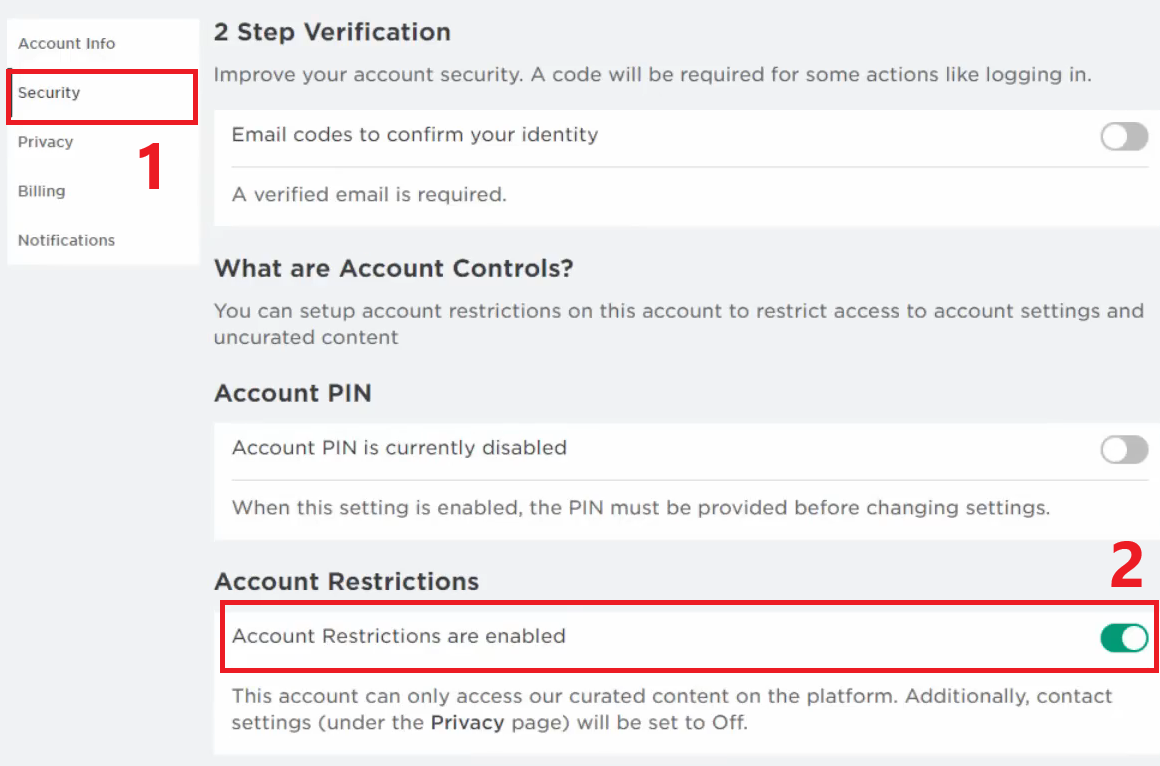
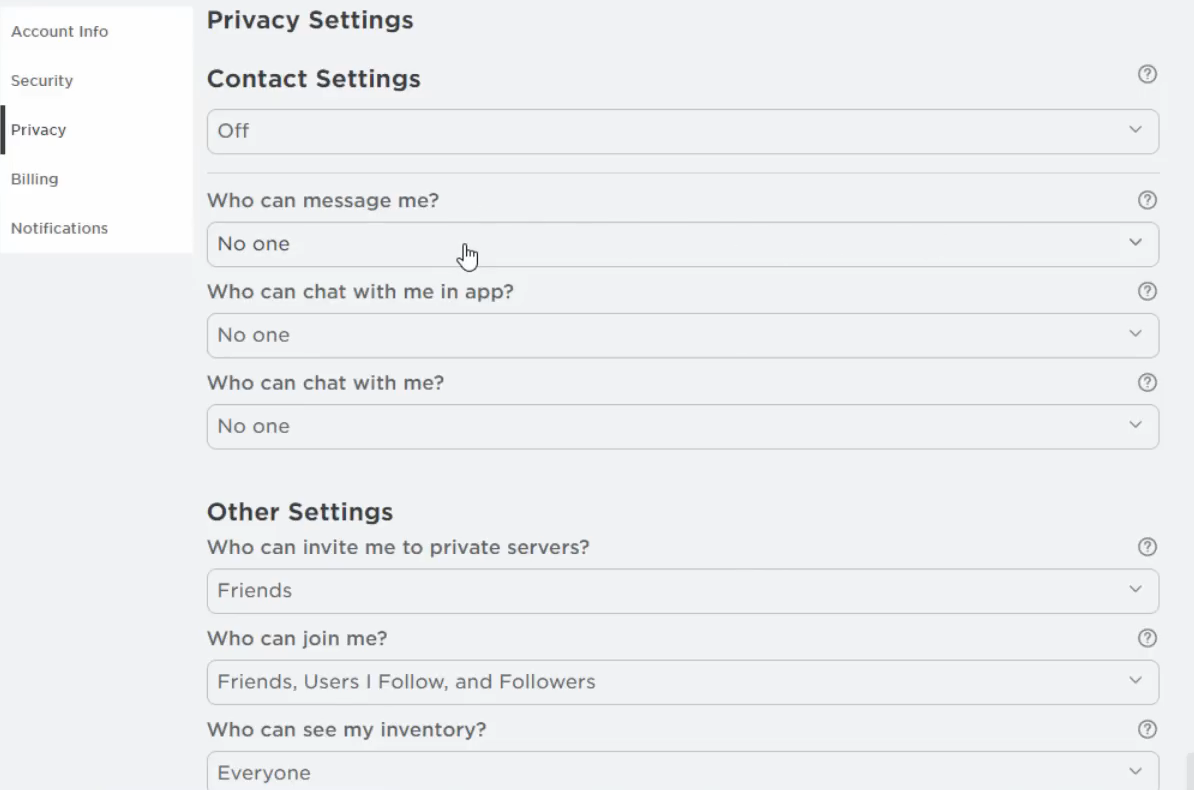
- Open the Privacy tab and adjust communication options (Friends/Everyone) if needed.
Mobile Instructions
- Open the Roblox app.
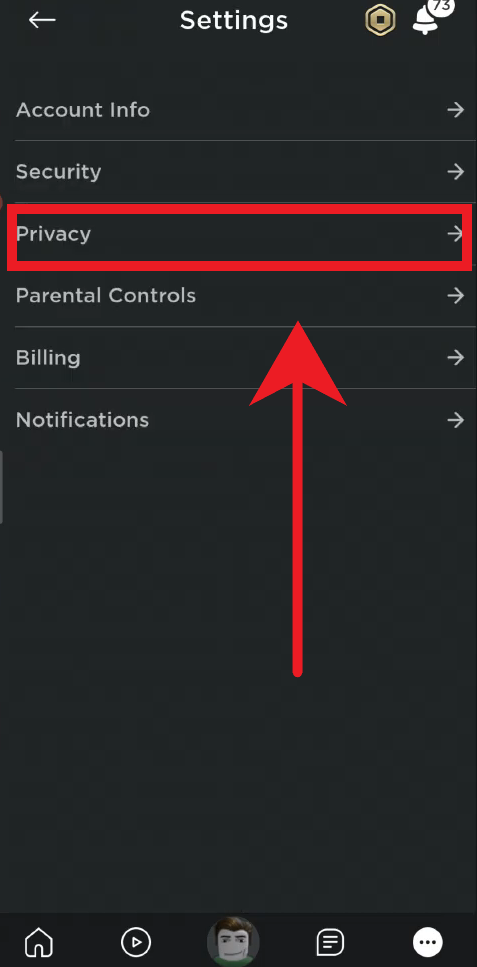
- Tap More → Settings → Privacy.
- Turn off “Account Restrictions are enabled.”
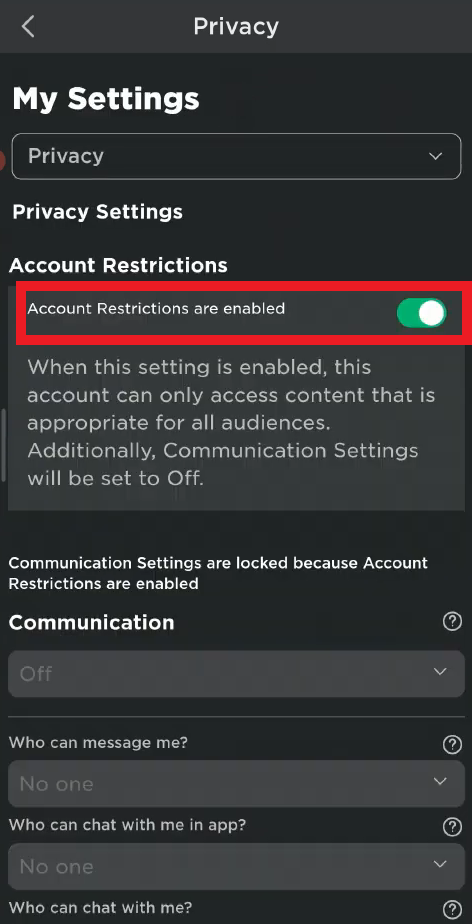
- Scroll down and update communication settings if needed.
Once Account Restrictions are disabled, your maturity level is set correctly, and verification is complete, you should be able to join experiences without seeing the “Content not accessible” or “Account restriction” warnings.