How to Fix Red X on Files/Folders in Windows?
A red X (red cross) overlay on a Desktop icon or in File Explorer usually means Windows can’t reach the item right now (broken shortcut target, cloud sync error/offline status, or a disconnected network path).
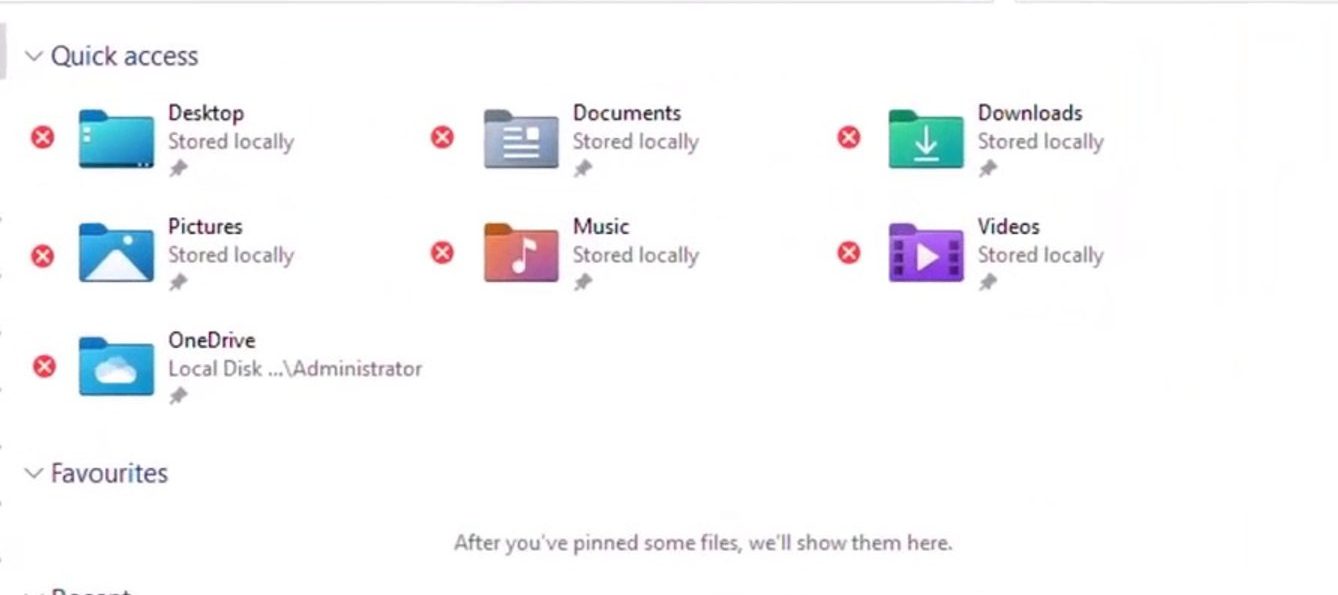
In most cases, the red X appears because:
- Shortcut target is broken (the app/file was moved, renamed, or deleted).
- Cloud-synced files are offline or sync is failing (commonly OneDrive).
- Network drive/path is disconnected (mapped drive, NAS, office server, or VPN required).
- Overlay/icon status is stale after a crash/update (less common, but possible).
Before you start: confirm what type of item has the red X:
- If it’s a Desktop icon shortcut: right-click it > Properties. If you see a Shortcut tab, it’s a shortcut.
- If it’s a real file/folder: check whether it sits under OneDrive or a network location, then confirm you’re online and signed in.
1. Fix the Shortcut Target (or Recreate the Shortcut)
If the red X is on a shortcut, Windows is usually pointing to a target that no longer exists (or a location you’re not connected to). Update the target, or recreate the shortcut so it points to the correct path.
- Right-click the affected shortcut and select Properties.
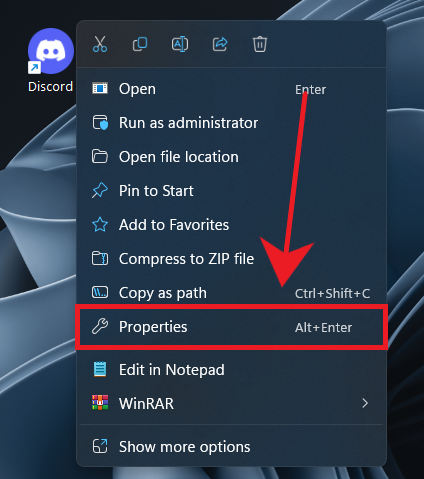
- Open the Shortcut tab.
- Check the Target field. This is the path Windows is trying to open.
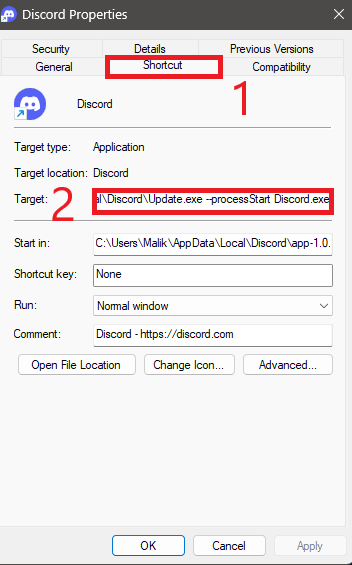
- Click Open File Location. If Windows can’t open the target (or opens the wrong place), the target path may be invalid or unreachable.
- If you can find the correct app/file/folder manually, copy its new path from File Explorer’s address bar.
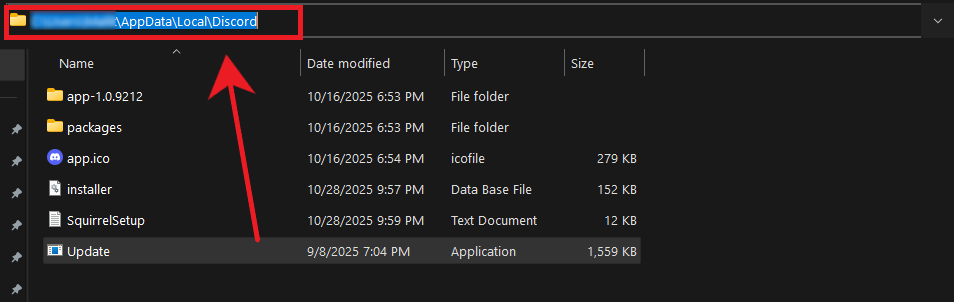
- Go back to Properties and paste the correct path into the Target field, then click Apply.
- If the shortcut still behaves oddly, delete it and create a new shortcut:
Right-click the correct file/app > Send to > Desktop (create shortcut).
2. Fix OneDrive Sync (Confirm It’s OneDrive First)
If the red X is coming from OneDrive, it usually means the file is stuck syncing, offline, you’re signed out, or your OneDrive storage is full.
- Red X / error: sync problem.
- Signed out: you must sign in again.
- Paused: resume syncing.
- Storage full: free space or upgrade storage.
Also confirm the affected item is inside a OneDrive-managed location (File Explorer > OneDrive).
- Open File Explorer.
- In the left pane, click the OneDrive folder.
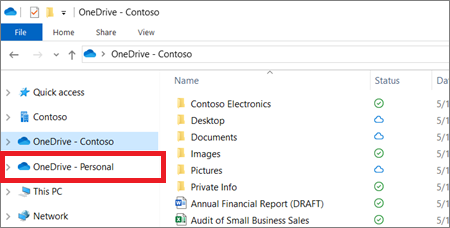
- Find the item with the red X and check whether it is actually inside OneDrive.
- If it’s inside OneDrive: continue with the steps below.
- If it’s not inside OneDrive: don’t move it unless you want it synced. A red X outside OneDrive usually points to a shortcut or network path issue.
- Resume sync: click the OneDrive tray icon > Resume syncing (if paused).
- Sign in: if OneDrive says “not signed in,” sign in again and wait a few minutes for status to update.
- Fix storage: if storage is full, free space (delete large files, empty recycle bin, or stop syncing a folder), then allow OneDrive to finish syncing.
- Restart OneDrive: right-click the OneDrive tray icon > Quit OneDrive, then reopen OneDrive from Start.
- If a single file is stuck, right-click it and try:
- Always keep on this device (forces download), or
- Free up space (then reopen it to trigger re-download).
Note: If your Desktop is being backed up by OneDrive, a red X can appear on Desktop items even though they look “local.” In that case, fixing OneDrive sign-in/sync usually clears it.
3. Rebuild the Icon Cache (If the Red X Looks “Stuck”)
If you’ve fixed OneDrive/network/shortcut issues but the red X overlay still appears, the icon/overlay cache may be stale. Rebuilding it forces Explorer to regenerate icon data. This does not delete your personal files.
- Open Start, search CMD, then choose Run as administrator.
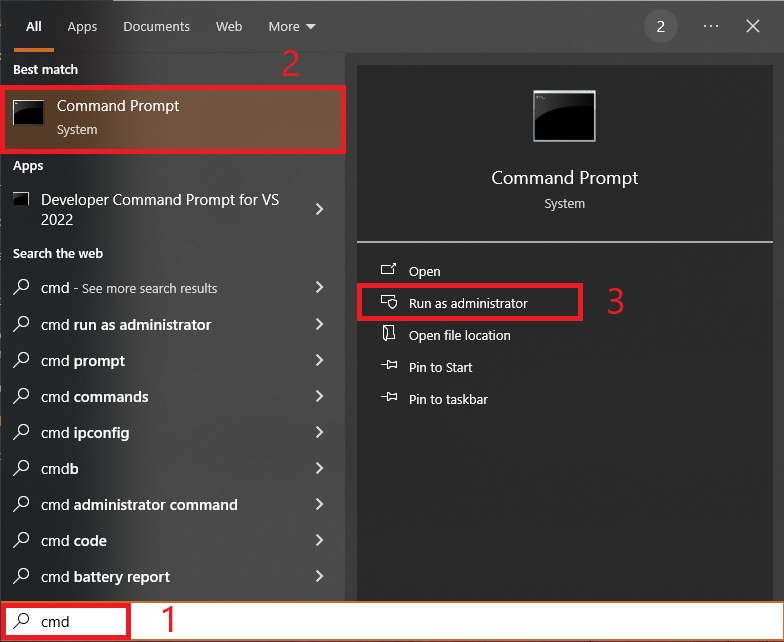
- Run these commands one by one:
taskkill /IM explorer.exe /F
DEL /A /F /Q "%localappdata%\IconCache.db"
DEL /A /F /Q "%localappdata%\Microsoft\Windows\Explorer\iconcache*"
- Restart your PC. (Your desktop may briefly disappear after Explorer is killed, this is normal.)
- If Explorer does not come back before restart, press Ctrl + Shift + Esc > File > Run new task > type explorer.exe > OK.