Fix: Generative Fill Is Missing or Greyed Out in Photoshop
The “Generative Fill Not Showing” issue in Photoshop occurs when the Generative Fill option does not appear (or remains greyed out) in the Contextual Task Bar after making a selection. This prevents you from generating AI-powered edits in your project. In some cases, the issue can occur even on a recent version of Adobe Photoshop.
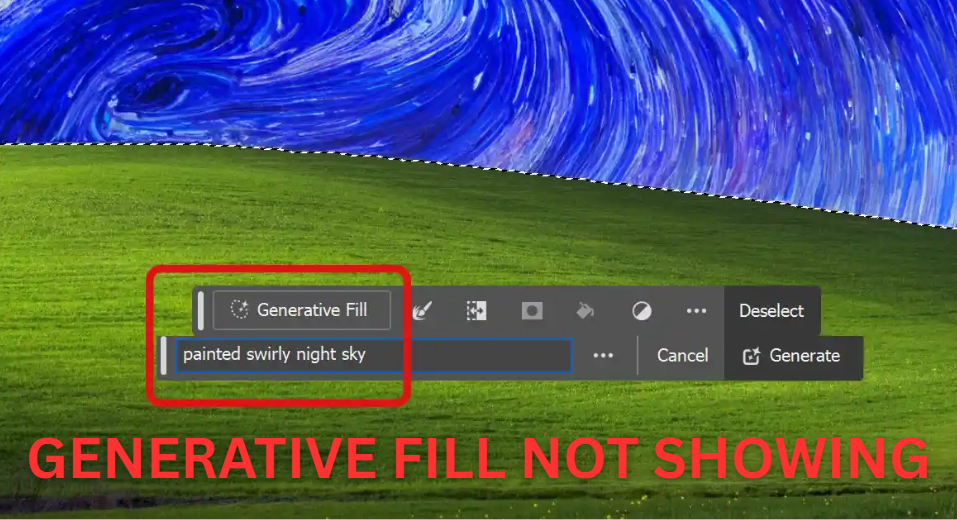
The most common reasons behind this problem include:
- Disabled Contextual Task Bar
- Outdated Photoshop build
- Conflicts from multiple installed versions
- Adobe account / service connectivity issues
- Enterprise or policy restrictions
- Using a layer or selection type that does not support Generative Fill
Follow the solutions below in order.
1. Check Network Connection
This issue can occur if Photoshop cannot reach Adobe’s online services. Generative Fill requires a stable internet connection because it relies on Adobe Firefly’s cloud-based processing. If you are offline, using a restrictive VPN or proxy, blocked by a firewall, or experiencing an unstable connection, Photoshop may be unable to send the required data, causing the Generative Fill option to remain unavailable or greyed out.
Also check this: Make sure you are signed into Creative Cloud inside Photoshop, as an expired sign-in session can prevent online features from loading even when your internet connection is working.
2. Make Sure Your Selection and Layer Support Generative Fill
Generative Fill appears only when Photoshop detects a supported workflow. If your selection is made on an unsupported layer type or a non-pixel-based layer, the option may not appear.
- Confirm you are working on a pixel (raster) layer.
- If the layer is locked, unlock it and try again.
- Create a new blank layer above the image and make a selection again.
- If using a Smart Object, Rasterize Layer (or edit its contents), then test Generative Fill again.
Quick examples of unsupported workflows: If your selection is on a text layer, shape layer, or adjustment layer, or if the correct image layer is not selected in the Layers panel, Generative Fill may not appear. Switch to a standard raster layer and try again.
3. Enable Contextual Task Bar
The Contextual Task Bar must be enabled because Generative Fill appears through this bar when a valid selection is made. If the bar is disabled, the option will not appear.
To enable it: Open Photoshop > Go to Window > Contextual Task Bar.

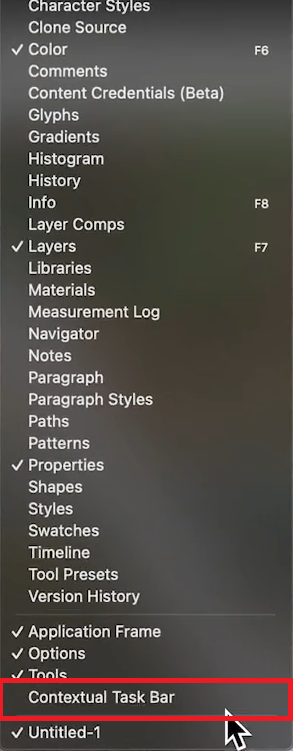
Once enabled, Generative Fill should appear automatically when you select an area on a supported layer.
4. Update Your Current Photoshop Version
Older Photoshop builds may lack Generative Fill support. Updating Photoshop ensures compatibility and restores missing or greyed-out AI features.
- Close Photoshop completely.
- Open the Adobe Creative Cloud app.
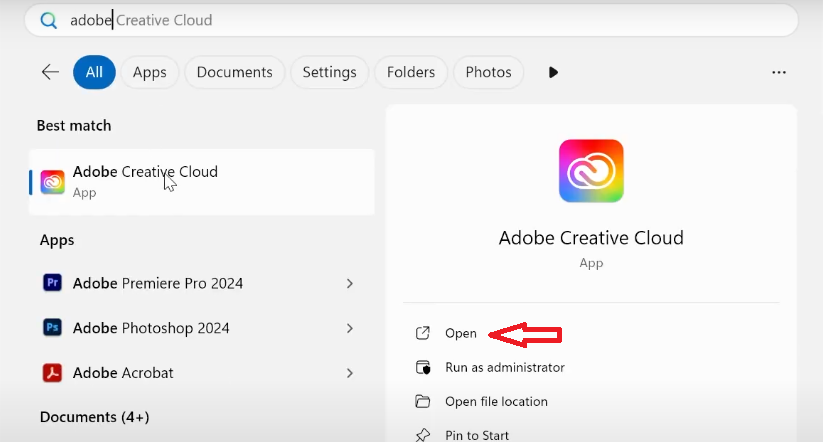
- Sign in with your Adobe account.
- Click the Apps tab.
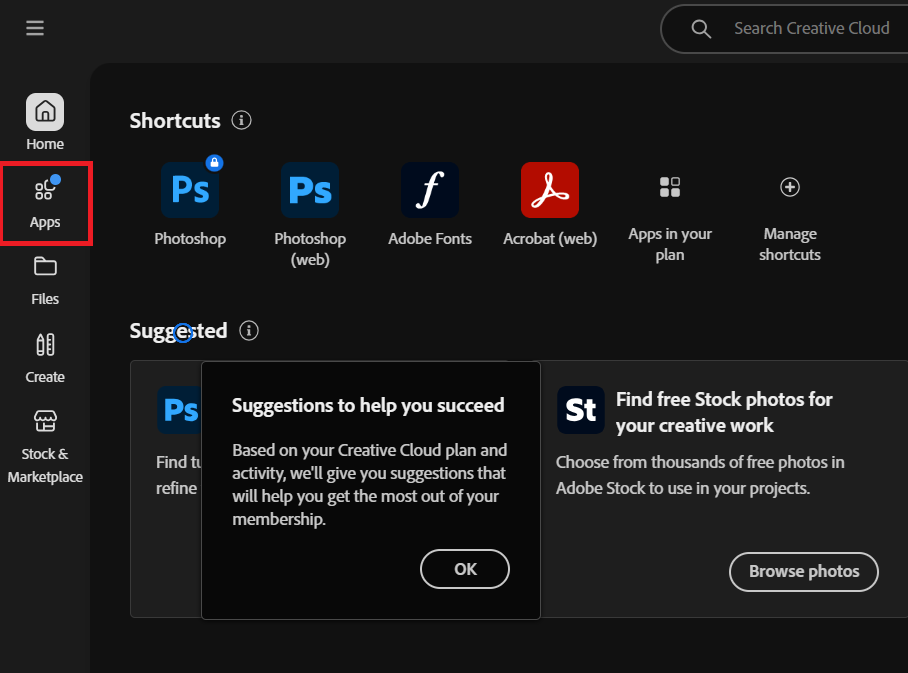
- Locate Photoshop.
- Click Update if available.
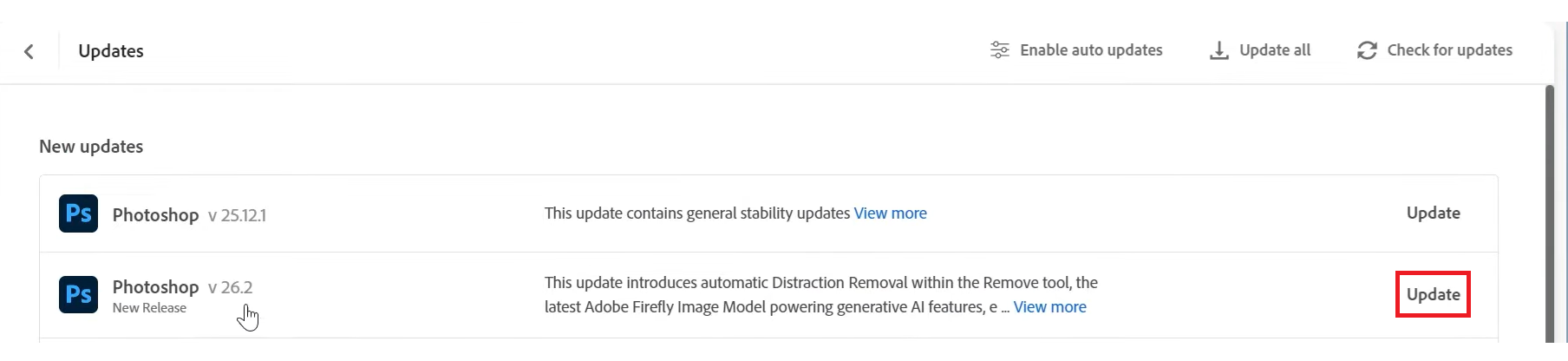
- Restart Photoshop (and your computer if needed).
- Open a project, make a selection, and check for Generative Fill.
5. Uninstall Multiple Versions of Photoshop
Installing multiple Photoshop versions (such as stable and Beta) can cause conflicts between files, plugins, and background services, leading to missing features.
- Open Creative Cloud > Apps and check for multiple Photoshop versions.
- Uninstall older versions and keep only the latest stable release.
- Temporarily disable third-party plugins and restart Photoshop.
Removing older versions ensures Photoshop loads the correct files and services.
6. Reinstall Adobe Creative Cloud and Photoshop
If the issue persists, a clean reinstall can resolve problems caused by failed updates, corrupted caches, or broken components.
- Press Windows + R, type appwiz.cpl, and press Enter.
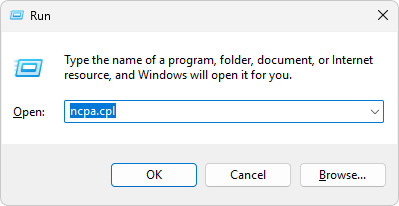
- Uninstall Adobe Creative Cloud and Photoshop.

- Restart your PC.
- Reinstall Adobe Creative Cloud and sign in.
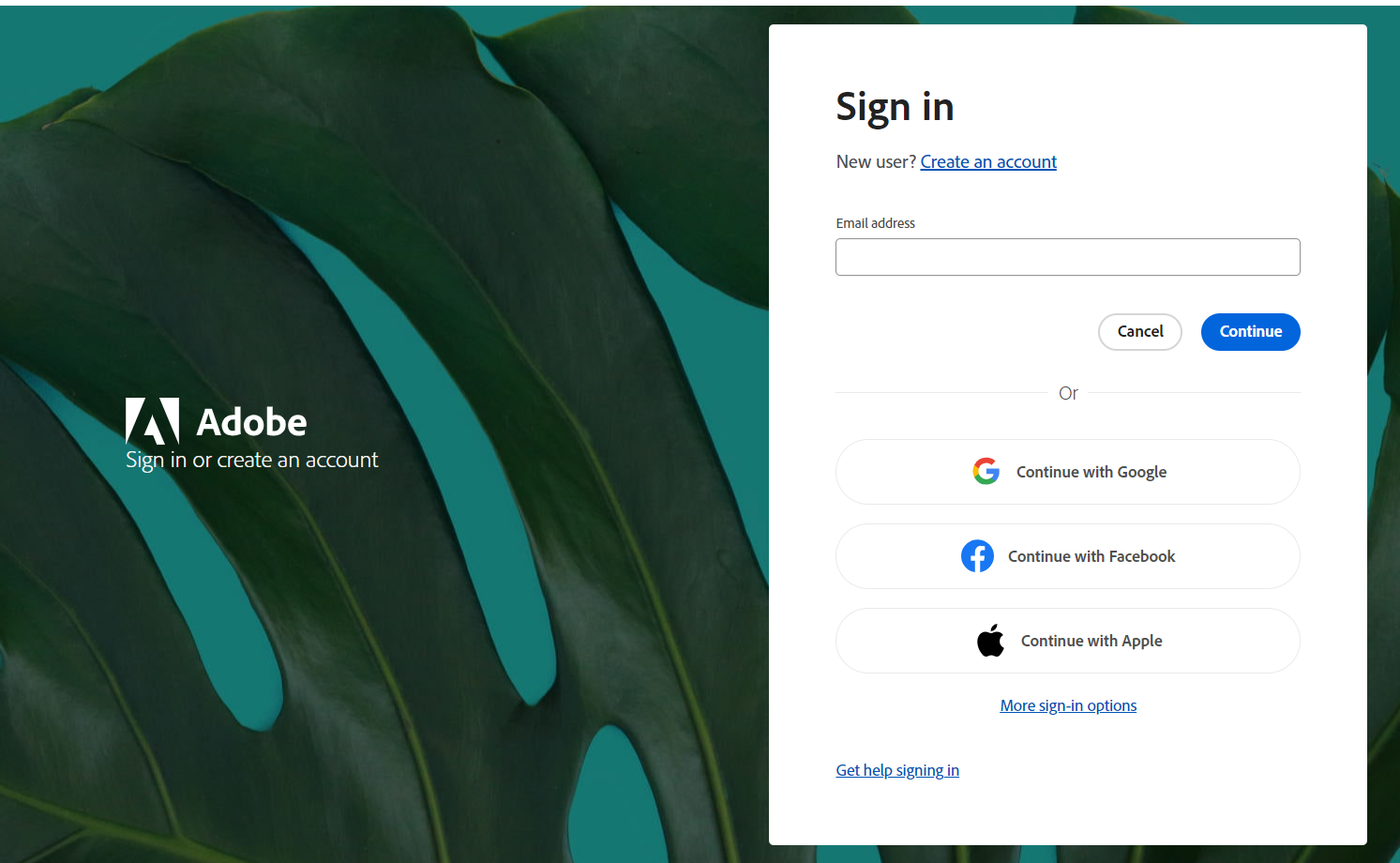
- Install the latest version of Photoshop.
- Test Generative Fill on a supported layer.
Note for macOS: Uninstall Photoshop and Creative Cloud from the Applications folder (or use Adobe uninstallers), then reinstall via Creative Cloud.
7. Check Account or Policy Restrictions
If everything is configured correctly, the issue may be account-related. Enterprise or managed Adobe accounts, policy restrictions, or regional limitations can prevent Firefly features from being available.
- Sign out and back into Creative Cloud.
- Test with a different Adobe account, if possible.
- If using a work or school account, contact your administrator or Adobe Support to confirm feature availability.