How to Fix PEAK Black Screen Issue On PC?
A black screen in PEAK usually means the game is running, but the renderer can’t present an image. The most common causes are overlays/antivirus hooks, a fullscreen or scaling/HDR mismatch, a wrong rendering API (Vulkan vs DX), or a GPU driver problem.
- Black screen but you hear audio: typically fullscreen/resolution/scaling, HDR, or an overlay hook.
- Black screen then the game closes: often driver/runtime/API conflicts or corrupted game files.
- Only on multi-monitor: wrong display target, HDR/scaling mismatch, or Windows display cache issues.
- Only in-match (after revive/cutscene): still try renderer/overlays/driver/file checks first (can also be a game-side bug).
Try the fixes below in order (quickest/lowest-risk first). After each fix, launch PEAK and check if the black screen is gone.
1. Add Game to Antivirus Exceptions + Disable Overlays
Overlays and real-time scanning can interfere during renderer initialization and fullscreen presentation. Excluding the game reduces scanning hooks, and disabling overlays removes common injection points.
- Open your antivirus and find Exceptions / Exclusions (usually under Settings, Protection, or Advanced).
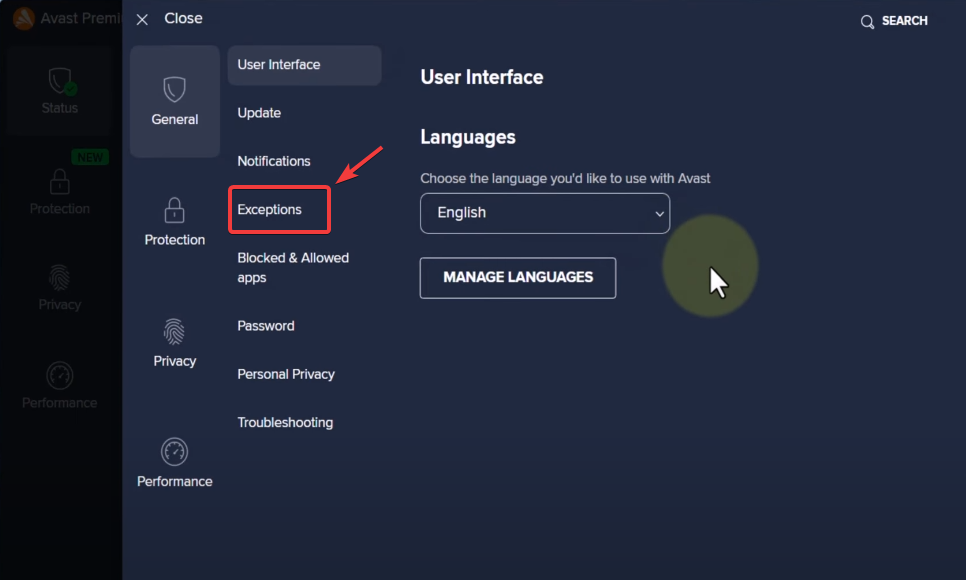
- Add the PEAK folder or the game .exe to exclusions.
Tip: Steam path: Library > PEAK > (gear) Manage > Browse local files.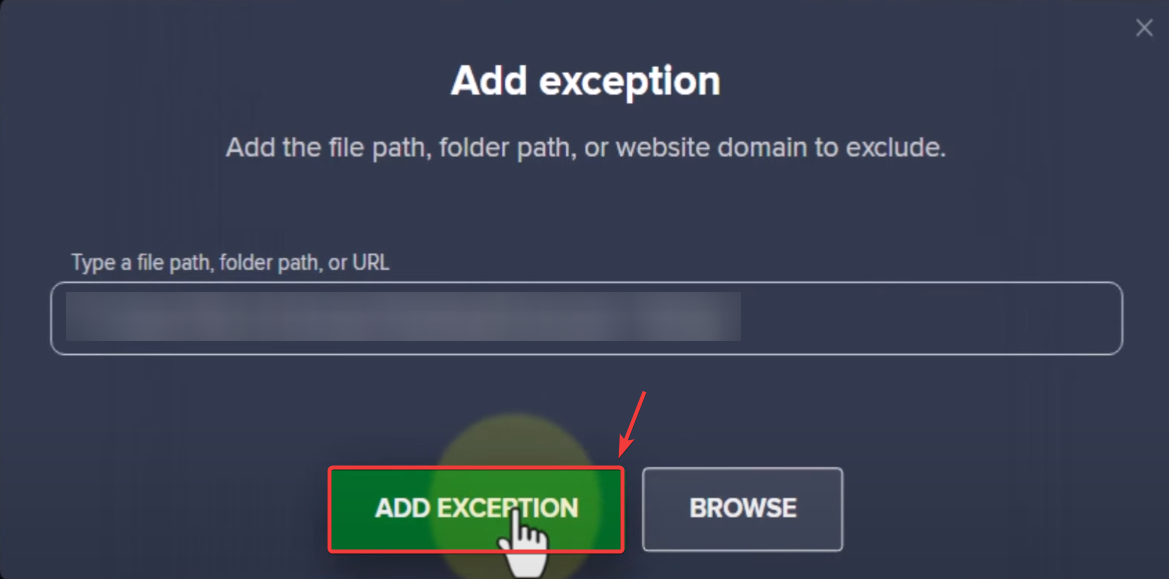
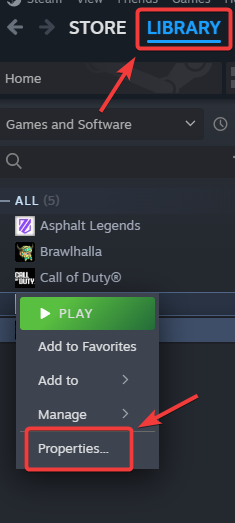
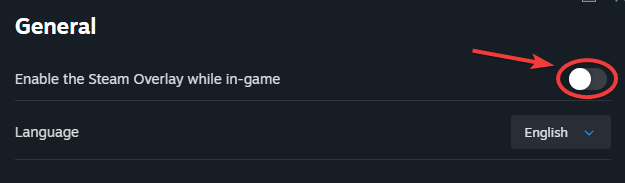
- Disable Steam Overlay: Steam > Library > right-click PEAK > Properties > General > uncheck Enable the Steam Overlay while in-game.
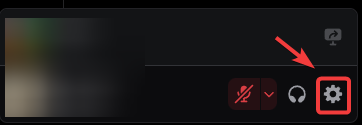
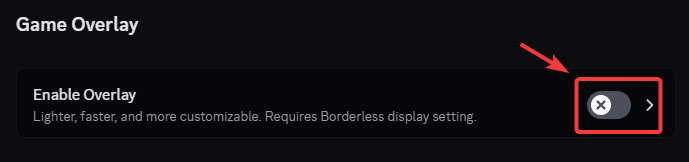
- Disable Discord Overlay: Discord > Settings (gear) > Game Overlay > toggle off Enable in-game overlay.
Also disable other overlays if you use them (GeForce Experience/ShadowPlay, Xbox Game Bar, MSI Afterburner/RTSS, Overwolf, etc.). Guide: How to Disable In-Game Overlays to Fix Lag & FPS Drops?
2. Use Windowed Mode (Alt + Enter)
If fullscreen output is failing (resolution/scaling/HDR/multi-monitor), windowed mode often bypasses the presentation issue so you can reach the settings menu.
- Launch PEAK and wait ~10–20 seconds (first-time setup/shaders can take a moment).
- Press Alt + Enter to toggle fullscreen / windowed.
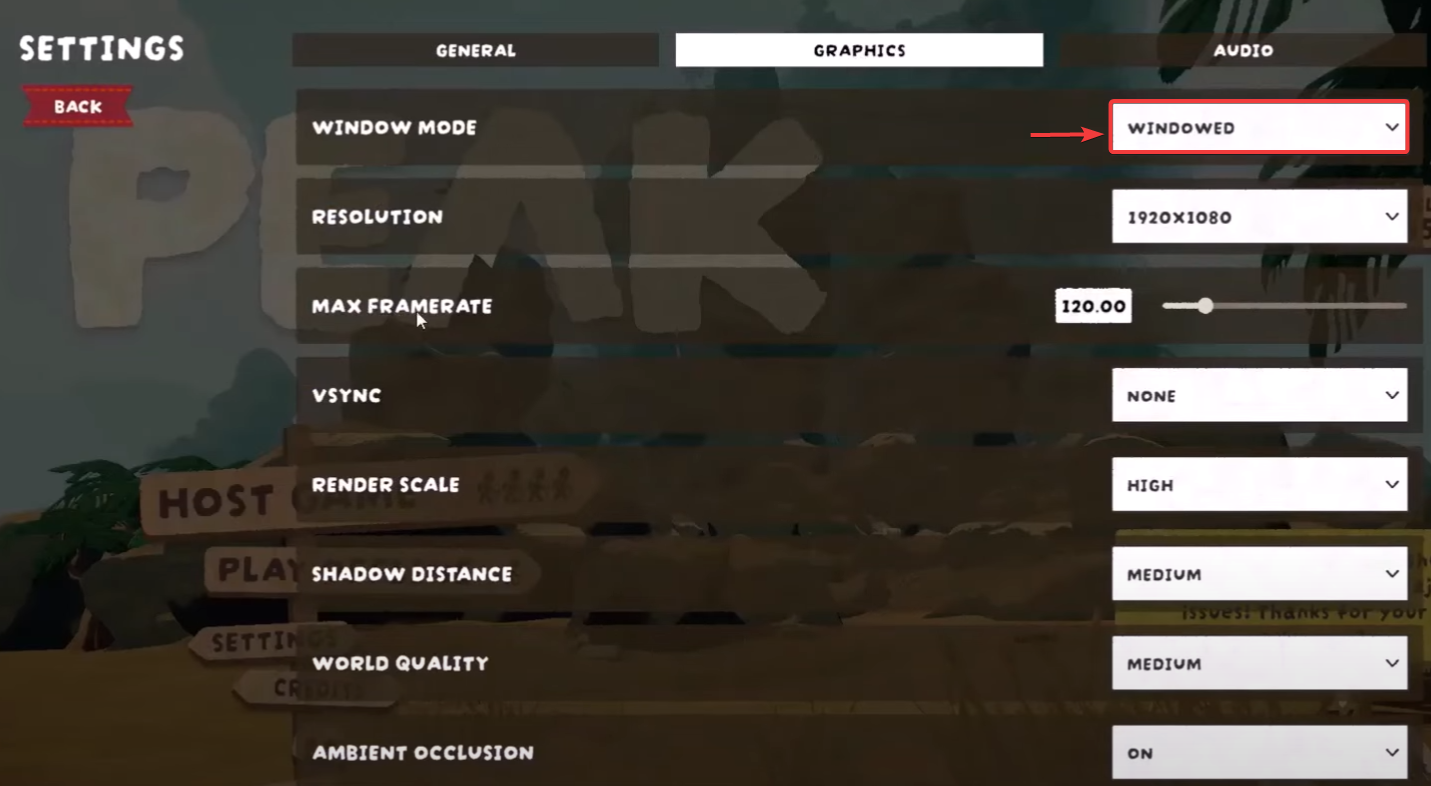
- If you get an image, go to Settings / Graphics and set Windowed or Borderless Windowed.
- Save and restart the game.
3. Disable Fullscreen Optimizations
These toggles fix many black screens caused by Windows fullscreen presentation, HDR, and multi-monitor mismatches, without touching game files.
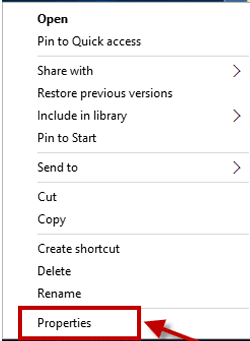
- Open PEAK’s folder (Steam: Library > PEAK > (gear) Manage > Browse local files). Right-click PEAK.exe > Properties.
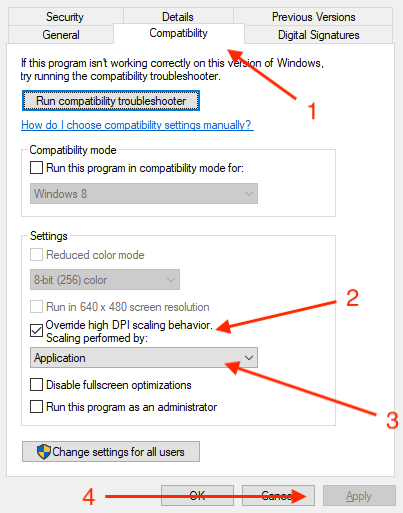
- Go to Compatibility and enable Disable fullscreen optimizations > Apply.
- If you use multiple monitors, temporarily run with one display (disconnect extras or set only one active), then launch again.
4. Use Steam Launch Options to Force a Safer Display Mode / Alternate API
Launch options can force a safe output mode or switch the rendering API, which often bypasses black screens tied to fullscreen or a failing renderer.
- Open Steam > Library > right-click PEAK > Properties.
- In General, use Launch Options.
- Try one option at a time (remove the previous one before testing the next):
-windowed
-w 1280 -h 720
-dx11
-dx12
-vulkan
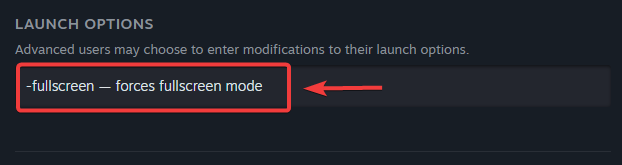
- Launch PEAK and check if the black screen is resolved.
Note: Not every game supports every flag. If one doesn’t help, remove it and test the next.
5. Update or Clean-Install Graphics Drivers
A bad/outdated driver (or a corrupted driver profile) can break rendering initialization and cause a black screen. A clean install removes leftovers and resets graphics profiles.
- Press Windows + X > Device Manager.
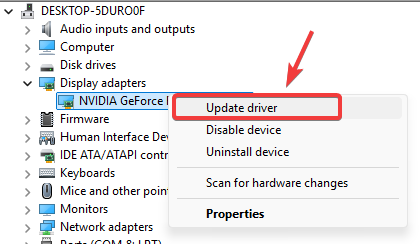
- Expand Display adapters > right-click your GPU > Update driver.
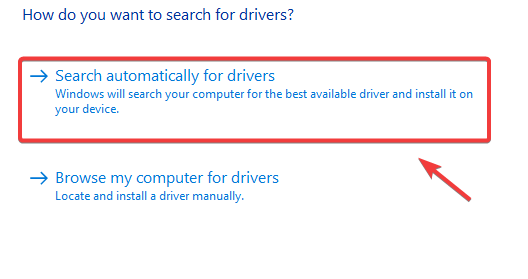
- Select Search automatically for drivers.
- If it still fails (or no update is found), install the latest driver directly from the manufacturer, using a clean option if available.
- Official driver pages:NVIDIA Drivers
AMD Drivers
Intel Drivers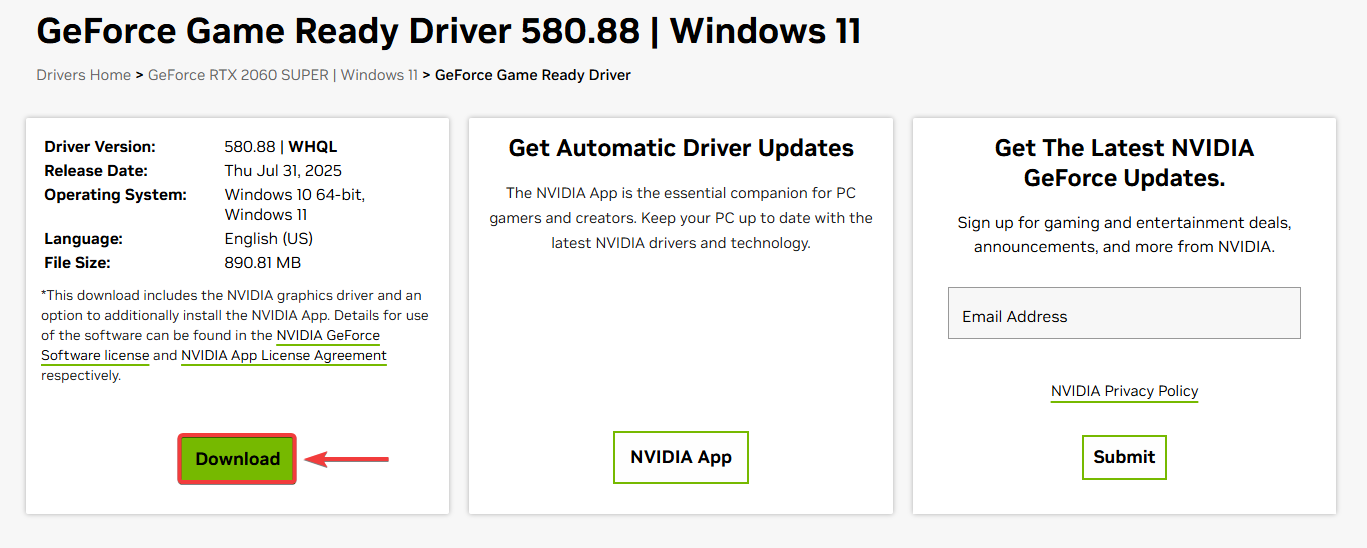
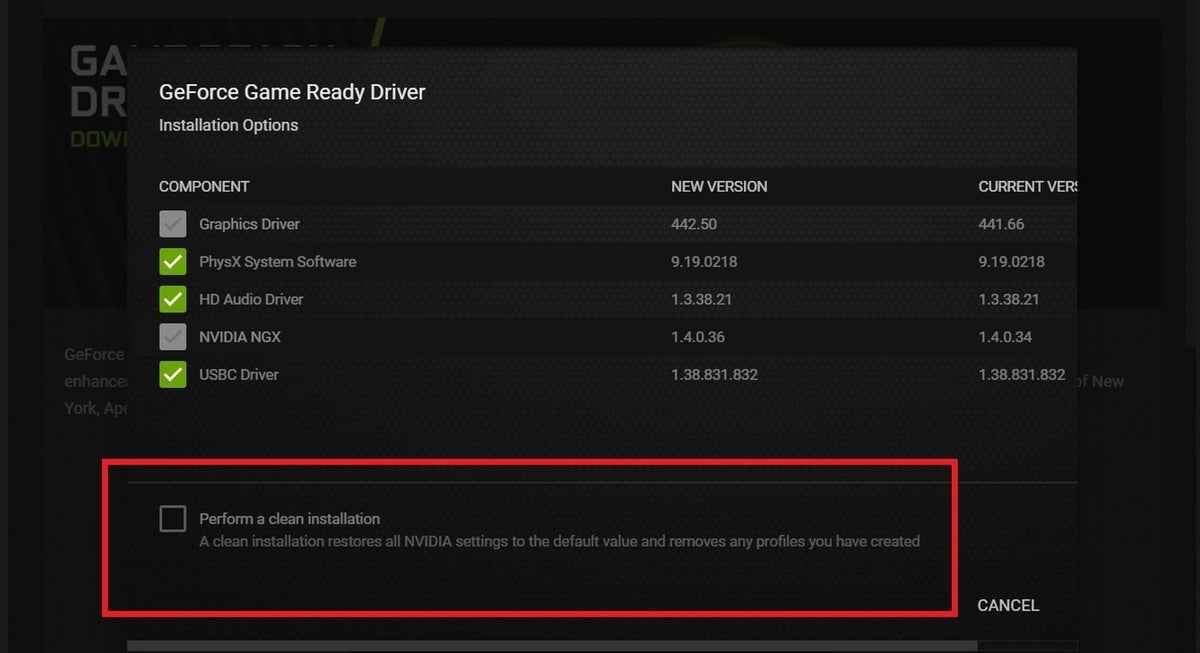
- During installation, choose the clean install option (if available).
Laptop note: If you have integrated + dedicated graphics, force PEAK to use the dedicated GPU: Settings > System > Display > Graphics (add PEAK.exe) > set to High performance.
6. Verify the Game Files
Missing/corrupted files can prevent PEAK from loading properly and cause black screens. Steam’s verify feature replaces broken files by comparing your install to the server version.
- Steam > Library > right-click PEAK > Properties.
- Go to Installed Files > click Verify integrity of game files.
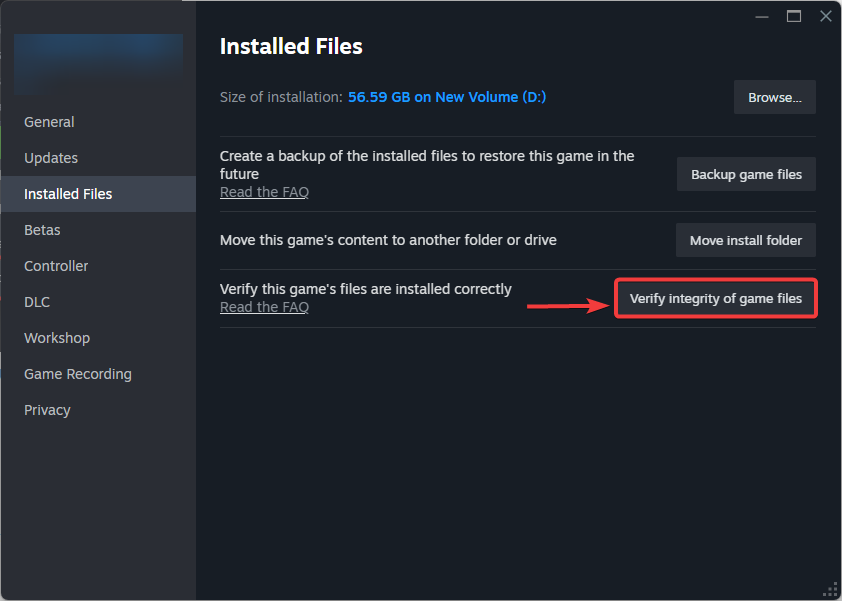
- When it finishes, restart your PC and launch PEAK again.
7. Reset Windows Display Cache in Registry (System-Wide)
This is system-wide (not PEAK-only). It can help if Windows display/scaling data is corrupted or incompatible with your current monitor setup. If you’re not comfortable editing the registry, skip this.
Safety: Create a System Restore Point first. For extra safety, right-click each key and Export it before deletion.
After reboot: Windows may re-detect your displays and briefly reset layout/scaling.
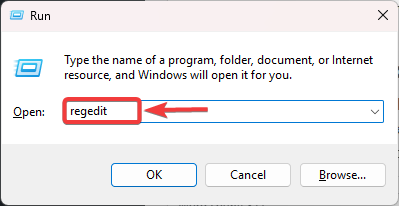
- Press Windows + R, type regedit, press Enter.
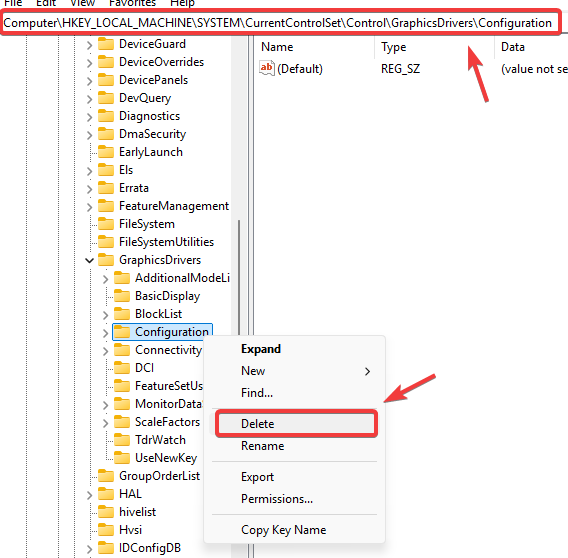
- Go to:
HKEY_LOCAL_MACHINE\SYSTEM\CurrentControlSet\Control\GraphicsDrivers\Configuration
- Right-click Configuration > Delete.
- Go to:
HKEY_LOCAL_MACHINE\SYSTEM\CurrentControlSet\Control\GraphicsDrivers\Connectivity
- Right-click Connectivity > Delete.
- Go to:
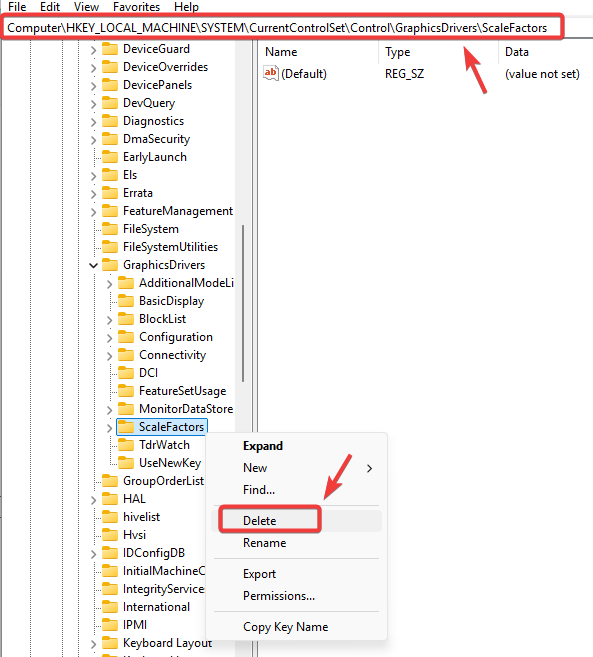
HKEY_LOCAL_MACHINE\SYSTEM\CurrentControlSet\Control\GraphicsDrivers\ScaleFactors
- Right-click ScaleFactors > Delete.
- Close Registry Editor and restart your PC.