Fix: “Page isn’t available right now” Instagram Error
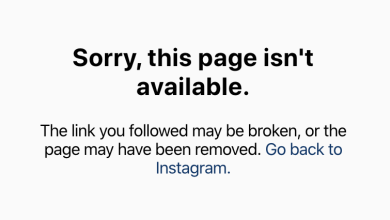
The “Page isn’t available right now” error on Instagram usually appears when you try to open a profile, post, or story, but Instagram fails to load the content. In most cases, this happens due to a temporary glitch either on Instagram’s side or within the app itself and may resolve automatically after some time.
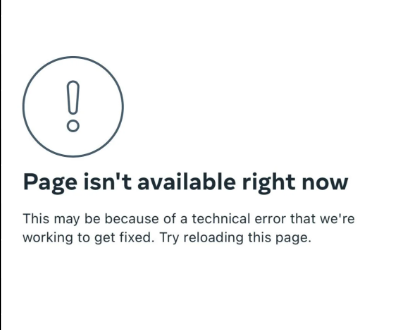
However, the page may also be unavailable if:
- The post was deleted
- The account became private
- The username was changed
- The content was removed by Instagram
- You were blocked by the account owner
If the same profile or post opens normally for other people, the issue is likely related to your account, your network, or your device rather than a global Instagram outage.
Common reasons behind this error include:
- Poor or unstable internet connection
- Corrupted Instagram app cache
- Instagram server outage
- Temporary app-side glitch
Before trying any fixes, it’s recommended to check Instagram’s server status.
If there is an ongoing outage, you may need to wait until the service is restored.
Now that you understand the error and its possible causes, let’s go through the solutions.
1. Restart Your Mobile
This error can appear due to a temporary system glitch on your device. A stuck background process may interfere with Instagram and trigger this issue.
Restarting your phone clears these background processes and often resolves the problem.
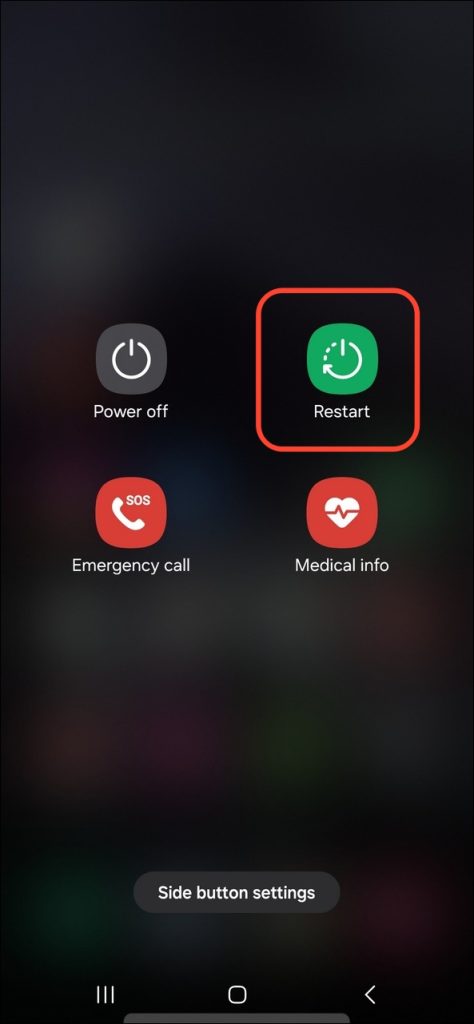
How to restart: Press and hold the power button and tap Restart.
2. Update Instagram
Using an outdated version of Instagram can cause loading failures due to bugs or compatibility issues. Updating the app installs the latest fixes.
- Open the Play Store or App Store
- Search for Instagram
- Tap Update (if available)
- Reopen Instagram and check if the issue is resolved
3. Switch to Mobile Data
If your Wi-Fi connection is unstable or experiencing DNS or routing issues, Instagram may fail to load certain pages. Switching to mobile data uses a different network route.
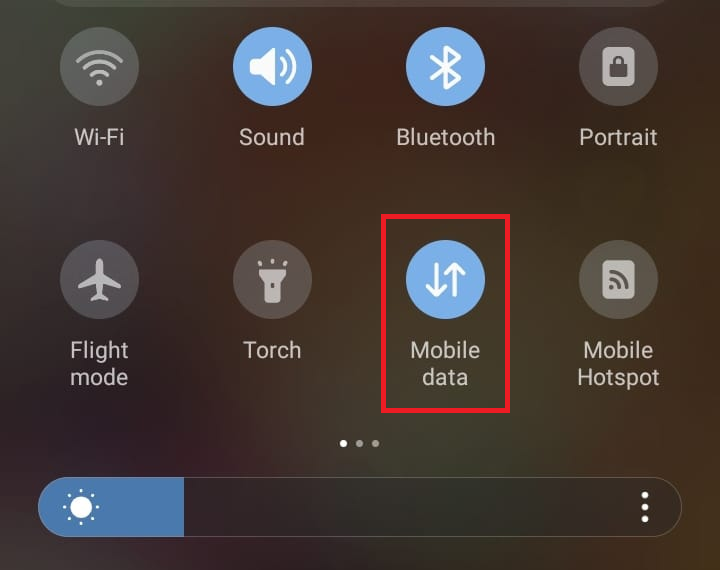
- Enable Mobile Data on your phone
- Open Instagram and check if the error is resolved
4. Enable a VPN on Your Device
In some cases, ISP-side restrictions or regional routing problems can prevent Instagram from loading content. A VPN assigns a different IP route, which may restore access.
Note: A VPN will not help if the content is deleted, private, or if you are blocked. Always use a trusted VPN.
- Open a trusted VPN app
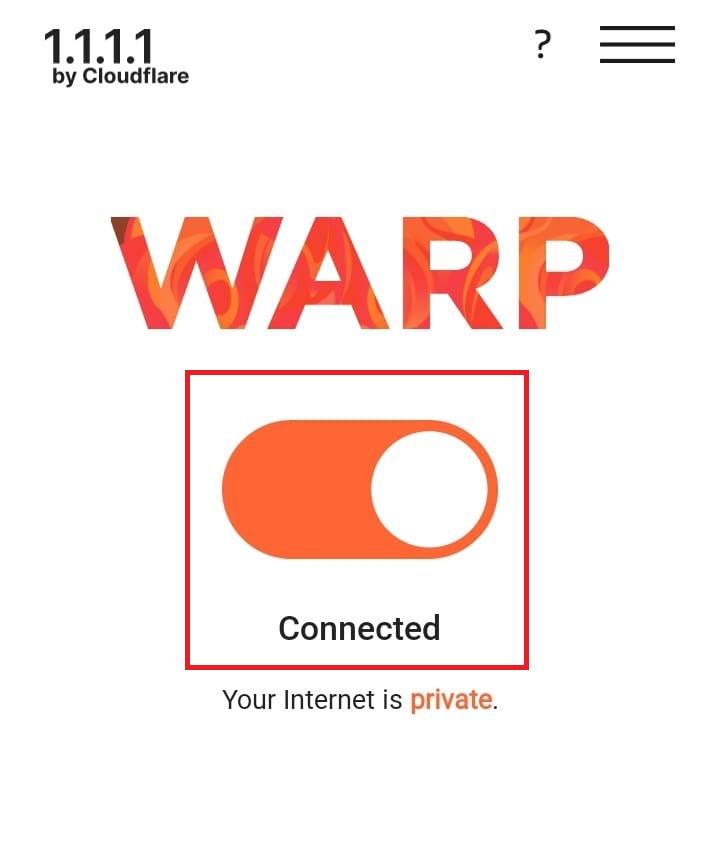
- Turn on the VPN
- Open Instagram and check if the issue is resolved
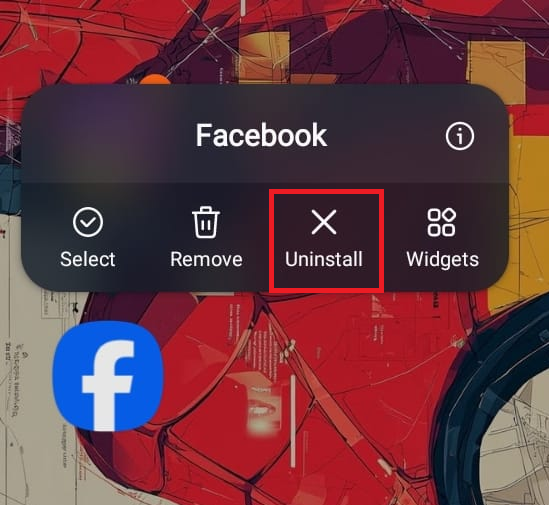
5. Reinstall Instagram (Clean Re-Login)
If the issue persists, it may be caused by corrupted app data or a broken login session. Reinstalling Instagram forces a clean install and fresh authentication.
- Uninstall Instagram from your device
- Reinstall it from the Play Store or App Store
- Log in to your account
- Check if the error is resolved
6. Switch to the Web Version of Instagram
If the mobile app continues to show the error, the issue may be app-specific. Using Instagram on the web can serve as a temporary workaround.
- Visit Instagram’s official website
- Log in to your account
- Check if the page opens normally
If the page still won’t open: Try opening the same profile or post from another account or device.
- If it fails everywhere, the content is likely deleted, private, or restricted
- If it opens for others but not for you, you may be blocked or facing an account-specific restriction