Fix: Error Code [OR-CCSEH-26] in Google Pay/Wallet
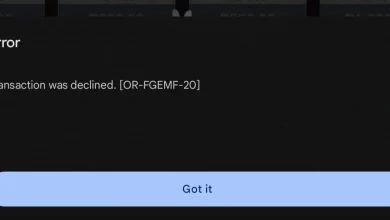
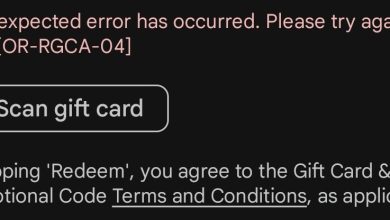
The OR-CCSEH-26 error can show up when you add a card to Google Wallet, when a Google Pay checkout fails, or when a Google Play purchase/subscription is declined. In most cases, it appears during a verification/authorization check where Google asks your bank (issuer) to approve the card, and the issuer rejects it.

In simple terms: OR-CCSEH-26 usually means the bank rejected card verification. If you see it while adding a card, the same rejection can also block tokenization (digital wallet provisioning), which is the step where your bank creates a secure “wallet token” so the card can be used in Google Wallet/Google Pay.
Where you may see OR-CCSEH-26:
- While adding a card inside Google Wallet
- During checkout in Google Play or any app/site using Google Pay
- When starting an online trial or subscription that needs a valid billing method
Common causes include:
- Issuer risk/fraud filters block wallet/online verification requests.
- 3D Secure / OTP / SCA is required, but the verification flow can’t complete or is declined.
- An existing wallet token is still active at the bank (even if you removed the card), blocking re-add.
- Billing name/address/country mismatch between Google Payments and bank records.
- The card is not eligible (some prepaid/virtual/corporate cards are restricted for tokenization).
- Temporary issues from outdated apps, corrupted wallet cache, or an unstable connection.
In this article, we will discuss how to solve this problem.
Before trying anything: Confirm with your bank that (1) e-commerce/online transactions are enabled and (2) your card is eligible for Google Wallet/Google Pay. Some cards work online but are still blocked from tokenization by issuer policy, so they fail only when adding to Wallet or during certain verification-based purchases (like trials).
1. Make Sure Your Billing Details Match Your Bank Records (Name, Address, and Country)
This error is often triggered by a billing identity mismatch. During verification, Google may pass your billing name/address (from Google Payments/Play/Wallet) to the issuer. If it doesn’t match what the bank has on file, the issuer can decline, sometimes even if the card number is valid.
What to match:
- Name (same order/spelling as the bank record, as close as possible)
- Billing address (street/city/postcode where applicable)
- Country/region (Google Payments / Play country should align with card issuing region)
Example: If the bank has your name as “Muhammad Usman” but your Google Payments profile uses “Usman Ashraf”, the issuer may reject verification.
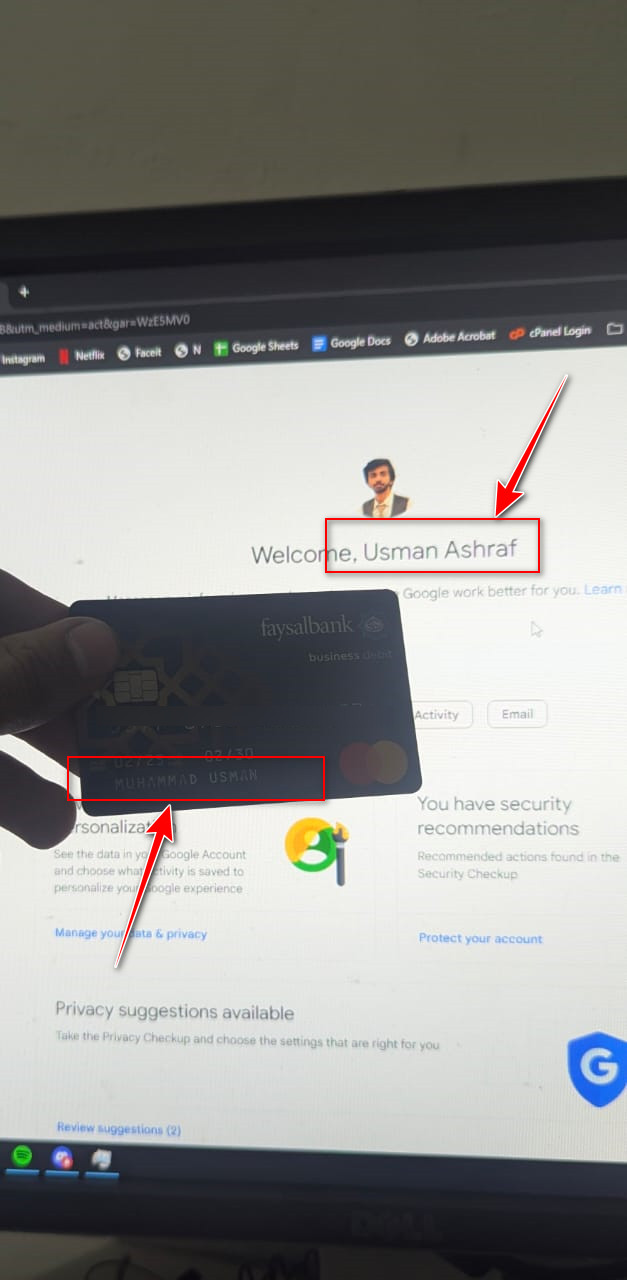
Also check country/region consistency: If your card is issued in one country but your Google Payments profile or Play Store country is set to another, banks commonly flag the request as “out of profile” and decline it. This is especially common if you recently moved, changed regions, or created your Google account in a different country.
2. Try a Different Payment Method (and Avoid Unsupported Card Types)
If this is an issuer restriction, switching payment methods is the fastest way to prove it. OR-CCSEH-26 is commonly linked to:
- Prepaid / virtual cards that aren’t allowed for wallet provisioning
- Corporate/restricted cards with limited online/tokenization permissions
- A lingering token/provisioning record at the bank from a previous Wallet add/remove
Try adding/using a different payment method (a regular debit/credit card that supports online payments, or PayPal where available). If the alternate method works, your phone and Google account are likely fine, the issue is your original card’s issuer policy, eligibility, or a token that needs clearing.
Note: If the error happens mostly with trials/subscriptions, it often means the issuer has stricter verification rules for “recurring” or “trial” authorizations, even if normal one-time purchases work elsewhere.
3. Contact Support (What to Ask Google and Your Bank)
If the steps above don’t fix it, you’ll usually need the issuer or Google to confirm the decline reason. The key is to ask about Wallet/Google Pay verification and tokenization specifically (not just “is my card active”).
When contacting your bank, ask these exact questions:
- Is my card eligible for Google Pay/Google Wallet?
- Is tokenization / digital wallet provisioning enabled for my card?
- Are e-commerce and international transactions enabled (if required for my region/purchase)?
- Do you require 3D Secure / OTP / 2FA for this verification, and did it fail?
- Do you see an existing wallet token/provisioning record for my card that needs to be cleared/reset?
- What is the decline reason for the latest verification/authorization attempt from Google?
If the bank confirms everything is enabled but the request is still declined, contact Google Wallet/Google Pay support with the exact error code so they can check whether it’s an account/billing mismatch, a country restriction, or an issuer-level rejection.
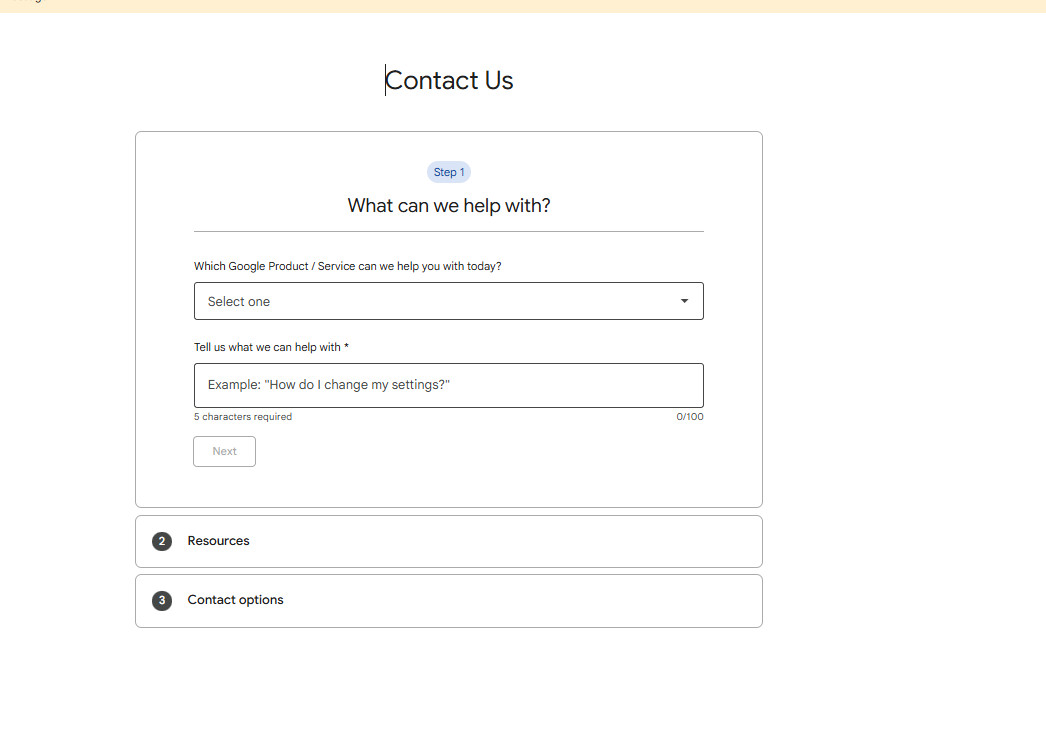
- Go to Google Pay/Wallet Help.
- Pick the option for adding a card or payments, then enter your country, device, bank/issuer, and the error OR-CCSEH-26.
- Attach screenshots if requested and submit.