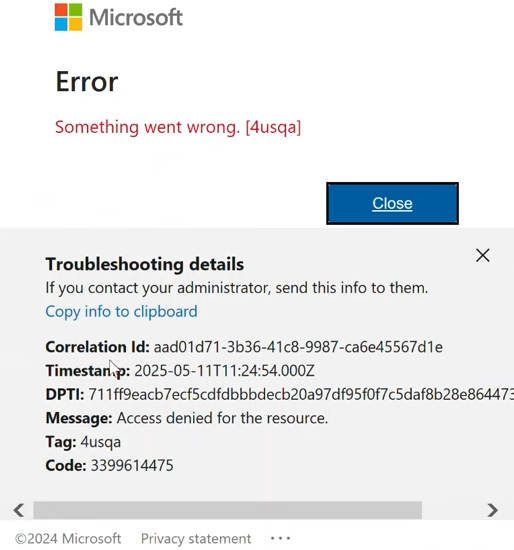
How to Fix Office 365 Login Error TAG: 4usqa
The Office 365 Login Error TAG: 4usqa Code is a sign-in failure caused by a failed authentication flow between a Microsoft 365 client (most often Outlook during profile login or token refresh) and Microsoft Entra ID. When this flow breaks, Outlook cannot complete the sign-in handshake, so it cannot download or refresh mailbox data, keep syncing, update calendar/contacts, use the offline OST file reliably, or maintain mailbox indexing.
In many affected cases, the most common confirmed cause of this error is the Microsoft Information Protection API service principal being disabled inside Entra ID. This application participates in authorization and policy evaluation for protected content, so disabling it can break part of the authentication and access chain Outlook relies on.
In simple terms: Outlook depends on this API as part of the checks that decide whether you are allowed to access the mailbox. If the API is turned off, those checks fail, and Outlook cannot complete sign-in, which results in the TAG: 4usqa error.
Re-enabling the API restores the authentication and authorization path Outlook uses during sign-in and data syncing.
- Open your browser.
- Go to the Microsoft Entra Admin Center and sign in using a Global Administrator account.
- From the left menu, select Applications > Enterprise Applications.
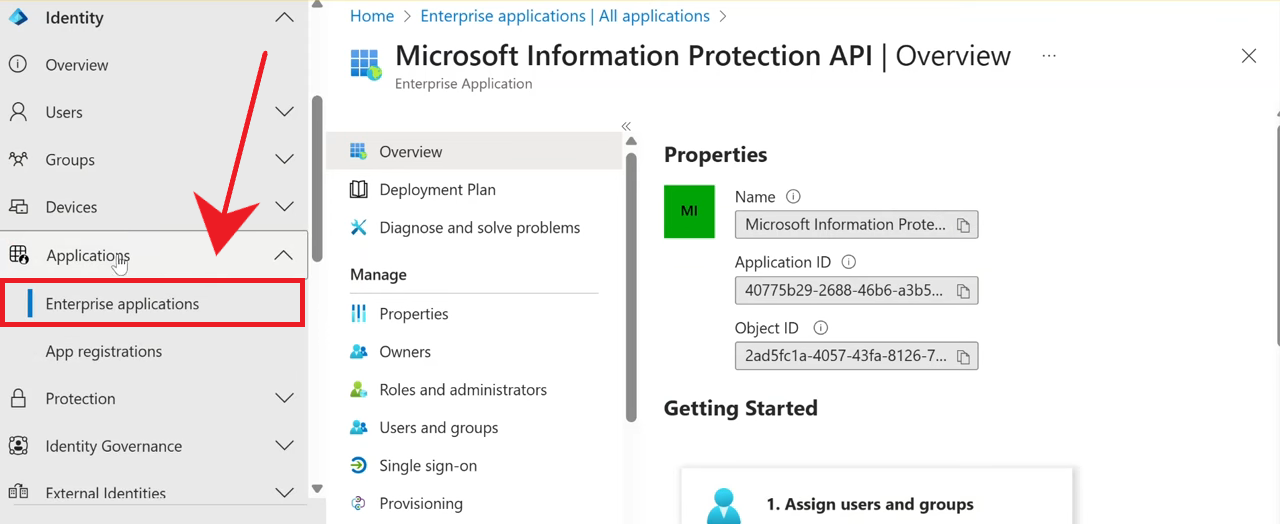
- Click Add filters and select Application ID. Remove any other active filters if no results appear at first.
- Enter this Application ID and click Apply:
40775b29-2688-46b6-a3b5-b256bd04df9f
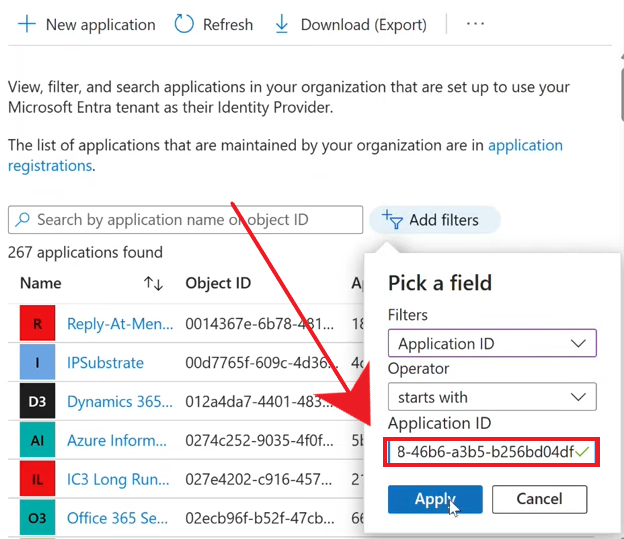
- Open the application from the results and choose Properties.
- Locate the “Enabled for users to sign in” setting and switch it to Yes.
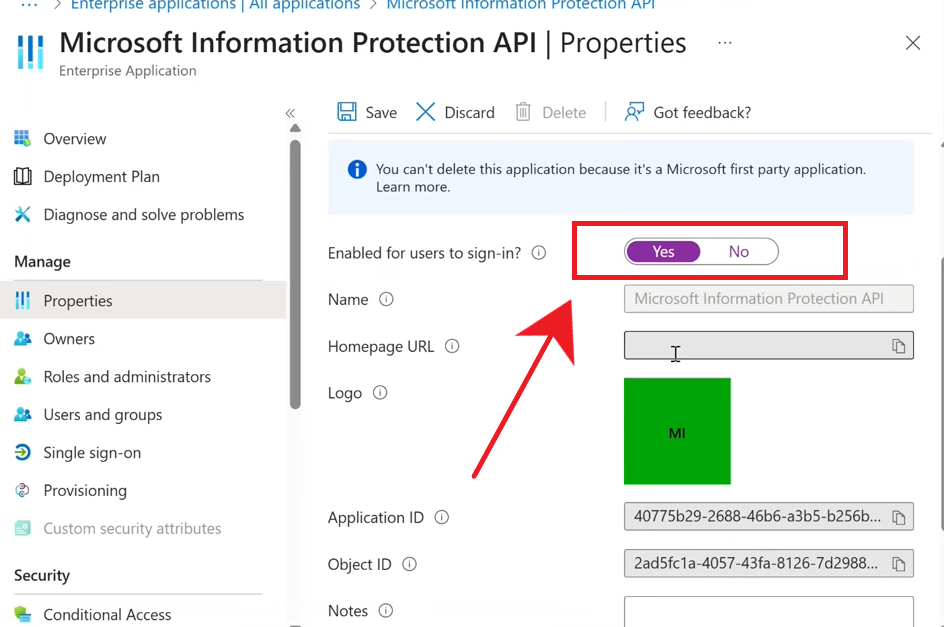
- Click Save to apply the change.
- Restart Outlook and try signing in again. If the account is still using cached credentials:
- Sign out of the account inside Outlook and add it again.
- Optionally, open Windows Credential Manager (Control Panel > User Accounts > Credential Manager) and remove any saved MicrosoftOffice or Outlook-related credentials before retrying.
If the API was already enabled:
If Enabled for users to sign in was already set to Yes, the TAG: 4usqa error may be caused by a different configuration or access issue. In that case, review the following areas with your Microsoft 365 administrator:
- Conditional Access policies: A Conditional Access policy may be blocking this application or the sign-in for specific users, locations, or device states.
- Licensing: The user’s license may not include all required information protection or security features that rely on this application. Verify that the account has the correct Microsoft 365/Office 365 SKU assigned.
- Authentication tokens and device registration: Tokens may be stale or corrupted. Force a sign-out (for example using the Sign out of all sessions option in the account portal) and re-register or re-add the profile on the client device.
- Automation or scripts: An automation script, baseline configuration, or security hardening tool may have modified app permissions or disabled related features. Review recent changes to Entra ID configuration or security baselines.
If the error persists even after these checks: collect sign-in logs from Microsoft Entra > Monitoring > Sign-in logs for the affected user, filter by the TAG: 4usqa occurrence, and use those details (status codes and failure reasons) when escalating to your internal identity team or Microsoft support.