Fix: NBA 2K “A Problem Has Occurred That Prevents Gameplay From Continuing”
When you see “A Problem Has Occurred That Prevents Gameplay From Continuing.” in an online NBA 2K match, it means the game dropped the session usually from a disconnect, desync, or a crash so you get kicked back to the main menu. Your result/progress may not save, and some players still report it counting as a loss. Treat it as a failed session, not a guaranteed “no count.”
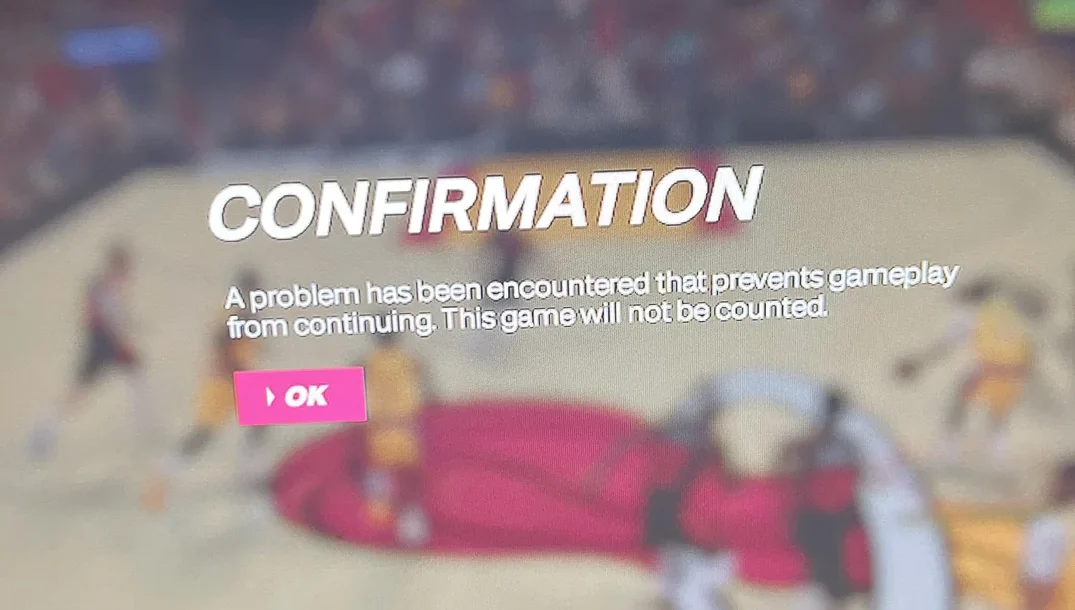
It’s most common in matchmaking modes like MyCAREER, REC, Park, and Pro-Am. It can happen right after tip-off or mid-game, and it often shows up without any extra error code.
Common causes
- 2K server issues (maintenance, outages, matchmaking instability)
- Unstable internet (packet loss, jitter, Wi-Fi interference, ISP routing/congestion)
- NAT/firewall/ports blocking stable session traffic
- PC: corrupted/missing files or performance crashes that look like “disconnects”
- PC (rare): overlays/controller mappers/input conflicts
- Rarer: a specific MyPLAYER build/save sync problem
Official server status: nba.2k.com/server-status
Also check: PSN/Xbox/Steam/Epic status if 2K looks “green” but you still can’t stay in matches.
1. Use Mobile Hotspot
A hotspot forces your connection to take a totally different route to 2K, so it’s one of the fastest “yes/no” tests you can do. This quickly tells you if the problem is your home network path (router, Wi-Fi interference, ISP routing, NAT type, or firewall rules).
- Enable Hotspot on your phone.
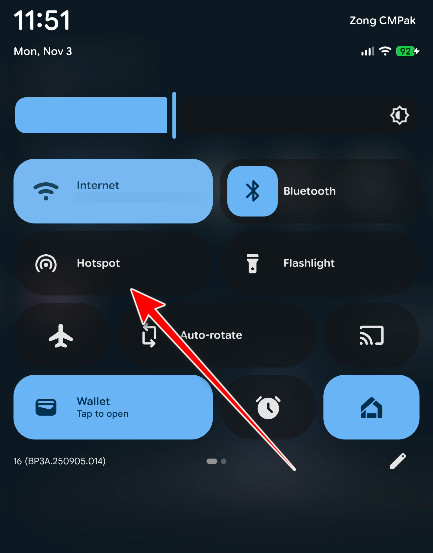
- Connect your console/PC to the hotspot.
- Test an online match.
Tips while testing: Keep your phone close to the device, avoid moving around, and temporarily disable any VPN/proxy on the phone. If possible, test 2–3 matches (one match can be a fluke if servers are unstable).
Result:
- Hotspot works: focus on Solutions 3–4 (UPnP/NAT/double NAT/router/ISP).
- Hotspot fails too: more likely server/platform/local game instability, continue below.
2. Change DNS Settings
DNS affects how your device finds 2K/PSN/Xbox/Steam services (matchmaking lookups, sign-in endpoints, and some region-based routing decisions). It won’t “fix” true packet loss, but it can reduce weird connection handshakes where you can browse the internet fine, yet matchmaking keeps failing or disconnects early.
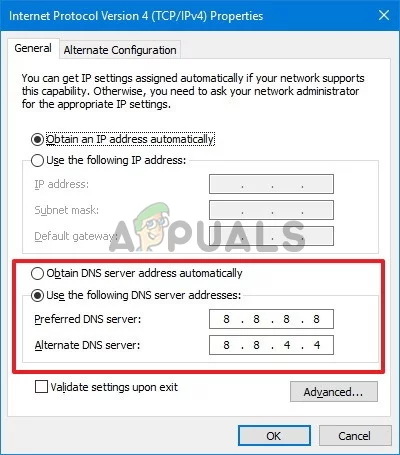
- Google DNS: 8.8.8.8 / 8.8.4.4
- Cloudflare: 1.1.1.1 / 1.0.0.1
On Windows PC
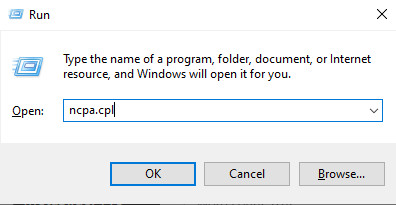
- Press Windows + R > type ncpa.cpl > Enter.
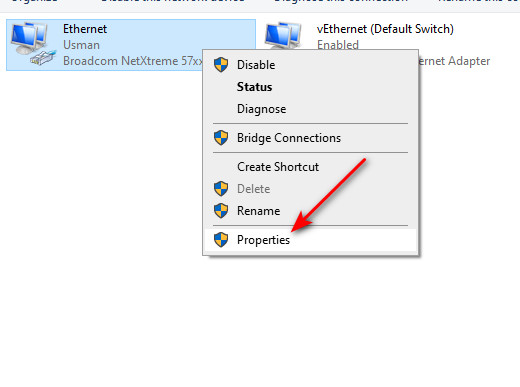
- Right-click your network adapter > Properties.
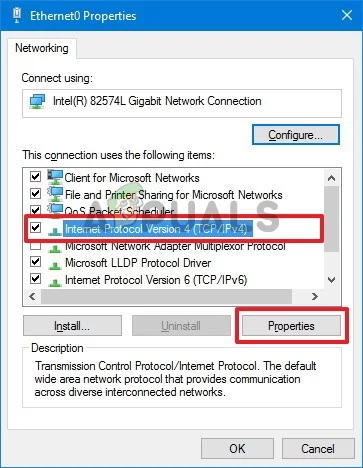
- Select Internet Protocol Version 4 (TCP/IPv4) > Properties.
- Select Use the following DNS server addresses and enter your DNS.
- Save and restart the game.
Optional (PC): After changing DNS, flush the old cached lookups so Windows doesn’t keep using them.
ipconfig /flushdnsOn PlayStation (PS4/PS5)
- Settings > Network > Set Up Internet Connection > your connection > Advanced Settings > DNS Settings > Manual
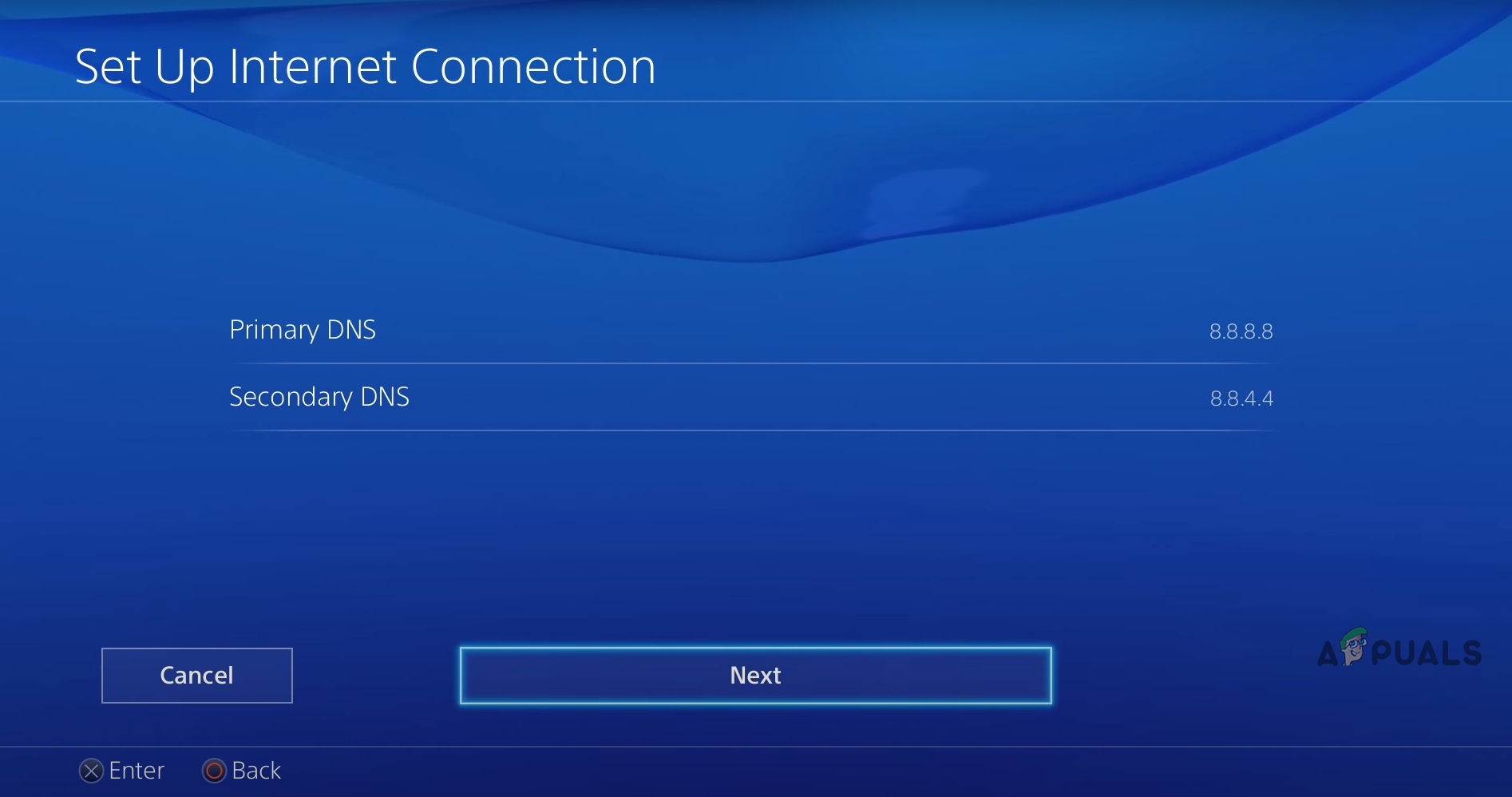
Tip (console): After changing DNS, fully restart the console (not just rest mode) so the network stack refreshes cleanly.
On Xbox
- Settings > General > Network settings > Advanced settings > DNS settings > Manual
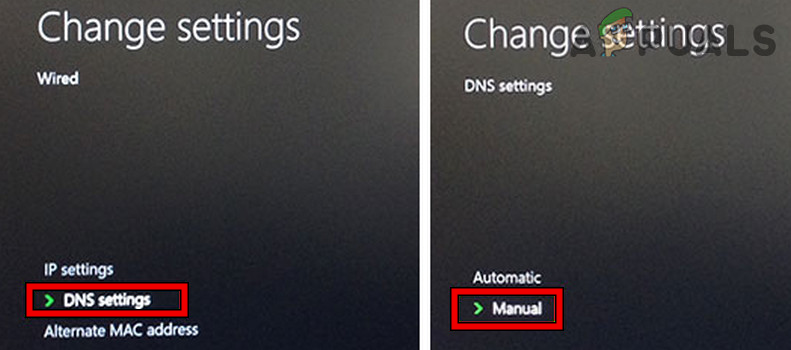
Tip (Xbox): Restart the console after setting DNS, then test an online match. If you still disconnect mid-game, DNS wasn’t the main issue.
3. Lower Graphics Settings (PC)
NBA 2K can briefly spike load during cutscenes, transitions, timeouts, replays, and crowded scenes. If your PC hits 100% CPU, runs out of VRAM, thermal-throttles, or an overlay hooks into the game at the wrong moment, the session can fail and it looks identical to a network drop.
- Open Options > Graphics Settings.
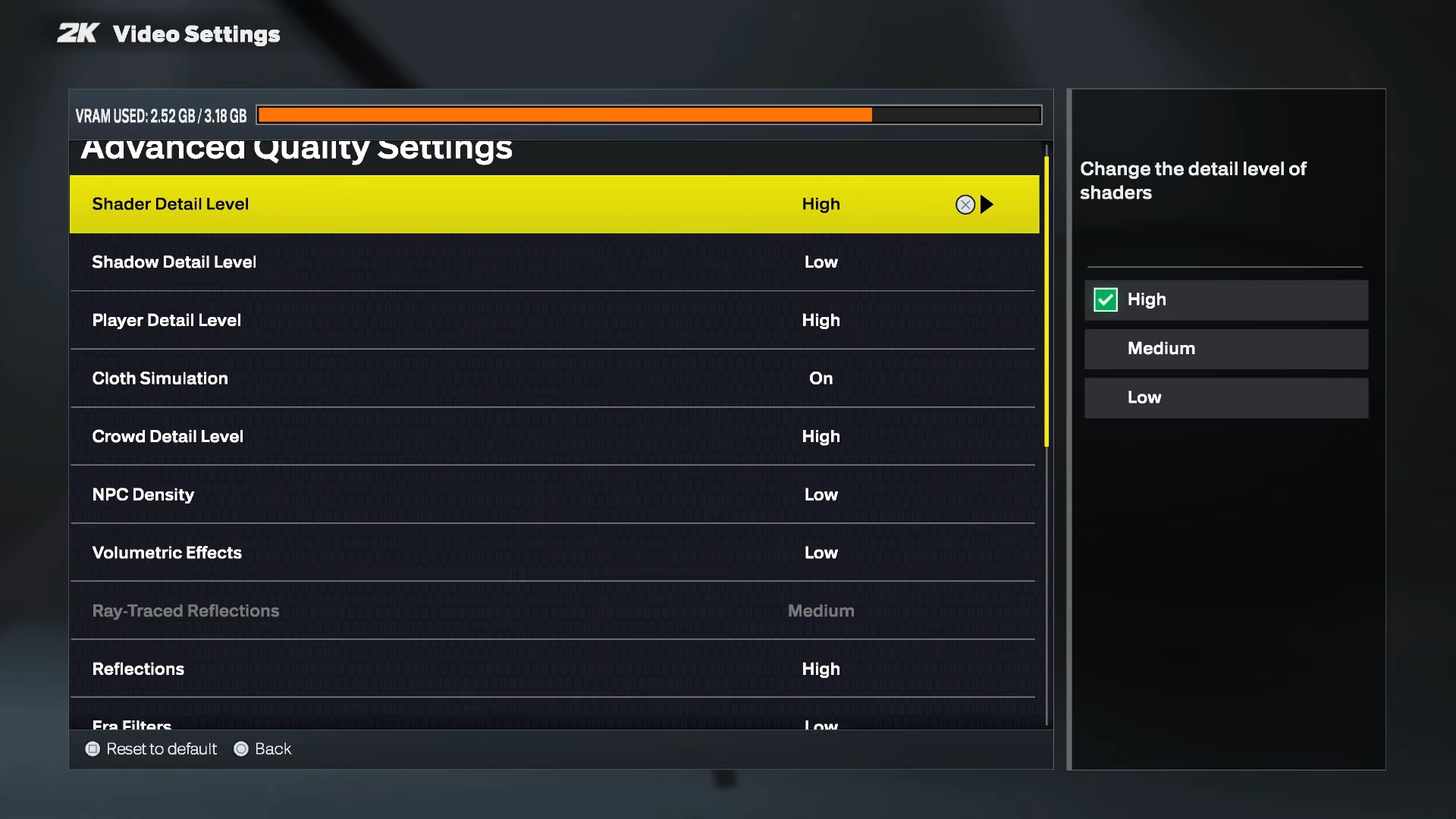
- Lower Textures/Shadows/AA, cap FPS (if available), and disable overlays while testing.
- Restart the game and retest.
4. Test With a Different MyPLAYER Build (Build/Save Issue)
If the error happens only on one build (and other builds can play online normally), it can be a save/cloud sync problem rather than a network problem. In other words: the session fails when the game tries to load/sync that specific MyPLAYER data.
Step A: Confirm it’s build-specific
- Go to MyCAREER and create a new build via MyPLAYER Builder.
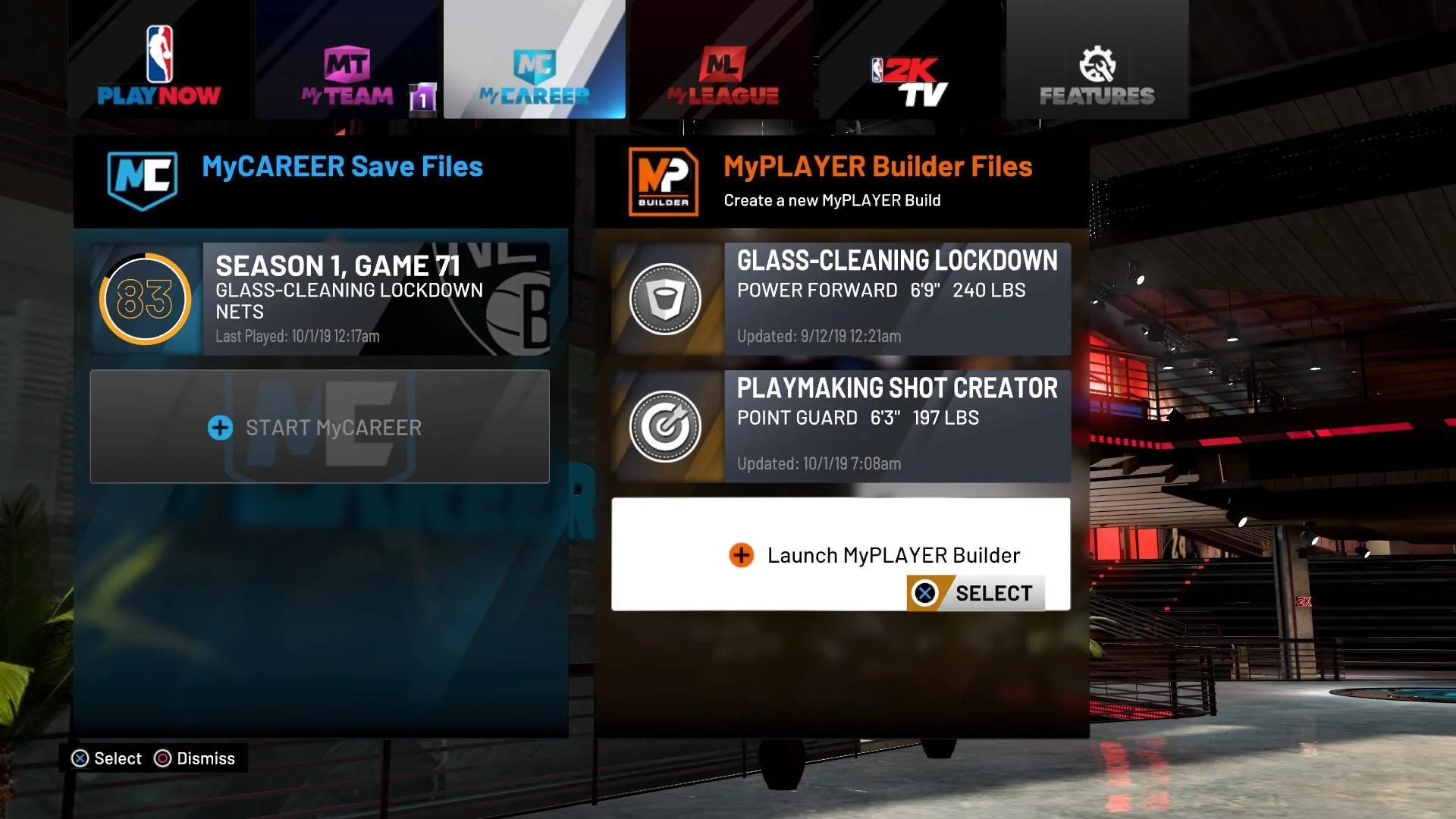
- Play online with the new build.
Step B: If the new build works
- Use the working build while testing (avoids repeated quits/losses).
- Fully close the game, reboot, then retry loading the problematic build (forces a clean sync attempt).
- Contact 2K Support and mention it fails on one build but not the other (this is the kind of detail that speeds up their troubleshooting).
Tip: If you’re on console, also try a full shutdown (not rest mode) before retrying the bad build. The goal is a clean relaunch so the game re-requests your profile/build data properly.
5. Fix Controller/Input Conflicts (PC – Rare)
This is rare, but it’s real: extra controllers, virtual controllers, remappers, and overlays can create double input, menu “jumping,” or odd freezes that cause the online session to fail. If the game is fighting two inputs at once or a mapper injects commands during loading, you can get kicked even though your internet is fine.
- Unplug extra controllers/USB input devices (leave one).
- Disable overlays (Steam/Discord/GeForce Experience) and retest.
- Toggle Steam Input for NBA 2K (test after each change).
If a non-Xbox controller is the trigger, you can test x360ce as a last resort.
Use x360ce (PC – Last Resort)
- Download x360ce.

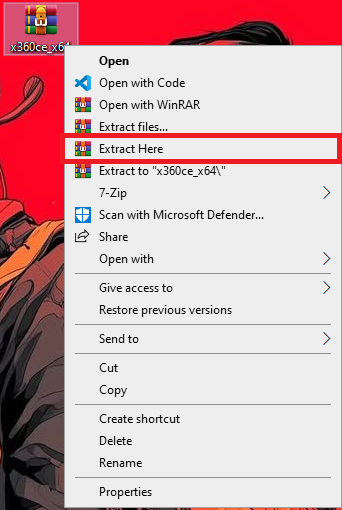
- Extract the ZIP.
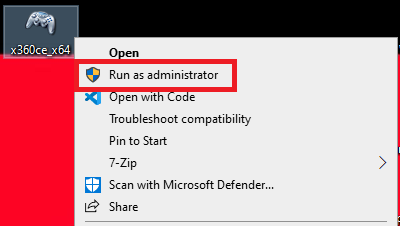
- Run x360ce.exe as Administrator and complete prompts.
- Configure Controller 1, save, then restart the game.