Fix: iPhone Recents Not Showing Recent Calls
In some cases, the Recents tab in the iPhone’s Phone app may stop displaying recent call activity correctly, even though calls are being made and received normally. As a result, the list may appear empty, show only older calls, or fail to update with newly made or received calls.
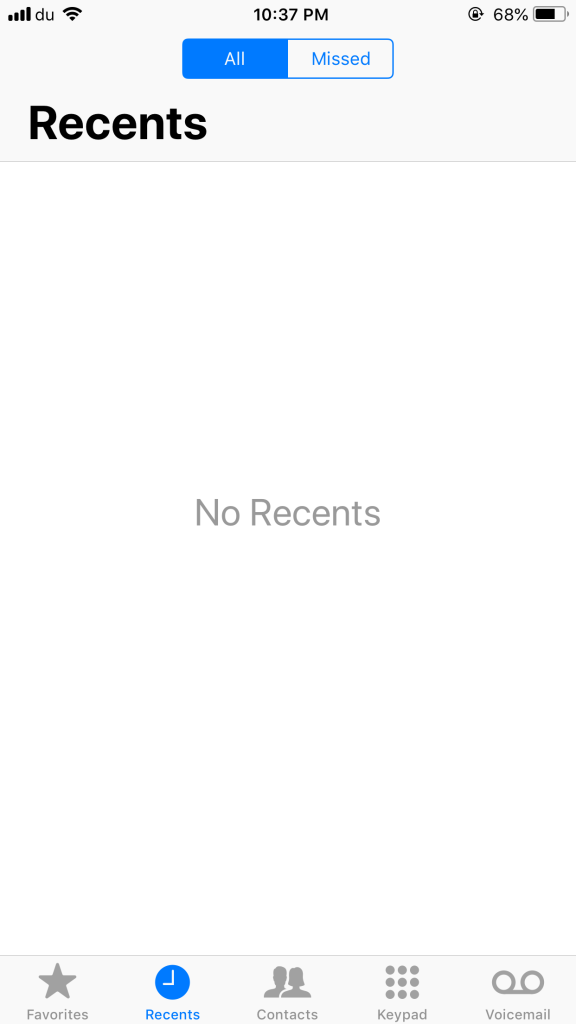
Some users report encountering this issue after installing a recent iOS update. However, the problem is not limited to updates and may also occur due to temporary software glitches, minor system bugs, problems with the Phone app refreshing its call history, or indexing issues that prevent the call log from updating correctly.
In this guide, we will show you several methods that may help restore the missing call history in the Recents tab.
1. Use the Search Option in the Recents Tab
Opening the search field inside the Recents tab can sometimes cause the Phone app to refresh the call history view. In some cases, this refresh allows recent calls that were previously missing to appear again.
- Open the Phone app on your iPhone.
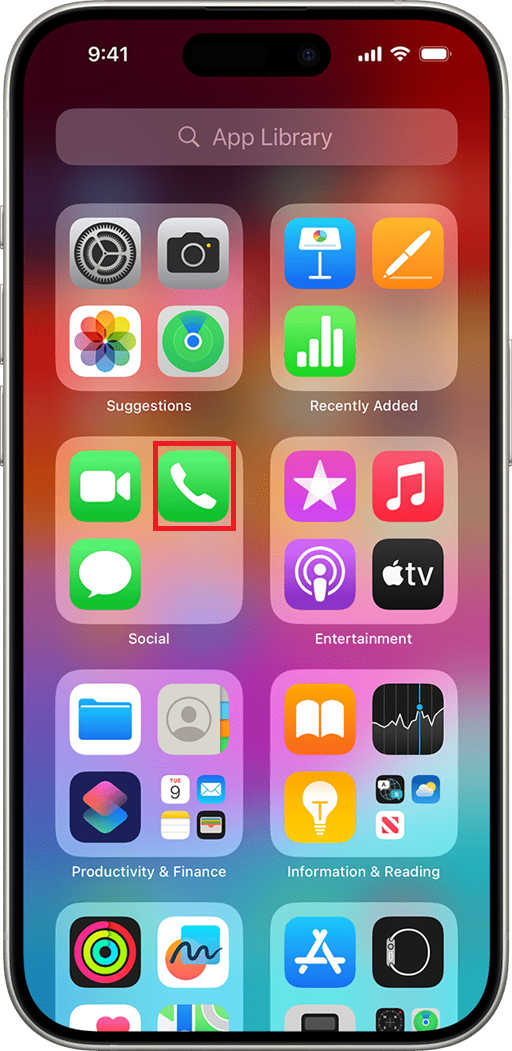
- Tap the Recents tab at the bottom of the screen.
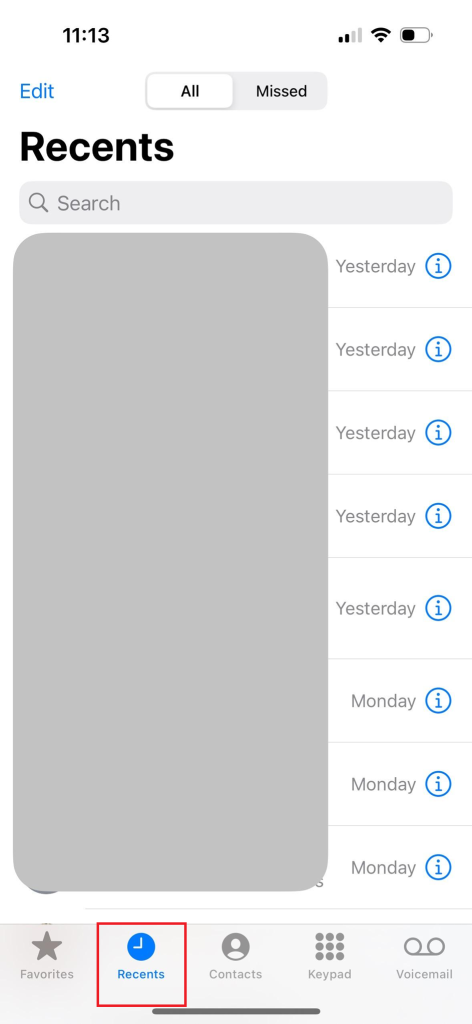
- Tap the Search bar at the top of the screen.
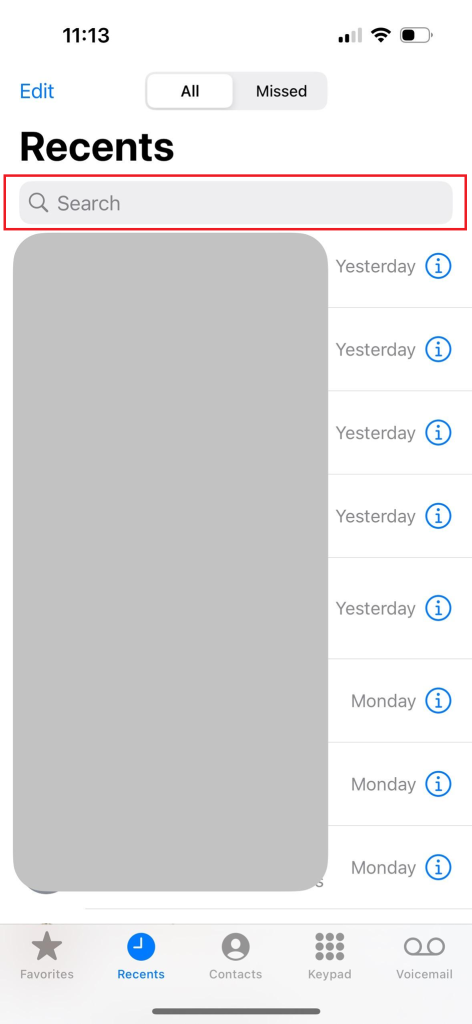
- Scroll through the results or exit the search view.
- Return to the Recents tab and check if the call history has refreshed.
2. Change the Region
Changing the region on your iPhone forces iOS to reload certain system settings, including language rules, date formats, and regional preferences. In some cases, refreshing these settings can resolve temporary interface glitches that may prevent the Phone app from displaying the call history correctly.
This change does not permanently affect your device settings, and you can switch back to your original region after testing whether the issue is resolved.
- Open the Settings app on your iPhone.
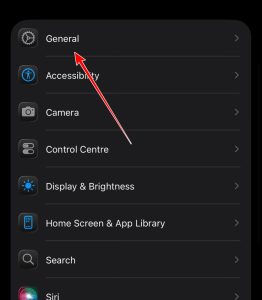
- Tap General.
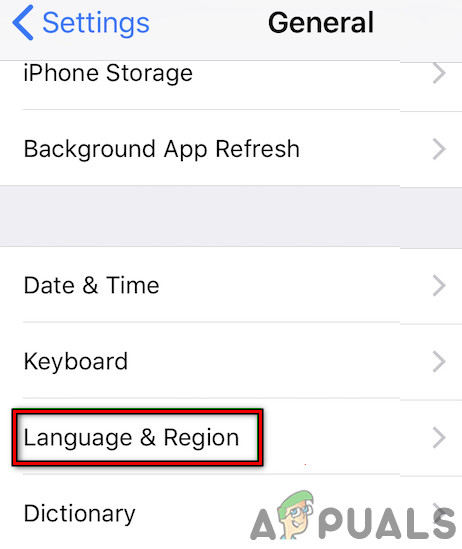
- Select Language & Region.
- Tap Region.
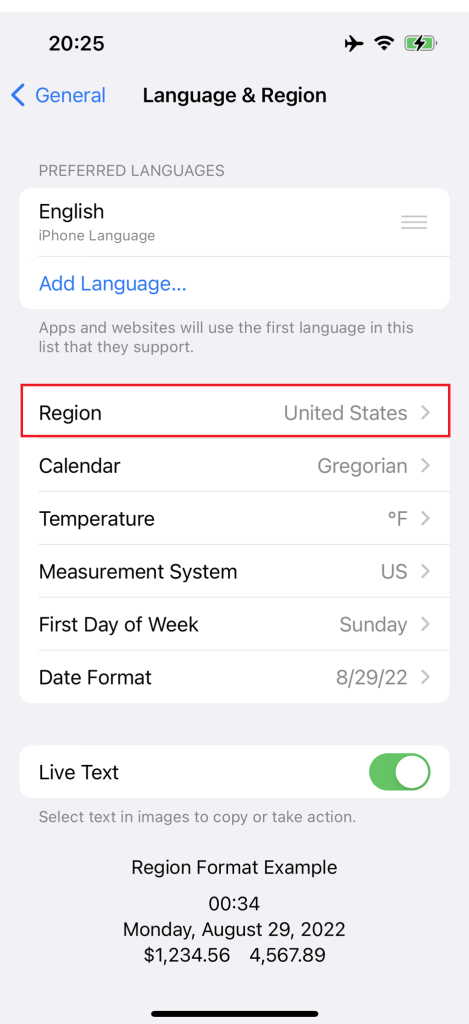
- Select a different region.
- Tap Done and confirm the change.
- Wait a few seconds for the system to apply the new settings.
- Open Phone > Recents and check whether the call history is visible.
3. Enable Airplane Mode and Force Restart
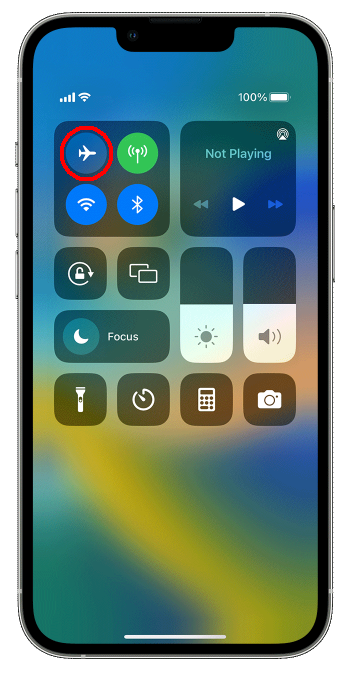
Turning on Airplane Mode temporarily disconnects your iPhone from cellular networks and wireless connections. This can help reset certain network services that interact with the Phone app.
Performing a force restart afterward reloads system processes and clears temporary system memory, which can help resolve minor software glitches that may be affecting how the Recents tab updates.
- Open Control Center and turn Airplane Mode ON.
- Wait for about 15–30 seconds.
- Quickly press and release Volume Up, then quickly press and release Volume Down. After that, press and hold the Power button until the Apple logo appears.
(This method works for most modern iPhones without a Home button.) - After the iPhone restarts, turn Airplane Mode OFF.
- Open the Phone app and check the Recents tab.
4. Disable Silence Unknown Callers
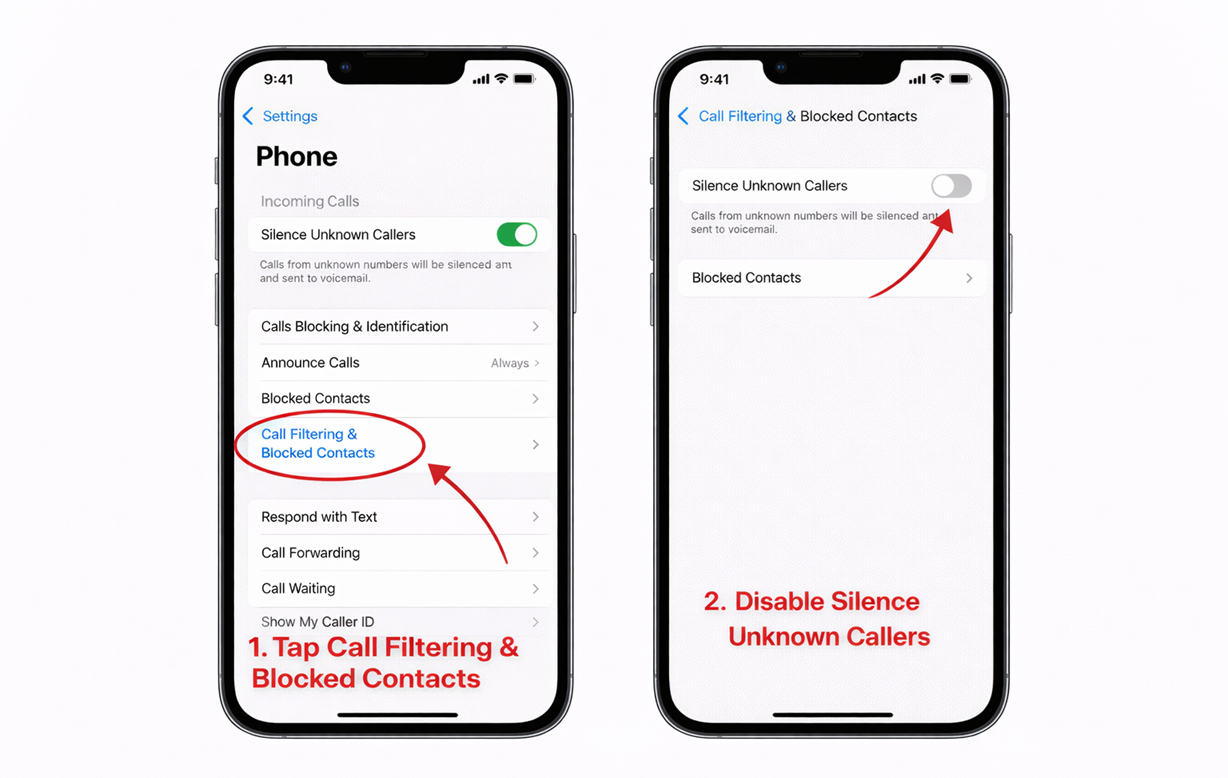
The Silence Unknown Callers feature automatically silences calls from numbers that are not saved in your contacts and sends them directly to voicemail. Although this feature normally does not affect the Recents tab, some users have reported that disabling it helped the call history update correctly again.
- Open Settings on your iPhone.
- Scroll down and tap Phone.
- Select Silence Unknown Callers and turn the feature OFF.
- Open Phone > Recents and check whether recent calls are now appearing.
5. Erase iPhone and Restore from iCloud Backup
If the issue continues after trying the previous methods, erasing the iPhone and restoring it from an iCloud backup may resolve deeper system problems. This process reinstalls iOS system components and restores your personal data from backup, which can help fix persistent issues affecting the Phone app or call history.
Before proceeding, ensure that your data is properly backed up.
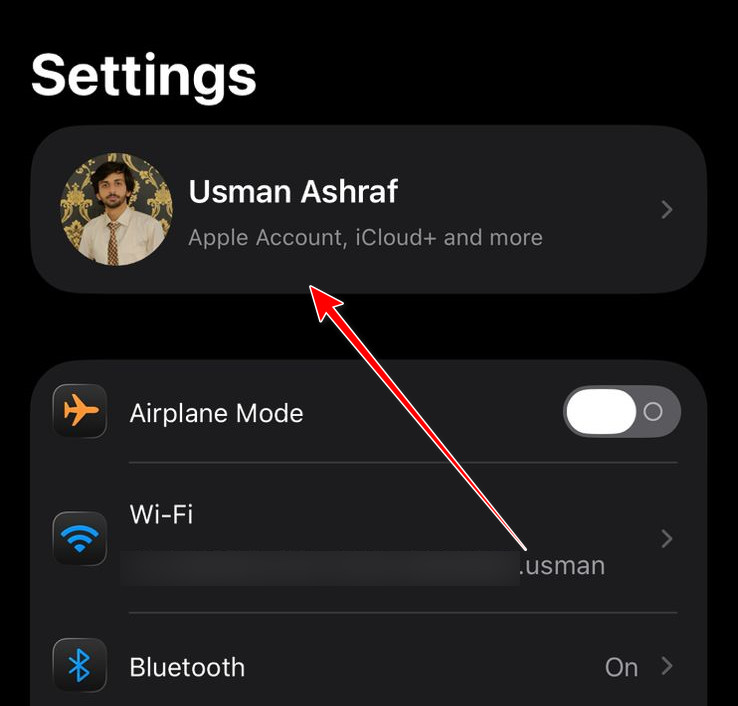
- Open Settings and tap your Apple ID.
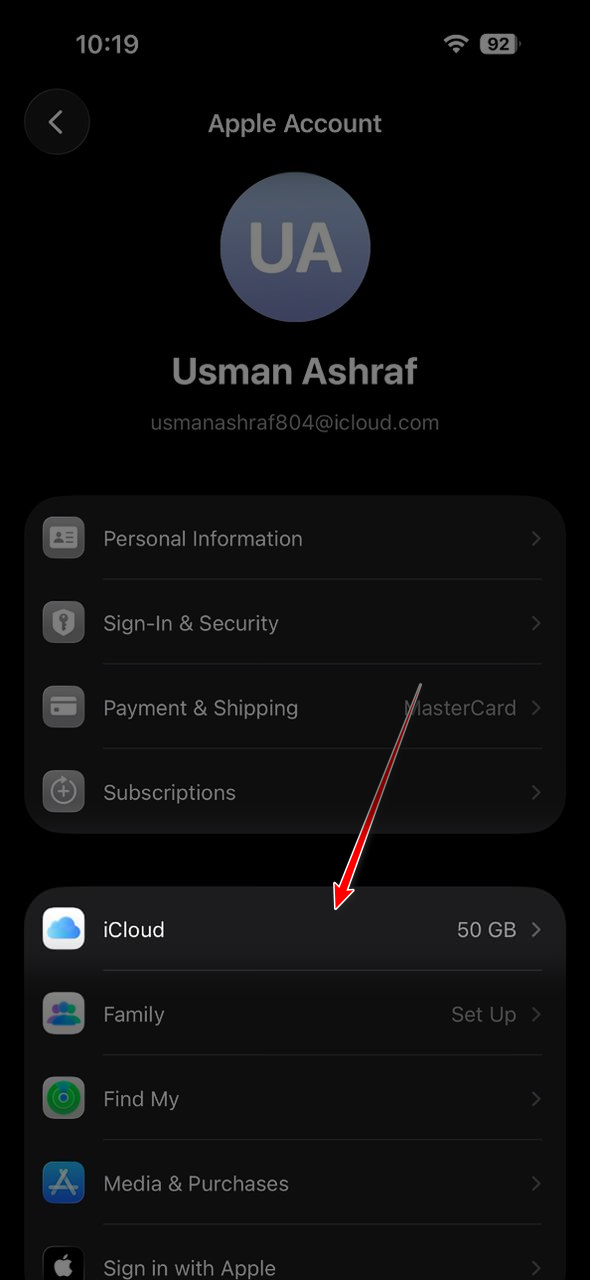
- Go to iCloud > iCloud Backup.
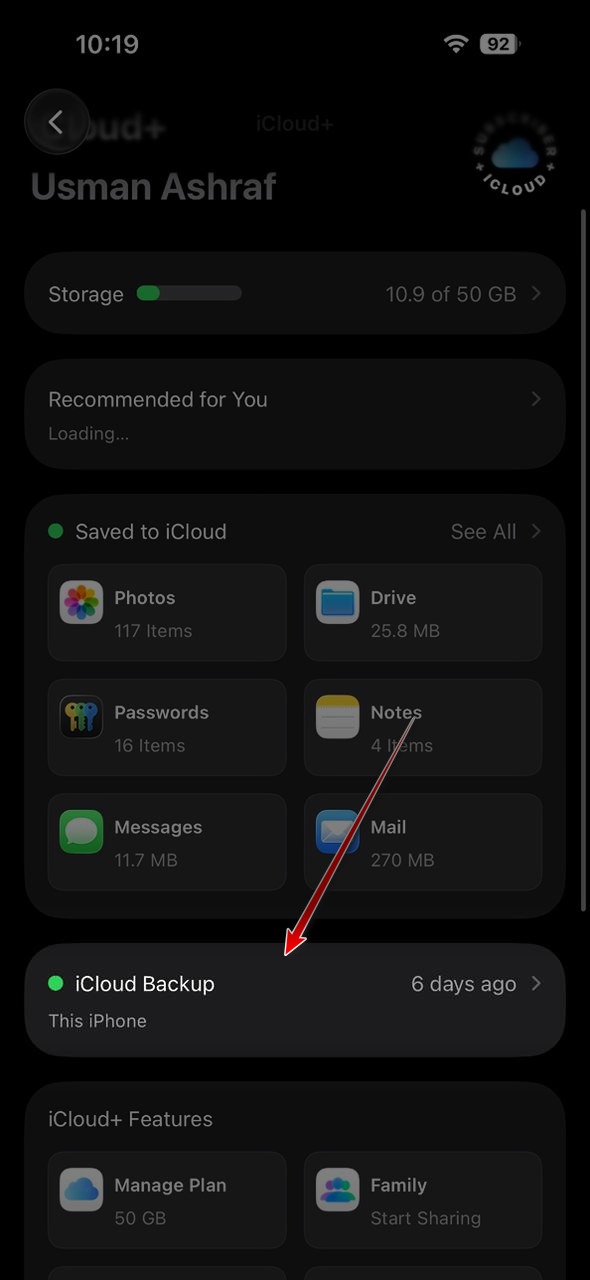
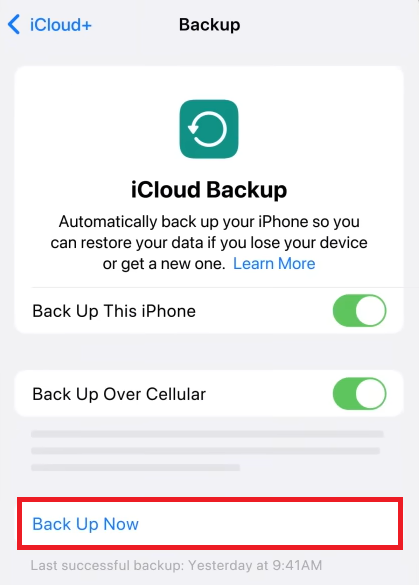
- Tap Back Up Now and wait for the backup to complete.
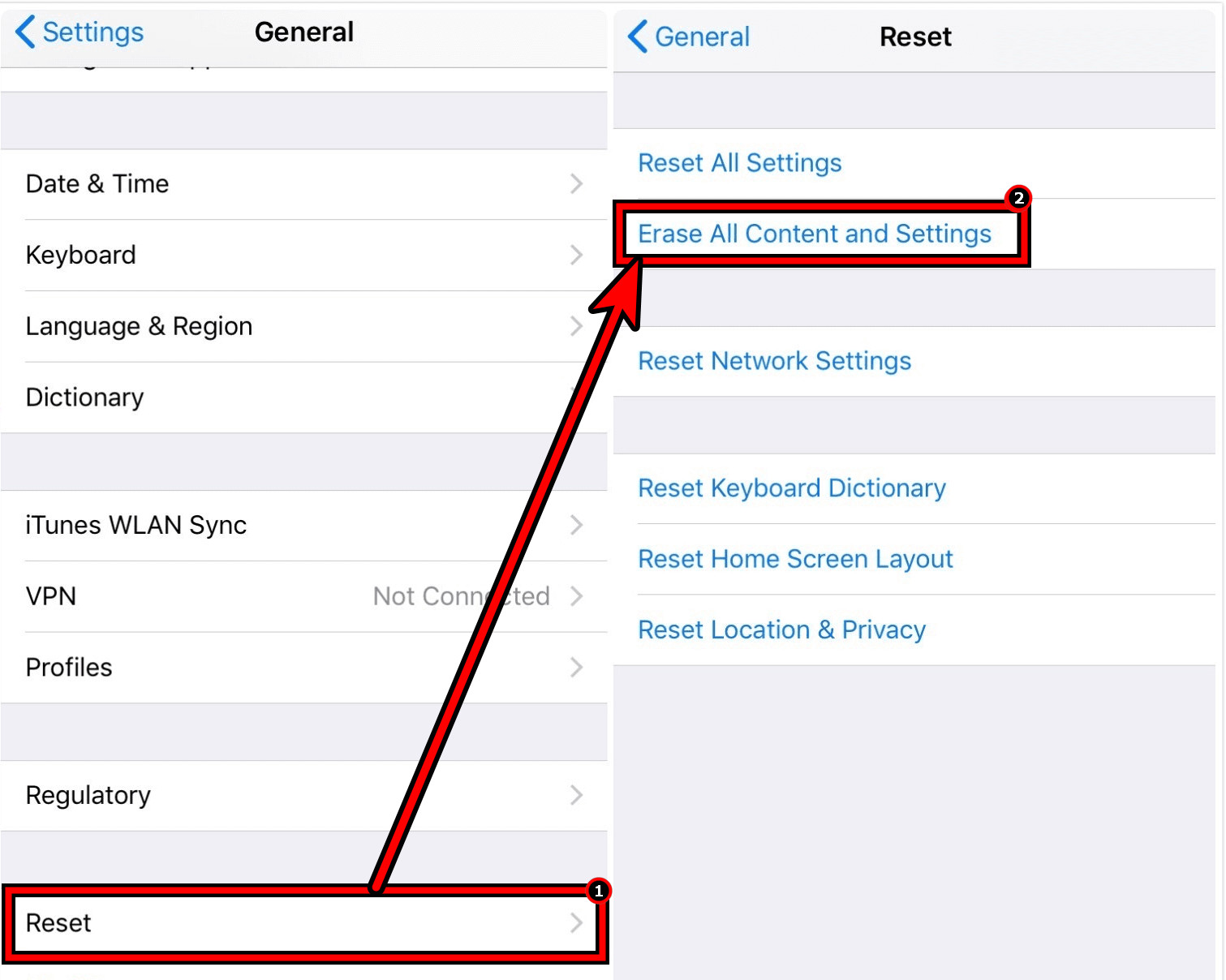
- Go to Settings > General > Transfer or Reset iPhone > Erase All Content and Settings.
- Enter your passcode and Apple ID password when prompted and confirm the erase.
- After the iPhone restarts and shows the Hello screen, begin the setup process.
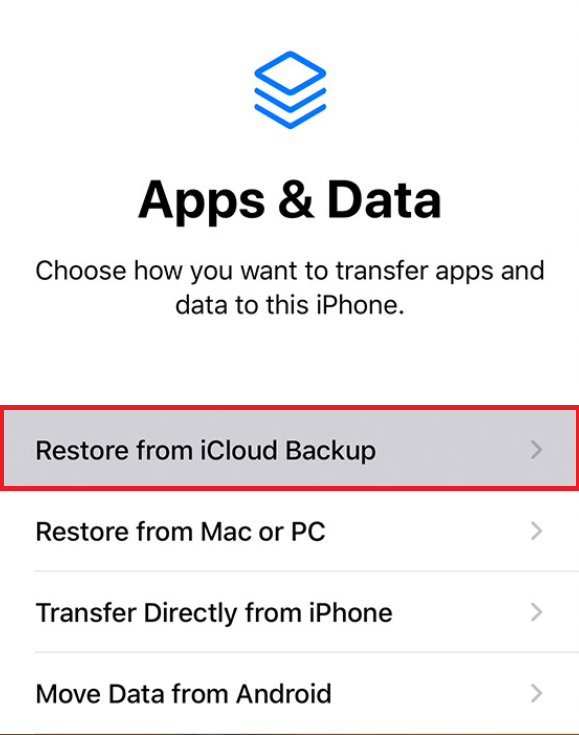
- On the Apps & Data screen, select Restore from iCloud Backup.
- Sign in with your Apple ID.
- Select the most recent backup.
- Wait for the restore process to complete.
- After the restore finishes, open Phone > Recents and verify that your call history has been restored.
If the problem continues even after restoring the device, the issue may be related to deeper iOS bugs or carrier-related problems. In such cases, contacting Apple Support or your mobile carrier may help diagnose and resolve the issue.