How to Read .HLP Files in Windows 10

From Windows 3.0 all the way to Windows XP, Microsoft used to provide online help to its users through their WinHelp files. All of these WinHelp files carried the extension of .hlp. But with the release of Windows Vista, Microsoft discontinued using WinHelp platform for online help and replaced it with Microsoft Compiled HTML Help. It doesn’t makes sense to me but as a matter of fact, Microsoft made almost all their windows backward compatible, meaning older programs many of them would still run on Windows 10. However, the .hlp files associated with those older programs will not open.

Solution 1: Use Patched WinHelp32.exe

WinHelp32.exe is the application which is used to read the .hlp files. Here we will inject the patched WinHelp32 application into your Windows 10 through some really simple steps given below.

First, Download the zip file from this link that has the patched WinHelp32 files and its installer.

Right Click on the downloaded zip file and Click Extract All…

Enter the path where you want to extract the files, or leave the default path their if you like. Place a Check next to Show extracted files when complete and click Extract.

A folder will open with the extracted content once the extraction finishes. Now Right Click on Install.cmd and Click Run as Administrator. Click Yes if the User Account Control warning message appears.

A couple of commands will run in a black window. Press the Enter key if you see a pause in that black window.

At one point, the black window will close. Now Restart your computer. You should now be able to open the .hlp files in Windows 10. If not, move on to the next solution.
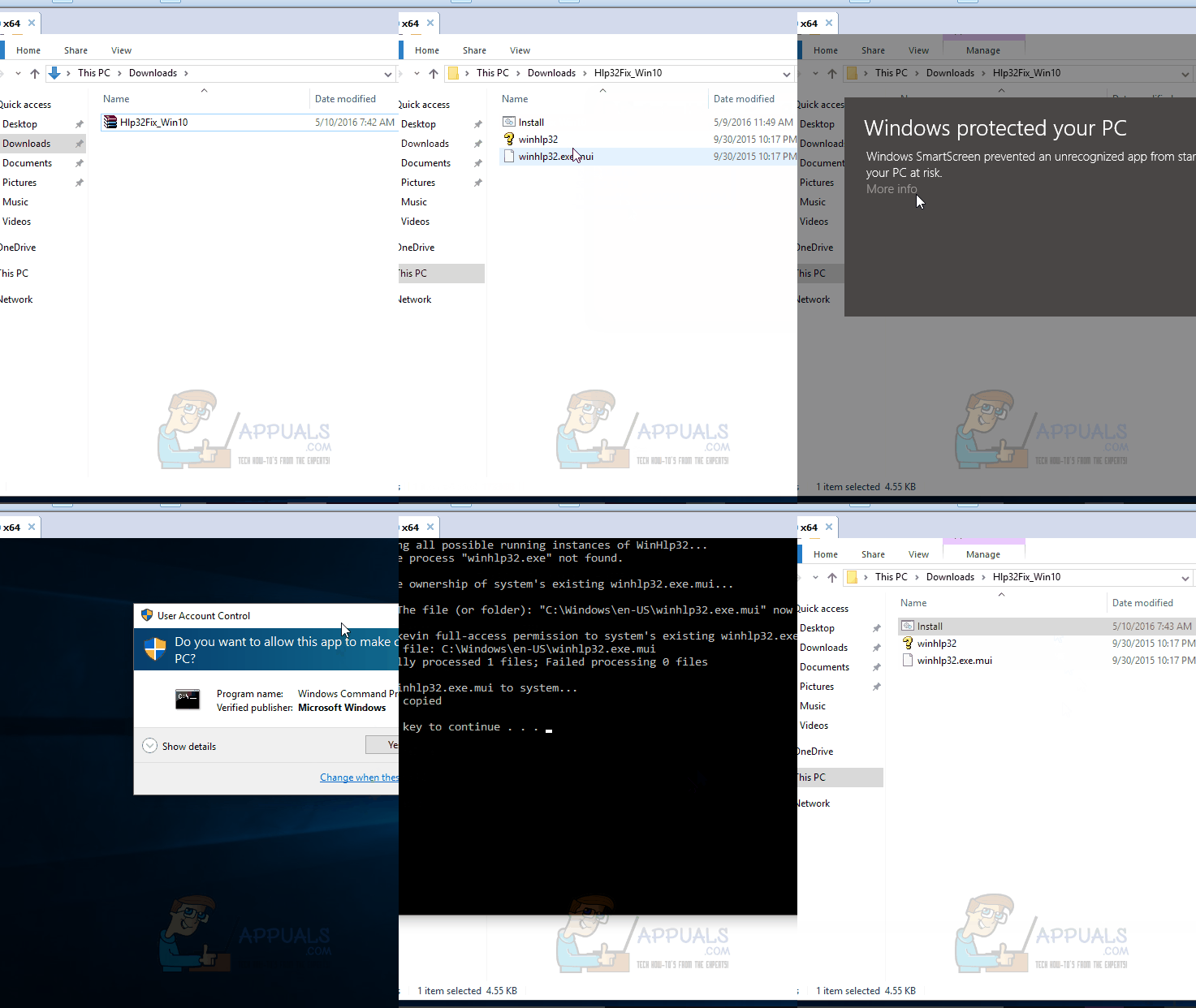
hlp files on windows 10

Solution 2: Use Patched WinHelp32.exe Application from Windows 8.1

For one reason or the other, Solution 1 may fail. So in this solution, the patched version of WinHelp32.exe we’ll use will be system type specific, which means it will be depend if your Windows 10 is a 32 bit or 64 bit.

To find out your system type (32 bit or 64 bit), Hold the Windows key and Press R. Type msinfo32 in the Run dialog box that appears and Press Enter.

System Information window will open. In the Right pane, next to System type, if the value is x64-based PC, then your Windows is 64 bit. If it is x86-based PC, then it’s a 32 bit Window. Note it down.

Now Download the zip file with the patched files from this link.

Right Click on the downloaded zip file and Click Extract All…

Enter the path where you want to extract the files, or leave the default path their if you like. Place a Check next to Show extracted files when complete and click Extract.

A folder will open with the extracted content once the extraction finishes. Open the 32-bit folder or the 64-bit folder depending on what you noted earlier for your System type.

In the 32-bit/64-bit folder, Right Click on Install.cmd and Click Run as Administrator. Click Yes if the User Account Control warning message appears.
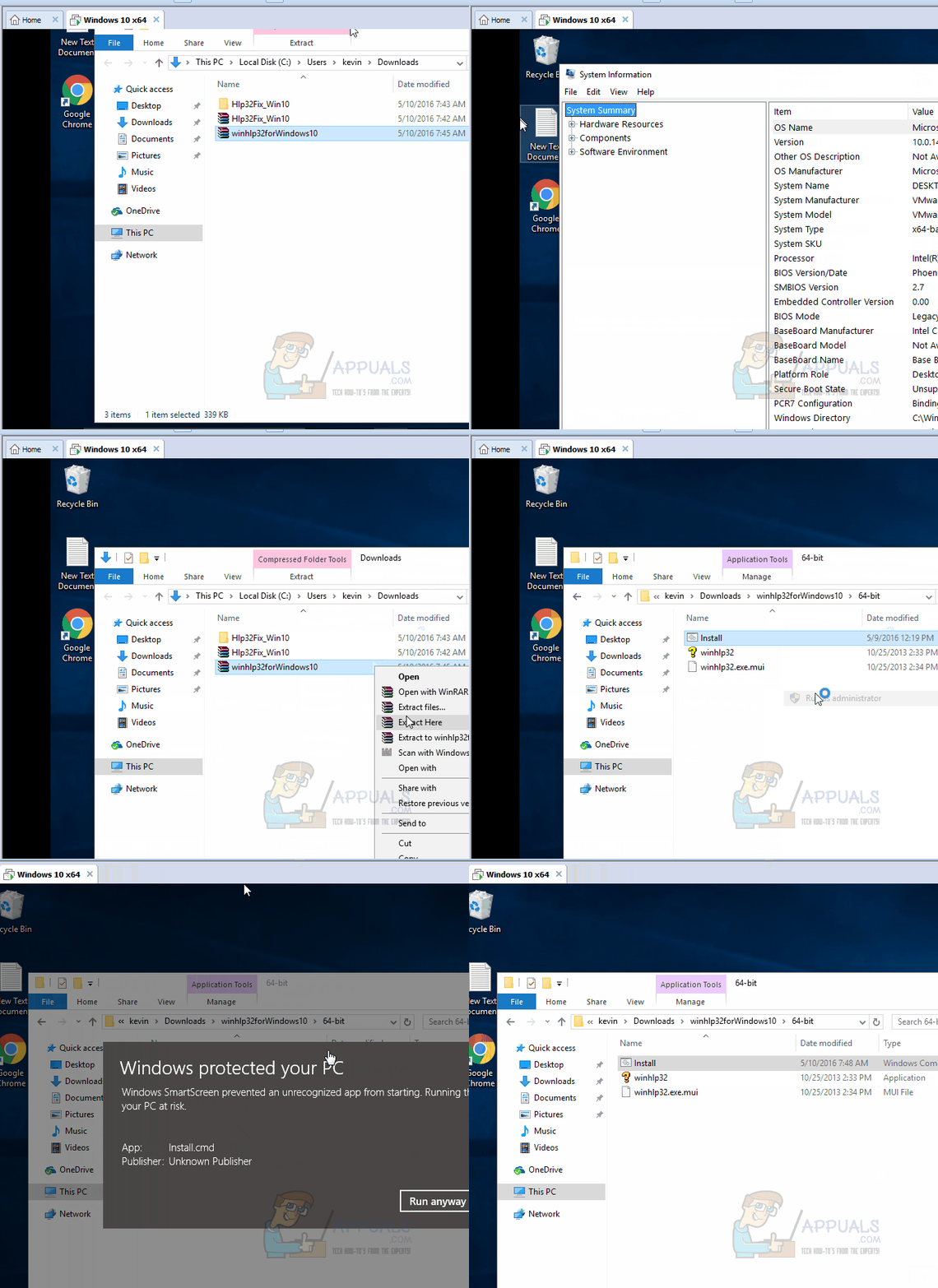
hlp files windows 10 -1

Once done, reboot PC and test.

ABOUT THE AUTHOR

Kevin Arrows


Kevin Arrows is a highly experienced and knowledgeable technology specialist with over a decade of industry experience. He holds a Microsoft Certified Technology Specialist (MCTS) certification and has a deep passion for staying up-to-date on the latest tech developments. Kevin has written extensively on a wide range of tech-related topics, showcasing his expertise and knowledge in areas such as software development, cybersecurity, and cloud computing. His contributions to the tech field have been widely recognized and respected by his peers, and he is highly regarded for his ability to explain complex technical concepts in a clear and concise manner.

Comments

19
    NA
    Nammelo Jun 24, 2016

    Problem sovled for Windows 10 without reboot with solution 1.

    TH
    Thomas Apr 13, 2017

    ..

    TH
    Thomas Apr 13, 2017

    Solution 1 worked perfectly on Windows 10 64-bit.

    Thanks.

    LE
    Les Jun 15, 2017

    How can I undo this fix? This fix prevents Windows 10 from updating to the new Creator’s Update. Microsoft’s update process indicates a winhlp32 corruption on my Windows 10, 64- bit and does not allow the update.

    LE
    Les Jun 15, 2017

    How can I undo this fix? Windows 10 will not update to the new Creator’s Update because it detects a corruption involving winhlp32.exe. Is there a way to reverse this fix and undo it?

      KA
      K. Arrows Author Jun 16, 2017

      you can do a system restore.

        LE
        Les Jun 17, 2017

        Thanks for the response. Unfortunately, all my restore points are at date later than when I performed the winhlp32 fix. I wondered if there was an easy script, similar to the fix you provided, that reverses the changes made to the operating system.

    RI
    Richard Dec 12, 2017

    My 64-bit Windows 10 laptop will run winhlp32.exe from XP by copying it over the existing. However, every time MS updates Windows10 it is removed!

    I have found the registry entry which appears to run winhlp32 at:

    HKEY_CLASSES_ROOThlpfileshellopencommand

    I have tried locating the XP version of winhlp32.exe elsewhere – C:Program Files (x86) seems fine- and changing this key – so far it works OK!

    Reply
    AL
    Andrew Levy Jan 13, 2018

    Man, I’ve been trying for DAYYYYYYs to get winhelp files to work in Windows 10, trying tor extract the winhlp files from XP or Win 8, with absolutely no luck whatsoever!! I FINALLY stumbled across your quick download and fix and boom. There it was. Totally worked, had it working within 3 minutes or so…Thanks so much.

    HA
    hamza ahmed Mar 12, 2018
    PS
    Parmanand Singh Mar 18, 2018

    Ok. you made my day. thank you very much … solution worked fine… on windows 10 64 bit machine.

    RR
    Rug Ratz Oct 5, 2018

    I had used other patched WinHelp files, one from 8.1 and another from an Win XP computer but they no longer worked with the latest Win 10 Pro (Oct, 2018) installed … got your files and that worked for me. I am going to share this with my Customers with older versions of our company program that still have HLP files but upgrade to Windows 10 Pro operating system. Thank you.

    Reply
      KA
      K. Arrows Author Oct 5, 2018

      thank you

    PR
    Prahlad Rao Feb 6, 2019

    Prahlad.V.Rao
    Works like a charm in win10.
    Thanks

    SW
    Shane Warren Author Sep 30, 2019

    Create a new administrative user account and try this again.

    MB
    Mike Brannan Oct 5, 2019

    WOW! That’s amazing. I have been trying to get the Help function on an old Borland Delph4 Development Environament to work ever since I migratated to Windows10. I have tried several things and virtually given up hope. Solution 1 worked like a dream.
    Thank you very much.
    P.S. Some confusion about unpacking the downloaded files; seemed to have occured automatically. Restarting the computer was not necessary in my case.

    SB
    Steve Best Nov 16, 2019

    Yes !!, worked for me also, …Solution 1, one of the easiest steps-solution site.
    THANK YOU !!

    CT
    ctsurv553 May 18, 2021

    Yoo Hoo! Solution #1 worked for me, on Windows 10 Pro, v.20H2, build #19042.985 – I can now use the help files in Bentley MicroStation SE, a now 25-year-old CADD software package that I have been using since about 1996. I have now been retired for 7 years, but there are still times when I use it to draw plans for some home project, and I occasionally can’t remember where in the menu system some of the tools are, or how to use them, and I need to refer to the Help file. I also still use Cool Edit 2000, a very powerful audio editor that I’ve used since about 1999, and that can out-perform Audacity in several areas. Solution #1 is letting me see the Help file for this app. too. Thanks!

    VR
    Veronica's Rhythm Apr 28, 2022

    Solution 1 worked for me. Thanks tons!