How to Get MilkDrop 2 Visualisations in Foobar

MilkDrop 2 is an incredibly powerful music visualizer plug-in that was originally created for Winamp. Of course, Winamp hasn’t been updated since 2013, and many users have switched to more modern audio players such as Foobar, VLC, or streaming services with built-in local file players like Spotify, iTunes, and Google Music.
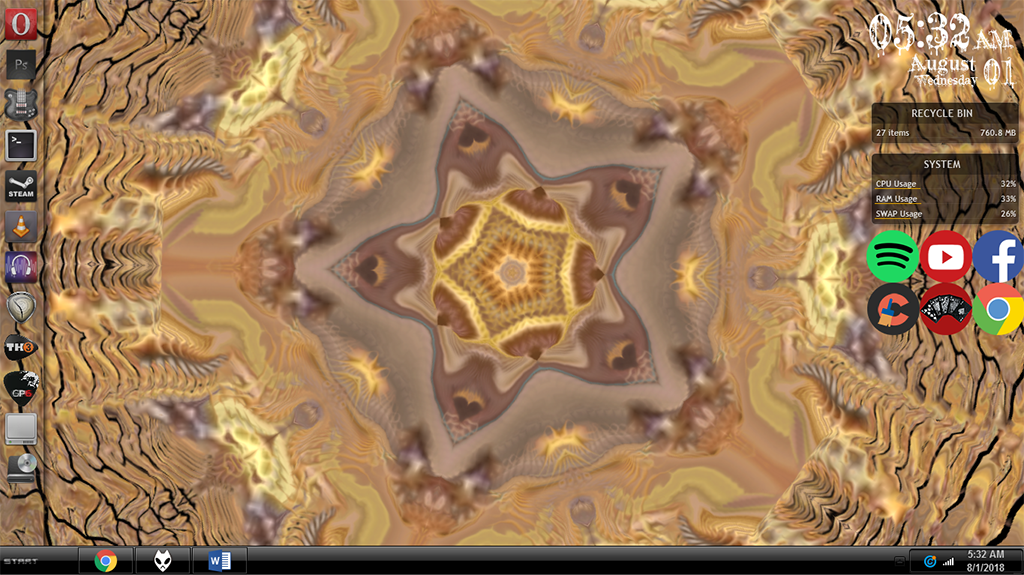
Unfortunately, no modern audio player has a powerful visualizer like MilkDrop – but there’s a workaround. We are able to use MilkDrop 2 as a plug-in for Foobar after installing a separate wrapper plug-in, which gives us full MilkDrop 2 functionality. Just follow our very simple guide!

Requirements:

First you need to install Foobar2000 and launch it.

Download and extract the shpeck plug-in.

Open Foobar’s File > Preferences > Components, then drag the shpeck .DLL file onto the Components list in Foobar, press the Apply button, and allow Foobar to restart.

Now download and extract the dummy Winamp archive – this is not in fact the full version of Winamp, it is only a copy of Winamp.exe which shpeck needs to reference, but we are not installing Winamp on your PC.

In Foobar, go to File > Preferences > Visualisations > Shpeck, and in the top bar for “Winamp directory”, click the “…” button and point it to the Winamp.exe we downloaded in the previous step.
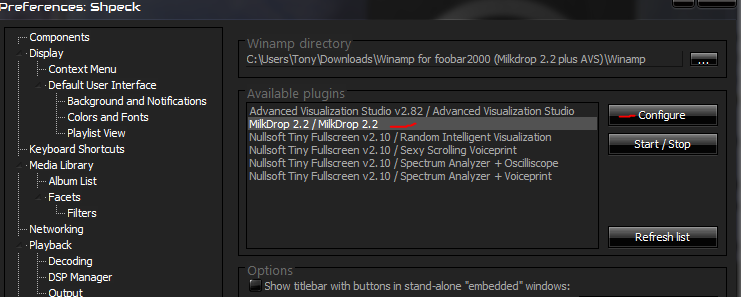
The next menu “Available plugins” should fill up with a few things. Click on “MilkDrop 2.2 / MilkDrop 2.2” and then click “Configure”.

Here you can change a variety of options regarding MilkDrop’s overall quality – if you have an older, slower computer, you should try lowering some settings, but if you have a modern computer or even hardware only a few years old (I’m running an AMD A8-5600k CPU with built-in APU graphics processing), you should be able to maximize the visual quality without any problem.

Under “Common Settings”, you have 3 modes – Desktop, Fullscreen, and Windowed. Fullscreen and Windowed mode are self-explanatory, but Desktop mode means that your desktop wallpaper will MilkDrop. It’s a really cool effect, give it a try.

For “max framerate”, you can put it at 60 frames/sec, but some visualisations may have actually been coded for a different framerate.

“Allow Page Tearing” is basically V-sync. You can disable or enable this, its up to you.
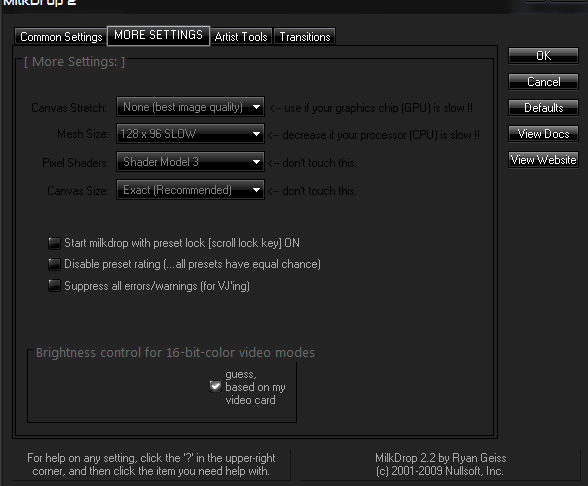
Now under “MORE SETTINGS”, you have these options:

  • Canvas Stretch – This option lets you trade resolution [crispness] for speed. If MilkDrop runs too slow, in any mode (windowed/fullscreen/desktop), try cranking up the canvas stretch to, say, 1.5X or 2X. The image will not look as crisp, but MilkDrop will probably run much faster. (Assuming that your graphics chip was the bottleneck.)
  • Mesh Size – This is the main option that affects how much processor (CPU) MilkDrop uses. If you crank it up far beyond the default, expect to be CPU-bound (where your framerate drops because the CPU is the bottleneck). To get MilkDrop to speed up, drop the Mesh Size back down. The Mesh Size decides how many points on the screen the per-vertex equations will be executed for; the higher the mesh size, the more fidelity you will see in the motion. However, modern computers should have absolutely no problem at higher mesh sizes.

In the “Artist Tools” tab, try matching your GPUs memory to the “Max Video Mem.”

When you’re all done playing with the settings, just hit “Okay”, then start playing a song in Foobar, and go to Foobar’s View > Visualisations > Shpeck – Start ‘MilkDrop 2.2 / MilkDrop 2.2”.

ABOUT THE AUTHOR

Kevin Arrows


Kevin Arrows is a highly experienced and knowledgeable technology specialist with over a decade of industry experience. He holds a Microsoft Certified Technology Specialist (MCTS) certification and has a deep passion for staying up-to-date on the latest tech developments. Kevin has written extensively on a wide range of tech-related topics, showcasing his expertise and knowledge in areas such as software development, cybersecurity, and cloud computing. His contributions to the tech field have been widely recognized and respected by his peers, and he is highly regarded for his ability to explain complex technical concepts in a clear and concise manner.

Comments

20
    RA
    razajac Dec 25, 2018

    I’m running foobar2000 1.4.1 on a Windows 10 system. The current update on Win10 comes with a DirectX v.12, but the install described on this page thinks it’s “corrupt”.

    Can you point me to a more direct/less kludgy way to get Milkdrop?

      TC
      Tony Celentano Dec 27, 2018

      Hi razajac, Im copypasting this from a forum where another user had a similar issue. They fixed it using these steps:
      1. You definitely need DirectX 9.0c runtime. Milkdrop was not starting without it and clicking configure button caused foobar2000 to crash. I got it from https://www.microsoft.com/en-us/download/de…ls.aspx?id=8109
      2. I have placed foo_vis_shpeck.dll in the components folder.
      3. I have placed milkdrop package downloaded from http://files.ilab.me/bin/foobar2000/milkdrop2.24_win5623.zip straight into foobar2000 directory (C:Program Files (x86)foobar2000), just like momothewizard. You need winamp.exe file (it can be just a text file, only the file name is important) in this folder so shpeck can identify it as the one with visualization plugins.

      Please let me know if that helps (thread link: https://hydrogenaud.io/index.php/topic,59388.800.html)

      Reply
        RA
        razajac Dec 28, 2018

        Well, for starters, the first link you provide (for the DX9.0c runtime) is now a DEAD link. So there’s that.

        But I did a search at the mSoft site, found a 9.0c installer, downloaded it, and ran it: It wouldn’t proceed with the install on the basis of an incompatibility with my Windows10 system.

        Add that 1) DirectX 12 is supposed to be backwards compatible, and 2) I do have some concern that even if I *did* install 9.0c, there’s a chance its presence would break other stuff, and…

        …I’ve changed my mind.

        As much as I miss Milkdrop, I’m not sure it’s worth the hazard to the stability of my system to shoehorn an older version of DirectX onto it.

    AN
    Anischenko Jan 19, 2019

    Sweet!

    JB
    Joe Beese Feb 1, 2019

    Worked flawlessly. You have brought me happiness. Thank you.

    MA
    Mammonesque Mar 31, 2019

    This was incredibly helpful. Thank you!!

    NM
    Nick M May 24, 2019

    Nice one, works well!

    DB
    Doug Ballou Jul 27, 2019

    Got it working, Thanks for making my go to audio player even better.

    E
    ebil -_- Aug 8, 2019

    how do i point it to the exe file

      SW
      Shane Warren Author Sep 8, 2019

      Click on the “…” and it will open up a new window. In that window navigate to the installation directory of “Winamp.exe” and double click on the “Exe”9

    GM
    gareth morgan Nov 26, 2019

    I have Foobar2000 1.4.8, just come over from Winamp (emotional). I have installed Shpeck but it only contains AVS in the available plugins list (AVS works fine).Milkdrop v2.25c works perfectly on Winamp, and is located in the Winamp folder.Any ideas why it might not be showing up in the Shpeck available plugins list?

    RA
    Raskolnikov Apr 11, 2020

    Yes, the same thing here. Milkdrop2 doesn’t appear in the dropdown list in Visualisations (as it used to do).

    **I did find this: “Hit the little REFRESH button underneath CONFIGURE and START/STOP (on the Shpeck page under Vis options)

    Should be fine then! 😉

    Reply
    PE
    PeterC May 24, 2020

    Beautiful, thanks for the tip. A friend of mine had this running at a party and I’ve always wanted it at my home.

    ZO
    Zoll May 13, 2021

    My Milkdrop settings arent saving after i change them in foobar. It defaults back to original settings. Anyone have this problem and a fix?

      MZ
      Muhammad Zubyan Author May 17, 2021

      Can you double-check the location you provided in your preferences? I think you didn’t pointed the Winamp.exe while selecting the directory.

    NI
    Nikolaidis Aug 30, 2021

    Arigato man! You helped a lot!

    D8
    disqus_8Ea5rfXjtm Jan 19, 2022

    Great job with the instructions Kevin, easy to follow and all is working flawlessly. Thanks!

    MS
    Milo Szecket Jun 12, 2023

    i have this entirely set up, except that when i click “configure” for milkdrop it crashes foobar entirely.

    GM
    Graph Man Jul 4, 2023

    Installed fine on Win10 Pro nvidia GTX560. Problem is I cannot see where/how to change the Milkdrop presets (unlike the buttons available to do so when using Milkdrop in Winamp v5.9).
    Any advice???

      MZ
      Muhammad Zubyan Author Aug 12, 2023

      If you’re using a standalone version of MilkDrop, you might not have direct buttons to change presets like you do in Winamp. In this case, you typically change presets using keyboard shortcuts:

      F1 to F9: These keys correspond to different preset slots. Pressing any of these keys will load the corresponding preset.

      Reply