How to Fix Right Click Menu Randomly Popping Up on Windows?
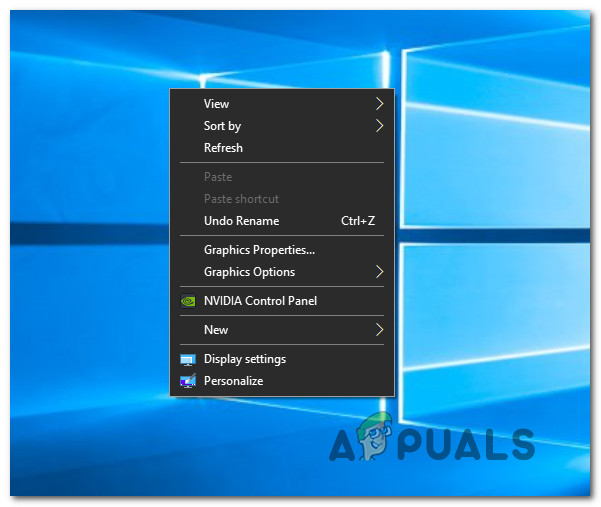
A lot of Windows 10 users have been reporting a weird issue where the right-click context menu is randomly popping up without any user action. The vast majority of affected users are reporting that this issue is occurring at random intervals with no apparent trigger. Although the issue is much more common on Windows 10, there are some user reports of the same problem occurring on Windows 7 and Windows 8.1.
What’s causing the Random appearances of the right-click menu on Windows?
We investigated this particular issue by looking at various user reports and testing out the different repair strategies that are commonly recommended by other affected users that have already managed to resolve the issue. As it turns out, several different scenarios will trigger this particular behavior. Here’s a shortlist of culprits that have the potential of causing this behavior:
- Corrupted / Incomplete driver – As it turns out, this particular issue can occur because the keyboard/mouse driver that is being used is not complete or is corrupted to the point where it ends up triggering some keys even if the user didn’t press that key physically. In situations like this one, the best course of action would be to run the built-in keyboard troubleshooter and fix the driver inconsistency automatically.
- Click-Lock is enabled – According to several different user reports, this issue can also appear due to a mouse feature called ClickLock. This feature can end up triggering random context menus whenever the user tries to drag something using the Click-Lock feature. In this case, you should be able to resolve the issue by disabling click lock altogether.
- Physical keyboard issue – A software issue is not the only possible culprit. In some cases, this particular behavior is caused by a stuck key that is producing the equivalent of a mouse right-click ( Shift + F10 or the Menu key can both produce this behavior). If this scenario is applicable, the only fix is to try and get the stuck key/s unstuck or to connect a different peripheral.
If you’re also encountering this behavior and you’re looking for a fix capable of resolving the problem, this article will provide you with several troubleshooting guides that should allow you to fix the problem. Down below, you’ll find a collection of potential fixes that other users in a similar situation have successfully used to resolve this error message.
For the best results, we advise you to follow the methods below in the same order that we arranged them in (ordered by efficiency and difficulty). Eventually, you should stumble upon a fix that will resolve the issue regardless of the culprit that’s causing the problem.
Let’s begin!
Method 1: Running the Keyboard Troubleshooter (Windows 10 only)
As it turns out, this particular issue can be caused by some kind of file corruption or an incomplete driver that is glitching the functionality of your mouse. In this case, one method that will resolve the issue automatically is to run the Keyboard troubleshooter.
Several affected users have reported that in their case, the problem was occurring due to a glitch in which the context shortcut (right-click menu) was continuously being triggered. In their case, running the Keyword Troubleshooter resolved the issue.
This procedure will analyze your keyboard and mouse configuration for any inconsistency. If any problems are found, the utility will automatically recommend an automated fix that might resolve the issue.
Here’s a quick guide on running the keyboard troubleshooter on your Windows 10 computer:
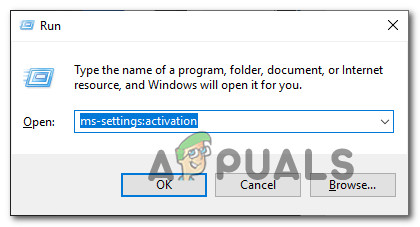
- Press Windows key + R to open up a Run dialog box. Next, type”ms-settings:troubleshoot” and press Enter to open up the Troubleshooting tab of the Settings app.
Accessing the Activation troubleshooter - Once you’re inside the Troubleshooting screen, move over to the right-hand side, then scroll down to the Find and Fix other problems section. When you get there, click on Keyboard, then click on Run the troubleshooter from the newly appeared context menu.

Running the Keyboard troubleshooter - After you start up the utility, wait until the diagnostics phase is complete. If a viable fix is identified, click on Apply this fix to enforce the repair strategy that is recommended.
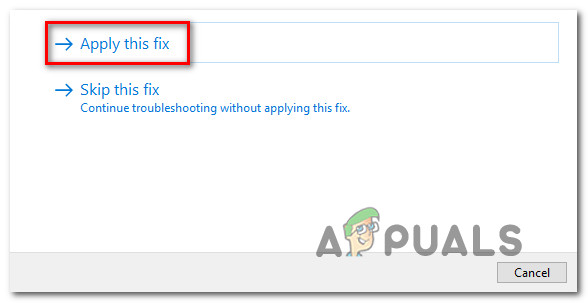
Apply this fix - Once the repair strategy is enforced, restart your computer and see if the issue is resolved at the next computer startup.
If you’re still encountering random apparitions of the context menu (right-click menu), move down to the next method below.
Method 2: Disable ClickLock
As it turns out, this particular issue can also occur due to a Mouse feature called ClickLock. This feature is supposed to enable the user to drag without holding the mouse button, but it’s known to cause random context menus (right-click menus) to appear with certain mouse configurations.
Several Windows users that were also struggling to resolve this issue have reported that they managed to resolve the issue by accessing the Mouse Properties screen and disabling ClickLock.
Follow the instructions down below for step-by-step instructions on doing this:
Note: You should be able to follow this method regardless of your OS version, but the menus might be a little different depending on the mouse driver that you’re using.
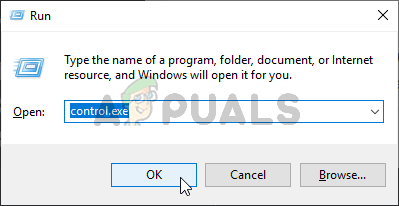
- Press Windows key + R to open up a Run dialog box. Next, type ‘control’ inside the text box and press Enter to open up the classic Control Panel interface.
Running Control Panel - Once you’re inside the classic Control Panel interface, use the search function in the top-right corner to search for ‘mouse’. Next, from the list of results click on Change mouse settings.
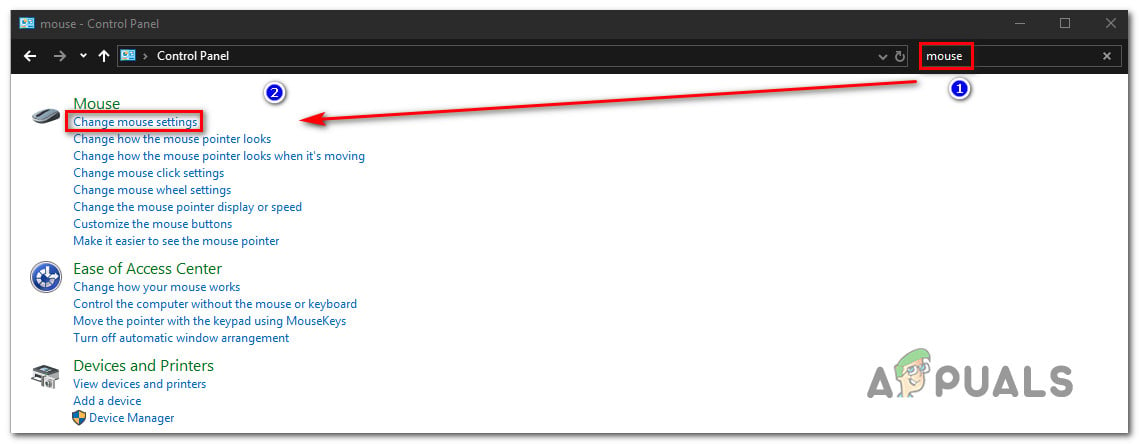
Accessing the Change mouse settings menu - Once you’re inside the Mouse Properties screen, select the Buttons tab and uncheck the box associated with Turn on ClickLock.

Disabling ClickLock - Click apply to save this mouse configuration, then restart your computer and see if the issue is resolved at the next system startup.
If the same issue is still occurring, move down to the next method below.
Method 3: Checking for a pressed key
At this point, you should start considering the possibility of a physically pressed key that is the equivalent of a right-click. On most PCs, Shift + F10 or the Menu key is the equivalent of a mouse right-click.
Several Windows users that found themselves in a similar situation have managed to resolve the issue by opening the On-screen keyboard utility to check if any keyboard keys are stuck.
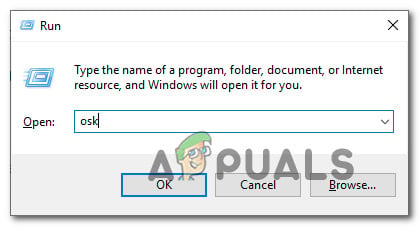
To do this, press Windows key + R to open up a Run dialog box. Then, type “osk” in the text box and press Enter to open up the On-Screen Keyboard utility.
With the keyboard opened, take a look at the list of keys and see if any key is pressed (their color is changed to blue).
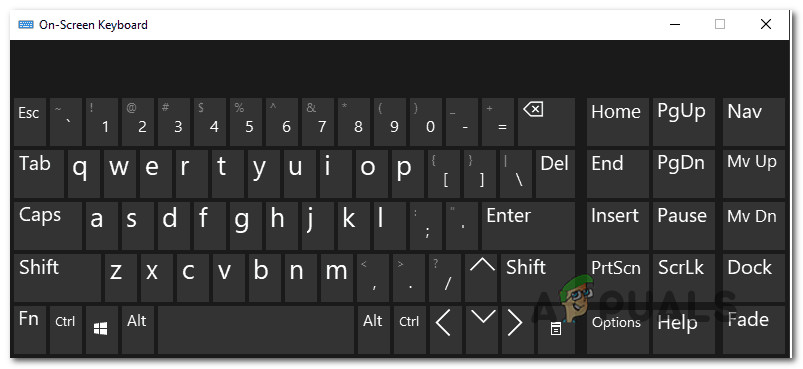
If this investigation determines that some key is indeed stuck and you can’t get it unstuck, the best-case scenario here is to simply connect a different keyboard. In case you’re encountering the issue with a peripheral connected to a laptop, lose the external keyboard and use the built-in keyboard.


Hello there,
I got the same issue and follow your steps to fix it, but it didn’t work at all and my right click menu still popping up all the time. Even when i disabled my touchpad, the issue still happen.
Do you have another solution for this problems?Best regards,Gustaf