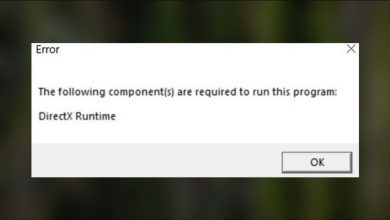
How to Fix Unity 6000.0.50f1 Error in Hollow Knight Silksong?
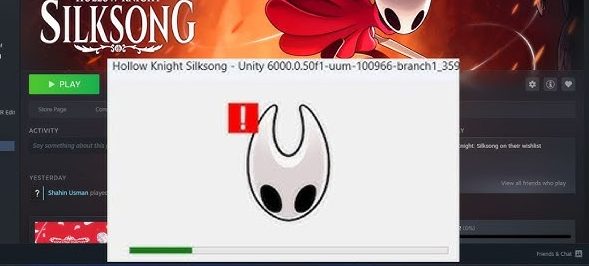
The Unity 6000.0.50f1 line is usually shown in a crash window or at the top of a Unity crash log. It’s not an error code, it’s the game’s Unity engine version (Unity 6 uses 6000.x). The actual crash cause is typically listed below it (renderer init like D3D/Vulkan, UnityPlayer.dll, missing runtimes, driver modules, etc.).
Before You Begin: Restart Steam and your PC. If it still crashes, try the fixes below in order.
1. Switch to Microsoft Basic Display Adapter (Quick Diagnostic)
This is a test. Disabling your GPU forces Windows to use a generic driver. If the game launches, your GPU driver/settings or a graphics hook is likely the cause. Performance will be worse, re-enable your GPU after testing and use Method 3 to fix it properly.
Note: The display may look low-resolution while this is enabled.
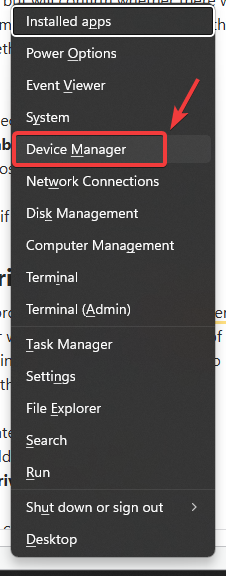
- Press Windows + X > open Device Manager.
- Expand Display adapters.
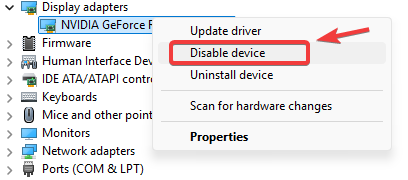
- Right-click your GPU > Disable device.
- Restart the PC.
- Launch the game and test.
- After testing: go back and Enable device for your GPU.
2. Disable Overlays & Injectors
Unity can crash if an overlay/injector hooks the renderer during startup. Disable them, restart Steam, then test.
- Turn off overlays: Steam, Discord, NVIDIA/GeForce, AMD, Xbox Game Bar. Guide: How to Disable In-Game Overlays to Fix Lag & FPS Drops?
- Exit hook/monitoring tools: MSI Afterburner, RTSS, Overwolf, ReShade, capture tools, FPS counters, injector mods.
- Restart Steam and launch the game.
3. Clean Reinstall the GPU Driver (DDU)
If Method 1 helped (or you suspect the driver), do a clean reinstall. DDU removes leftovers that normal uninstalls can miss.
Tip: Use Safe Mode and temporarily disconnect the internet to prevent Windows from auto-installing drivers mid-process.
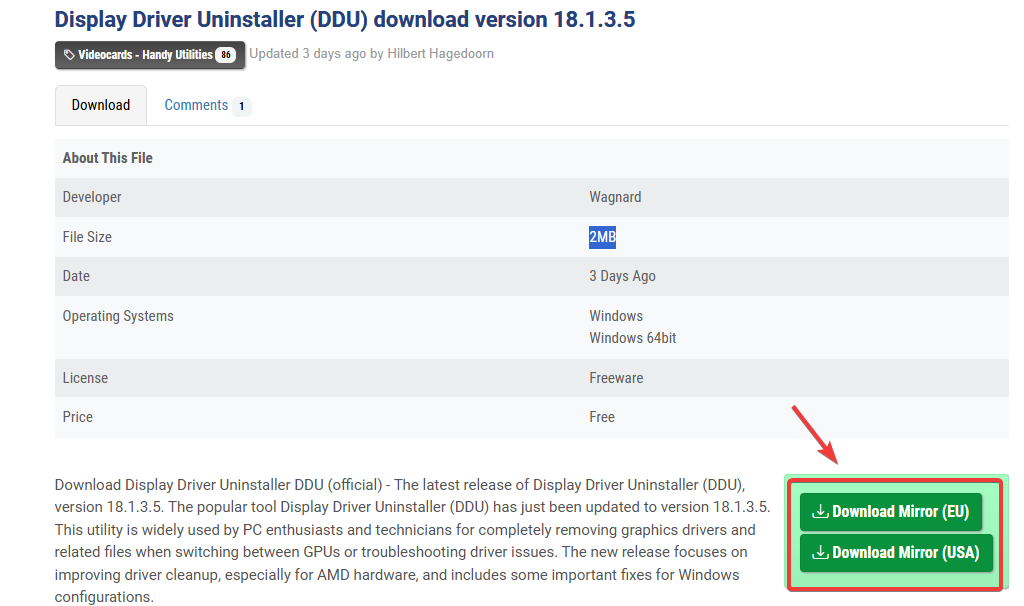
- Download DDU from the official site and extract it.
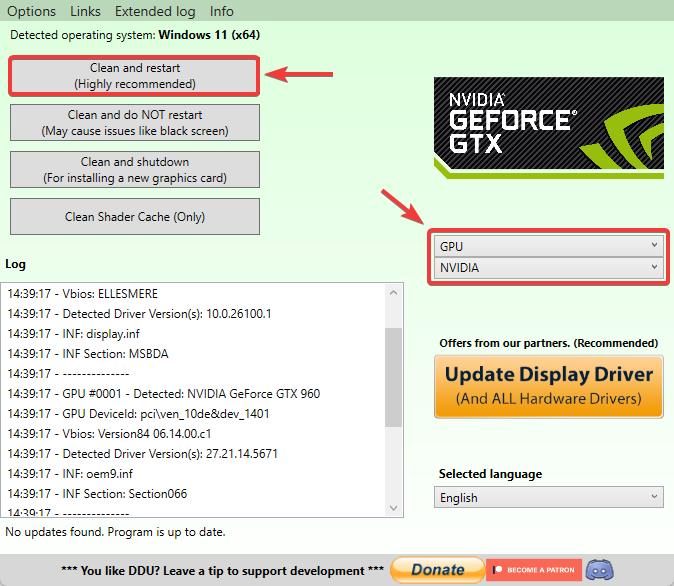
- Boot into Safe Mode, then run Display Driver Uninstaller.exe.
- Select your GPU type (NVIDIA / AMD / Intel).
- Click Clean and restart.
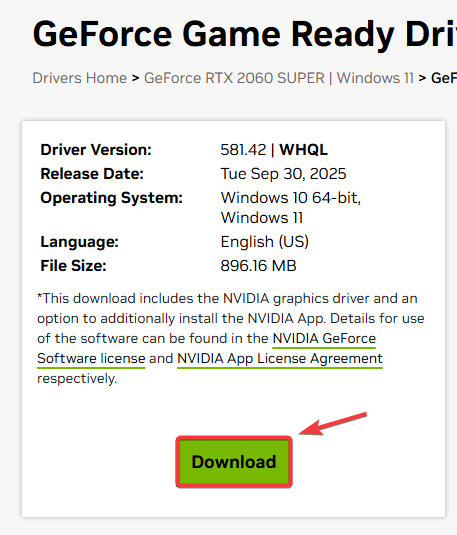
- Install the latest driver from your GPU maker’s official site.
- Restart and test the game.
Laptop note: If your laptop brand provides an OEM GPU driver, it can be more stable than a generic driver on switchable-graphics systems.
4. Verify Integrity of Game Files
Corrupted/missing files can crash Unity during startup. Verification re-downloads broken files.
- Open Steam > Library.
- Right-click the game > Properties.
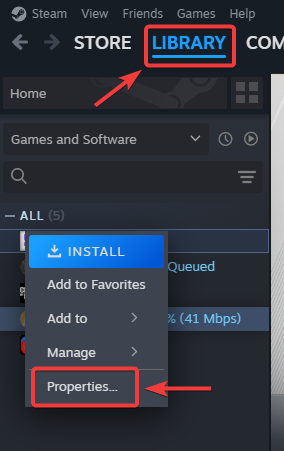
- Go to Installed Files > Verify integrity of game files.
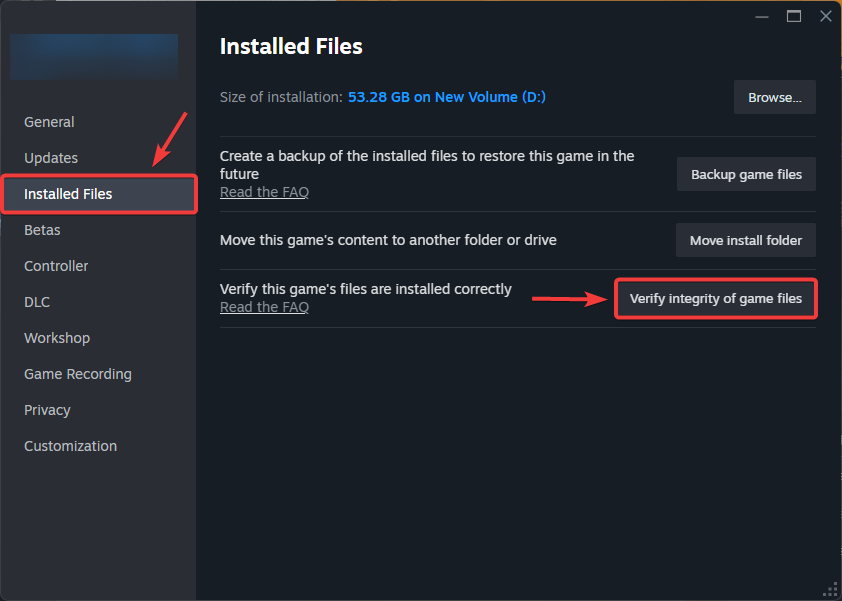
- When done, restart Steam and test.
5. Confirm Your GPU Supports the Required API (DirectX / Vulkan)
If your GPU doesn’t support the required API/feature level, Unity can crash during renderer initialization.
- Press Windows + R > type dxdiag > Enter.
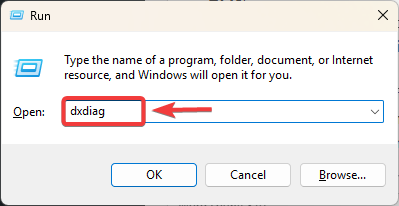
- Open Display and note your GPU, VRAM, and Feature Levels (if listed).
- Compare with the game’s Steam system requirements (DirectX 11+/Vulkan, etc.).
- If your hardware can’t meet the required API/features, upgrading the GPU is the reliable fix.
If none of these help, it may be a game/engine bug on that Unity build. Watch for a patch, and when reporting the issue, attach your Player.log so support can see the exact failing module.