Fix: “Application error: A client-side exception has occurred” in Chrome
If you see the error message “Application error: A client-side exception has occurred” while trying to open a website in Google Chrome, it usually means the website started loading, but the page’s code crashed while running in your browser.

This error is most commonly linked to corrupted cached site data, broken cookies, conflicting extensions, an outdated Chrome version, or browser settings that interfere with how the website’s JavaScript files load and run. In some cases, the issue is not on your computer at all and is caused by faulty, incomplete, or incompatible code on the website itself.
Because this problem can be caused either by Chrome or by the website itself, it is best to start with quick browser-side checks first and then confirm whether the issue only happens on that specific site.
1. Try the Website in Incognito Mode
Before changing any settings, test the website in an Incognito window. Incognito starts Chrome with a fresh temporary session and disables extensions by default unless you have manually allowed them there. This makes it one of the fastest ways to check whether the problem is being caused by cached data, cookies, or an extension conflict.
- Open Google Chrome.
- Click the three-dot menu in the top-right corner.
- Select New Incognito window.
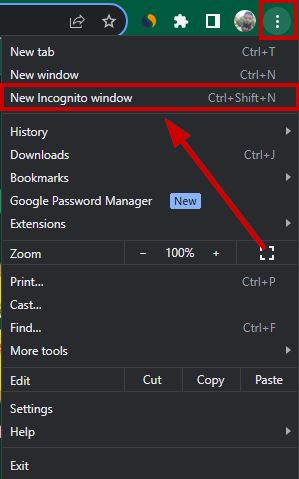
- Open the affected website in the Incognito window.
- If the website works there, the problem is most likely related to extensions, cookies, or cached browser data in your normal Chrome session.
2. Perform a Hard Refresh
Sometimes the page fails because Chrome is trying to reuse outdated website files that no longer match the current version of the site. A normal refresh may still reuse some cached resources, but a hard refresh forces Chrome to request fresh copies of the page files again.
- Open the affected website in Google Chrome.
- Press Ctrl + Shift + R on your keyboard.
- Alternatively, press Ctrl + F5 if supported on your system.
- Wait for the page to reload completely.
- Check whether the error still appears.
3. Update Google Chrome
An outdated version of Chrome can cause compatibility problems with modern websites, especially when a site depends on newer JavaScript features, browser security behavior, or rendering changes. Updating Chrome also refreshes important browser components that may be contributing to the problem.
- Open Google Chrome.
- Click the three-dot menu in the top-right corner.
- Select Help → About Google Chrome.

- Allow Chrome to check for updates automatically.
- If an update is available, let it install.

- Restart Chrome after the update finishes.
4. Clear Browsing Data
Chrome stores cached files, cookies, and other site data so pages can load faster on future visits. However, if that saved data becomes corrupted or no longer matches the current version of the site, Chrome may keep reusing it and fail to load the page correctly. Clearing browsing data forces Chrome to download fresh website files instead of relying on damaged or outdated local data.
- Open Google Chrome.
- Click the three-dot menu and select Settings.

- Go to Privacy and security.
- Click Clear browsing data.

- Select All time as the time range.
- Check Cached images and files and Cookies and other site data.
- Click Clear data.

Note: Clearing cookies will sign you out of many websites, so make sure you know your login details before continuing.
5. Disable or Remove Problematic Extensions
Extensions that block content, inject scripts, modify page elements, or filter website requests can interfere with how a site loads. Common examples include ad blockers, script blockers, privacy tools, VPN extensions, and page-enhancement add-ons. If an extension changes the page in a way the website does not expect, the site’s front-end code may fail and trigger a client-side exception.
- Open Google Chrome.
- Click the three-dot menu and go to Extensions → Manage extensions.

- Disable all extensions using the toggle switch.

- Reload the affected website.
- If the error disappears, re-enable extensions one at a time until the problem returns.
- Remove, update, or keep disabled the extension causing the issue.
6. Reset Google Chrome
If the problem is being caused by hidden browser misconfiguration, altered settings, or a combination of profile and extension-related conflicts, resetting Chrome can help. This restores Chrome’s main settings to their default state and disables extensions, which makes it a useful step when simpler fixes do not work. This does not remove your bookmarks, history, or saved passwords, but it will reset startup settings, new tab settings, pinned tabs, and search engine preferences.
- Open Google Chrome.
- Go to Settings.
- Scroll down and click Reset settings.

- Select Restore settings to their original defaults.

- Confirm by clicking Reset settings.

- Restart Chrome.
If none of the browser-side fixes work and the website keeps failing only on one specific page or service, the issue is likely tied to the website itself. In that case, the most practical option is to wait for the site owner to fix it or contact the website’s support team if one is available.


