Solved: Not currently using a display attached to NVIDIA GPU
Not currently using a display attached to NVIDIA GPU
Not currently using a display attached to NVIDIA GPU Error Fix

Newer laptops are increasing sporting dedicated graphics processing units (GPU) beside the integrated GPU. Desktop computer users have also fallen in love with NVidia GPUs and use them for graphic intensive tasks like gaming, animation and video editing among others. However, it is not all smooth sailing. Setting up an NVidia GPU can be a nightmare if you are not sure what is going on. The problem mentioned here has particularly frustrated a lot of users.

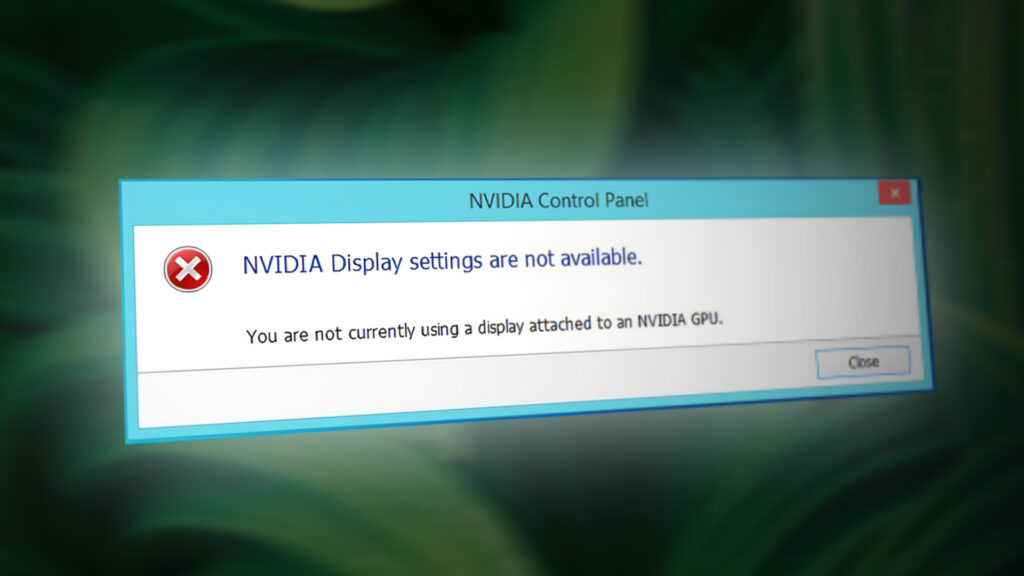
A lot of users have been complaining that whenever they try to access the NVidia control panel, they get a message stating ‘You are not currently using a display connected to an NVidia GPU’ with the heading ‘NVidia display settings are not available’. This robs the users of the capacity to tweak their NVidia GPU to enhance its performance, resolution or speed among other things. The problem occurs in both desktop and dedicated NVidia GPU laptops. Despite this message a lot of users running a dedicated NVidia laptop (there is usually an integrated Intel GPU) indicate that the NVidia GPU seems to come online whenever graphic intensive tasks are run. For others, disabling the integrated GPU in device manager turns the screen blank, and a restart will boot into a VGA (800X600) display. Strangely enough, a lot of users report that whenever they are plugged into the HDMI instead of a VGA port, this message does not come up and they are able to access the NVidia settings. Why does this occur, and how can it be fixed? This article covers this problem and gives you the solutions to it.

Why you cannot access your NVidia GPU settings

Laptops that run Intel with NVidia dedicated graphics usually save power by reverting to the Intel GPU when displaying graphics that do not need a lot of GPU processing power. This is usually known as the NVidia Optimus. When you launch a game or Photoshop, or animation software or other apps that demand a lot of GPU power, the NVidia kicks in. you will usually see a light that turns on the top or on the side of your laptop. Earlier laptops could let you switch between the GPUs by pressing a button. On the other hand, desktop users always deploy the NVidia GPU via an expandable slot at the back.

As the error message says, your NVidia will not work because the system is not able to detect it as the GPU that is currently displaying your screen. This simply means that for your desktop computer, your monitor is plugged into the wrong port at the back; hence your NVidia GPU is not active/online. This is why some users say that the problem is resolved when they plug into the HDMI port, but they are likely plugging into the correct NVidia GPU port. Also in most laptops, the NVidia GPU drives the HDMI and other external monitor ports.

For laptops; at low power, your computer uses the Integrated Intel GPU. When you access the NVidia GPU control panel, it should be able to switch and bring the dedicated NVidia GPU online and allow you to access the GPU’s settings. However, if you have the wrong drivers – it does not matter how up to date they installed drivers are – then your laptop will not be able to make this switch. This is the reason why all users that have this problem insist that updating the drivers does not solve the problem. The reason is that they are installing generic drivers from the Intel website or from the NVidia website. Your laptop manufacturer will always add some elements into these generic drivers so as to tell your PC when to switch between the two GPUs. These drivers are known as the OEM drivers and this problem is one of the reasons why manufacturers insist on installing OEM (Original Equipment Manufacturer) drivers that come with your computer CD or those that can be found on their website using your service tag.

Method 1: Plug your monitor into the NVidia GPU port

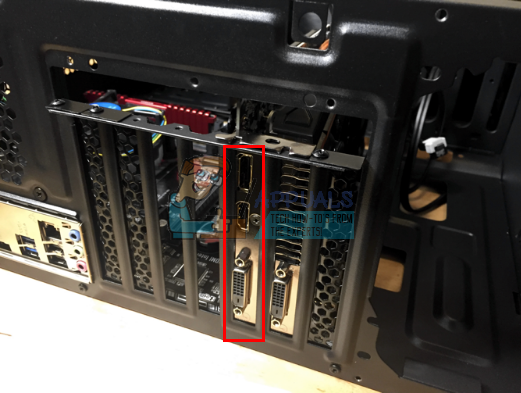
If you have a desktop computer, it is likely that you are plugged into the wrong port at the back of your PC. You should be plugged into the NVidia GPU port and not the port that comes integrated to your motherboard. The NVidia GPU is plugged into the extension slots marked as 8 in the image below. Your NVidia GPU should look like the one marked as 9.
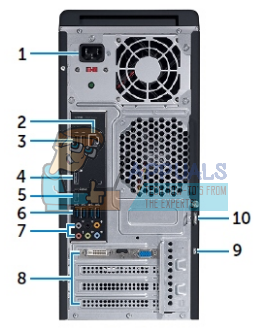
It is easy to miss this port because it is usually plugged with dust covers and nubs. Simply pry off the dust covers and plug in your HDMI or DVI cable that connects to your monitor and the NVidia control panel should now work.
 

Method 2: Uninstall your drivers and Install the OEM drivers for your Intel and NVidia GPUs

Notebooks and laptops use NVidia Optimus that switches between the Intel and NVidia GPUs depending on the graphic demands. It knows when the NVidia GPU should kick in and when to revert to the low power Intel GPU. However, only the laptop manufacturer drivers can implement this and not the generic drivers from Intel or NVidia. To install OEM drivers:

Step 1: Uninstall graphics drivers

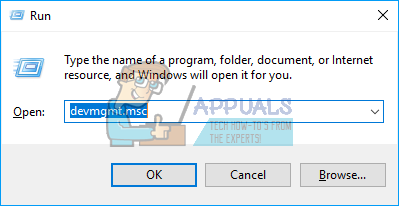
  1. Press Windows Key + R to open Run
  2. Type devmgmt.msc and hit enter to open device manager
  3. Expand the ‘Display adapters’ section
  4. Right click on your Nvidia Graphics drivers and select ‘Uninstall Device’
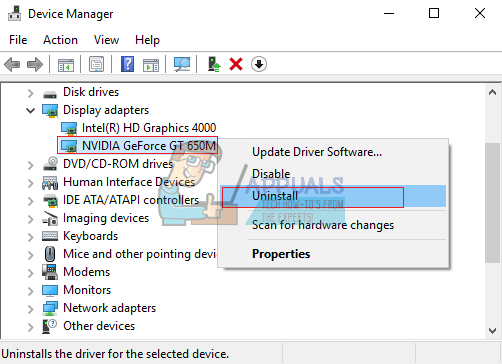
  5. In the confirmation message that comes up, click Yes/Uninstall to uninstall your drivers.
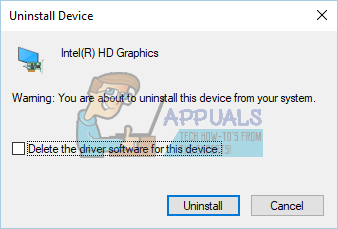
  6. Right click on your Intel Graphics drivers and select ‘Uninstall Device’
  7. In the confirmation message that comes up, click Yes/Uninstall to uninstall your drivers. Your screen will have a very low resolution after this. Do not worry, that is supposed to happen.
  8. Restart your PC

Step 2: Download and install the correct drivers

  1. Go to your laptop manufacturer website. Dell users can go here, hp users can go here, Toshiba users can go here, Acer users can go here, while Lenovo users can go here.
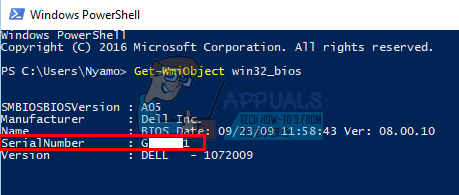
  2. You will likely be asked for your service tag or serial number. You can find this on a sticker at the bottom of your laptop. If the sticker is damaged you can find the service tag using cmdlets that read your BIOS. Click start > type PowerShell > Open PowerShell > Type “Get-WmiObject win32_bios” (without the quotes) and press enter. You will be shown your Serial Number/Service Tag. 
  3. Type in your service tag and submit it. Your manufacturer will find your laptop model for you and present you with the updates and drivers.You can also choose to search for your laptop manually or use an auto-detect service.
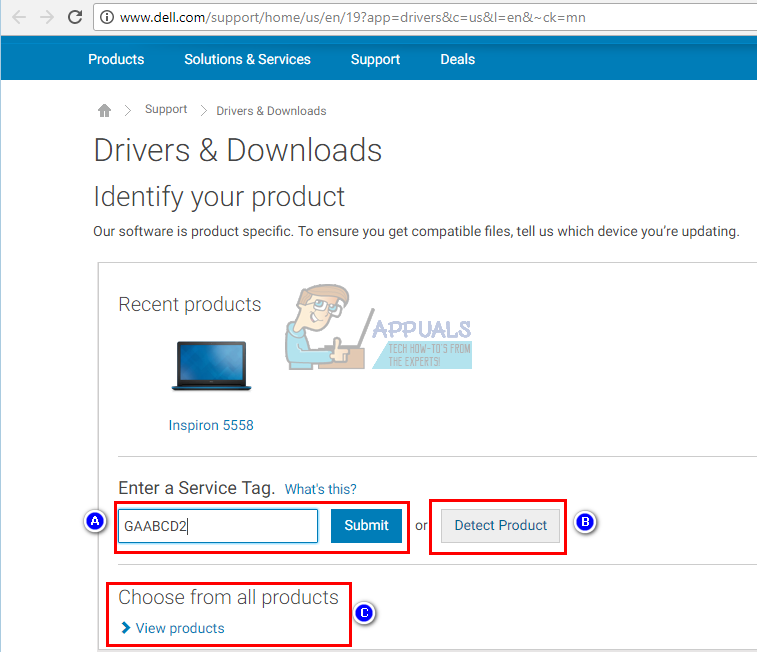
  4. Search for your graphics drivers that are meant for your OS (Windows 10, 8, 7 64 bit or 32 bit) and download both of them (NVidia and Intel). These drivers might be older than what you will find on the GeForce or Intel website, but they will work. Do nor download BETA drivers since these are not stable.
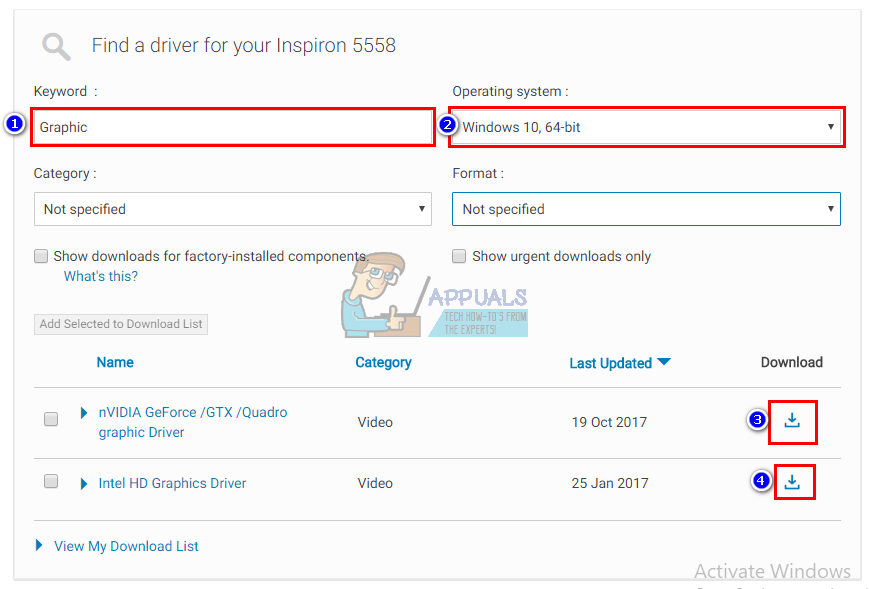
  5. Install the downloaded Intel graphics drivers first
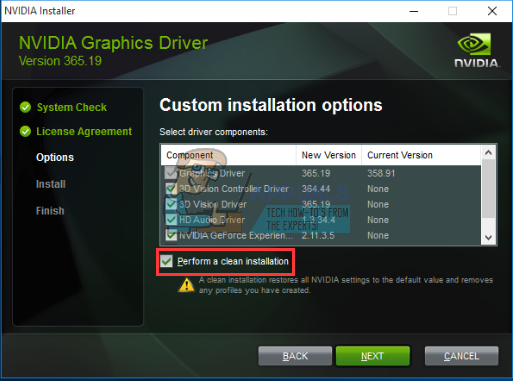
  6. Install the NVidia drivers by opening the downloaded file. Make sure you perform a clean install by checking ‘Perform clean install’ in the NVidia installation window.
  7. Restart your PC

Step 3: Hopefully Windows 10 will not update your drivers to wrong drivers. If you notice this behavior, prevent automatics updating of drivers by:

  1. Press Windows Key + R to open Run
  2. Type in ‘Control Panel’ and hit enter to open the control panel
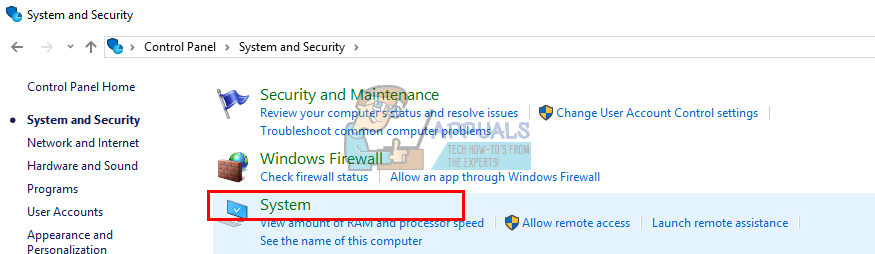
  3. Click on ‘System and Security’
  4. Click on System
  5. Click ‘Advanced system settings’ from the left sidebar.
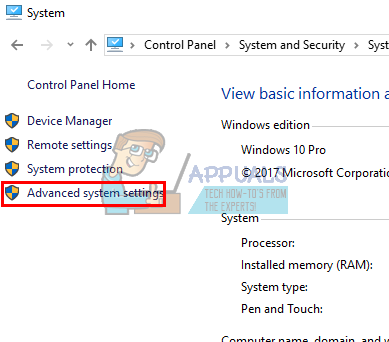
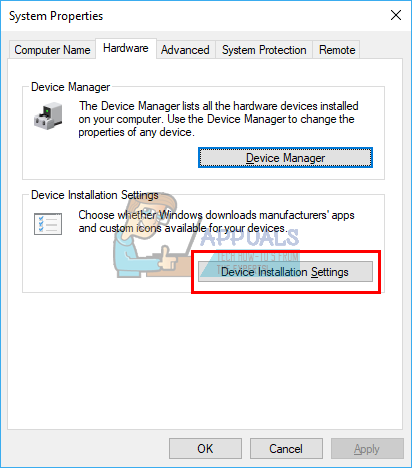
  6. Click on the hardware tab and click on the Device Installation Settings button.
  7. In the that pops up, select ‘No (your device might not work as expected)’ and then click on ‘Save Changes’
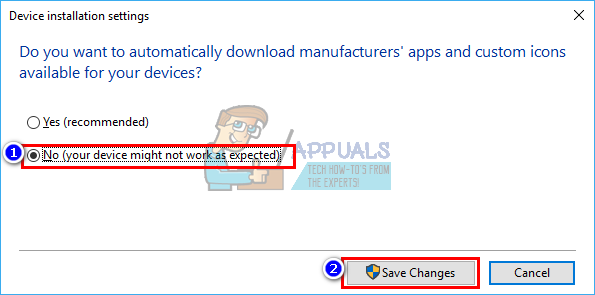
  8. You might need to restart your PC for effect to take place


Method 3: Update your GeForce/NVidia Drivers

For desktop user, the NVidia GPU is independent of the Intel GPU. If your drivers are faulty, you can download the correct drivers from GeForce.

  1. Go to GeForce driver download center here
  2. You can find for your drivers by manually searching for them, or using the ‘Auto-detect your GPU feature’ or the GeForce experience software to detect and update your GPU drivers.
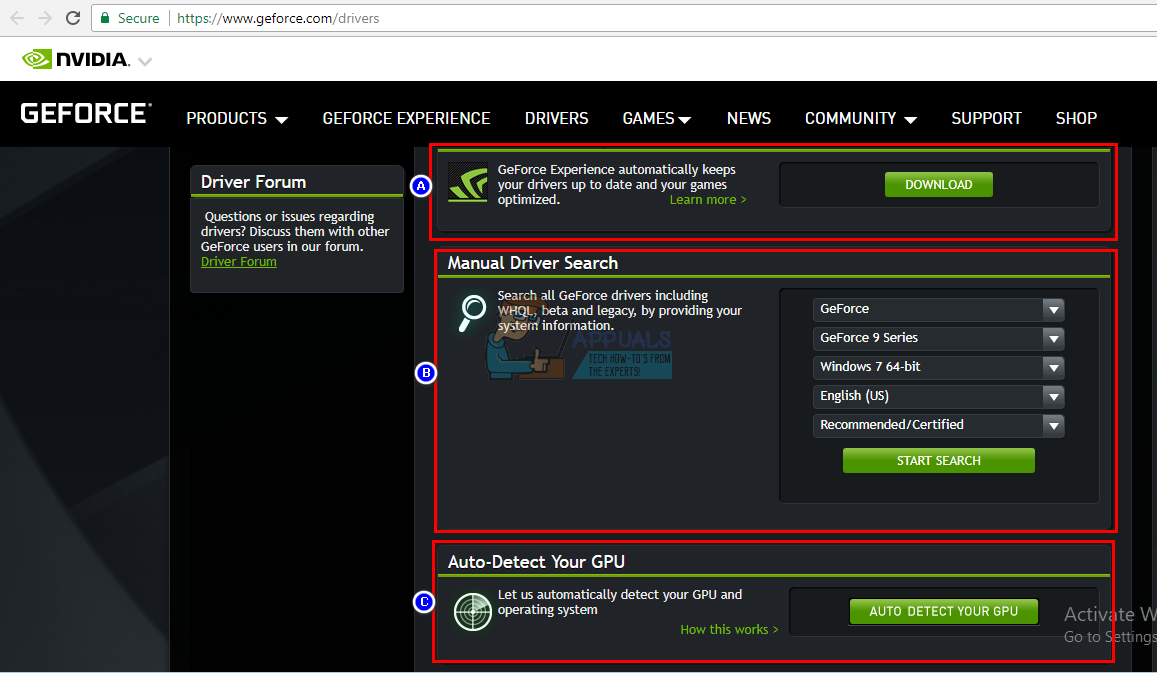
  3. When searching manually, don’t forget to select your OS e.g. Windows 10 64 bit and also filter your search to include only ‘Recommended/Certified’ drivers because beta drivers are usually faulty.
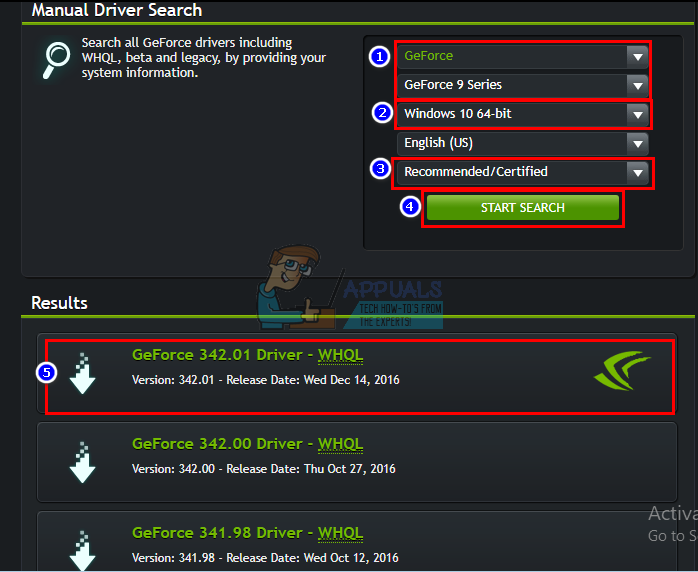
  4. Download the latest driver (the one at the top of the list)
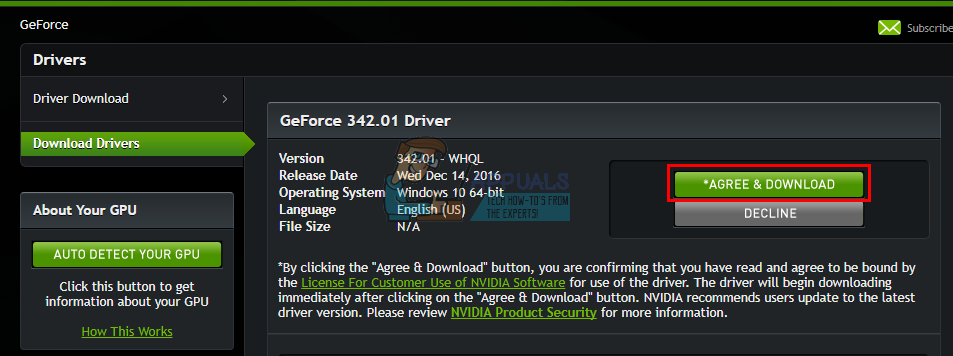
  5. Run it to install it. Make sure you perform a clean install by checking ‘Perform clean install’ in the NVidia installation window.


Method 4: Uninstall and reinstall your drivers

If your computer previously worked with known drivers, then there is a possibility your drivers are corrupt and you will need to uninstall and reinstall them. You can use DDU (Display Driver Uninstaller) from here or:

  1. Press Windows Key + R to open Run
  2. Type devmgmt.msc and hit enter to open device manager
  3. Expand the ‘Display adapters’ section
  4. Right click on your NVidia Graphics drivers and select ‘Uninstall Driver’
  5. In the confirmation message that comes up, click Yes/Uninstall to uninstall your drivers. Your screen will have a very low resolution after this. Do not worry, that is supposed to happen.
  6. Now install the drivers again. If you do not have the drivers with you, use method 2: Step 2 above to find the drivers for your laptop, or method 3 to find the drivers for your desktop computer.
ABOUT THE AUTHOR

Kevin Arrows


Kevin Arrows is a highly experienced and knowledgeable technology specialist with over a decade of industry experience. He holds a Microsoft Certified Technology Specialist (MCTS) certification and has a deep passion for staying up-to-date on the latest tech developments. Kevin has written extensively on a wide range of tech-related topics, showcasing his expertise and knowledge in areas such as software development, cybersecurity, and cloud computing. His contributions to the tech field have been widely recognized and respected by his peers, and he is highly regarded for his ability to explain complex technical concepts in a clear and concise manner.

Comments

52
    LD
    Laurence Dusoswa Apr 12, 2018

    Good article. Not sure if any of the options will work for me yet but it’s well laid out and fingers crossed something will work for me 🙂

    HR
    Hugo Leonardo Rocha May 3, 2018

    doesn’t work 🙁 i dont know what ill doing

      RC
      Ray Connor May 8, 2018

      Even after following the solutions the computer isn’t detecting the GPU, it will most likely be a hardware problem as mentioned above. Make sure the problem is only with your motherboard by plugging the GPU into another computer.

    FA
    FateDemo May 8, 2018

    I have been unable to access my control panel ( Nvidia ) for a few years, i have searched the web high and low, nothing really helped. I think the truly honest way to fix my issue is to either replace the motherboard (get a new computer) or get a new computer.

    MA
    Mathias May 19, 2018

    I have a laptop. I did method 2. It didn’t work plz help me

    YT
    Yukino Takada May 22, 2018

    Thank you very much for the detailed explanation, I have this problem after updating windows, sigh, it made me want to disable it now

    AF
    Andreas Fabian May 30, 2018

    I plug both VGA and HDMI (2 different ports). So should I unplug the VGA and only use HDMI?

      RC
      Ray Connor May 30, 2018

      You should try plugging into the NVIDIA port at the back of your PC. NVIDIA port means the port which is directly connected to your graphics card.

      Reply
    JS
    John Solomon Jun 7, 2018

    Thanks!! Plugging it into the NVIDIA port worked 🙂

    KA
    kaidon Jun 12, 2018

    i have a dell inspiron 3668 and it only has 1 hdmi port that i can find so i have no clue how to acess the control panel and furthermore my gtx750ti is not even being used in this pc and im sure that i have the 750ti

      RC
      Ray Connor Jun 12, 2018

      You should go to the device manager and make sure that the graphics card is installed properly.

        KA
        kaidon Jun 13, 2018

        How?

    SN
    Sarah Beth Nelson Jun 22, 2018

    Solved the mysterious problem I was having with my graphics card on my ASUS gaming laptop. Now I can play my games without as much lag. Thanks!

      YE
      yeet Aug 8, 2018

      how do u fix this?

    IK
    issa al khafaji Oct 23, 2018

    omfg i love u! i pluged my hdmi in the wrong hole, i did the same thing when i just got my pc. you have saved me, i was about to buy a new grafics card!

    Reply
    HC
    Hansam Chang Nov 7, 2018

    I tried method 3 and my game is running fine. But i accidently installed the driver without the clean install… is that a problem?

      KA
      K. Arrows Author Nov 9, 2018

      as long as it works, no issues

    HC
    Hansam Chang Nov 7, 2018

    I have used method 3 and it works fine. I can open my game now and play without issues. But i have istalled express and not the custom… is that a problem??

    AB
    ab Dec 14, 2018

    i want to do method 1 but i do not understand it

    KE
    Kevin Jan 14, 2019

    None of this works. I have a Dell G3 and it never uses the dedicated 1050TI, and the headphone jack doesn’t work unless I plug the headphones in BEFORE booting, if I plug them in after booting the audio only plays through speakers. And no matter what I do it doesn’t even show in the audio options that headphones are even plugged in!

    I tried disabling the integrated Intel graphics and now the display doesn’t even work. I’m about to light this thing on fire and throw it into the nearest Dell building.

      SW
      Shane Warren Author Sep 20, 2019

      Check out your power settings for that, go into bios and look for any settings that might relate to this. Also, reinstall all of your drivers related to sound and graphics. In fact, it is best to do a fresh install of Windows.

        KR
        Kevin Rieker Sep 23, 2019

        I’ve already done all of that. I did it the day I got the laptop and it did nothing. Of course Dell was willing to fix the obviously non warranty covered issues for a hefty fee…

        So I just deal with it. Sometimes I can get the 1050ti to work and sometimes I can’t.

          SW
          Shane Warren Author Sep 24, 2019

          I’m sorry, I couldn’t help you but after fresh windows install. It seems unlikely that this is a software issue, updating the bios might help but it seems to me that there is an issue with the laptop’s motherboard.

    SA
    sandesh Jan 26, 2019

    oh my ** god this saved my life thank you so much bro

    JR
    jaime regojo Feb 22, 2019

    Can someone help me with i problem i´ve got here?
    today i instaalled windows in my pc and i pluged in the hdmi cable in the rong place (motherboard) instead of plugin it in the graphics card, so which method do i use?

      SW
      Shane Warren Author Sep 19, 2019

      You need to plug the HDMI cable into the graphics card to make use of it. Plugging it into the motherboard forces the computer to use the integrated graphics card.

    JO
    Jon Jul 23, 2019

    I have to buy a DVI to VGA cable in able to connect to may VC port and not in the MOBO’s VGA port.

    TD
    Thomas Depoorter Aug 3, 2019

    ive tried method 2 for my hp envy x360 with mx150, it didnt work. any other suggestions?

      SW
      Shane Warren Author Sep 8, 2019

      Uninstall the GPU Drivers completely Using DDU and reinstall using Geforce Experience.

    SW
    Shane Warren Author Sep 21, 2019

    There are two ports to plug in the HDMI cable on your computer. One is the port that is associated with the motherboard which contains the integrated graphics card from intel. The other is the one attached to the GPU that you have plugged into your computer. Connect the HDMI cable to the port associated with the Nvidia GPU

    SW
    Shane Warren Author Sep 22, 2019

    Try this:
    “Uninstall the GPU Drivers completely Using DDU and reinstall using Geforce Experience.”

    SW
    Shane Warren Author Sep 28, 2019

    Check for an exclamation mark on any drivers under “Display Adapters”. Also, check if the Nvidia driver is showing up below the Display Adapters dropdown

    SW
    Shane Warren Author Sep 28, 2019

    Try to download and install a different driver, search for an older driver for the model.

    RS
    Rohan Saha Oct 18, 2019

    Usually disabling and enabling the device driver works.

    Reply
    TW
    twfun Oct 20, 2019

    i deleted all my drivers now and i dont know whaat to do because when i try to install the nvidia drive it says it cant find any component drive.

      SW
      Shane Warren Author Oct 22, 2019

      what gpu are you using, try to use it in another computer and check if it helps

    TW
    twfun Oct 20, 2019

    i need help please just tell me what i do i deleted the driviers then downloaded now the intel did work but nvidia cant find graphics and im stressed
    this is the only computer i would hve for the next 4 years please just help me.

      SW
      Shane Warren Author Oct 22, 2019

      first of all, create a new administrative account and check if it helps. Also, using DDU completely uninstall the drivers and reinstall them again.

        TW
        twfun Oct 22, 2019

        I have a laptop

          SW
          Shane Warren Author Oct 22, 2019

          Complete the suggestions that i made in the previous comment

    SS
    Saminur Rohman Sujon Oct 31, 2019

    I connect to my display by pc mother but don’t connect by GPU port now I can’t open the Nvidia control panel. it shows you are not currently using a display attached to an Nvidia GPU. how to fix this

      SW
      Shane Warren Author Oct 31, 2019

      You need to connect the HDMI cable or the DVI cable to the GPU port on the backside of the computer. The port that is connected to the Graphics Card needs to be connected to the monitor’s cable.

        SC
        Stephen Carter Nov 29, 2019

        Hi, I’m using an Ibuypower 9000w, I can’t really tell cause I’m no tech wiz, but I think the graphics card is connected to the DVI, but the HDMI is not. Does that mean I need a DVI in order to use my Nvidia?

          SW
          Shane Warren Author Dec 8, 2019

          You need to use one of them, use the DVI if there is only the DVI port and use the HDMI port if it is available on the computer.

    BI
    Bilal Feb 25, 2020

    Thank you for this – this was really helpful. Appreciate all the good work.

    SH
    Shaik Altaf Hussain Jul 16, 2020

    I can’t even find my gpu nvidia in the display catagory in device manager

      SW
      Shane Warren Author Jul 18, 2020

      Check if your GPU is properly plugged in and to diagnose further errors, try using the card on another PC and check if it works with that

    DJ
    Dario de Judicibus Nov 10, 2020

    The problem occurs also when a monitor is connected to the laptop through a docking station. In such a case I cannot find a solution.

      MZ
      Muhammad Zubyan Author Nov 12, 2020

      The graphics card chosen by Windows in the card used for POST (boot). In your case, it’s not choosing the Nvidia GPU and instead tries to use the Integrated one it’s really weak and you can’t open Control Panel from Nvidia to change settings of an Integrated GPU so therefore your Windows is showing this error. The Current fix is to disable the integrated GPU and restart your computer. For doing that you have to follow these steps:-1. Right-click on the start menu and press “Device Manager”
      2. In the “Graphics Adaptor” section find your Integrated GPU and disable it by right-clicking on it.
      3. Restart your Computer so Windows will be able to select your Nvidia Graphics card.I hope this helps you. Keep me updated.

      Reply
    DJ
    Dario de Judicibus Nov 18, 2020

    The problem cannot be fixed applying your suggestion if the monitor is connected through a DisplayLink-based dock station.

    JA
    Juhi Agrawal Sep 27, 2022

    Hello, I have been having this problem since last 4 months.I bought my Dell Inspiron 3593 laptop 2 years ago and everything was working fine till 4 months ago. I am not sure why the problem still exsits. Can anyone of you please help??

      MZ
      Muhammad Zubyan Author Sep 30, 2022

      Contact me on Discord; let me look into this issue personally, as I am researching this issue personally. Here is my Discord : Zubyan Gul#9955