How to Fix Steam Wont Download Games or Stuck at 0 Bytes/sec

When downloading games on Steam, users might encounter a drop in download speed to 0 bytes per second, indicating a pause in progress. This issue is typically related to local storage or processing delays rather than a weak internet connection or problematic network settings. A common factor contributing to this problem is the write cache on the disk where the game is being installed.

The most common cause of Steam download speed issues is “drive throttling,” where the hard drive or CPU slows down during data processing, particularly on slower or heavily used drives. Other factors include network issues, busy download regions, or Steam server problems.

Additionally, the write cache, which temporarily stores data to speed up writing, and the download cache can cause delays, leading to the download speed dropping to zero. In this article, we will discuss several strategies to resolve these issues and improve your Steam download experience.

1. Check Your Disk Usage

A sudden stop in Steam download speed often occurs when your disk is overloaded with processing data. Steam downloads, especially large games, require the drive to process, unpack, and write data continuously. If your Task Manager shows high disk usage, it means your drive is struggling, causing the download to freeze or slow down.

Steam pauses downloads to unpack and arrange files, leading to the 0 bytes per second issue. This is a normal part of how Steam installs games to ensure everything works correctly. To improve this, reduce other background disk activities or use a faster drive.

2. Disable Write Caching on the Device

Disabling the write caching option on the device allows the system to write data directly to the drive rather than storing it in the cache first, and then writing it to the drive. This eliminates the delay that often causes the Steam download speed to drop to 0.

  1. Open Windows Explorer by pressing Win + E simultaneously.
  2. Right-click the disk and select Properties.
  3. Go to Hardware and click Properties.
  4. Select Volumes from the top and click Populate.
  5. Go to Policies and uncheck Enable write caching on the device.
  6. Once done, see if the issue is resolved.

3. Change Your Download Region & Clear Download Cache

Sometimes, the closest download server might not be the fastest because of heavy traffic or server problems. By changing the download region, Steam uses a different server, which can reduce congestion and improve download speeds, especially if the original server is overloaded.

  1. Open Steam and click Steam in the top-left corner, then choose Settings.
  2. Go to the Downloads section.
  3. Under Download Region, choose a different region closer to you.
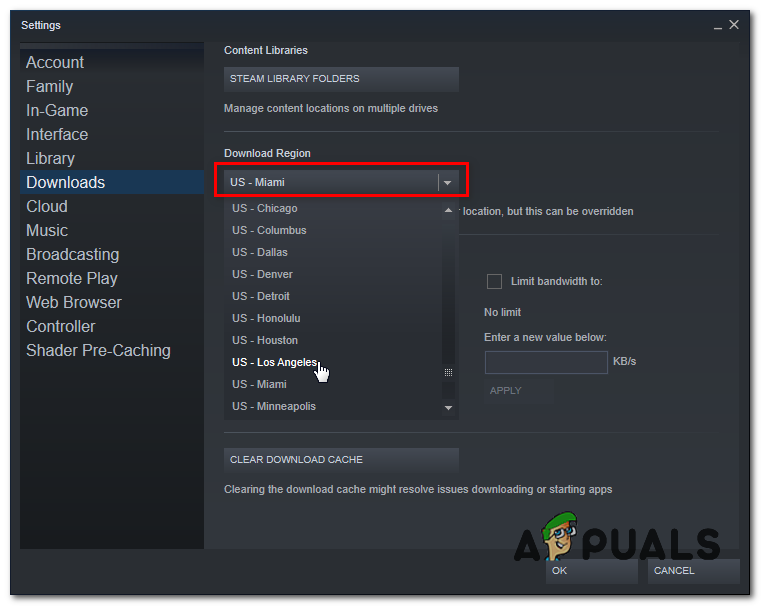
    Changing Download Region
  4. See if the issue persists. If it does, you can try to clear the Download Cache.

Steam saves the update and game files that are being downloaded in the cache. As you download the game or update, Steam stores the data in the cache to manage the installation efficiently. However, sometimes the data in the cache becomes corrupted, resulting in slow download speeds. Therefore, make sure to clear the download cache to see whether this resolves the issue.

  1. Select Downloads from the left and click Clear Cache.
  2. Once done, verify if the issue is resolved now.

4. Set Proxy Settings to Automatic

Setting your proxy to automatic helps Steam avoid connection issues and improve download speeds by using the best network route.

  1. Press Windows + R to open the Run dialog.
  2. Type “inetcpl.cpl” and press Enter to open Internet Options.
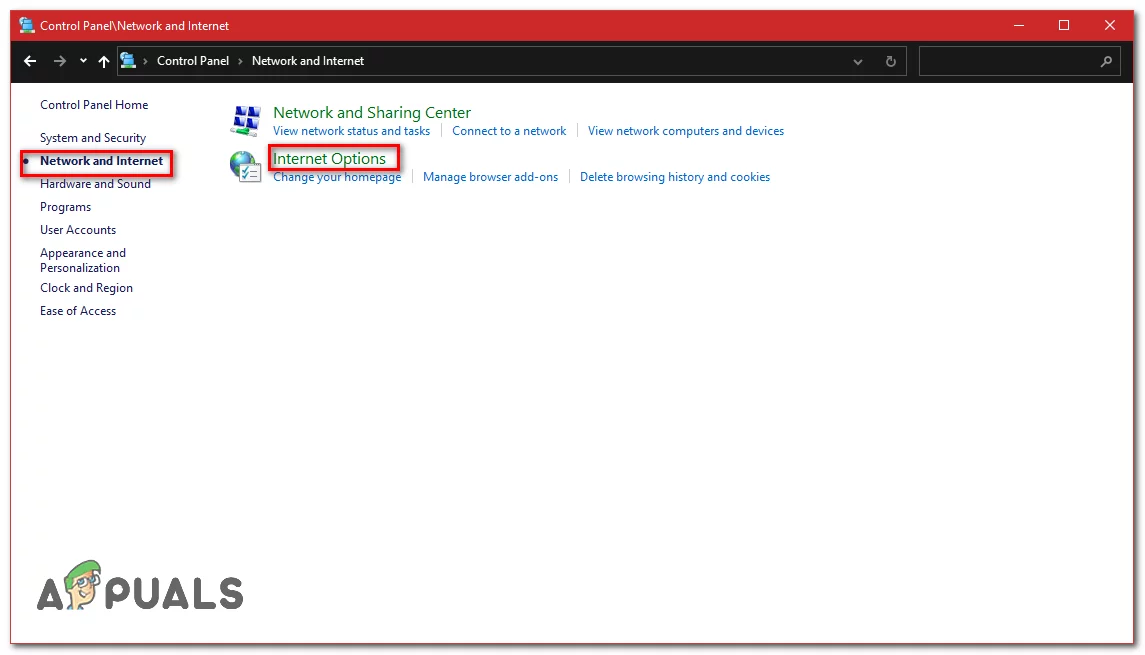
    Internet Options
  3. Go to the “Connections” tab and click “LAN Settings”.
  4. Ensure “Automatically detect settings” is checked and press OK.
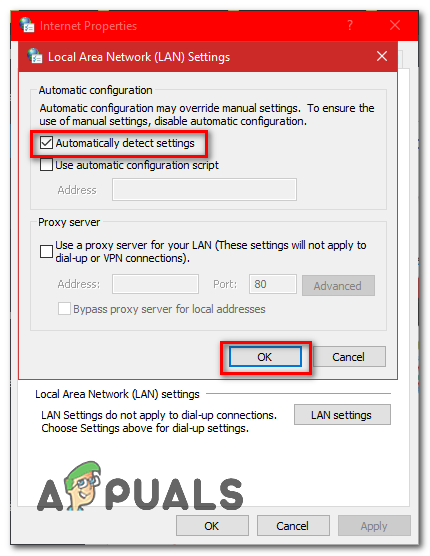
    Automatic Proxy Settings
  5. Restart your computer and check if the issue persists.
5. Use a Google DNS

Google DNS provides faster DNS resolution, enhancing stability and reliability, which reduces the chances of interruption when Steam accesses its servers. Additionally, Google DNS is more secure and provides better routing, potentially resolving issues when connecting to servers.

  1. Open the Run Program using the keyboard shortcut Win + R keys.
  2. Type Control and hit Enter to open the Control Panel.
  3. Navigate to Network and Internet > Network and Sharing Center and click Change adapter settings.
  4. Right-click the network adapter and select Properties.
  5. Select Internet Protocol Version 4 (TCP/IPv4) and click Properties.
  6. Choose Use the following DNS server addresses and type the Google DNS addresses:
    8.8.8.8
    8.8.4.4

  7. Once done, click OK to save the settings and see if the download speed stabilizes.

6. Reset Your Network Configuration

If Steam downloads stop because of network issues, resetting the network settings can fix it. This clears old or faulty settings and restores the network to default, solving problems with connectivity and speed.

  1. Hold the Windows Key and press X. Select Windows Terminal (Admin).
  2. Enter these commands one by one to reset your network settings:
    netsh winsock reset
    netsh int ip reset
    ipconfig /release
    ipconfig /renew
    ipconfig /flushdns
    
  3. Restart your computer.
  4. Check if the issue persists.

Note: It is also recommended that you try to change your DNS server.

7. Allow Steam through Firewall

Background security settings can block Steam’s downloads. Allowing Steam through the firewall removes these blocks, ensuring smooth downloads and preventing stops due to restricted access.

  1. Press “Windows” + “R” to open the Run prompt.
  2. Type “firewall.cpl” and press “Enter” to open Windows Defender Firewall.
  3. Click on “Allow an App or Feature through Firewall” in the left pane.
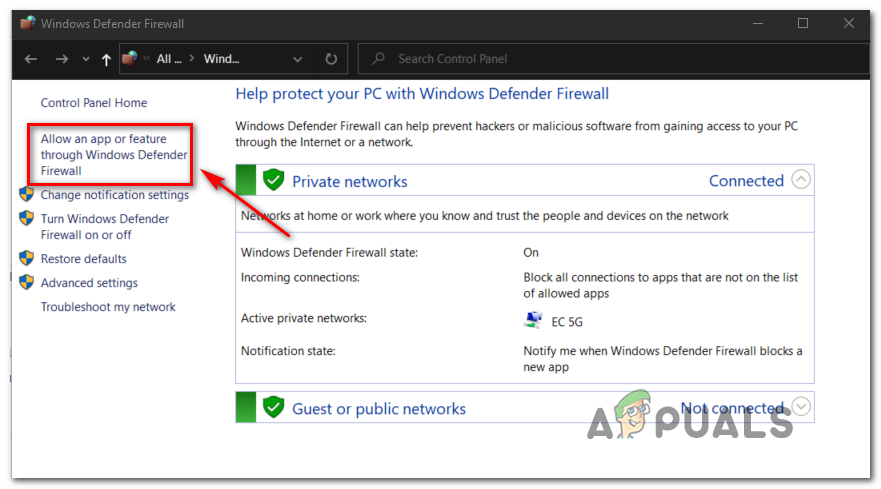
    Allowing an app or feature through Windows Defender
  4. Click “Change Settings” and check both Private and Public options for Steam.
  5. Save your settings and launch Steam.
  6. Sign in and check if the issue persists.

If the issue persists and your internet is working properly, the problem likely lies with your drive, preventing Steam from writing the data. Therefore, we recommend downloading the game to another drive, which should resolve the issue. If the issue is resolved, there might be a hardware problem with your drive. You can simply run diagnostics on your drive to check if there are any issues with it.

ABOUT THE AUTHOR

Kevin Arrows


Kevin Arrows is a highly experienced and knowledgeable technology specialist with over a decade of industry experience. He holds a Microsoft Certified Technology Specialist (MCTS) certification and has a deep passion for staying up-to-date on the latest tech developments. Kevin has written extensively on a wide range of tech-related topics, showcasing his expertise and knowledge in areas such as software development, cybersecurity, and cloud computing. His contributions to the tech field have been widely recognized and respected by his peers, and he is highly regarded for his ability to explain complex technical concepts in a clear and concise manner.

Comments

17
    DR
    Draconic54 Apr 14, 2018

    i need a fix

    DR
    Draconic54 Apr 14, 2018

    could you tell me how to fix the part that says only delete one of the files but i deleted two of them i beg you

      RC
      Ray Connor Apr 15, 2018

      Have you tried running Steam again?

    JK
    Jerry Kulleh May 6, 2018
      RC
      Ray Connor May 8, 2018

      Before reboot they work? Check your internet connection or try another computer with Steam to determine if the problem is system specific.

        TC
        The Crew Aug 13, 2019

        i tried my laptop but i found the same problem so is not a system problem

    RO
    Robert Aug 9, 2018

    Hi there, I am having an issue where Steam will load a majority of a game and then the disk usage will cut to 0 at the same point each time. ie Fallout New Vegas consistently loads to 4.7 GB out of 7 Gb and the disk usage cuts out. Its not a network issue as I have no trouble accessing the internet, Steam store, or downloading game mods. I also noticed that I can download certain games, but not others. I have attempted all of the items listed in the article here with the exception of the Ethernet fix (im on wifi). Does it sound like a file or anti virus issue if the copy/write stops consistantly at the same point? Could it still somehow be related to the network?

      TC
      Tony Celentano Aug 9, 2018

      Hi Robert – is it possible your hard drive has bad sectors? Are you using an older mechanical HDD, or an SSD? Do you have a secondary drive or partition to test something out? Some Steam users reported this method fixed the same issue you’re having

      .) Create a folder called “SteamLibrary” on the other harddrive or partition.

      2.) Open up the folder where Steam is installed (For me it’s E:Program Files (x86)Steam).Copy a file called “steam.dll” and paste it to that new SteamLibrary folder.

      3.)Create another folder in the “SteamLibrary” folder and name it “Steamapps”.(Should look like this “SteamLibrarySteamApps” , I don’t know what letter your harddrive is so I left that blank)Than go back to the original Steam folder and open the “Steamapps” folder (For me it’s E:Program Files (x86)SteamSteamapps).Once there copy the file “appmanifest_730.acf” to the new “Steamapps” folder that you created.Once copied rename this file in the original “Steamsteamapps” folder to this “appmanifest_730.acf.backup”.

      4.)Create the last folder in the new “steamapps” folder and name it “common” (Should look like this “SteamLibrarySteamAppscommon” , I don’t know what letter your harddrive is so I left that blank)

      5.)Go back to original “Steamapps” folder and goto the “common” folder(For me it’s E:Program Files (x86)SteamSteamappscommon).Once there copy the CSGO game folder over to the new “common” folder.

      6.)Start Steam up and goto the top left and click on “Steam” than goto “settings”.Once in settings go down to the “Downloads” section than click on the top button called “STEAM LIBRARY FOLDERS”.

      7.)Click on the “ADD LIBRARY FOLDER” button.Select the new SteamLibrary folder from that list that you had made in the steps above.

      Reply
      TC
      Tony Celentano Aug 9, 2018

      To expand on the steps I just shared, it could solve the problem for you if its a case where Steam is encountering bad sectors on your hard drive and then refusing to continue the download. If those steps solve the problem for you, I’d consider scanning your drive for bad sectors or buying a new drive.

    DU
    Dustin Apr 19, 2019

    i can download all games fine except Rust.. rust always starts and stops . and its very annoying

    TU
    TurtleShroom Jul 1, 2019

    Microsoft said I didn’t have the permissions needed to delete the Customer Experience Improvement Program Task folder. I am running as the primary administrator on my computer.

      SW
      Shane Warren Author Sep 10, 2019

      You can just try the method 2 listed below that solution. Also, are you using Windows 10 Pro? or the Home version

    DE
    Daniel Erdmann Jul 10, 2019

    Hey, Im here… A year after and steam still have download bugs… Im trying to update 14.4GB update of squad and when it says it have downloaded 14.4GB then it cuts to 0kb/s(network) and 0mb/s(disk)… It just keeps setting the extimated time higher and higher up to 4 years where it goes down to 10 seconds and up to 4 years, over and over!

      SW
      Shane Warren Author Jul 11, 2019

      If you have tried all the steps, open steam, go to settings, click on downloads and click on the region dropdown and select a different region temporarily and check if it fixes the issue. If it does you can change the region after the download is completed

      Reply
      CW
      Christian West May 24, 2021

      haha here for the same reason 2 yrs later.

    SW
    Shane Warren Author Sep 14, 2019

    If you have tried all the steps, open steam, go to settings, click on downloads and click on the region dropdown and select a different region temporarily and check if it fixes the issue.
    Also, make sure that your PC meets the requirements.

    SW
    Shane Warren Author Sep 29, 2019

    There are plenty of fixes in the article, have you tried any of them?