Fix: Run FSX in Windows 10
Users who long to run software from Windows XP and earlier in Windows 10 can now do so using a feature called Compatibility Mode.
One Microsoft Answers user explained that they were attempting to run Flight Simulator X, a popular PC game that they used on Windows in 2006. The operating system at the time could have been Windows XP, or Windows Vista which was released in November of that year.
Using Compatibility Mode, a user intending to run Flight Simulator X can do so. If that method does not work, there are numerous other method, including an explanation for how to update your computer’s graphics card driver, which could solve the problem. Here’s how it works.
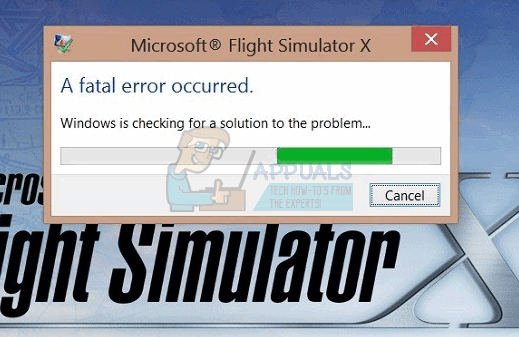
Method 1: Using Compatibility Mode
Before beginning this process, it’s important to have Flight Simulator X installed to your computer. You can do this by installing it from your original CD or purchasing a new one online. Once it is installed, press Start, find the application in your list of programs, and drag it to your desktop so you have a Shortcut icon there.
- Your first step is to right click the icon on your desktop, and in the menu that appears, select Properties.
- A new menu will appear with multiple tabs. You ned to select the Compatibility Here you will see a Compatibility mode section with a checkbox that reads Run this program in compatibility mode for. Make sure this box is checked, and then in the drop down menu, choose the operating system which you know you can play the game on. If you cannot remember the operating system you were using at the time, the CD should tell you which operating system the game is compatible for on the back of the box.
- After selecting your operating system, click Apply and then choose
Method 2: Run in Borderless Window Mode
Some users suggest that running the game in borderless window mode can solve the problem. To do this, you must:
- Press Alt and Enter on your keyboard while the game is running.
- Your window should become borderless and you may be able to play the game without issue, and even exit the game without the shutting down issue that is sometimes reported by Windows 10 users.
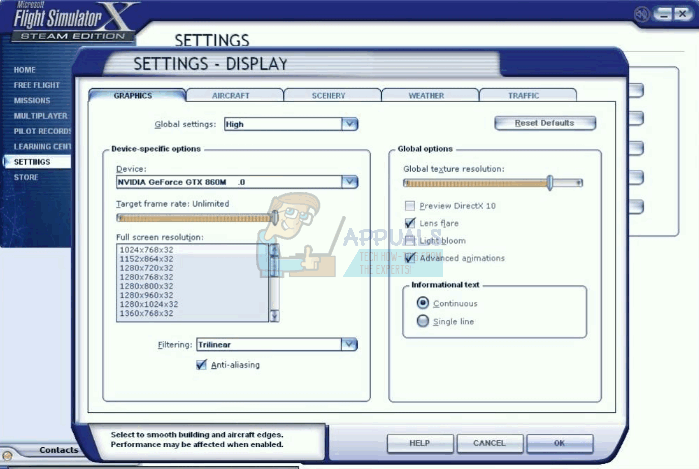
Method 3: Switch on Anti-Aliasing
- While running Flight Simulator X, click the Settings tab on the left.
- Click the Customize button at the bottom of the window, and look for the Anti-Aliasing
- Check the Anti-Alisasing button and press OK to save your changes.
- Restart Flight Simulator X to see if it resolves the problem.
Method 4: Update Graphics Card Drivers
- Press the Windows and X keys on your keyboard, and in the menu that appears, choose Control Panel.
- In Control Panel, click Hardware and Sound, and then choose Device Manager, which appears under Devices and Printers.
- At this point, you may be prompted to enter an administrator password to confirm you are the administrator of the computer you are using. Enter your password and press OK.
- In the Device Manager window, look for your graphics card. This will vary depending on the computer you use. Click Display Adapters and in the drop-down menu, you will be shown display hardware. On the entry that includes the term Graphics, right click that entry and select Update Driver Software.
- Next, press Search automatically for updated driver software and follow the on-screen instructions.
- If the drivers update, restart your computer by pressing Start on your taskbar, clicking the Power button and then pressing Restart.
- Upon restarting, open Flight Simulator X and see if the problem persists.

I have a Dell Inspiron 570 running a dual-core 3-GHz Athlon processor. 8 GB RAM is installed along with an nVidia GTX 660ti with 3 GB GDDR5. For the past 6 months this computer hasn’t been able to run Flight Simulator X properly. The video is jerky and frames unacceptably.
I have the latest drivers for the video card. I have used the batch file that kills the explorer while the game is running. I have the program running in compatibility mode for Windows 7.
Even running Windows 7 I now have this problem. Could it be my video card has gone bad? I can watch 1080p full-HD on YouTube without difficulty, but the game won’t run worth a flip. Please help.