Fix: “The Procedure Entry Point ucrtbase.terminate Could Not Be Located” on Windows
When you see the error “The procedure entry point ucrtbase.terminate could not be located in the dynamic link library api-ms-win-crt-runtime-l1-1-0.dll”, the application usually fails to launch because Windows cannot properly load the required Universal C Runtime (UCRT) files.
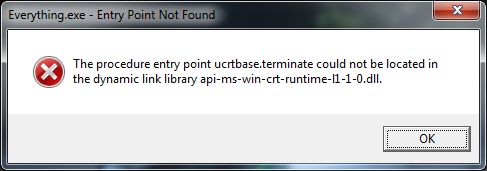
In most cases, this happens because the Microsoft Visual C++ runtime is corrupted or incomplete, Windows system files are damaged, or the program is loading an outdated local runtime file from its own installation folder. On older systems such as Windows 7 SP1 and Windows 8.1, it can also happen when the Universal C Runtime update is missing.
Below are the most effective ways to fix the problem.
1. Install All Pending Windows Updates
The Universal C Runtime is part of Windows on newer versions, and older systems receive it through Windows Update. If your PC is missing important updates, runtime files may be outdated or incomplete. Installing all available updates is often the quickest way to restore the missing components.
- Press Windows + R, type ms-settings:windowsupdate, and press Enter.
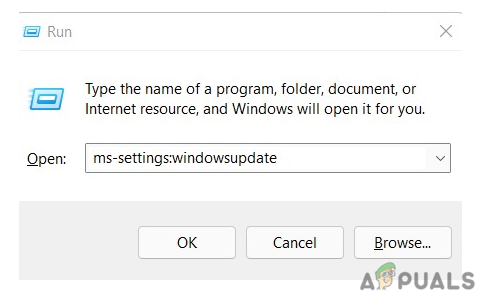
- Click Check for updates.
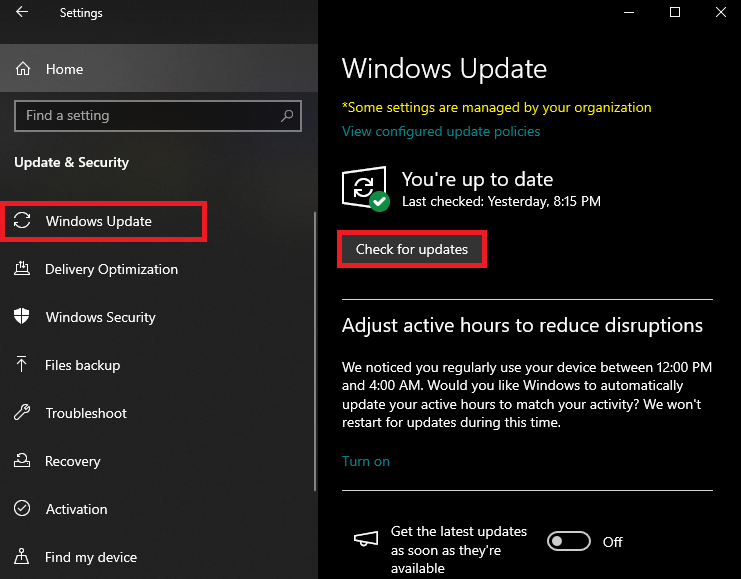
- Download and install all available updates, including optional quality updates if they are offered.
- Restart your PC and try launching the program again.
2. Repair or Reinstall the Microsoft Visual C++ Redistributable
This error is commonly caused by a broken Visual C++ runtime installation. Repairing or reinstalling the redistributable replaces damaged runtime files and restores dependencies required by many games and desktop applications.
- Press Windows + R, type appwiz.cpl, and press Enter.

- Find the entries named Microsoft Visual C++ 2015-2022 Redistributable for both x64 and x86.
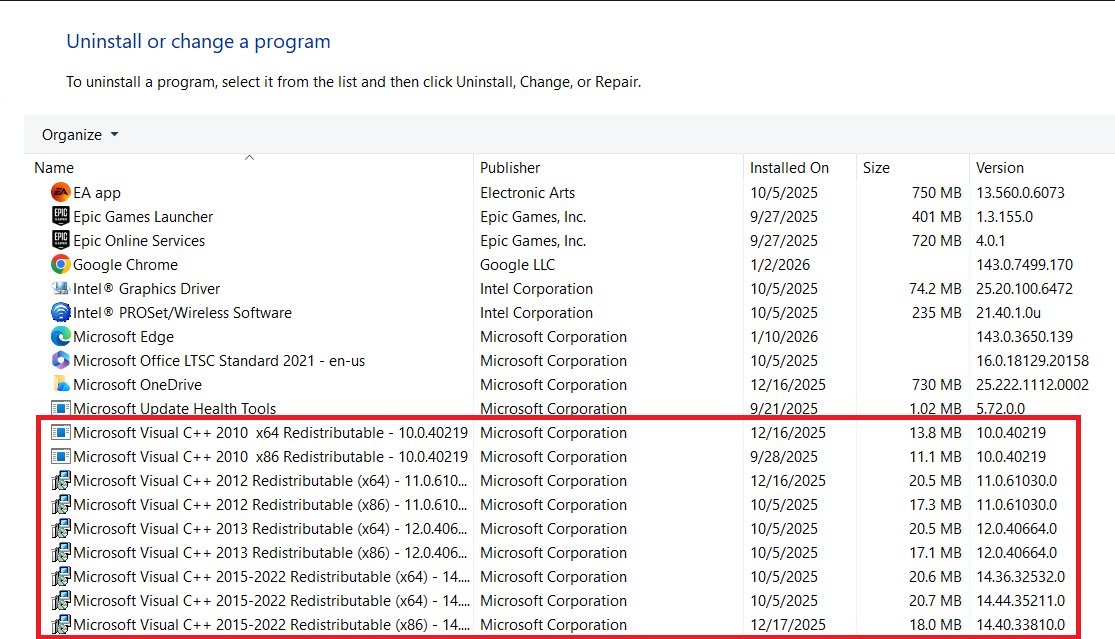
- If the entry offers a Repair option, use it first.
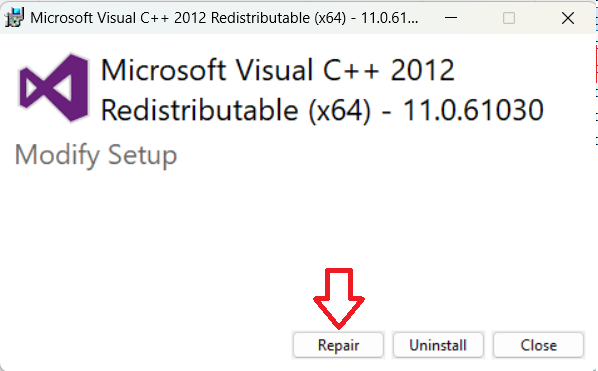
- If repair does not help, uninstall both the x64 and x86 entries for 2015-2022.
- Restart your PC.
- Download and install the latest supported packages from Microsoft’s official page here: Download the latest Visual C++ Redistributable packages
- Install both x64 and x86, even if you use a 64-bit version of Windows, because many apps still rely on the 32-bit runtime.
- Restart your PC and test the application again.
Note: Do not remove older redistributables such as 2013 or earlier unless you know they are damaged. Many programs depend on specific side-by-side versions.
3. Install the Universal C Runtime Update on Windows 7 or Windows 8.1
If you are using Windows 7 SP1 or Windows 8.1, the required UCRT files may be missing even if the app itself is fine. Installing the Microsoft update that adds the Universal C Runtime can resolve the error immediately on these older systems.
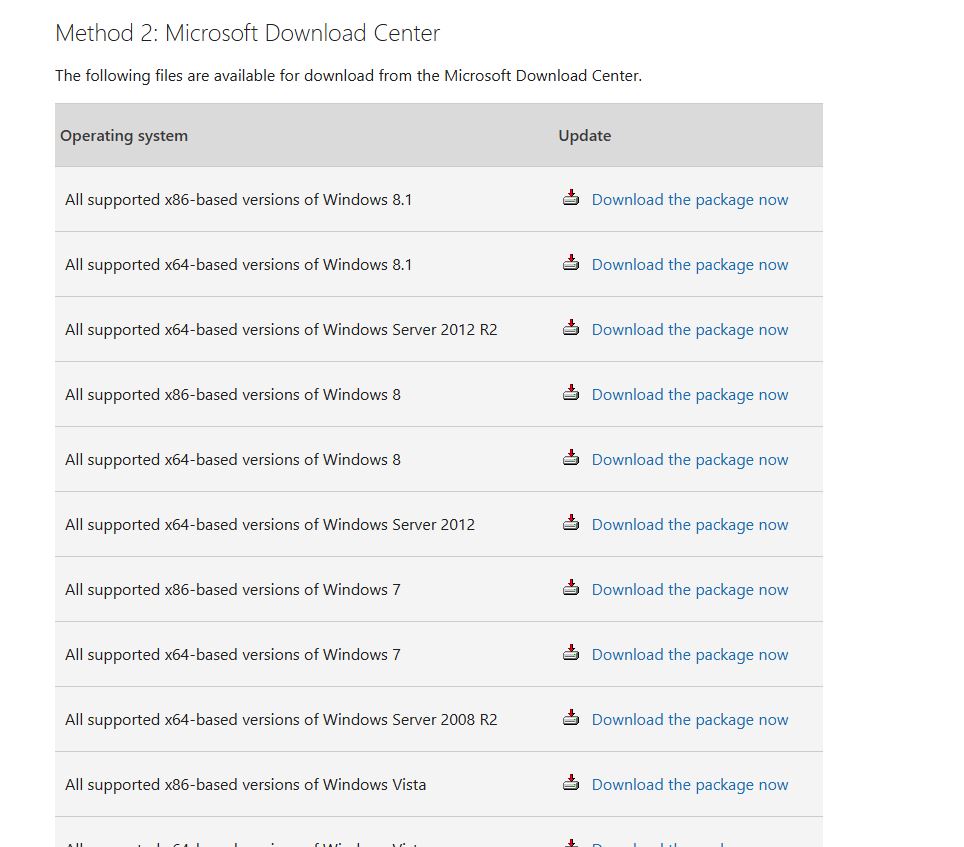
- Open the official Microsoft update page for the Universal C Runtime: Update for Universal C Runtime in Windows
- Download and install the package that matches your version of Windows.
- Restart your PC after installation.
Important: This step is mainly for Windows 7 SP1 and Windows 8.1. If you are on Windows 10 or Windows 11, the UCRT is already part of the operating system, so Windows Update and system repair steps are more relevant.
4. Reinstall the Affected Program
Some applications include their own local runtime files. If those files are outdated, incomplete, or mismatched, Windows may load the wrong DLLs and trigger this error. Reinstalling the program replaces those files with a clean copy.
- Open Settings > Apps or Programs and Features.
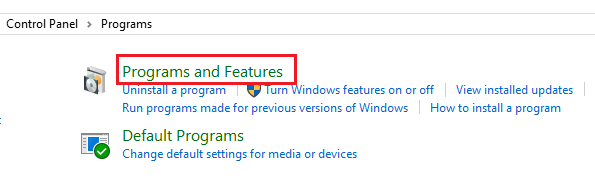
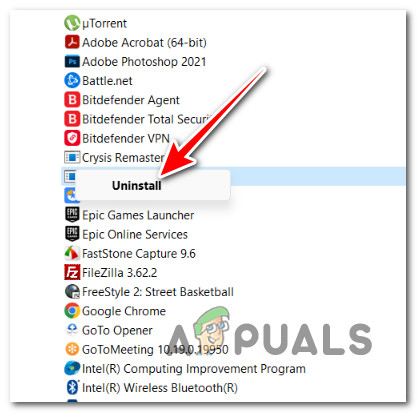
- Uninstall the affected application.
- Restart your PC.
- Download the latest installer for the program from its official website.
- Reinstall the app, then check whether it opens normally.
5. Repair Windows System Files
If the runtime files are present but Windows cannot use them correctly, your system files may be corrupted. Running the built-in repair tools can restore damaged components and fix dependency-related launch errors.
- Search for cmd, then right-click Command Prompt and select Run as administrator.
- If you are using Windows 10 or Windows 11, run the following commands one by one:
DISM /Online /Cleanup-Image /RestoreHealth
sfc /scannow
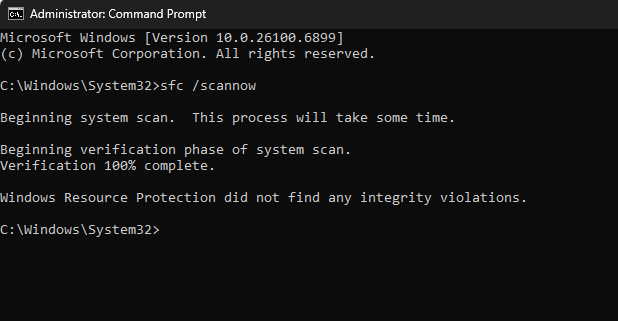
- If you are using Windows 7, run:
sfc /scannow
- Wait for the scan to finish, then restart your PC.
6. Use System Restore
If the error started recently after a Windows update, driver change, or software installation, restoring your system to an earlier working state can undo the change without removing your personal files.
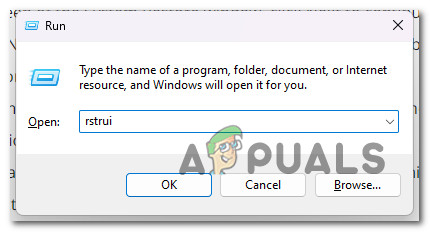
- Press Windows + R, type rstrui, and press Enter.
- Select a restore point created before the error started appearing.
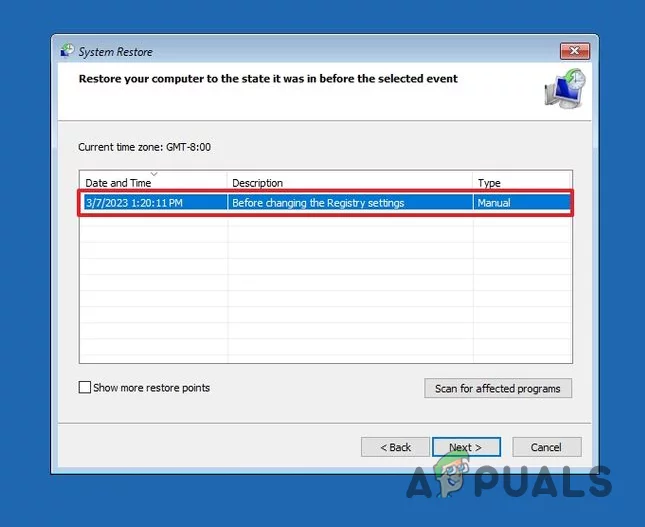
- Follow the on-screen instructions to complete the restore process.
Read more: Learn how to configure and use System Restore here.

if i update my visual c++ the problem may solve right ? 🙂