How to Get Windows 10 Extended Security Updates for Free
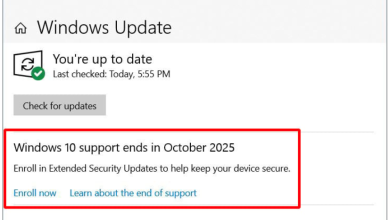
Windows 10 can still receive security-only updates after end of support through Extended Security Updates (ESU). If your PC is eligible, you can activate one extra year of security patches (typically until mid-October 2026) without paying, using one of the free enrollment methods below.
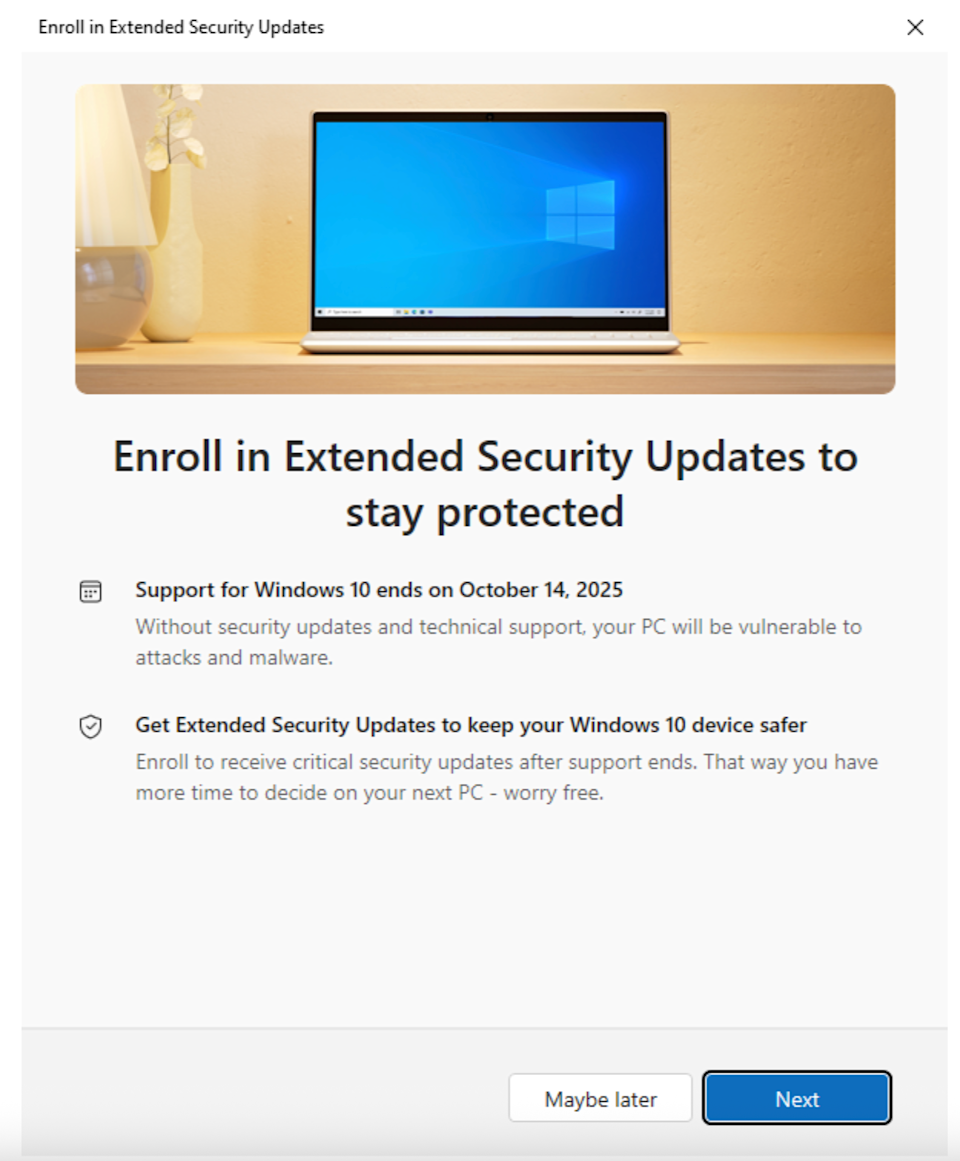
All ESU activation happens through Windows Update. Because Microsoft rolls this out gradually, you may not see the ESU enrollment option immediately on every device. In many regions, enrollment also requires signing in with a Microsoft account (even if you normally use a local account).
Before You Try to Enroll (So the ESU Option Shows Up)
Before using the free ESU methods, make sure your PC meets the basic requirements and is fully updated. This prevents the most common issue: the ESU prompt not appearing.
- Confirm you’re on Windows 10 version 22H2.
- Install all pending updates, then restart.
- Go to Settings → Update & Security → Windows Update → Check for updates.
- If you use a local account, be ready to sign in with a Microsoft account during enrollment.
If you still don’t see the “Enroll now” prompt in Windows Update, follow our step-by-step guide: How to Fix Missing “Enroll Now” Option in Windows 10 (ESU)
Option 1 (Free): Enroll in ESU by Enabling Windows Backup
On eligible devices, Microsoft may offer free ESU when you enable Windows Backup (PC settings sync) using the Microsoft account that will be used for enrollment.
- Open Settings → Accounts → Windows Backup.
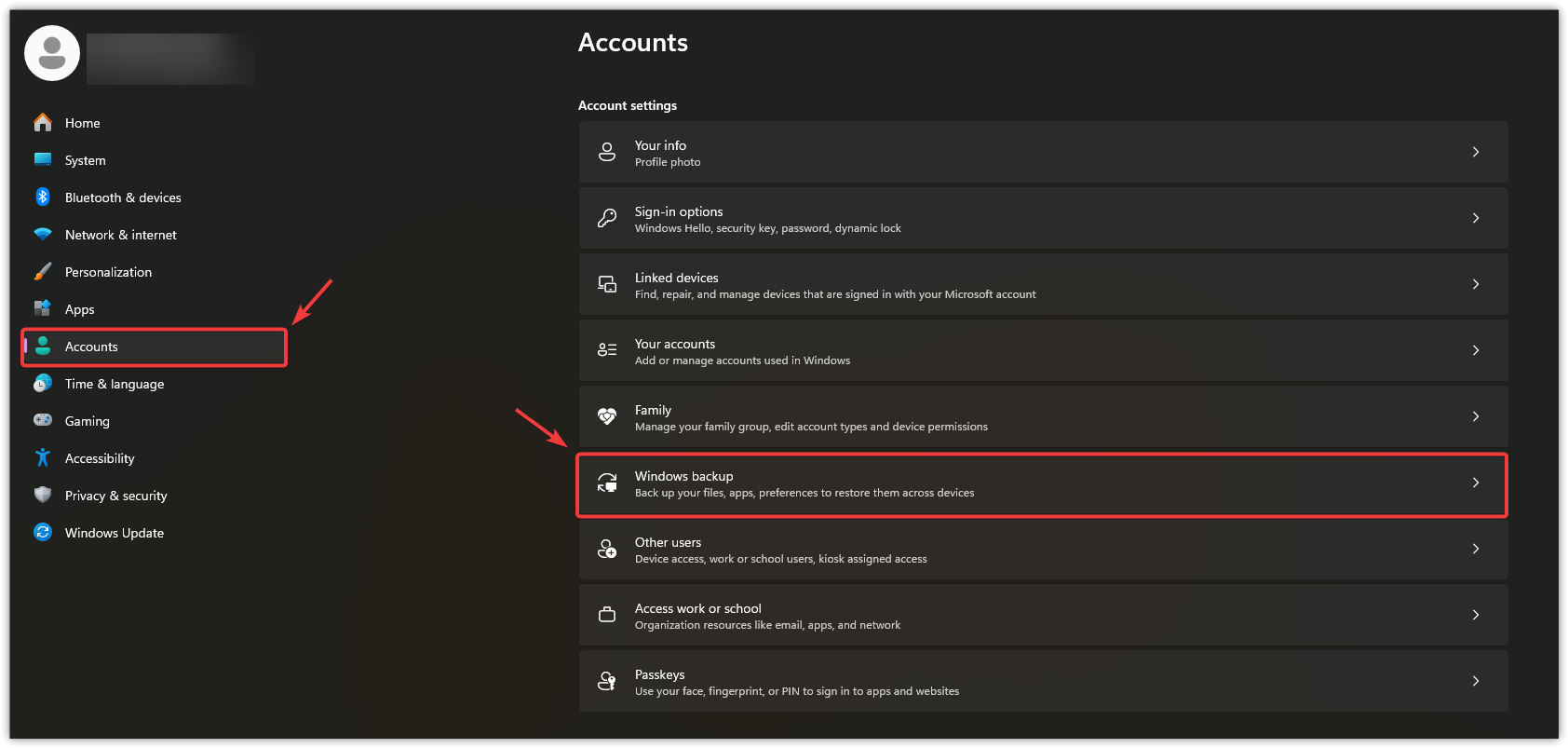 If you don’t see Windows Backup, search for Backup in Settings.
 - Turn on Remember my apps.
- Turn on Remember my preferences.
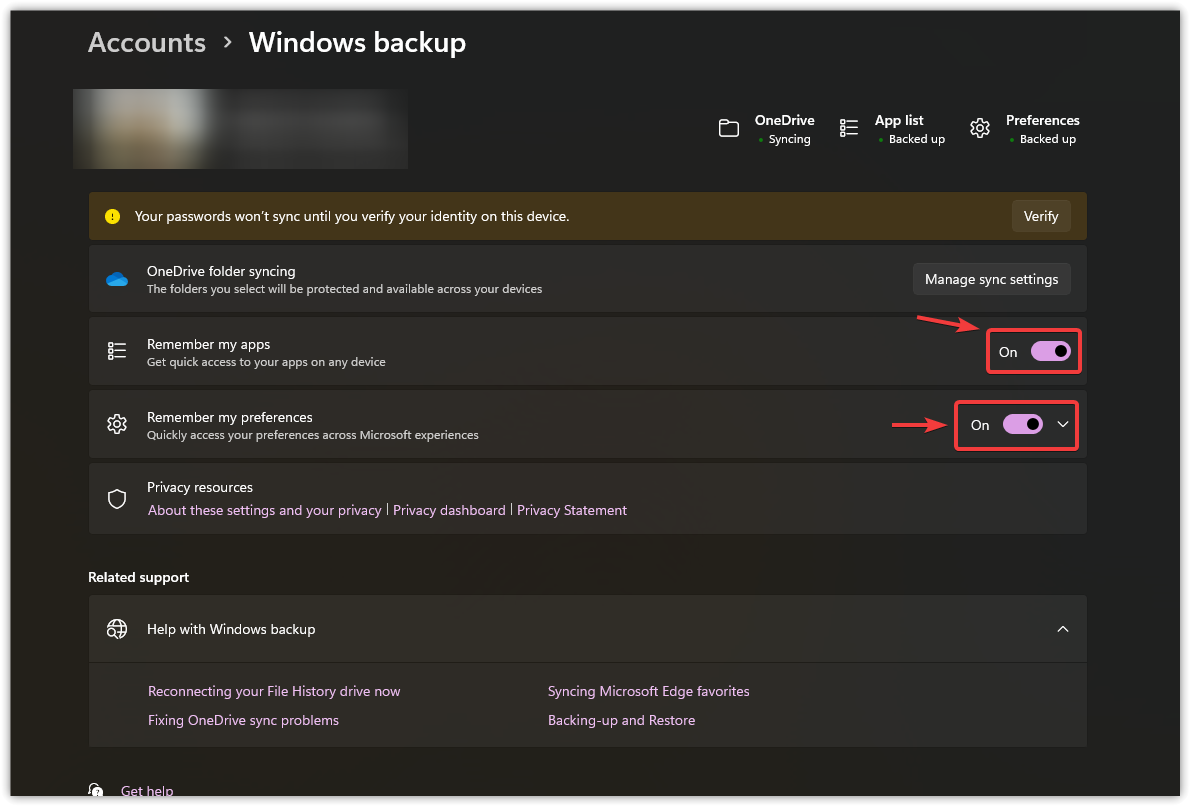
- Make sure you’re signed into Windows with the Microsoft account you want to enroll with.
- Complete any backup/sync prompt shown on that page.
- Now go to Settings → Update & Security → Windows Update and look for Enroll now (or a similar ESU prompt). If your device is eligible, Windows will confirm when enrollment completes.
If you don’t see “Enroll now”: install all updates, restart again, confirm you’re on 22H2, and check later. The ESU enrollment prompt can be phased.
Option 2 (Free): Redeem 1,000 Microsoft Rewards Points
If your account has at least 1,000 Microsoft Rewards points, Windows Update may allow you to redeem points to activate ESU instead of paying.
- Sign in on the Windows 10 PC using the Microsoft account that has the Rewards points.
- Go to Windows Update and check the ESU enrollment section for a Rewards-based option.
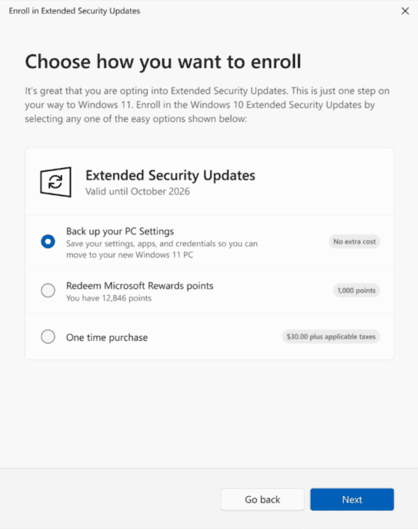
- Availability can vary by region and rollout, so the option may not appear immediately.
Once activated, that PC should keep receiving security updates via Windows Update for the ESU period (typically one year).
If No Free ESU Options Appear
If you don’t see the Windows Backup method or the Rewards option, it usually comes down to one of these:
- Your PC isn’t fully updated to Windows 10 22H2.
- You’re not signed into the correct Microsoft account.
- Microsoft hasn’t enabled the ESU enrollment prompt on your device yet (rollout timing).
If you don’t want to use these free methods (or they’re not available on your device), the remaining option (where offered) is paid ESU.