Fix: DirectX Setup “Could Not Download The File”
When installing or updating DirectX, you may encounter the error “DirectX setup could not download the file. Please try later or check your network connection.” This usually happens when the DirectX Web Installer fails to download the required components from Microsoft’s servers.
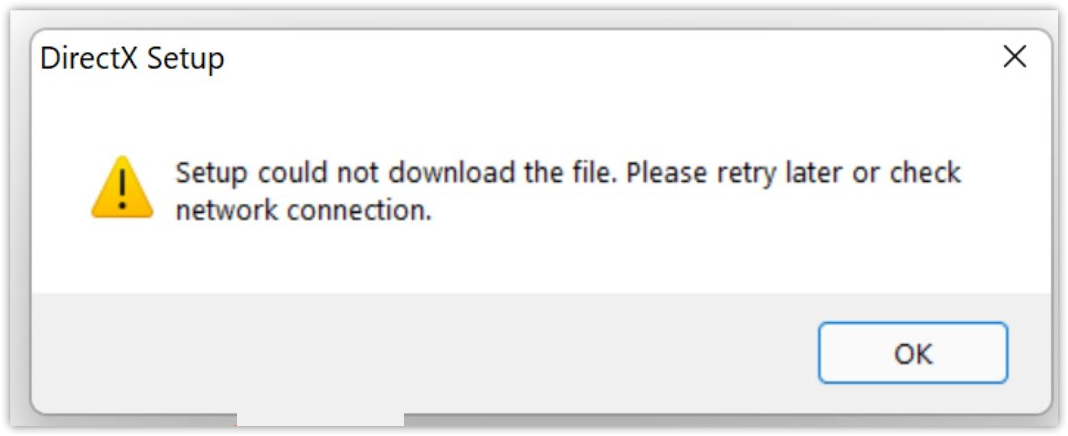
The web installer is a small setup file that downloads additional DirectX components during installation.
If the installer cannot communicate correctly with Microsoft servers, the required files cannot be downloaded and the installation stops.
This issue is commonly caused by unstable internet connections, incorrect DNS configuration, outdated networking cache, or a corrupted installer file. In some situations, firewall rules, antivirus software, or temporary issues with Microsoft servers can interrupt the download request.
The methods below focus on restoring network communication, clearing cached networking data, or bypassing the web installer when it cannot retrieve the required files.
1. Restart the Network Adapter
Temporary network glitches may cause Windows to appear connected to the internet while background downloads fail. Restarting the network adapter forces Windows to rebuild the connection and clears temporary faults that may prevent the DirectX installer from contacting Microsoft servers.
- Press Windows + R, type ncpa.cpl, and press Enter.
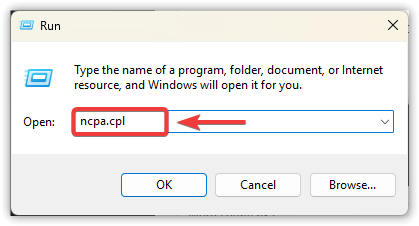
- Right-click the network adapter currently in use (Wi-Fi or Ethernet).
- Select Disable and wait a few seconds.
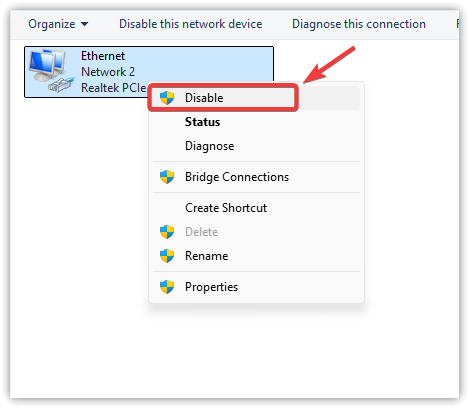
- Right-click the adapter again and select Enable.
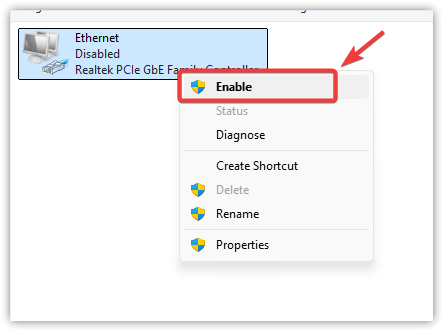
- Run the DirectX installer again.
2. Make Sure DNS Is Configured to Automatic
DNS converts domain names into IP addresses so applications can locate servers. The DirectX installer depends on DNS to reach Microsoft’s download servers.
If the system is using an incorrect or unreachable manual DNS server, the installer may fail to connect. Switching DNS to automatic allows Windows to use the DNS servers provided by your network, which often restores normal connectivity.
- Press Windows + R and type ncpa.cpl.
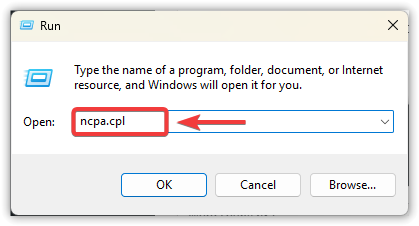
- Right-click your active network connection and select Properties.
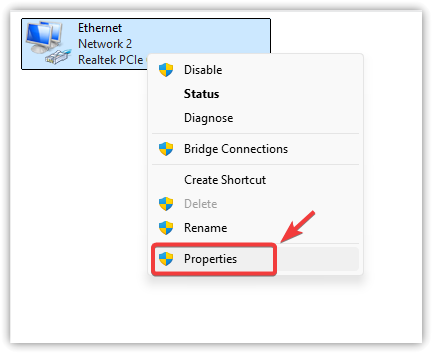
- Double-click Internet Protocol Version 4 (IPv4).
- Select Obtain DNS server address automatically.
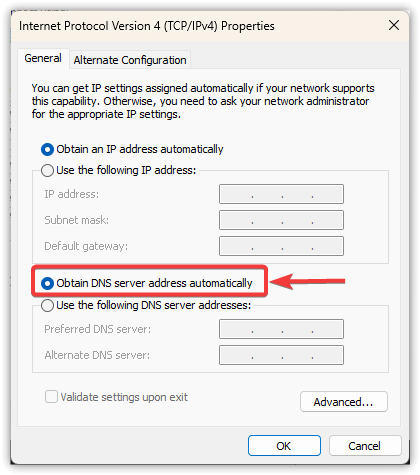
- Click OK and run the DirectX installer again.
3. Reset DNS Cache and Network Stack
Windows stores DNS results in a cache to speed up connections. If these records become outdated or corrupted, the system may attempt to contact incorrect server addresses.
Resetting the DNS cache and network stack clears stored networking data and restores core networking components that may be preventing the installer from reaching Microsoft servers.
- Open Command Prompt as Administrator.
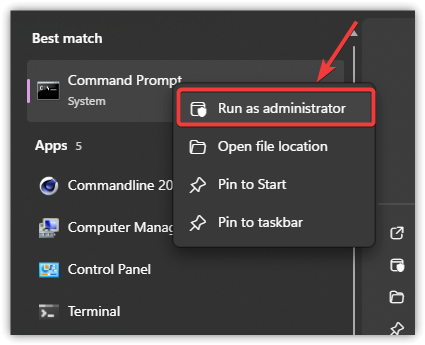
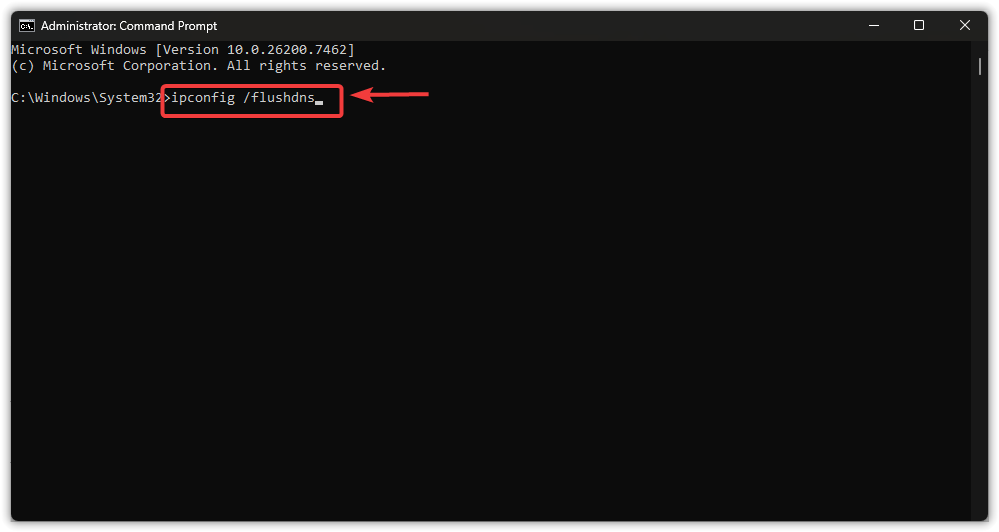
- Run the following commands one by one:
ipconfig /flushdns
netsh winsock reset
netsh int ip reset
- Restart your computer.
- Run the DirectX installer again.
4. Use the Offline DirectX Installer
The offline DirectX installer includes all required files in the package. It does not need to download additional components during installation.
Because it avoids real-time downloads, this method often works when the web installer fails due to unstable internet connections, DNS issues, firewall restrictions, or security software blocking the installer.
- Visit Microsoft’s official website.
- Download the DirectX End-User Runtime (Offline Installer).
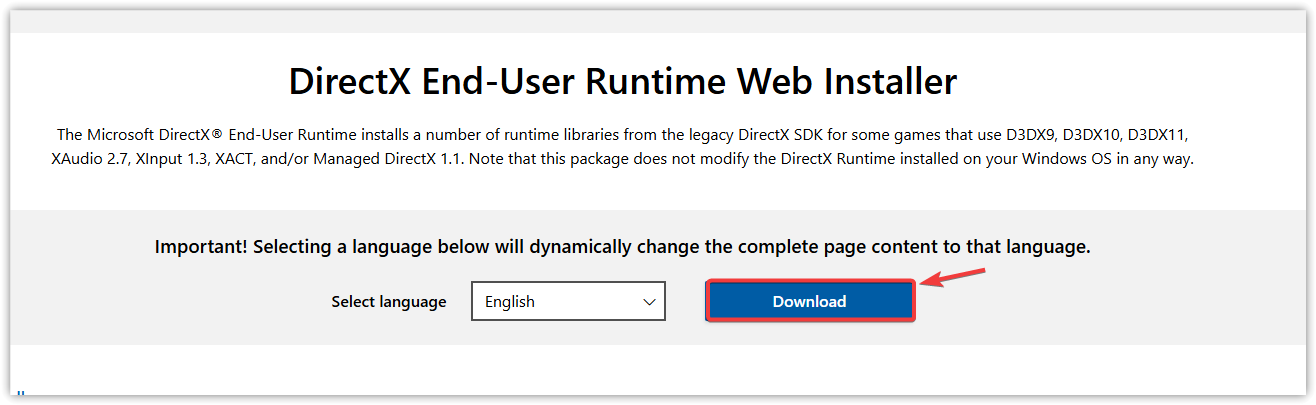
- Right-click the downloaded file and select Run as administrator.
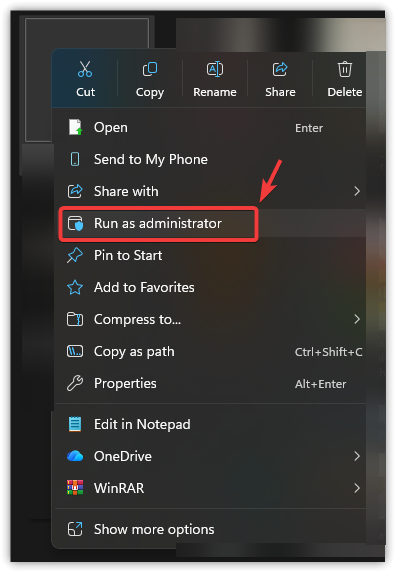
- Follow the on-screen instructions to complete installation.
5. Re-download the DirectX Installer
If you prefer using the web installer, the setup file itself may be corrupted or incomplete. This can happen if the download was interrupted or modified by security software.
Downloading a fresh copy ensures the installer file is intact and capable of retrieving the required components from Microsoft servers.
- Delete the existing DirectX installer from your computer.
- Download a new copy from Microsoft’s official website.
- Right-click the installer and select Run as administrator.
- Follow the installation instructions.
If the issue still occurs after trying these methods, the cause may be strict firewall rules, antivirus interference, network restrictions, or temporary issues with Microsoft’s download servers.