Fix: EA SPORTS FC 26 Controller Not Working on PC
On PC, EA SPORTS FC 26 can randomly stop reading your controller during online matches. You’ll notice missed inputs (pass/sprint/switch), delayed actions, or the game snapping back to keyboard/mouse even though Windows still shows the controller connected.
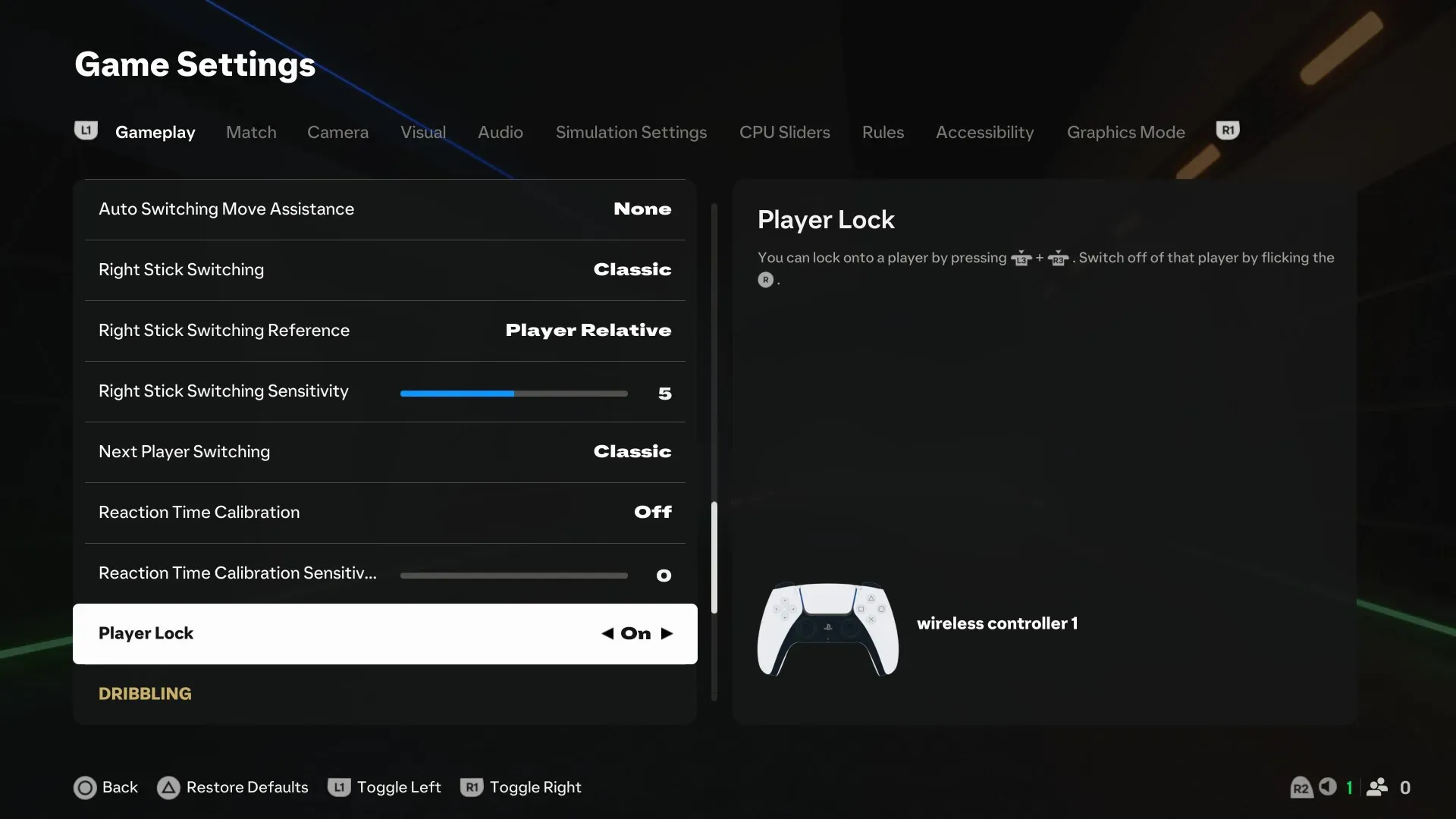
Most cases come from an input-layer conflict (Steam Input, EA overlay, Discord/Xbox Game Bar/GPU overlays, DS4Windows/reWASD, etc.) or unstable frame pacing that breaks focus/input detection. The fixes below remove conflicts and stabilize input.
Before you start:
- If the controller also disconnects in Windows (not just FC 26), skip to USB/Bluetooth Fixes.
- Unplug extra input devices (second controller, wheel, HOTAS) so FC 26 detects one controller.
- Xbox controllers usually work natively. For PlayStation controllers, don’t run multiple layers (e.g., Steam Input + DS4Windows) at the same time.
Do the fixes in order. After each one, test in the main menu, then an offline Kick-Off match, and finally an online match.
1. Verify Game Files
Corrupted or missing files can prevent input components from initializing correctly. Verifying/repairing restores any damaged files automatically.
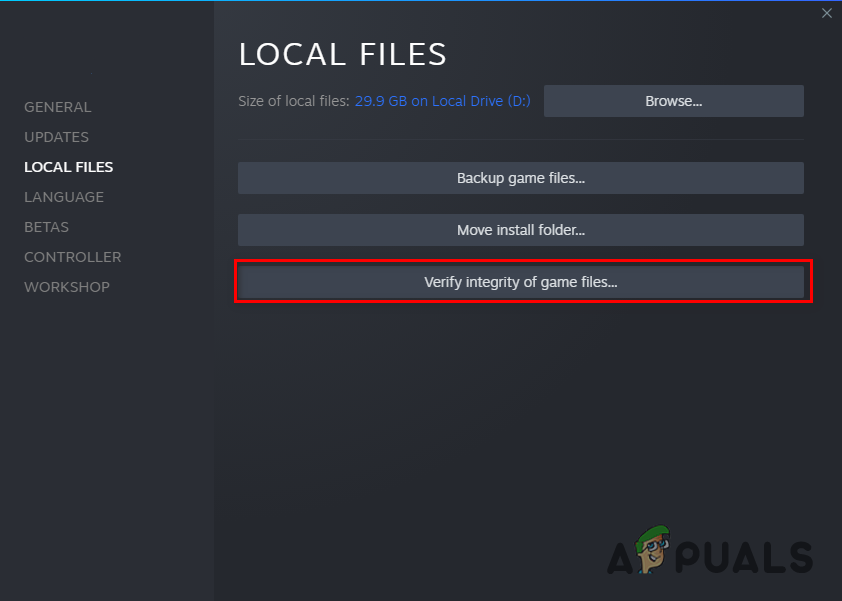
- Steam: Steam > Library > right-click EA SPORTS FC 26 > Properties > Installed Files > Verify integrity of game files.
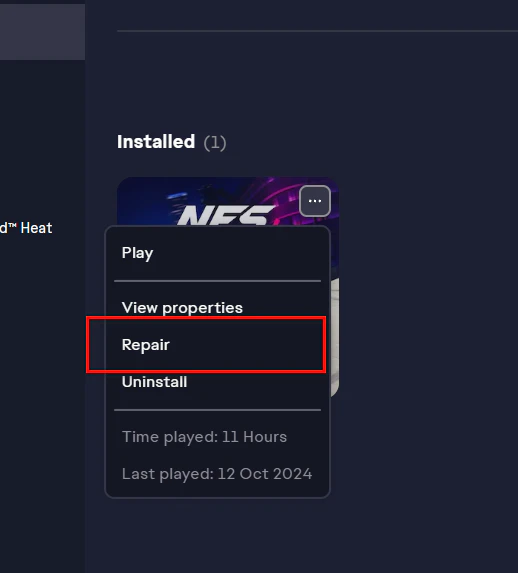
- EA App: EA app > Library > EA SPORTS FC 26 > Manage > Repair.
2. Lock FPS to 60
Controller freezes often show up more at very high or unstable FPS. Capping FPS improves frame pacing and reduces focus/input glitches. Start with 60 (try 30 if needed).
- Open EA SPORTS FC 26.
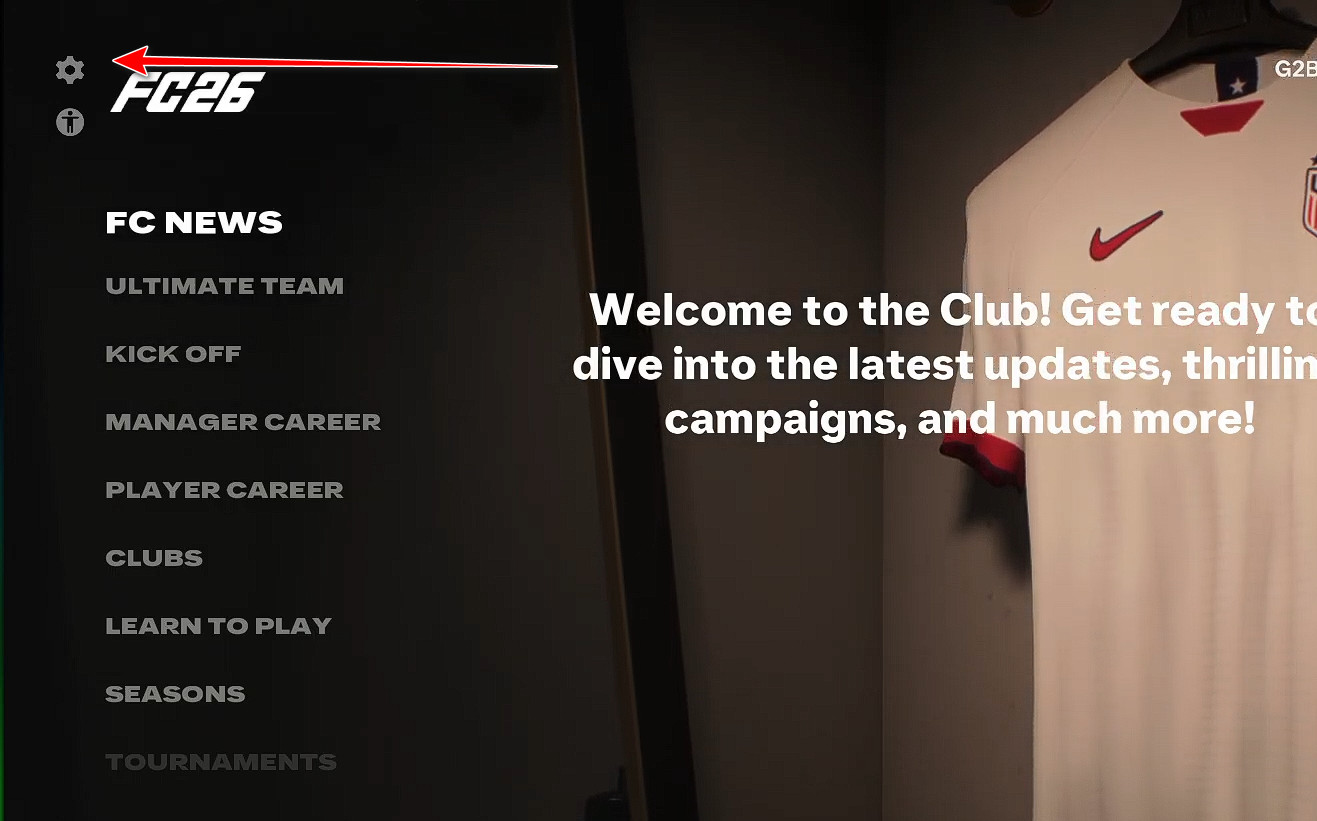
- Go to Settings.
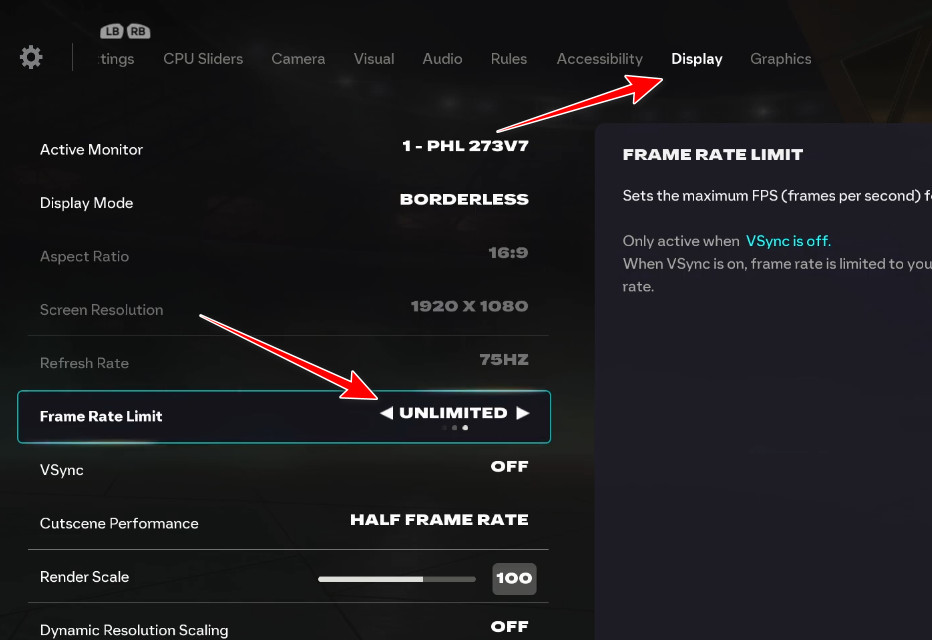
- Open Display.
- Set Frame Rate Limit to 60 FPS (or 30 FPS).
- Apply changes and restart the game.
- Retest offline, then online.
3. Disable Steam Input (Steam Version Only)
Steam Input can intercept/translate your controller inputs. FC 26 may receive duplicated/converted signals or switch devices mid-match. Disabling it lets the game read the controller more directly.
Note: Only do this if you launch FC 26 through Steam. If you launch via EA App only, skip to the next fix.
- Open Steam > Library.
- Right-click EA SPORTS FC 26 > Properties.
- Open the Controller tab.
- Set it to Disable Steam Input (may show as Off/Forced Off).
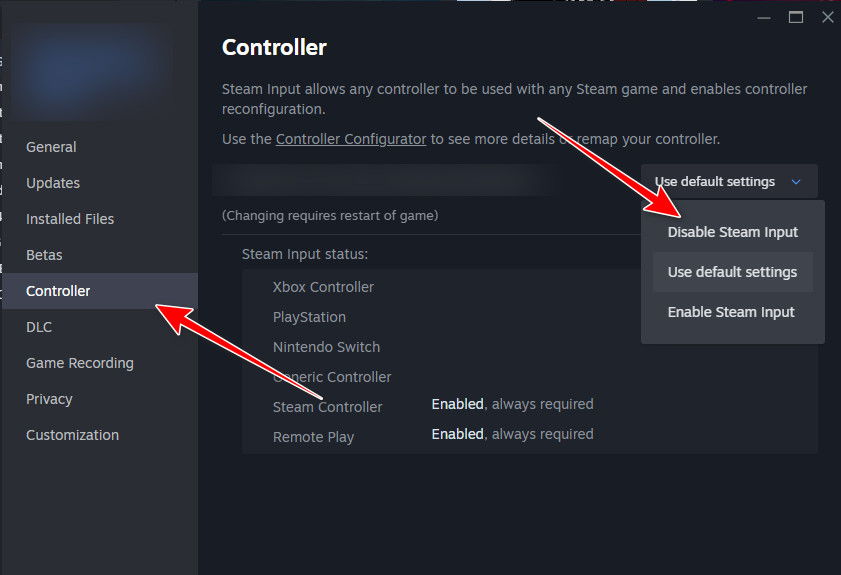
- Restart the game and test again.
If the controller stops working after disabling Steam Input: turn Steam Input back on, and instead disable other layers (DS4Windows/reWASD/overlays) so only one controller layer is active.
4. Disable Overlays
Overlays can hook into FC 26 (Steam Overlay, EA overlay, Discord, GeForce Experience, Xbox Game Bar, etc.). Those hooks can break input focus and cause freezes, delays, or forced keyboard/mouse switching.
See our detailed guide on How to Disable Overlays on Different Platforms?
5. Exit DS4Windows (and Other Virtual Controller Tools)
DS4Windows (and similar apps) creates a virtual controller. If FC 26 sees both the virtual and physical device, it can select the wrong one, duplicate inputs, or stop reading the real controller.
- Close DS4Windows and fully exit it from the system tray.
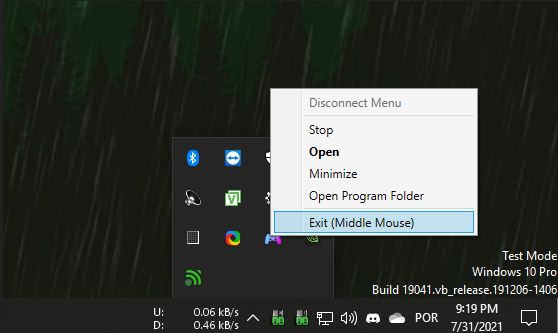
- Also disable other controller tools (e.g., reWASD, InputMapper, HidHide, or other virtual gamepad drivers).
- Relaunch FC 26 and test again.
6. USB/Bluetooth Fixes (If the Controller Drops in Windows Too)
If the controller stops responding in Windows as well, it’s usually power management, a bad port/hub, Bluetooth instability, or driver/firmware issues. Fix Windows stability first, then retest FC 26.
- Try a different USB port: avoid hubs/front-panel ports; use a direct motherboard port.
- Switch connection type: test Bluetooth vs USB to isolate wireless instability.
- Remove extra paired controllers: keep one active controller in Bluetooth settings.
- Use one controller layer only: Steam Input OR DS4Windows OR native support.