How to Download All Photos at Once from iCloud to PC

Downloading all photos at once from iCloud to a Windows PC is a problem that many PC+iDevice users have nowadays. The new iCloud web interface does NOT allow the old key-combination (Shift + Click) for selecting all images. Instead, you can only select them one by one with pressing Command + Click simultaneously. However, the option for downloading all your images at once now is available in your system tray, while the iCloud manager app is installed on your PC, and is running. Here you can learn how to use it to download all your iCloud images at once.

Using the iCloud Application for Windows

  1. Download the iCloud application for Windows if you haven’t already.
    1. Navigate to the official iCloud for Windows web page and click Download.
    2. Once the download finishes, open the file and run through the installation process.
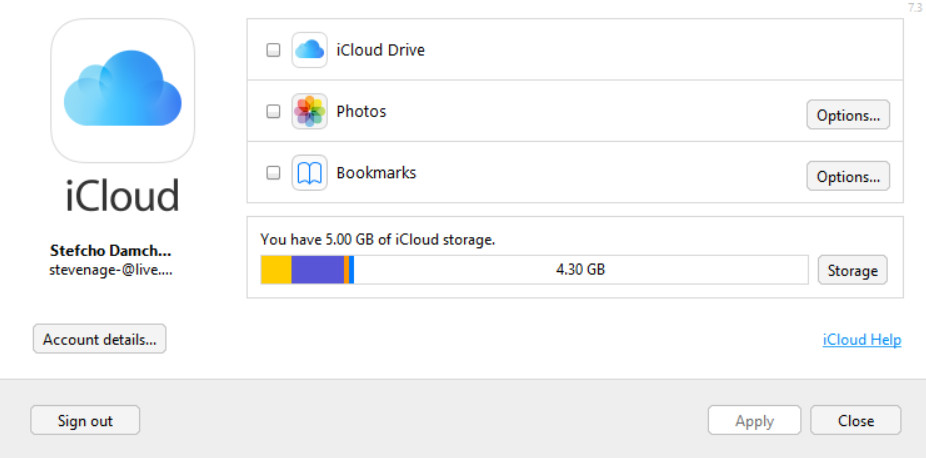
    3. Now, log in the iCloud manager app using your iCloud account. Here is how it should look.
  2. While the program is running, take a look at the notification tray (lower right corner of your screen where your clock, battery, and other icons reside). You should see a little iCloud icon located there.
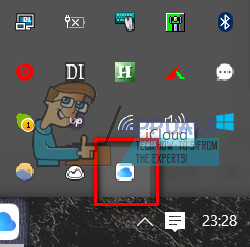
  3. When you found it, click on it, and you will see 2 options: Download photos / Upload photos.

  4. Now, click on Download photos and that should give you the option for selecting all of your iCloud photos (or year titled folders).
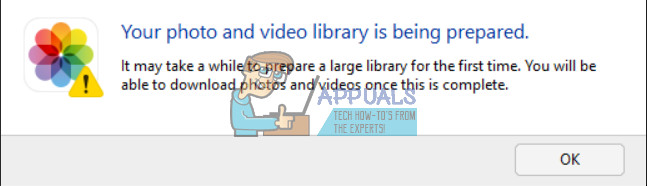
    Note: If this window pops up, just wait for a couple of minutes and try again.
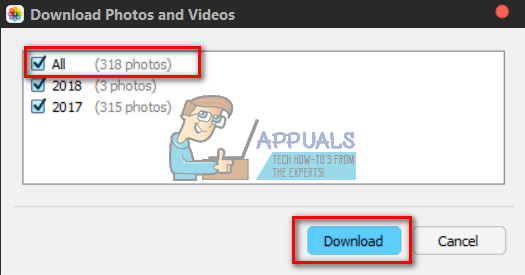
  5. Once the window for selecting your pictures appears, check the box ALL and click Download.
  6. Depending on how many photos you have, you may need to wait a while until you get them all on your PC. Just leave your laptop (or desktop) to finish the process.
  7. When it’s done, check-in your iCloud /iCloud Photos / Downloads folder.

NOTE: This method may no longer work, if this is the case please use the following method below.

Using iCloud WebApp

Unfortunately, Apple has changed certain elements of the iCloud application and the above method isn’t viable for newer versions. Therefore, in this step, we will be applying the latest method to download pictures and videos in bulk from the website. For that:

  1. Sign in to iCloud online with your apple id.

    Signing in to iCloud

    Note: You will need to sign up if you don’t already have an account.

  2. Click on the gallery icon and navigate to the top
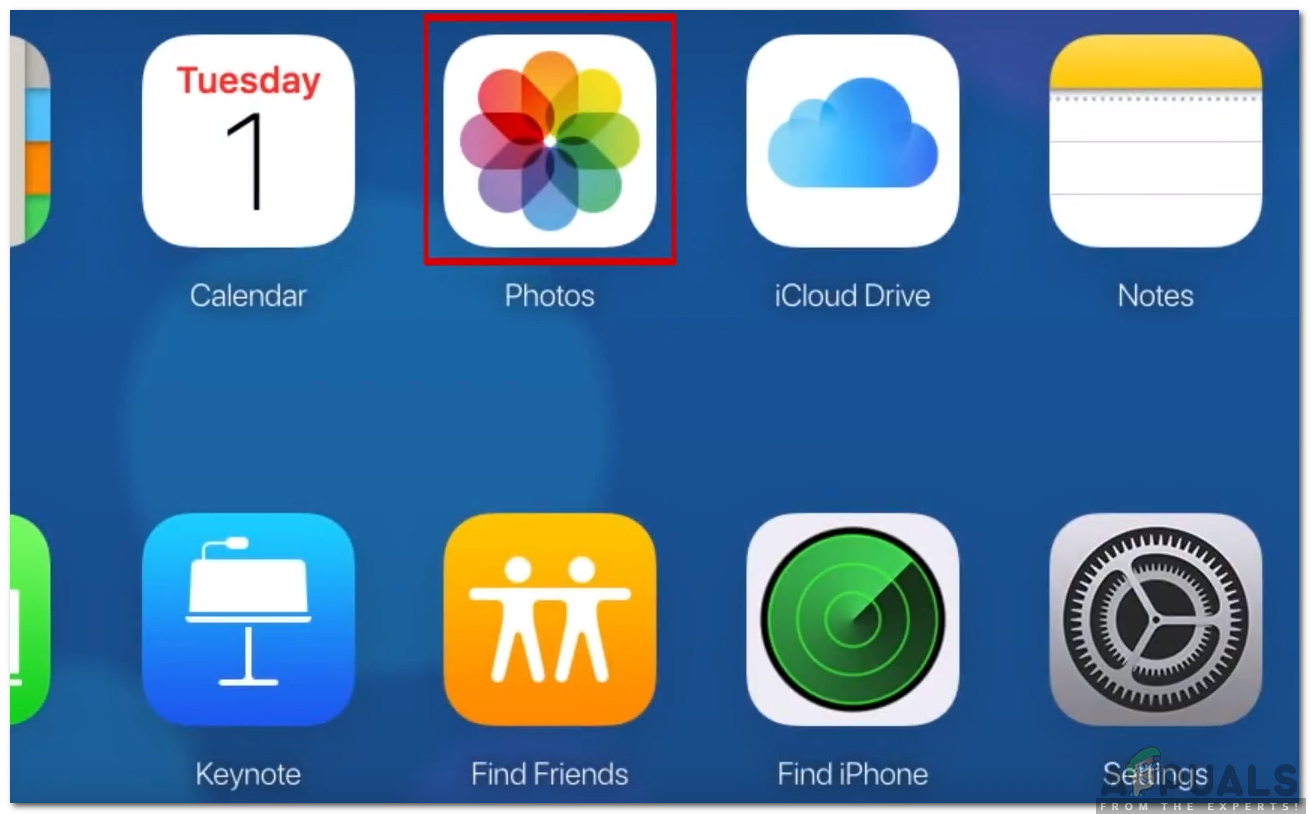
    Clicking on the Gallery Icon
  3. Select a picture, press shift and then select the last picture.
    Note: There is a limit of 1000 at a time, make sure to select less than a thousand)
  4. Click on the “Cloud with a download sign” in the top right corner.
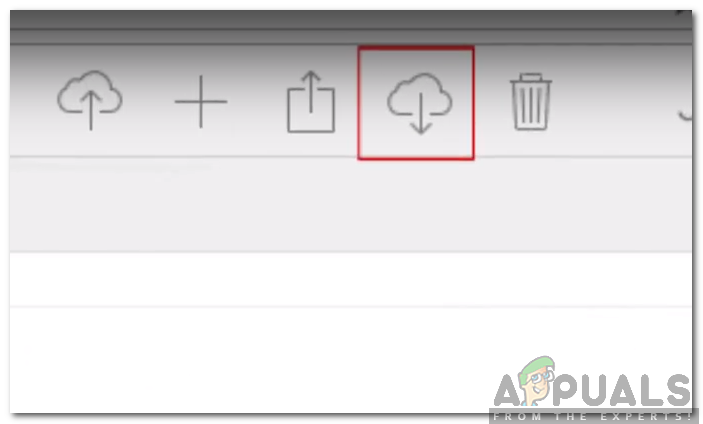
    Clicking on the download sign after selecting pictures
  5. The files will be downloaded to the computer in a zip file.
    Note: Make sure iCloud sync is turned On on the iPhone.

Final Words

This method worked for me on the latest iCloud manager app for Windows (file version 7.3.0.20). Be aware that at some point in the future (when a new redesigned release of the app will be released) this method may not be useful. So, make sure you let me know if this worked for you in the comment section below. I would like to update the article when Apple changes the rules.

ABOUT THE AUTHOR

Kevin Arrows


Kevin Arrows is a highly experienced and knowledgeable technology specialist with over a decade of industry experience. He holds a Microsoft Certified Technology Specialist (MCTS) certification and has a deep passion for staying up-to-date on the latest tech developments. Kevin has written extensively on a wide range of tech-related topics, showcasing his expertise and knowledge in areas such as software development, cybersecurity, and cloud computing. His contributions to the tech field have been widely recognized and respected by his peers, and he is highly regarded for his ability to explain complex technical concepts in a clear and concise manner.

Comments

16
    BR
    Bethany Romanowski May 2, 2018

    Disregard my earlier comment (delete these if you can, I can’t figure out how). I had to change a few settings in icloud for windows but then the option you described did appear.

      MF
      Marni Fowler Sep 16, 2018

      What changes did you have to make because I am not seeing the options either.

    GH
    Georgia H Jul 27, 2018

    I scrolled through so many websites to FINALLY find a tutorial that works – not just some stupid video explaining how to use a download wizard. Thank you, thank you, thank you!

    SA
    sam Jul 27, 2018

    can you explain why it just downloads the files for the year but then doesn’t load anything into them

      KA
      Kamil Anwar Aug 6, 2018

      What exactly happens when you attempt to view them?

        KN
        Karissa Nitsche Feb 15, 2019

        same thing is happening to me its not downloading my photos only downloading the folders and nothing is in the folders

          SW
          Shane Warren Author Sep 19, 2019

          A new method has been included to accommodate the method for the newer version.

    MF
    Marni Fowler Sep 16, 2018

    I don’t see those options in my iCloud in the notification tray. I don’t understand why this is such a pain in the ass.

    GK
    Gail Synowiec Kelleher Oct 28, 2018

    Thank you so much! These directions were clear, concise and worked perfectly. I”m a newbie so I didn’t realize I’d have to click the ‘hidden icons’ button on the lower right corner of my task bar – once I did that, it was smooth sailing.

    CO
    Colin Dec 22, 2018

    Used the same method and worked perfectly fine! It does take quit some time to download all the pictures etc., but all there.

    AT
    Andrew Tate Dec 27, 2018

    As I had been playing around trying to download already I found I did not have the Download Photos option when I clicked on the icon in windows status bar. So I had to go to icloud settings using the little icon in the status bar lower right. Clear them all, apply, select photos options and then the download new photos and videos to my PC. Then when right clicking on icon in the status panel it looked just like you show above. I clicked on Download Photos and I get a message “may take a while to prepare them all”. So fingers crossed and I hope they all appear in my iCloud /iCloud Photos / Downloads folder as you say.

    Like others say this is the most helpful guide – so many useless links to how you used to be able to select with Shift+Click which died in icloud.com over a year ago it seems.

    Reply
    AT
    Andrew Tate Dec 28, 2018

    Thanks – your method worked for me too. Took a while but all my iphone pictures in the icloud (nearly 5Gb) downloaded onto my laptop PC.

    TR
    Taylor Rynders Jun 25, 2019

    This no longer works. Now it only gives the option to go to icloud.com or open the app when you click on it.

    SW
    Shane Warren Author Sep 21, 2019

    Yes, the article has been updated since then to accommodate the new method.

    SW
    Shane Warren Author Sep 22, 2019

    New methods have been added to accommodate new solutions.

    JD
    Just a Dude Dec 30, 2019

    I had to restart iClouds downloads 7 times and ended up with lots of duplicate folders to sort out, very frustrating but i did find an app call iCloud Photos Organizer that sorted it all out for me 🙂