Fix: Disable Display Scaling on High DPI Devices in Windows 10

Windows 10, while not without its own unique set of quirks, includes a feature known as “display scaling on high DPI devices.” This latest and most advanced feature replaces the “XP style display scaling” that was available in Windows 7, causing all programs and applications, that don’t specify their compatibility from the start, to appear extremely blurry. Text within such programs can be challenging to read, making this issue of high importance.

Unfortunately, this “compatibility scaling mode” is turned on, by default, for all programs and applications. The only method Microsoft has provided for disabling this feature requires right-clicking on the shortcut of any one desired program, selecting ‘Compatibility’, and then deactivating display scaling on high DPI devices, one program at a time. This can be quite a tedious task; there is absolutely no way for a user to disable this feature for all programs on a Windows 10 computer using Microsoft-provided methods.

Despite the complexity, disabling DPI awareness for all of your programs is feasible. The process entails instructing Windows to prioritize external manifest files when launching programs. Afterwards, create and place external manifest files for each program presenting this issue. Below are the steps necessary to disable display scaling on high DPI in Windows 10 for all programs utilizing this resolution:

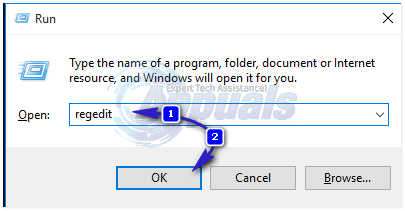
Press the Windows Logo key and ‘R’ simultaneously to open the Run command. Then, type ‘regedit’ and press Enter.
2016-01-01_152820

In the left pane of the Registry Editor, navigate to the following directory:

HKEY_LOCAL_MACHINE\SOFTWARE\Microsoft\Windows\CurrentVersion

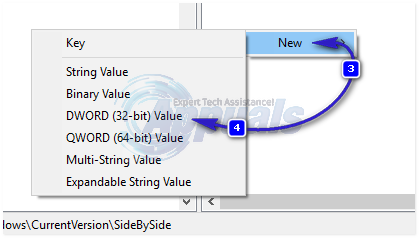
Click on ‘SideBySide’ in the left pane to expand its contents in the right pane. Then, right-click on an empty space in the right pane, hover over ‘New’, and click on ‘DWORD (32-bit) value’.
2016-01-01_153216

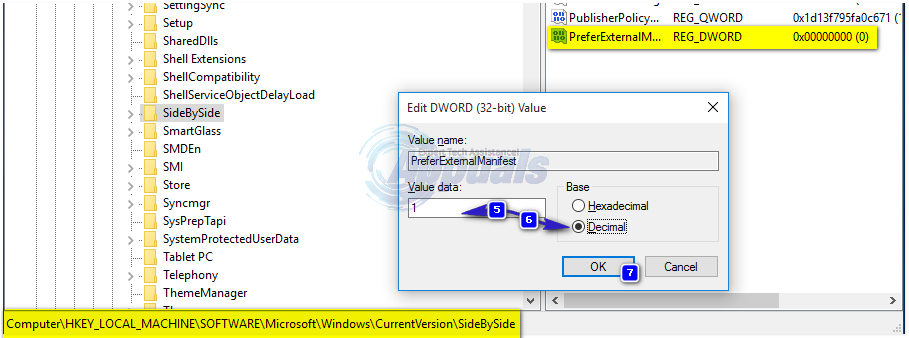
Name the file PreferExternalManifest and press Enter. Right-click the new DWORD value and click on Modify. Type 1 into the Value Data. Change the value’s Base to Decimal.  Click on OK. Close the Registry Editor.
2016-01-01_153330

Copy the contents of the typical manifest file by clicking here and copying all of the text on the page.

Open Notepad. Paste the text you’ve copied from the link above into Notepad.

Save the Notepad document using the full name of the executable file of the program for which you are trying to disable display scaling on high DPI devices. Use the ‘.manifest’ extension at the end. For instance, the name of a manifest file for Photoshop would be ‘photoshop.exe.manifest’.

Move the manifest file to the root directory of the program for which you are trying to turn off display scaling on high DPI devices. This is the directory where the program’s files, including its executable file (such as photoshop.exe for Photoshop), are located. The following is an example of such a root directory:”.

C:\Program Files\Adobe

Create manifest files for all the programs you want to disable display scaling on high DPI devices for, and move them to their respective install directories. There is no need to restart your computer – the program you create and place a manifest file for should start displaying as it should as soon as you close and then reopen it.

Some people might not fancy messing with their computer’s registry, and if you are one of these individuals, you can use a program known as DPI Awareness Enabler, created by a Good Samaritan who was once affected by this very issue. Although it appears to be a much simpler and less risky solution, some users have reported that it doesn’t yield results as good as those provided by the solution described above. Given that, it is advised to use the following solution at your own risk. To disable display scaling on high DPI devices for all programs on a Windows 10 computer using DPI Awareness Enabler, you need to:

Go here.

Download DPI Awareness Enabler by clicking on DpiAwarenessEnabler 1.0.3.zip in the Licenses and download section of the website.

Install DPI Awareness Enabler.

Run DPI Awareness Enabler,

dpi-1

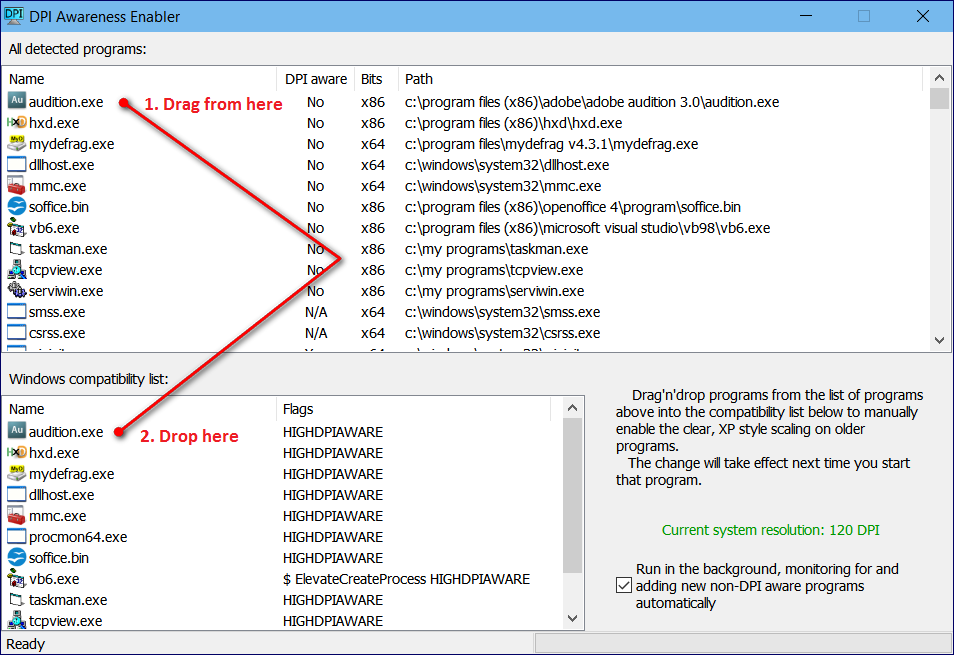
Drag every program displaying blurry text and images from the ‘All Detect Programs’ list to the ‘Windows Compatibility’ list. Doing so will make each program that you drag and drop DPI-aware, turning off the display scaling for high DPI devices. This should ultimately eliminate your problem.
dpi-2

ABOUT THE AUTHOR

Kevin Arrows


Kevin Arrows is a highly experienced and knowledgeable technology specialist with over a decade of industry experience. He holds a Microsoft Certified Technology Specialist (MCTS) certification and has a deep passion for staying up-to-date on the latest tech developments. Kevin has written extensively on a wide range of tech-related topics, showcasing his expertise and knowledge in areas such as software development, cybersecurity, and cloud computing. His contributions to the tech field have been widely recognized and respected by his peers, and he is highly regarded for his ability to explain complex technical concepts in a clear and concise manner.

Comments

17
    BG
    Brian Gouge Dec 31, 2015

    This DPI Awareness Enabler program simply does the same thing as locating the .exe and checking the box “Disable display scaling on high DPI settings” in the Compatibility tab.The problem is, most programs still don’t look great after checking that box, often it might fix some blurry text, but they are still very much too small.This is a better solution: http://www.danantonielli.co…However, if you have checked the box I mentioned above, or allowed DPI Awareness Enabler to do so, you have to go back and uncheck that same box in the Compatibility tab before the .manifest file can do its job. The results with the .manifest file are far, far better, so it is worth the effort!

    Reply
      KA
      K. Arrows Author Jan 1, 2016

      We’ve updated the article as per your suggestion. Thanks

      KA
      K. Arrows Author Jan 1, 2016

      We’ve updated the article as per your suggestion. Thanks

      TE
      Techie007 Jul 9, 2016

      You are correct about the program doing the same thing as manually locating the EXE and enabling the DPI compatibility checkbox.

      However, as a software developer, what I want to know is how “The results with the .manifest file are far, far better…” The DPI scaling for a program is either on, or it is off. And the program in question is either fully DPI aware (with multisize icons and graphics), or only text DPI aware. A manifest cannot change any of these things any better than setting the DPI compatibility override flag like my program does. Could you please give some tangible examples of how the “results with the manifest file are far, far better”?
      One thing I know for sure, enabling that registry flag to favor an external manifest file will slow a computer down slightly as Windows will now be looking for a lot of non-existent manifest files instead of using memory mapping and reading the ones embedded inside of each program. It can also break compatibility with programs that are designed to use an older version of the common controls or C runtime, or need a specific UAC elevation, as you are replacing these programs’ specifically tailored manifests with a generic one.

    GF
    gfish66 Mar 30, 2016

    This worked fabulously with and issue I had with Remote Desktop Connection. I named the manifest mstsc.exe.manifest and put it in the c:windowssystem32 folder.
    I am using an MS Surface Pro which has very high resolution. When I remote in to computers with lower res, it was so small I could barely read it. I had previously used the PreferExternalManifest registry setting, but that only worked if I connected to a Windows 10 client. Most of our clients are still Win 7, so I was stuck. Your solution saved the day, thanls!!

    Reply
    GS
    George Streeter Aug 30, 2016

    FYI we had a Surface Tablet that got windows updates this morning and it broke the prefer local manifest option. It actually removed the registry setting. Adding the registry setting back in made mstsc throw an exception. We ended up going back to a previous days configuration and it fixed it but we need to figure out what update needs to be avoided.

    MY
    Myvoice223 Oct 5, 2016

    Wow, thank you, thank you, thank you. I run Sage 50 2016 with Windows 10. I have a 27″ 4K monitor. Sage 50 was doing the opposite of what it should. If you checked the “Disable scaling for DPI” on the shortcut, it scaled, and if it was unchecked it didn’t. BUTTTTT, it would open okay and then scale automatically at random times, causing it to be unusable!! This procedure fixed it for me.

      KA
      K. Arrows Author Oct 7, 2016

      Welcome

    CP
    Cindy Parsons Jan 16, 2017

    I can’t locate a “Current Version” SideBySide file when I begin Regedit process. I’ve searched my files and see sxs but not when I am in regedit

      KA
      K. Arrows Author Jan 19, 2017

      check the status bar of regedit to ensure you’re looking within HKEY_LOCAL_MACHINESOFTWAREMicrosoftWindowsCurrentVersion

    LT
    Leo Taylor Feb 14, 2017

    I am trying to get Adobe Photoshop Elements 7.0 to display correctly on an MSI laptop running Windows 10. Menus are microscopic. Turning DPI scaling off does not fix the problem – no change. Using the manifest file provided here is even worse, as the program won’t run at all. I get a runtime error: “R6034 – An application has made an attempt to load the C runtime library incorrectly. Please contact the application’s support team for more information.”

    Most of the manifest file is Greek to me but I did notice it has a line that says, processorArchitecture=”amd64″ but I am running an Intel processor. Maybe this has no effect, but there is something in this manifest file that does not agree with my system. I wish I knew what it was so I could possibly tweak it. Any ideas?

    AR
    Arfyness Feb 17, 2017

    I’d far rather click a checkbox in a properties window rather than edit the registry and then generate manifest files for every single blurry program. What am I missing? I tried the DPI Awareness Enabler (as administrator to install the ocx), but it just crashes as soon as the window appears. Meh.

    BZ
    Bojan Zivkovic Mar 14, 2017

    Great tool but it does not help with mmc consoles (device manager, event viewer, disk management …) I can not find anything that would make these displayed with clear text not blurry. Also it does not help with SQL Management Studio … It seems there is no available solution for all programs on high DPI and high scaling (e.g. 150%). Windows Creators Update is coming with some hints of solving mmc behavior on high DPI monitors,

    BZ
    Bojan Zivkovic Mar 14, 2017

    It does not work with mmc consoles, SQL Server Management Studio … It seems we do not have some tool at our disposal capable of solving this problem for every program … I frequently use mmc consoles as system engineer and their look on high DPI with 150% scaling is just terrible.

    PJ
    Phillip L Cherry Jr Nov 22, 2017

    Worked for me on my Dell XPS 15 !!

    SF
    Scott Franco Jul 6, 2021

    I have applications from 20 years back that this new Windows mode breaks. Leave it to big daddy microsoft to inflict this nonsense on EVERYONE irregardless of how you implemented your program. Hint to microsoft: not all of us are unaware of how to adjust programs for screen DPI.What is here is good advice for people who don’t have the source to their program. Unfortunately, this does not work for developers. I can’t instruct all my users to flip the switch to get my program to work properly. For starters, its unprofessional. It also gets the user involved in matters that they shouldn’t need to get involved in.Linux did it right: leave the DPI modes alone. Some programs can’t handle it, but those programs need to be fixed. And its obvious which ones do and do not scale properly to the display, since the “bad” ones come up as a postage stamp on a 4k display.

      MZ
      Muhammad Zubyan Author Jul 10, 2021

      I think you are right, this is similar to how android treats dark mode it just forces it on every single app. This causes a lot of issues with some apps and it’s really frustrating to see the GUI glitching every time but at least they are more clear about it and users know how to easily disable it. We should have the option to disable it for individual programs.