How to Convert RAW to NTFS Without Formatting?
When your hard drive (HDD) or solid-state drive (SSD) suddenly shows up as “RAW”, it means Windows can no longer read its file system (NTFS or FAT32). In this state, Windows treats the drive as unformatted and prompts you to format it, which would erase all data.
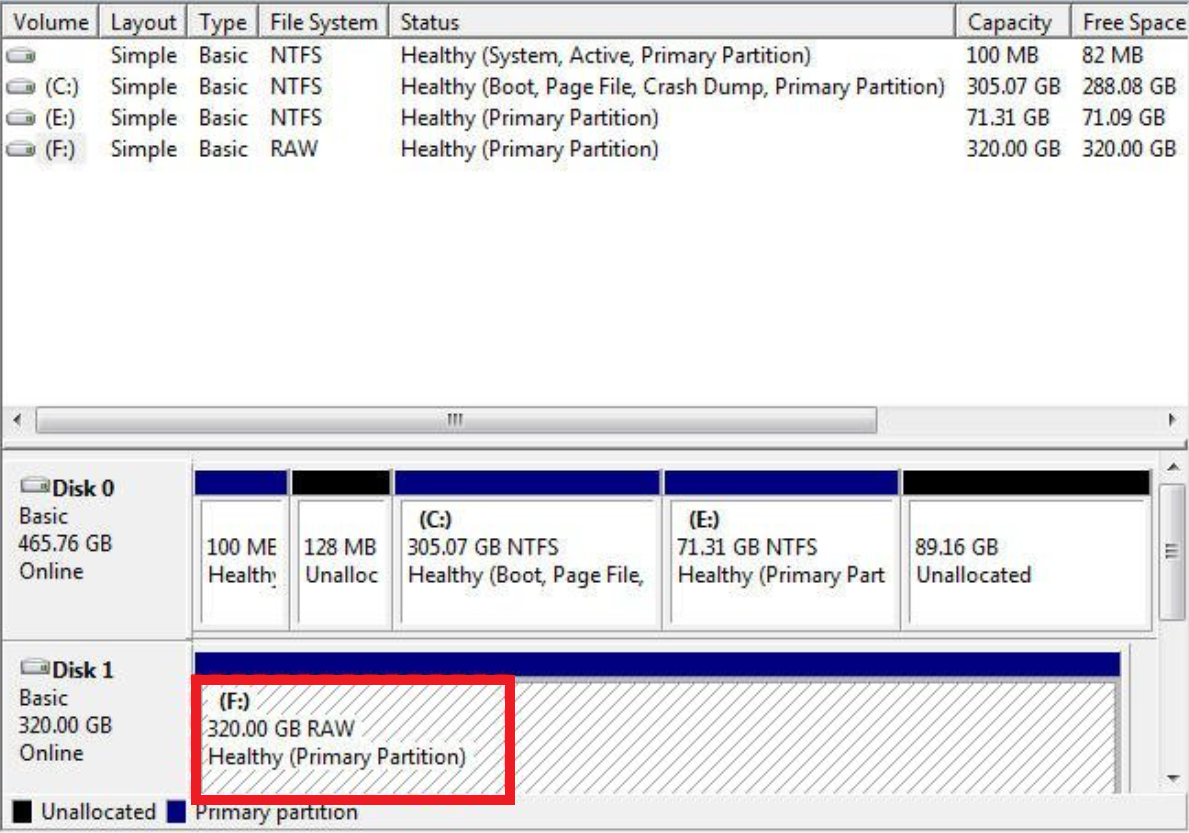
Common reasons a drive becomes RAW:
- Damaged or missing partition table
- Developing bad sectors on older HDDs
- Sudden power loss while writing data
- A Windows update interrupted during disk activity
The following method uses TestDisk to recover your lost partition and restore access without formatting the drive.
TestDisk is a free tool designed to recover partitions and repair corrupted partition tables both common causes of a RAW drive. Instead of formatting, it performs a deep scan (“Deeper Search”) to locate the missing NTFS structure that Windows fails to detect.
Step-by-Step Recovery Guide
- Open your browser and visit the official TestDisk page.
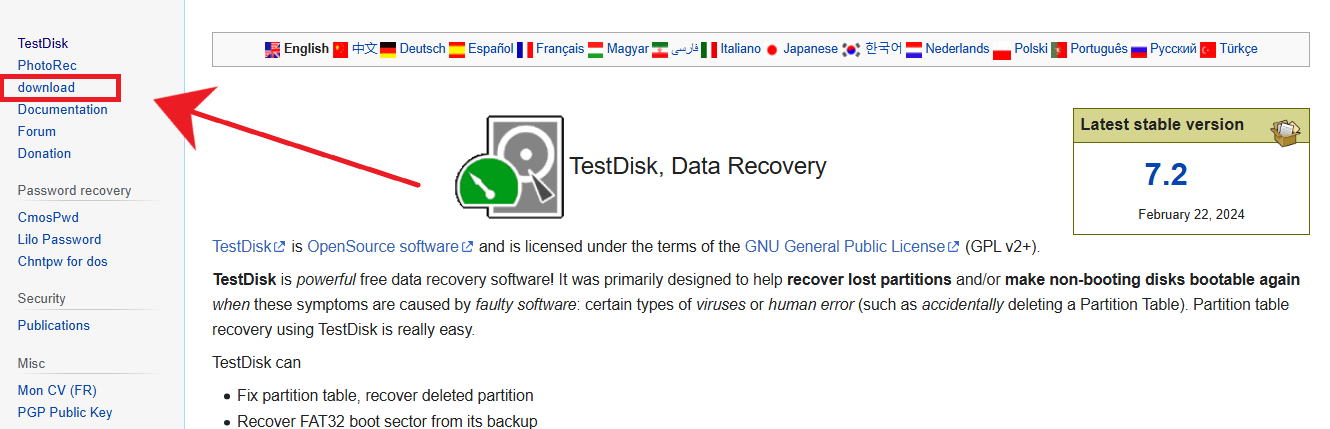
- Click “Download” from the left sidebar.
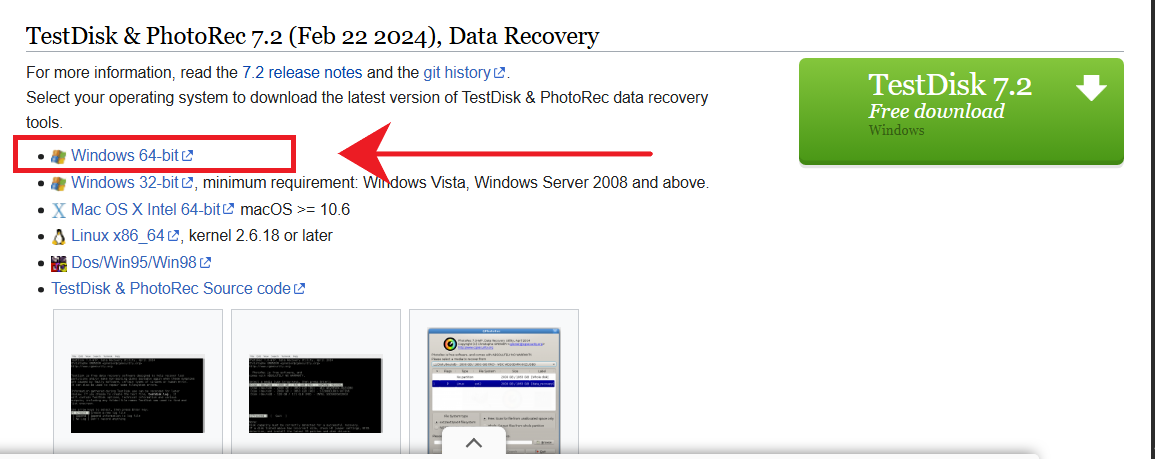
- Select the Windows 64-bit version and download it.
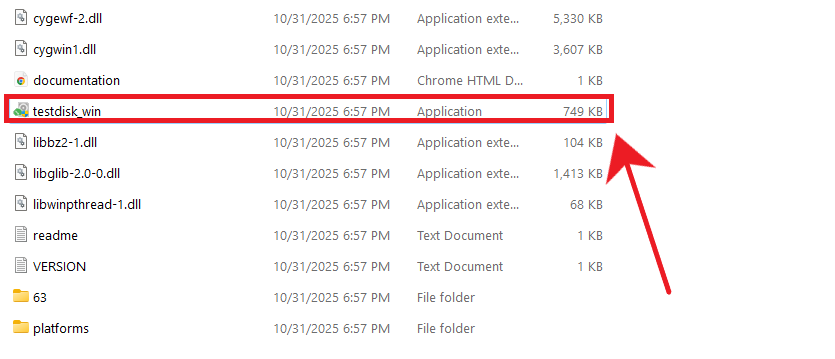
- Extract the downloaded ZIP file.
- Open the extracted folder and right-click testdisk_win → Run as Administrator (no installation required).
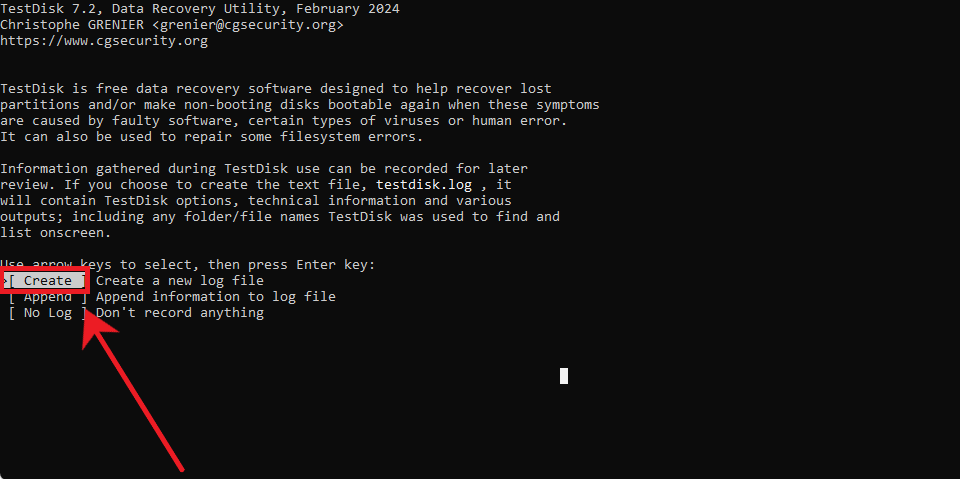
- Select “Create” to generate a new log file.
- Use the arrow keys to choose the disk that appears as RAW, then press Enter.
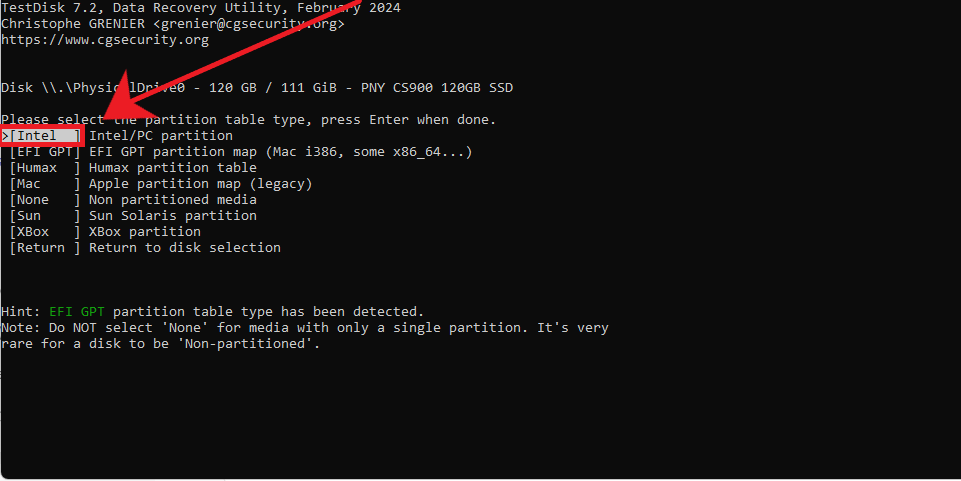
- Choose “Intel” (TestDisk automatically detects GPT or MBR).
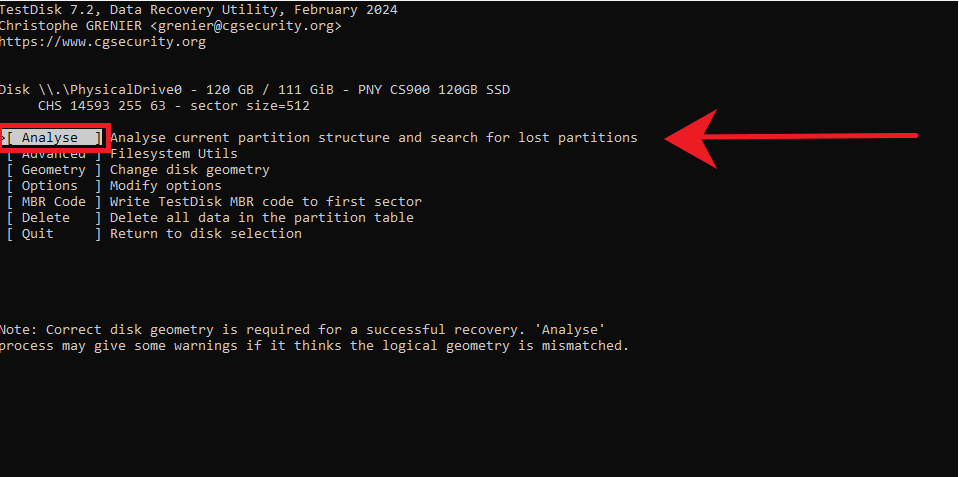
- Select “Analyze” to start scanning.
- Run “Quick Search”.
- If your lost NTFS partition appears, select it and press Enter.
- If not, run Deeper Search.
- Once the correct partition appears, highlight it and press P to view files. Confirm that the folder structure looks correct.
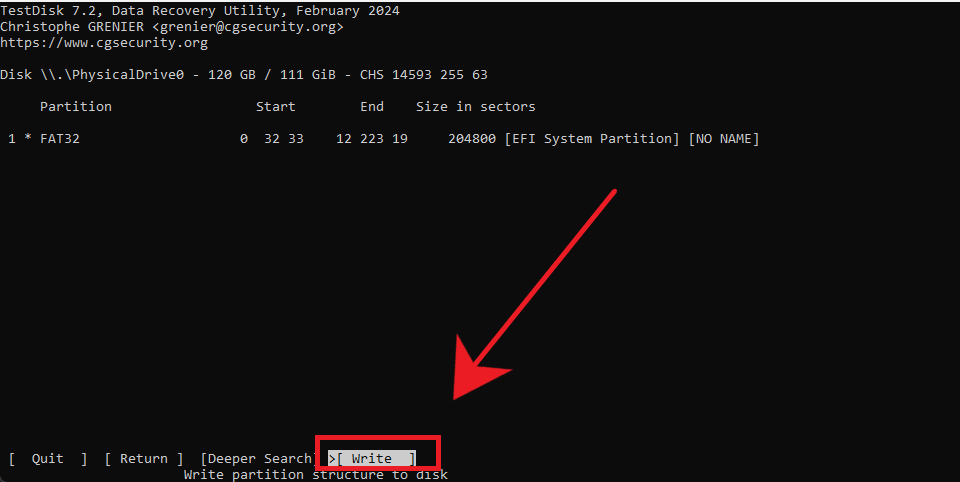
- Select “Write” to restore the partition.
- Restart your PC once the process completes.
If everything was done correctly, Windows should now recognize your NTFS or FAT32 partition again. You can safely open it in File Explorer and access your files as before.