How to Fix “Card Not Added” Error in Apple Pay?
The “Card Not Added. Contact your card issuer for more information” error in Apple Pay appears when the card provisioning process fails inside Wallet. This happens during the verification and token creation stage, not during normal payments. In many cases, other cards add successfully while one specific card keeps failing.
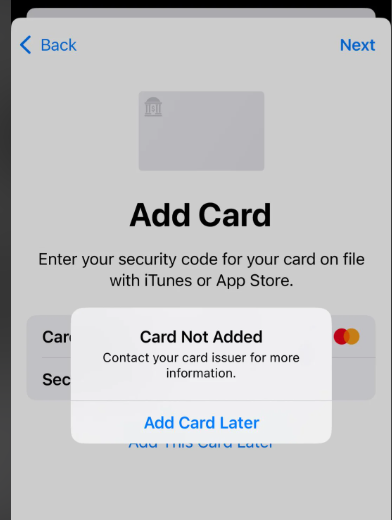
Most failures are caused by:
- Issuer-side restrictions such as fraud flags or wallet blocks
- Digital wallet token limits on the card
- Region or billing mismatches
- iOS or Wallet sync issues
Before You Start (Quick Checks)
These steps fix temporary provisioning glitches and prevent unnecessary bank calls.
- Restart your iPhone. This refreshes Wallet and background security services.
- Ensure Face ID or Touch ID with passcode is enabled. Apple Pay requires device security.
- Go to Settings > General > Date & Time and enable Set Automatically. Incorrect time can break secure token validation.
- Switch between Wi-Fi and mobile data to rule out network filtering.
- Temporarily disable VPN or Proxy. Some banks block provisioning requests from masked IP addresses.
- Check Apple System Status for Apple Pay outages. If Apple Pay is degraded, provisioning will fail until restored.
If the same card still fails while others work, the issue is almost always issuer-related.
1. Contact Your Card Issuer (Most Common Fix)
This error is usually triggered by your bank during digital wallet verification. Call your bank and ask them to check the following:
- Confirm the card is eligible for Apple Pay in your country and for your specific card type.
- Remove any digital wallet or tokenization blocks on the card.
- Check for fraud or risk flags triggered during Apple Pay provisioning.
- Clear existing Apple Pay tokens linked to your card. Some banks enforce a device limit.
Use clear wording: “Please reset or clear my Apple Pay digital wallet token for this card and re-enable provisioning.”
Why this works:
Apple Pay creates a unique encrypted token for each device. If that token is blocked, expired, duplicated, or over the device limit, provisioning fails until the bank resets it.
2. Make Sure Region and Billing Details Match
Apple Pay requires region consistency between your device, Apple ID, and bank records.
Check:
- Apple ID Region:
Settings > Apple ID > Media & Purchases > View Account > Country/Region - iPhone Region:
Settings > General > Language & Region - Billing Address: Ensure postcode and formatting exactly match your bank’s records.
Even small postcode formatting differences can cause automated verification failure. After correcting anything, restart your iPhone and try again.
3. Update iOS
Apple Pay depends on secure system services in iOS. Outdated builds can cause provisioning errors. Update this step especially if the problem started after changing regions or restoring the device.
- Open Settings > General > Software Update.
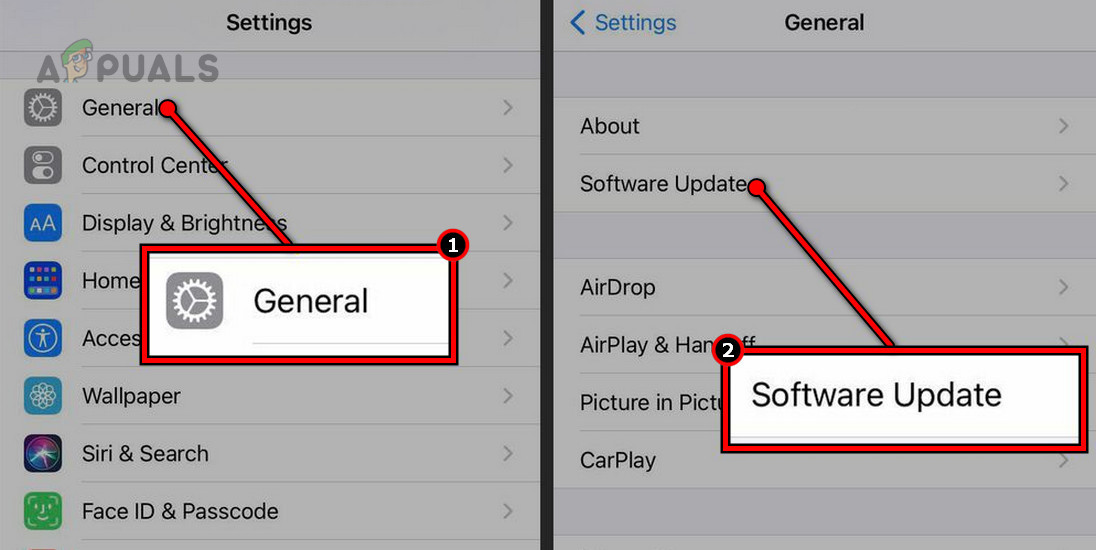
- Install any available update.
- Restart your iPhone and try again.
4. Remove and Re-Add the Card (If It Appears in Wallet)
If the card shows in Wallet but activation failed, it may be stuck in a partial provisioning state. Skip this step if the card never appears in Wallet.
- Open Wallet.
- Select the card.
- Tap More > Remove This Card.
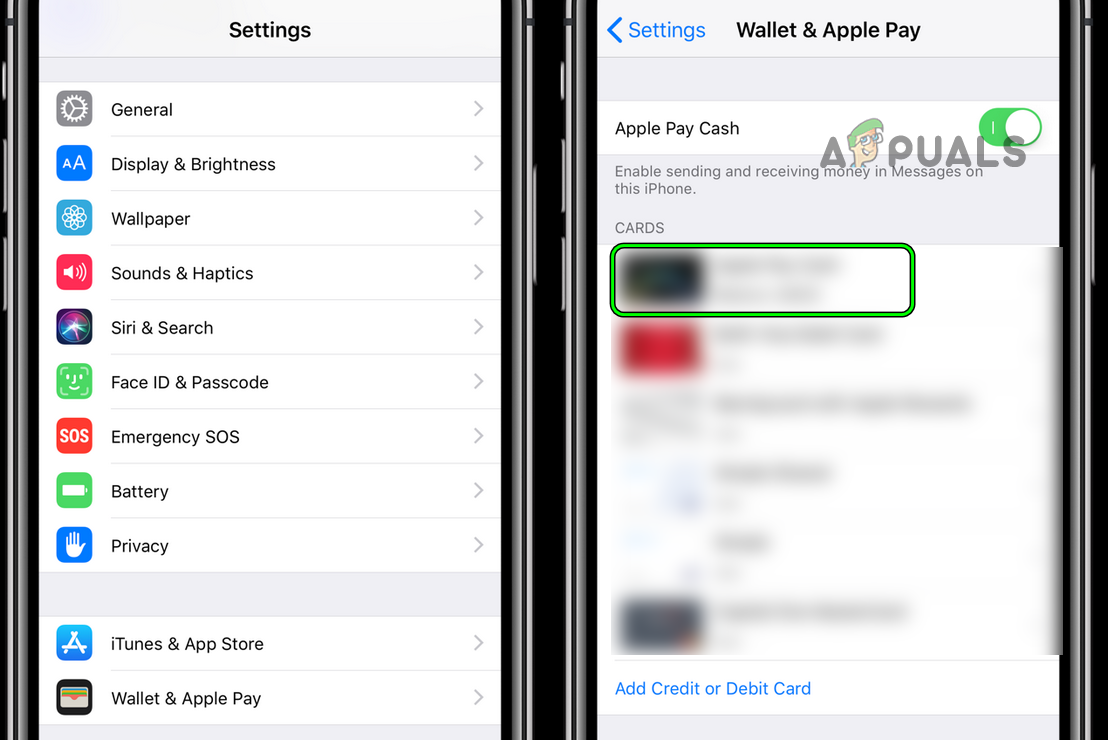
- Restart the iPhone and add it again.
5. Check for Hardware Issues (Rare)
Hardware problems are uncommon for this specific message. Consider this only if:
- Multiple different cards fail to add, and
- NFC payments also fail at terminals after setup.
If both occur, contact Apple Support or visit an authorized service provider for NFC diagnostics.
If It Still Fails
The most likely cause remains issuer restrictions. Call your bank again and confirm:
- Apple Pay is supported for your exact card type and region.
- No wallet token or digital wallet blocks exist.
- You have not exceeded the device token limit.
- Their system shows a provisioning attempt and what error code they see internally.
Most effective request: “Please remove all Apple Pay digital wallet tokens for this card and fully re-enable Apple Pay provisioning.”
In the majority of cases, a proper token reset by the issuer resolves the error.