Fix: PS5 “Can’t Connect to PlayStation Network” Error (CE-109506-1)
The “Can’t connect to PlayStation Network within the time limit. Error code: CE-109506-1“ on PS5 usually appears when your console has trouble establishing a stable connection with PlayStation Network servers. This prevents players from signing in properly and can stop online features from working.
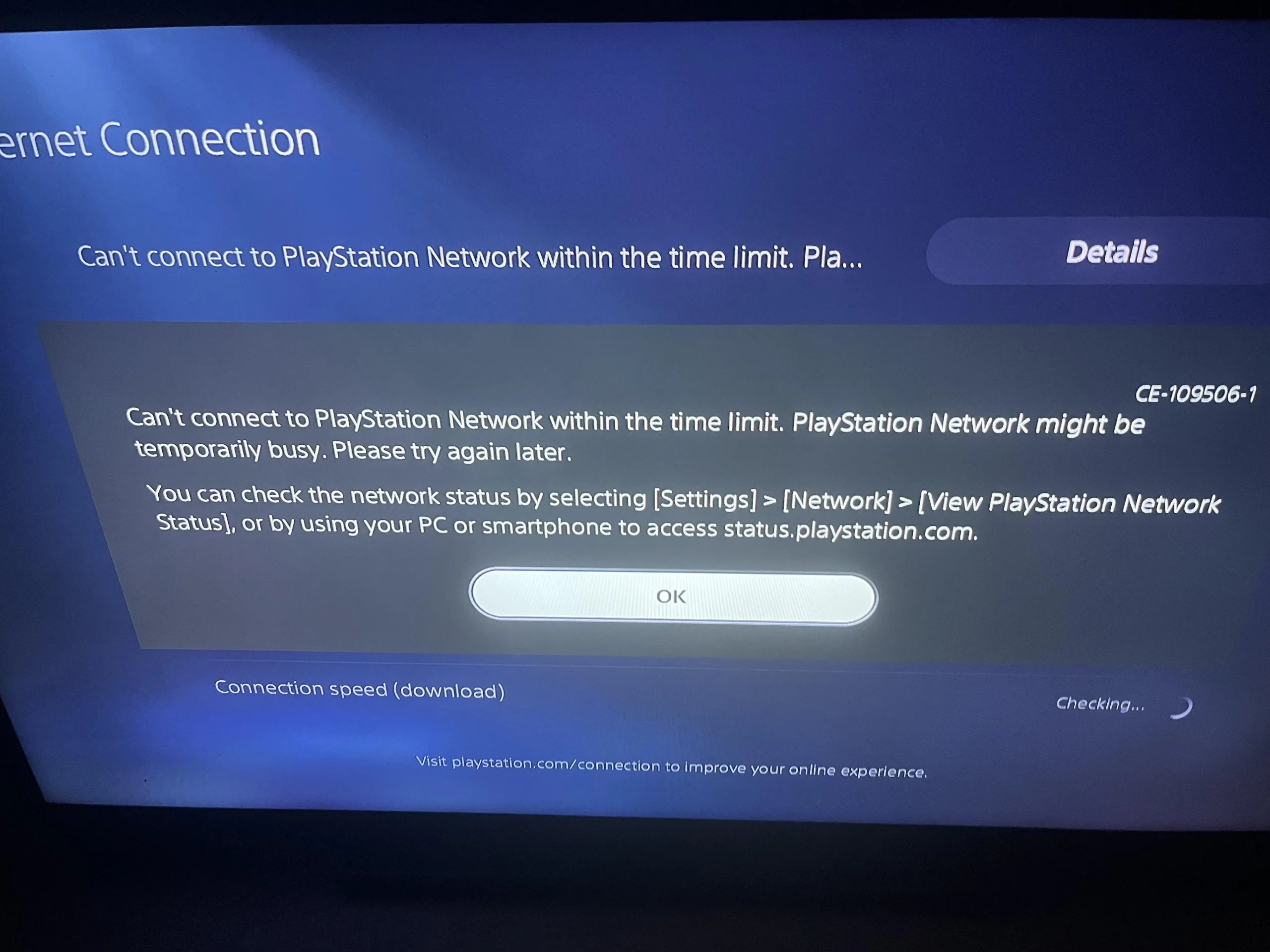
The most common reasons behind this error are a weak or unstable internet connection, DNS resolution issues, a PlayStation Network server outage, or an MTU (packet size) mismatch. Now that you are aware of the error and its causes, let’s go through the fixes below.
Basic Troubleshooting
- Check your Internet Connection: Make sure your internet connection is stable and strong enough to connect with PSN servers. A weak or unstable connection can cause timeouts. Use SpeedTest or Fast to check your internet speed.
- Restart your Wi-Fi Router: Restarting your router can refresh the connection, renew your local network session, and clear temporary glitches that may block your console from reaching PSN.
- Check PlayStation Server Status: The issue can also occur on PSN’s end. Visit the PSN Status page to confirm whether PlayStation Network services are working normally. If there is an outage, you may need to wait until the servers are restored.
- Try a Wired LAN Connection (if available): If you are on Wi-Fi, switching to a LAN cable can improve stability and reduce timeouts, especially if your wireless signal is weak or congested.
If these quick troubleshooting steps don’t resolve the issue, continue with the following solutions.
1. Switch to Mobile Data
This error can appear when your current network route, NAT session, or ISP path is unstable and causes the PS5 to time out while connecting to PSN. Switching to a different network (such as a mobile hotspot) gives your console a fresh network path and can immediately restore the connection.
Note: This is mainly a testing step to confirm whether the issue is linked to your home network or ISP. Mobile data can be consumed quickly during downloads, updates, and online gameplay.
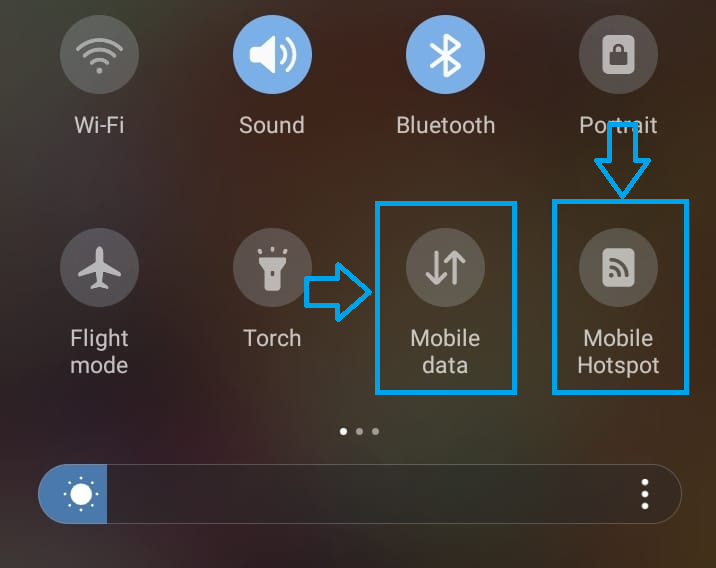
- Turn on Mobile Data and the Hotspot feature on your phone.
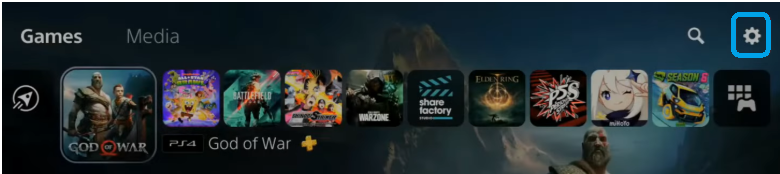
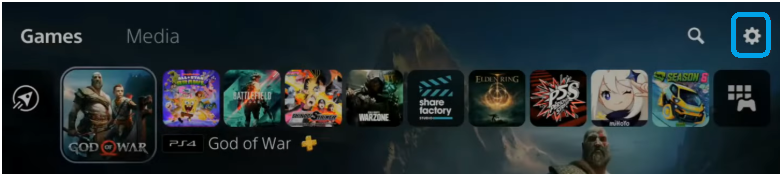
- On your PS5, click the Settings option in the main menu.
- Click the Network option.
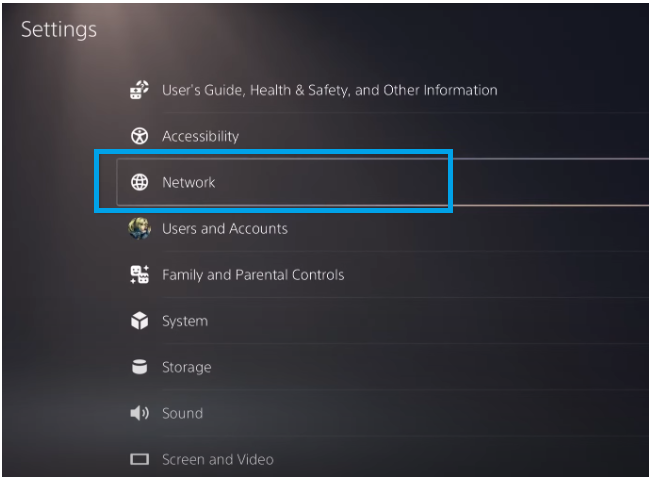
- Select your mobile hotspot connection and connect to it.
- After connecting, try signing in to your PSN account again and check if the error is resolved.
2. Switch to a Public DNS Server (Google or Cloudflare)
The error can also occur due to a DNS problem. If your current DNS server is slow, overloaded, or failing to resolve PSN services quickly, the console may time out while trying to connect. Changing your DNS to a public DNS provider like Google or Cloudflare can improve reliability.
Info: Google and Cloudflare DNS are widely used public DNS services. This change does not affect your PSN account, and you can switch back to Automatic anytime.
- Go to Settings on your PS5.
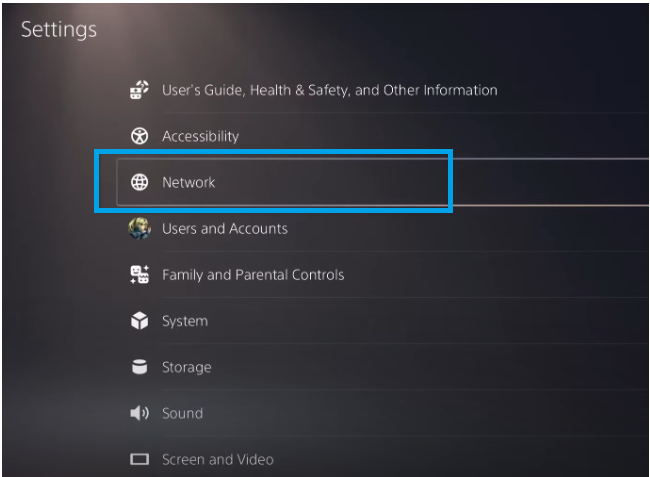
- Click on Network.
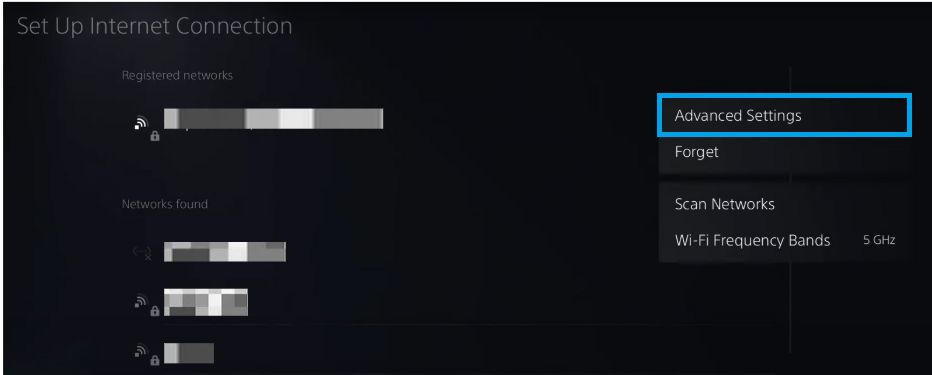
- Open the Advanced Settings of your connected network.
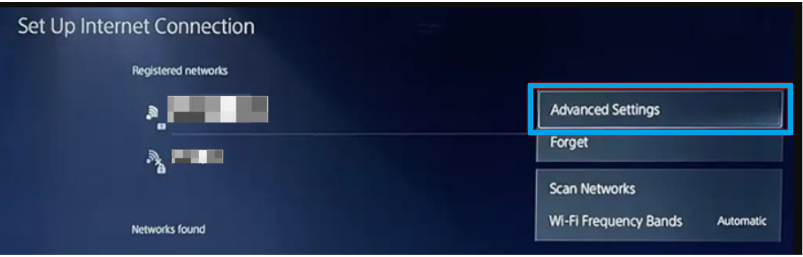
- Select Manual in DNS Settings.
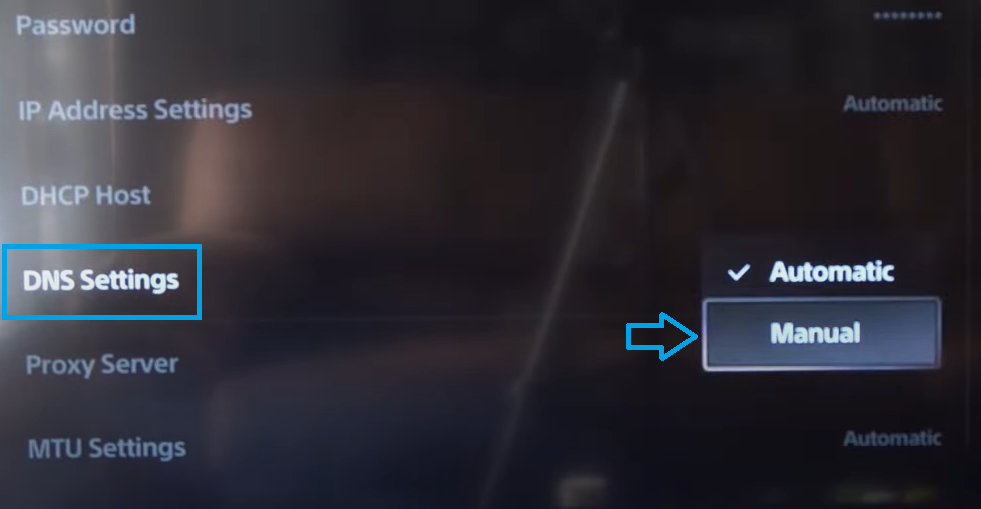
- Enter one of the following DNS options:
- Google DNS: 8.8.8.8 (Primary) and 8.8.4.4 (Secondary)
- Cloudflare DNS: 1.1.1.1 (Primary) and 1.0.0.1 (Secondary)
After saving the changes, reconnect to the network and try signing in to PSN again.
3. Set MTU to 1400 for Stable Packets
MTU (Maximum Transmission Unit) is the maximum packet size your PS5 will send over the network before the data needs to be split into smaller packets. If your network, router, or ISP route does not handle larger packets reliably, an MTU mismatch can cause timeouts, connection instability, or failed PSN sign-ins.
Setting MTU to 1400 can reduce packet fragmentation issues on certain connections and may improve stability when connecting to PSN. If needed, you can also test higher values such as 1450 or the default-style value 1500.
Tip: If you are unsure, you can always revert MTU back to Automatic after testing. This setting only affects your PS5’s network connection.
- Go to the Network settings on your PS5.
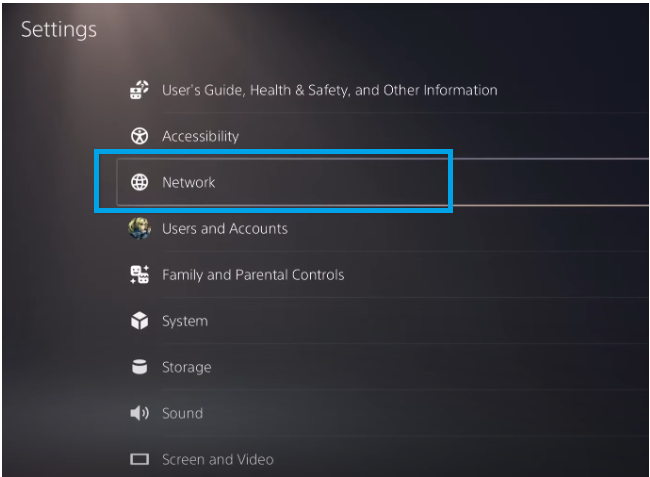
- Open the Advanced settings of your connected internet connection.
- Select Manual in MTU Settings.
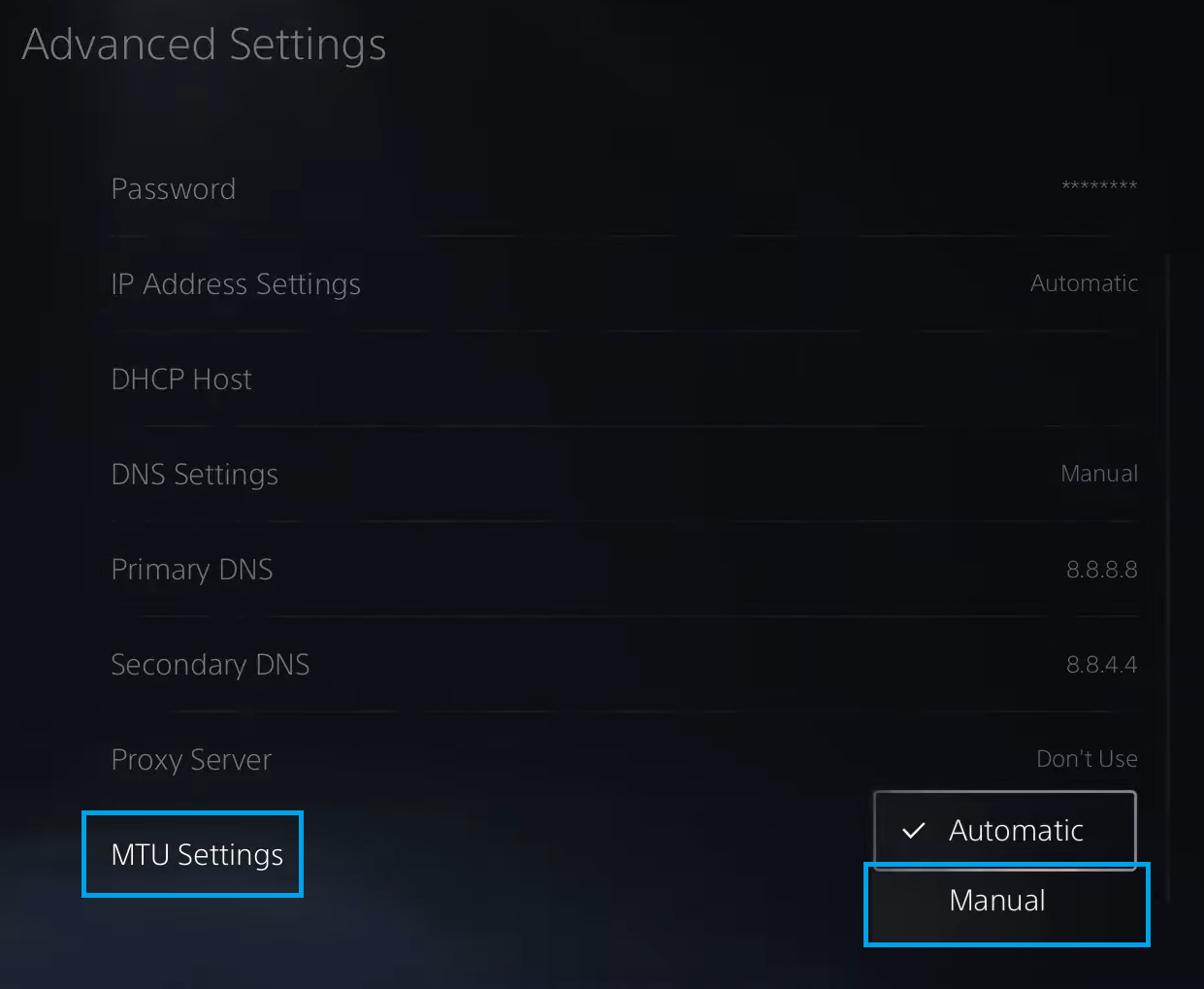
- Set the MTU to 1400. If 1400 doesn’t help, try 1450 or 1500 as well.
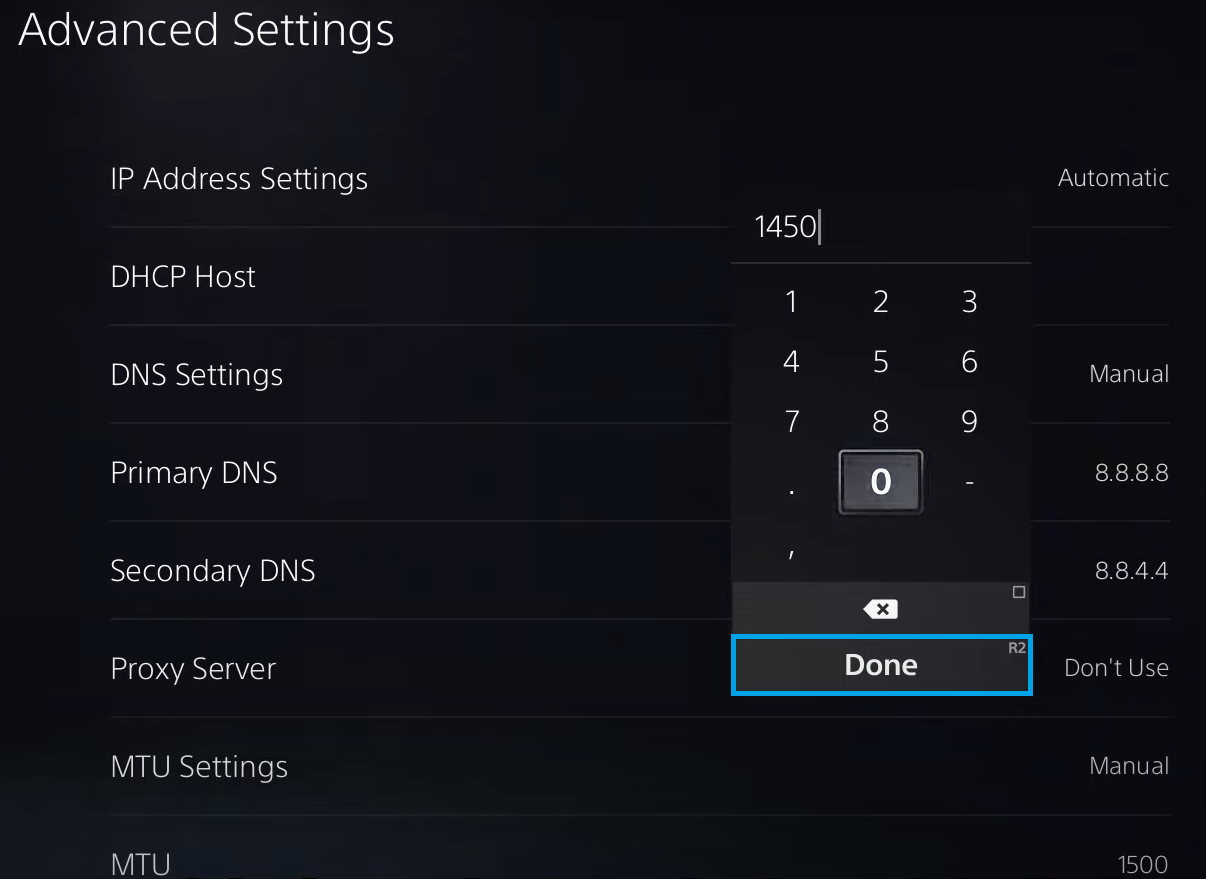
- Save the changes, reconnect to the network, and try signing in again to check if the error is resolved.
If the problem still continues: Try restarting your PS5, testing a wired LAN connection, and checking whether your ISP is blocking or throttling gaming services. If PSN works on other networks but not on your home internet, the issue is likely related to your router/ISP configuration (NAT restrictions, CGNAT, or filtering of gaming services).