How to Fix “Disconnected From The AnyDesk Network” Error
When you try to connect to another computer remotely using AnyDesk, you may encounter the error “Disconnected from the AnyDesk network”. This indicates that the application could not establish or maintain a connection with the AnyDesk network servers, which prevents the remote session from starting.
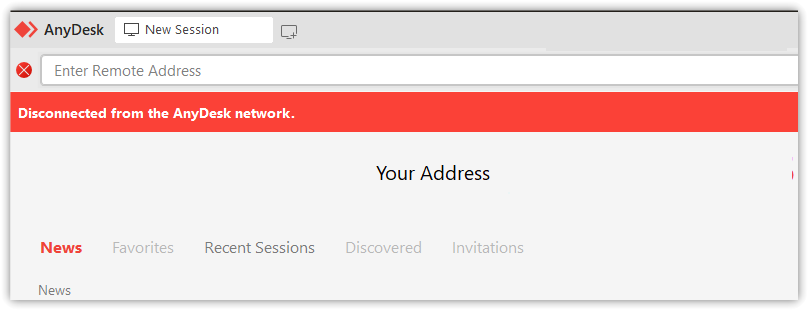
In most cases, this happens when network communication between your device and AnyDesk servers is interrupted. The interruption may be caused by firewall restrictions, antivirus interference, corrupted application data, incorrect system time, VPN or proxy usage, or temporary network instability.
Some managed networks such as offices, schools, or public Wi-Fi systems may also block remote access software. When this happens, AnyDesk cannot reach its servers and the connection attempt fails.
The methods below focus on restoring normal communication with the AnyDesk network so the remote session can be established successfully.
1. Allow AnyDesk Through Windows Firewall
Windows Firewall controls which applications can send or receive network traffic. If AnyDesk is blocked, the program cannot communicate with the servers required to establish a remote session.
Allowing the application through the firewall ensures that Windows does not block the required inbound and outbound network connections.
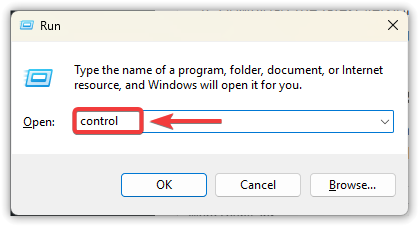
- Press Windows + R, type control, then press Enter.
- Navigate to System and Security → Windows Defender Firewall.
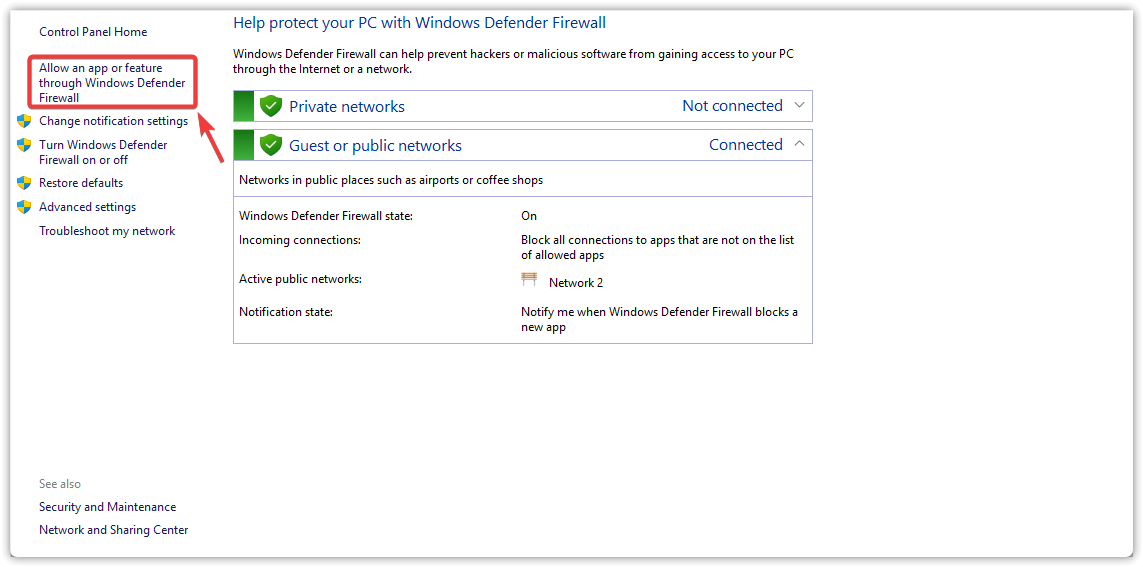
- Click Allow an app or feature through Windows Defender Firewall.
- Locate AnyDesk and enable both Private and Public.
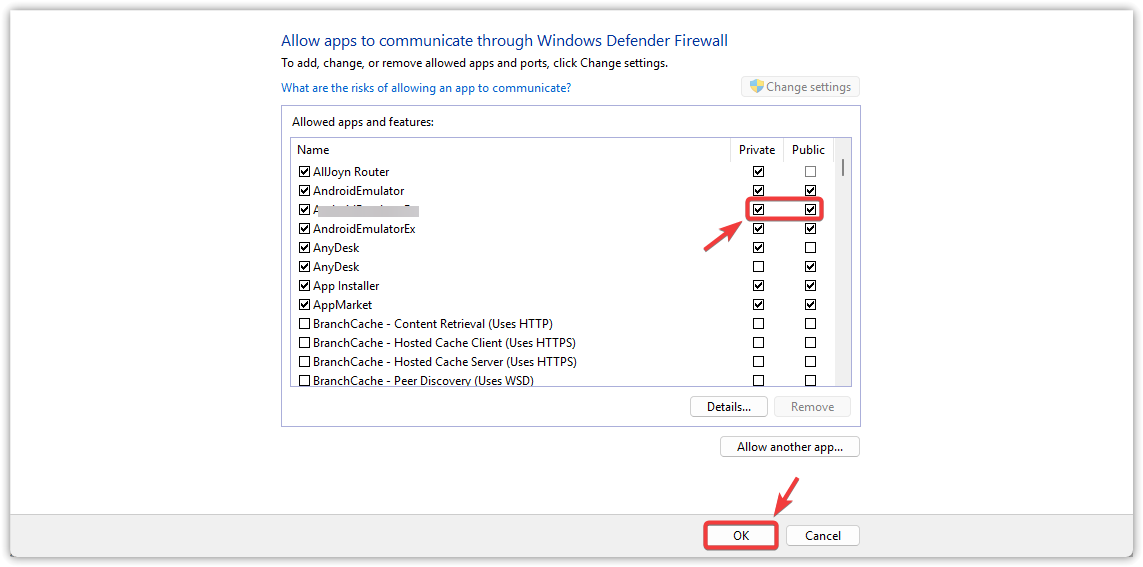
- Click OK, then restart AnyDesk.
2. Clean Reinstall AnyDesk
AnyDesk stores configuration files and connection cache locally on your system. If these files become corrupted after an update or incomplete installation, the client may open normally but fail to communicate with the network.
A clean reinstall removes damaged configuration data and installs a fresh copy of the application, which often restores normal connectivity.
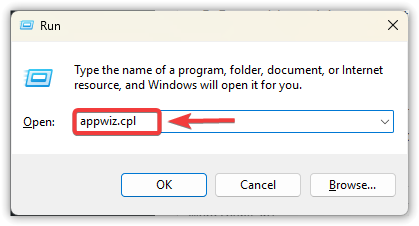
- Press Windows + R, type appwiz.cpl, then press Enter.
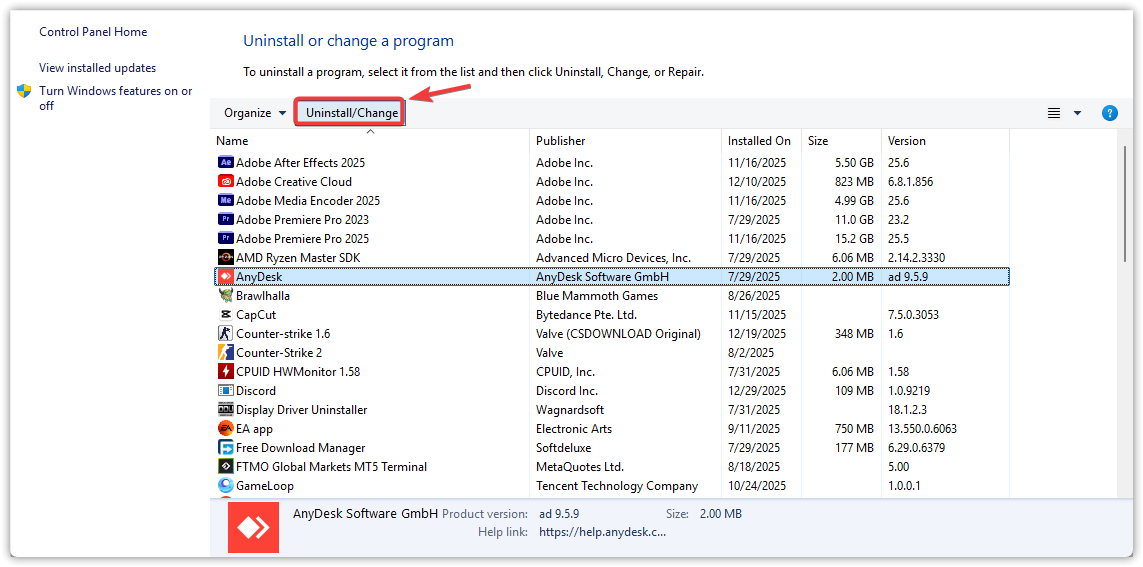
- Locate AnyDesk and uninstall it.
- Restart your computer.
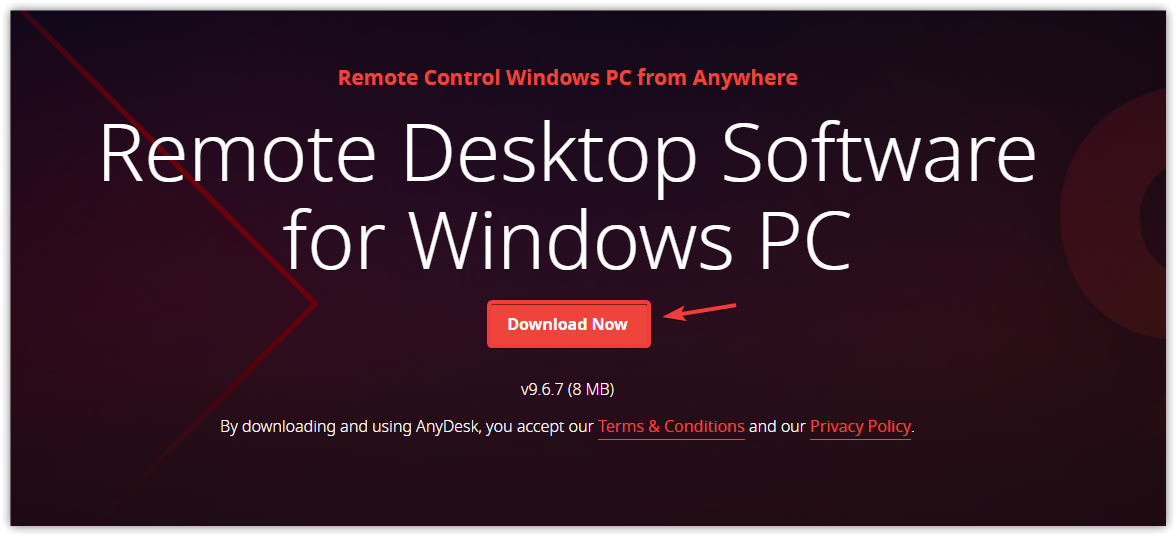
- Download the latest version from the official AnyDesk website.
- Install the program and attempt the connection again.
3. Temporarily Disable Antivirus Protection
Many antivirus programs monitor outgoing and incoming network activity. Some security tools classify remote access software as potentially suspicious behavior and may block or interrupt the connection process.
Temporarily disabling real-time protection can help determine whether the antivirus is interfering with the connection. If the connection works afterward, adding AnyDesk to the trusted or exclusion list usually resolves the issue permanently.
- Open your antivirus software or Windows Security.
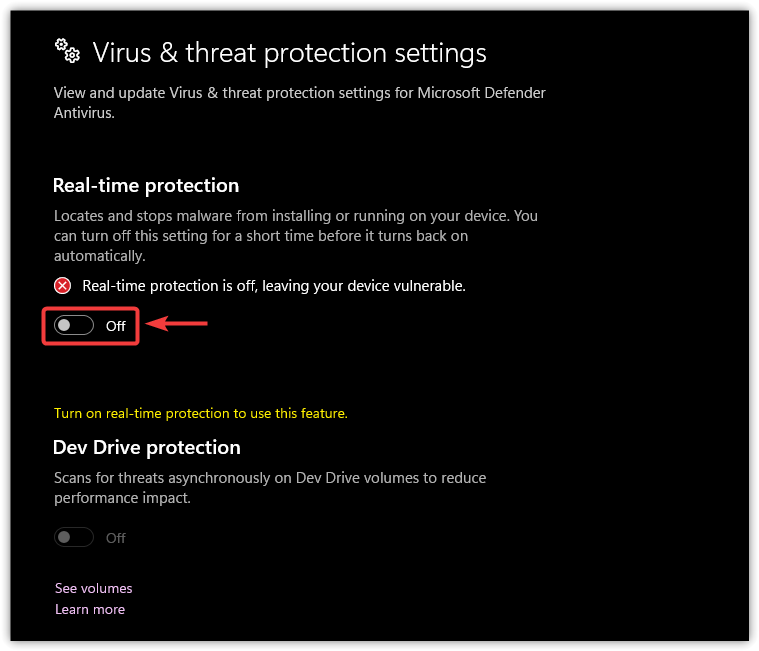
- Temporarily disable real-time protection.
- Launch AnyDesk and attempt the connection.
- If the connection works, add AnyDesk to the antivirus exclusions list.
- Re-enable antivirus protection.
4. Verify Your System Time and Time Zone
Incorrect system time can break secure network connections. Applications that use encrypted communication verify security certificates during connection setup. If the system clock differs significantly from the correct time, certificate validation may fail.
Ensuring that the system time and time zone are correct allows secure authentication to work properly.
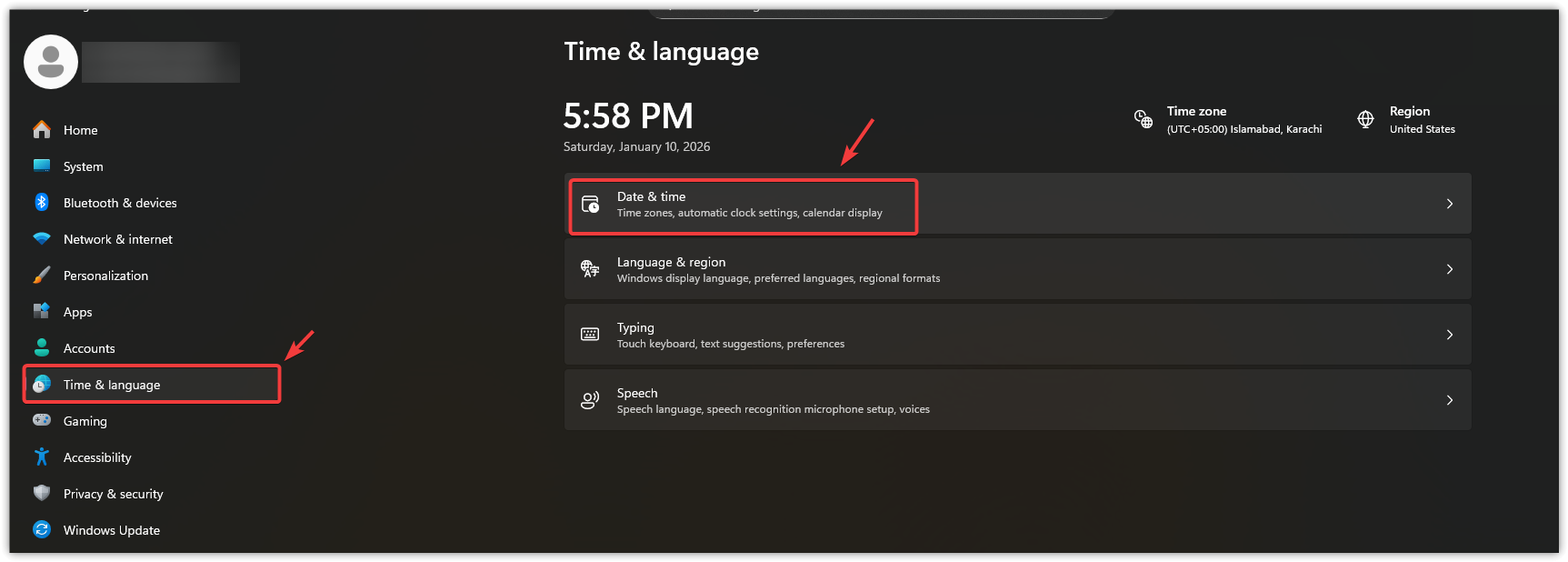
- Open Settings → Time & Language.
- Select Date & Time.
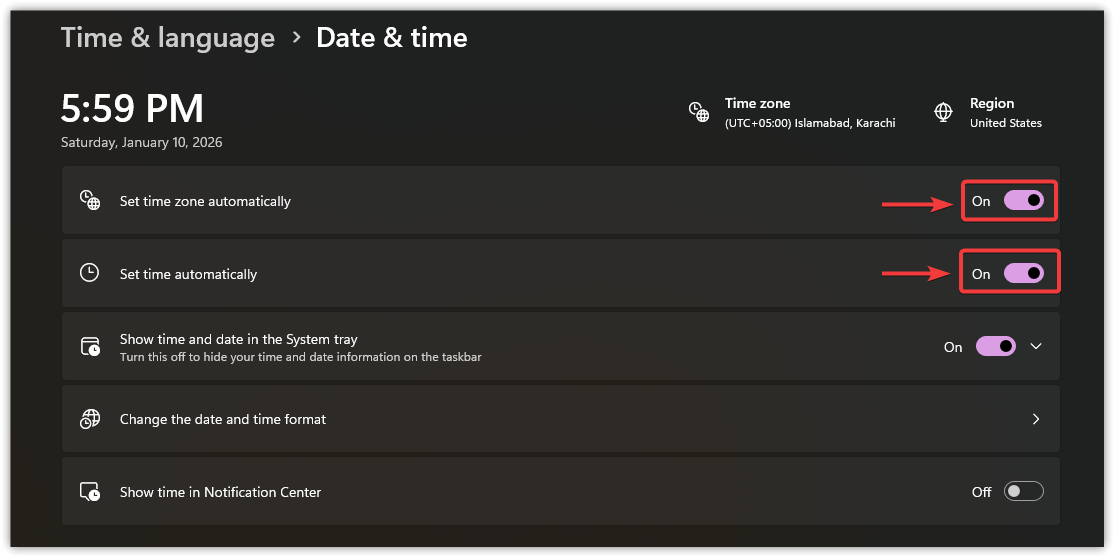
- Enable Set time automatically and Set time zone automatically.
- Restart AnyDesk and attempt the connection again.
If the problem continues, try connecting using a different network such as a mobile hotspot. This helps determine whether the issue is caused by restrictions on your current network. Some corporate, school, or public networks block remote access tools, which prevents AnyDesk from reaching its servers.