Fix: DNS_PROBE_FINISHED_NO_INTERNET

DNS_PROBE_FINISHED_NO_INTERNET tells us that there is no Internet Connection Available. So I assume, that you’re on this page from another device that has internet. The error is too general, it doesn’t tell us why, where, and how has it not got the internet, instead, it just says “no internet”. So to fix this issue, we will have to troubleshoot it as there is no straightforward fix but by the end of this guide, you should be able to fix it.

dns_probe_finished_no_internet

Method 1: Check Connectivity

Make sure that your router or whatever device is responsible for the internet, is receiving internet from your ISP. If it is a wi-fi device, then connect your phone or another wifi-enabled device to this router/modem and see if gets the internet. If it does, then the router is fine if it doesn’t then speak to your ISP because you’re not getting the internet.

If you are already connected to the internet from another device, check if google chrome is working fine on that device. If it’s working fine, then you don’t have connectivity issues, however, if it’s not working fine we suggest you restart your router. Once you verify that there are no connection issues from your router. You can check if everything else is working fine on your Computer. You can follow these steps below:

  1. Hold the Windows Key and Press X. Choose Command Prompt (Admin) or PowerShell (Admin).
  2. Once Command Prompt or PowerShell is opened, type the following command:-
    ping -t 8.8.8.8
  3. Press enter, and if your network is working fine reply should be like this:-
Reply from 8.8.8.8: bytes=32 time=42ms TTL=53

However, if the reply is any sort of error then your computer’s network configuration may have a problem. You can carry along with the methods below.

Method 2: Power Cycling your router

Just to double-check and make sure that your router isn’t the problem in this case. We can actually try to power-cycle our router and that should potentially fix this issue for you. Follow these steps below:

    Power off your modem and your router completely by switching them off.

  1. Wait 10 minutes and power them back on.
  2. Wait 1-2 minutes after powering it up now check to see if the issue persists.

If this doesn’t work for you, we can try to reset your Network Configurations.

Method 3: Resetting your Network Configurations

If the methods above didn’t work out for you, there is a chance that your Network configurations aren’t correct which is causing your Computer to not connect to the router successfully. We can reset your Network configurations by using CMD with commands. To reset your Network Settings properly, Follow these steps below:

  1. Hold the Windows Key and Press X. Choose Command Prompt (Admin) or PowerShell (Admin).
  2. Type the following commands one by one to reset your Network Settings.
netsh winsock reset
netsh int ip reset
ipconfig release
ipconfig /renew
ipconfig /flushdns

Restart your computer and check to see if the issue persists.

Method 4: Clearing Chrome’s Host Cache

Clearing the DNS Host cache of your Google Chrome client can help you with this issue as well. Your Google Chrome client holds a record of DNS entries to save looking them up every time which reduces the loading time of the website but sometimes bad cache can give you errors such as ERR_NAME_NOT_RESOLVED and ERR_CONNECTION_RESET. You can easily clear your Google Chrome’s cache, follow the steps below:

  1. Open your Google Chrome.
  2. In the URL Section put this URL and press Enter.
    chrome://net-internals/#dns
  3. This should open Google Chrome‘s Host resolver cache page. Now Simply click “Clear Host Cache”
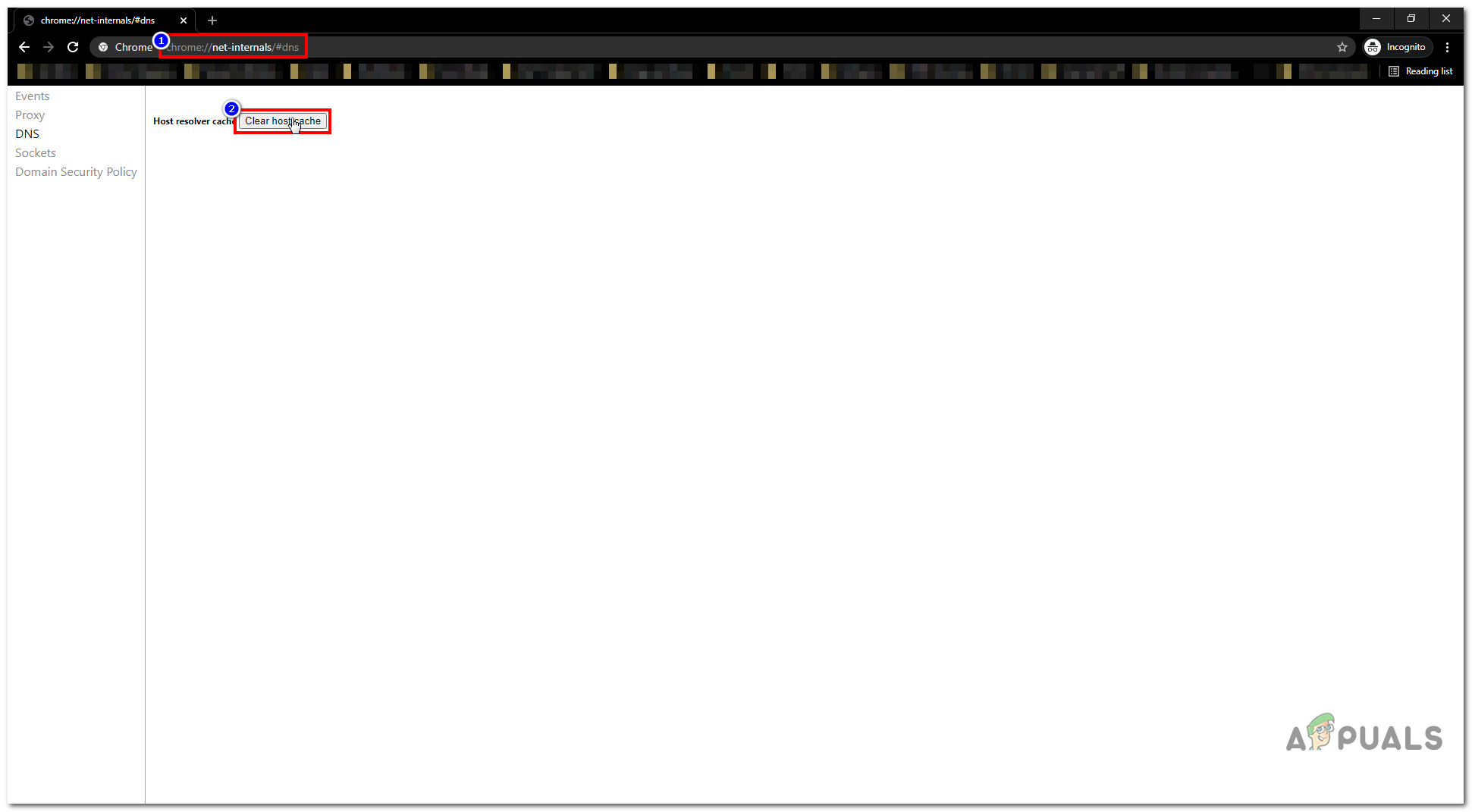
    Clearing Host cache
  4. Restart your Google Chrome and check to see if you can access the website again.

Method 5: Reset Google Chrome

This step is not technically related to what we did in previous steps, but I would still recommend performing these instructions below.

  1. Press and hold the Windows key and press R
  2. In the run dialog that opens up, type

If you are running Windows XP

%USERPROFILE%\Local Settings\Application Data\Google\Chrome\User Data\

If you are running Windows 7/Vista/8/8.1/10

%LOCALAPPDATA%\Google\Chrome\User Data\
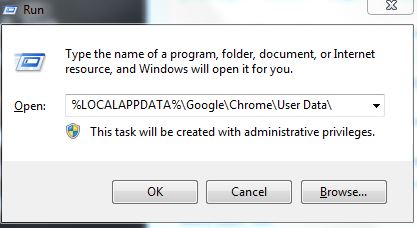
runchromereset

Click OK. This will open Windows Explorer with a bunch of folders, right-click the default folder, and select rename, rename this folder to default.old. If it tells you that Chrome is already in use, then save these steps, reboot your computer, and without opening Chrome perform these steps. After the default folder has been successfully renamed to default.old see if the issue is fixed by re-opening Chrome.

Conclusions

If you are still getting this issue and the website you are trying to load says Allow Chrome to Access the Network in Your Firewall or Antivirus Settings. It’s possible that your Firewall is blocking Google Chrome to access the internet. We have covered this issue in our extensive guide that you can follow over (here). That should definitely fix this issue for you.

ABOUT THE AUTHOR

Kevin Arrows


Kevin Arrows is a highly experienced and knowledgeable technology specialist with over a decade of industry experience. He holds a Microsoft Certified Technology Specialist (MCTS) certification and has a deep passion for staying up-to-date on the latest tech developments. Kevin has written extensively on a wide range of tech-related topics, showcasing his expertise and knowledge in areas such as software development, cybersecurity, and cloud computing. His contributions to the tech field have been widely recognized and respected by his peers, and he is highly regarded for his ability to explain complex technical concepts in a clear and concise manner.

Comments

42
    JI
    Jimmy Jul 6, 2015

    Excellent Guide. Issue resolved. Thanks a ton

    AN
    anna Jul 6, 2015

    step 2 fixed it.

    JO
    John Jul 7, 2015

    worked wonders, easy fix. Thanks Kevin

      KA
      K. Arrows Author Jul 23, 2015

      thanks

    ST
    Steve Jul 7, 2015

    How do i get to command prompt to run the commands?

      KA
      K. Arrows Author Jul 23, 2015

      hold windows key and press r and then type cmd

    DU
    Duke Jul 31, 2015

    Thank you for such a detail post. I believe that you could fix this internet problem on computer easily. However, all my PCs and laptops can connect to the home wifi, accept my Samsung Galaxy S5. I am desparate as there is no site on the internet explaining how to fix the internet problem on my phone 🙁
    the same problem

      KA
      K. Arrows Author Jul 31, 2015

      Have you tried doing a reboot on your phone and then attempting to connect to the Wi-Fi/Internet? Also make sure no apps are blocking your internet. If all other devices are working; then it definitely is an issue with the phone.

    KU
    Kumar Aug 11, 2015

    Step 2 solved the problem(on Windows 10). Thank you very much..

    MS
    Mara Sheldon Aug 28, 2015

    Hi, i have a strange version of this problem, the above solution works for 1 to 3 pings, and then goes back to ‘Request timed out ‘. The same thing happens when i disconnect and then reconnect to wifi, I can get the browser to display one page and then I get the DNS_ etc message again. Even though my wifi connection strength is ‘excellent ‘
    Please help. I’m going mad! 🙂

      KA
      K. Arrows Author Aug 28, 2015

      It appears to me that one of the programs on your system is blocking it. You can email me for remote support on kevinarrows@appuals.com

    LC
    LCG- CFL Aug 30, 2015

    I tried all of the steps but I am still getting the same error. I have tried using firefox, IE, and Chrome….same results. Meanwhile, all 14 other devices are working on the wi-fi and via ethernet. My Toshiba Satellite is running Windows 10 and I have all of my software on the computer but I an’t email documents because of this error. Please advise and I thank you for the post and in advance.

      KA
      K. Arrows Author Aug 30, 2015

      Please email me on kevinarrows@appuals.com

    AC
    Alex @ xndrtech.com Sep 10, 2015

    Yes!! Step 2 worked, thanks. Ive tried parts of step 2 from different guides but all the commands together worked

    CL
    Chris Lee Sep 18, 2015

    Hello Kevin,the step 2 was exactly what happened to me last night,Router/Modem Has The Internet,but google chrome/firefox and ie none of them worked,dns_probe_finished_no_internet i got the error last night while playing LoL, and i tried the step 2 today, it worked. Tysm Kevin <3!!!. May i ask u a question? what cause the issue? i am kinda confused..i am using laptop windows 7 64 wifi connecting to my home internet,my other laptops dont have the issue since it happened to me last night.

      KA
      K. Arrows Author Sep 18, 2015

      This happens due to one of your programs on your system.

        CL
        Chris Lee Sep 18, 2015

        it happened again just now…..what can i do? it worked for a day yesterday, but happened just now.

          KA
          K. Arrows Author Sep 18, 2015

          It is caused by one of your programs. You need to diagnose it to fix it; unfortunately without taking a look at the PC to see what programs are running and what they’re doing, it’s not possible to answer the question.

          CL
          Chris Lee Sep 18, 2015

          What software do i need to diagnose the issue from?please help me out 🙁
          btw, i am using winows 7 64 wifi connecting my home internet

          KA
          K. Arrows Author Sep 18, 2015

          There is no software to diagnose software’s; you need to assess the software’s running on your system to determine which one is causing the issue. You can try doing a clean boot.

          CL
          Chris Lee Sep 18, 2015

          What’s clean boot? what does it do? how does it work? i am so sry if i asked way too many questions…because i never met this issue since i bought the laptop(almost 5 years now), same softwares running on my systems everyday.

          KA
          K. Arrows Author Sep 19, 2015

          I sent you an e-mail. Thanks

          CL
          Chris Lee Sep 19, 2015

          didn’t receive it.

          KA
          K. Arrows Author Sep 19, 2015

          You can send me an email on kevinarrows@appuals.com

    RT
    Rob Tuzali Oct 3, 2015

    Hi , before i try the methods out i want to tell you that i wasted 10 hours trying to fix this error with no success until i reached here , and i ive seen i can tell what lights are in my router so maybe you can get the fix

    i cant connect to the internet from any devices , i’ve tried a normal PC , 2 laptops and 1 phone
    always the same – connnected without internet access [limited]

    and the router internet light is GREEN means the router is working , but however PC’s/mobiles cant connected , only limited access [w/o internet access] and i have to tell you , in the past when i expercienced this error , like a week ago or twice [the limited access/internet access error for like 2-3 mins , nothing serious] so the router intertnet light was RED ! and now its green but the error is on all devices and not for 2-3 mins .

    i hope you understand

    now i dont know whats going on thats why its weird

      KA
      K. Arrows Author Oct 4, 2015

      If none of your devices can receive internet from the router; then it’s not the devices issue or issue with settings; it is your router that’s not passing over the internet. I would suggest you do a small test which is to ping the IP ADDRESS via command prompt ping -t 4.2.2.2 and check results; if replies are received then it’s the DNS issue if no replies are received and it times out or fails; then the issue is with the router and you will need to speak to your ISP.

        RT
        Rob Tuzali Oct 4, 2015

        I just spoke with my ISP and they reset my router settings , they said they see the router is working fine and connected to multiple devices [2 laptops with WIFI] , but they also said they cant see a internet connected to my regular PC with a cable .. which is weird because the issue started in my PC !! when this issue started the skype/steam/other programs worked well , only the browser didnt work ! so i tried to write in cmd some commands and now its worse i believe

        anyway i tried now the ping -t 4.2.2.2 and the results are : “PING : Transmit failed . General Failure” – spam

        my ISP told me an expert will contact me soon , what do you think ?

          KA
          K. Arrows Author Oct 4, 2015

          Let them contact and then we see what happens. Some applications block http traffic, peerblock for example. These cause pings to fail via the “General Failure” error message. Make sure you’re firewalls and other third party applications are off.

        RT
        Rob Tuzali Oct 4, 2015

        2 posts the same – Edited

    N(
    nguyên nguyễn thảo (law) Oct 11, 2015

    Thank u sooooooooo much!

    SA
    Sam Oct 14, 2015

    Hi, I get that error when trying to launch a browser on my android phone, although I’m connected to the network (said network is working perfectly fine from my laptop and desktop). How can I solve that issue?

      KA
      K. Arrows Author Oct 15, 2015

      Reset your phone and update the DNS of your phone. You can use the ones mentioned above.

    AL
    Alan Nov 17, 2015

    Hi, tried method 1, no result from ping, moved on to method 2, gotcha! Sorted!!! Thanks a million for the help.

    GM
    gautam michell Nov 20, 2015

    method 2 and 3 worked for me.thanks a lot bro….

      KA
      K. Arrows Author Nov 21, 2015

      Welcome

    MI
    Mike Nov 25, 2015

    I did all of Step 2, but it only worked for a few minutes. I’m only able to load one page, then I get the error again. If I only do the release and renew steps it fixes the problem, but only temporarily. Other devices work, only my laptop is having issues. What do you think?

      KA
      K. Arrows Author Nov 25, 2015

      One of your programs appears to be doing this. Start computer in a clean boot mode, and then apply the fix.

        SJ
        Saket Jain Dec 4, 2015

        I am having a similar problem.

        Can you please suggest how to find the errant program? And what do you mean by “clean boot mode”?

          KA
          K. Arrows Author Dec 4, 2015
    FM
    Fares Mg Mar 20, 2018

    best fix is In the black command prompt, type: ipconfig/release & ipconfig/renew
    but remmber to use open by admin power,,, 🙂 palestine#hero

    TS
    Tsueg Apr 17, 2018

    Command prompt section for the win! Thank you!!

    LA
    lagertron Dec 18, 2018

    I fixed it with setting my ethernet primary dns to 8.8.8.8 secondary to 8.8.4.4 but making sure wifi was set to the same , make sure you have both set to the same .

Leave a comment